Send your first email, SMS or push with Appwrite Messaging_
Connect an email provider and send your first email to one of your users from the Appwrite Console, then add SMS and push when your app needs them.

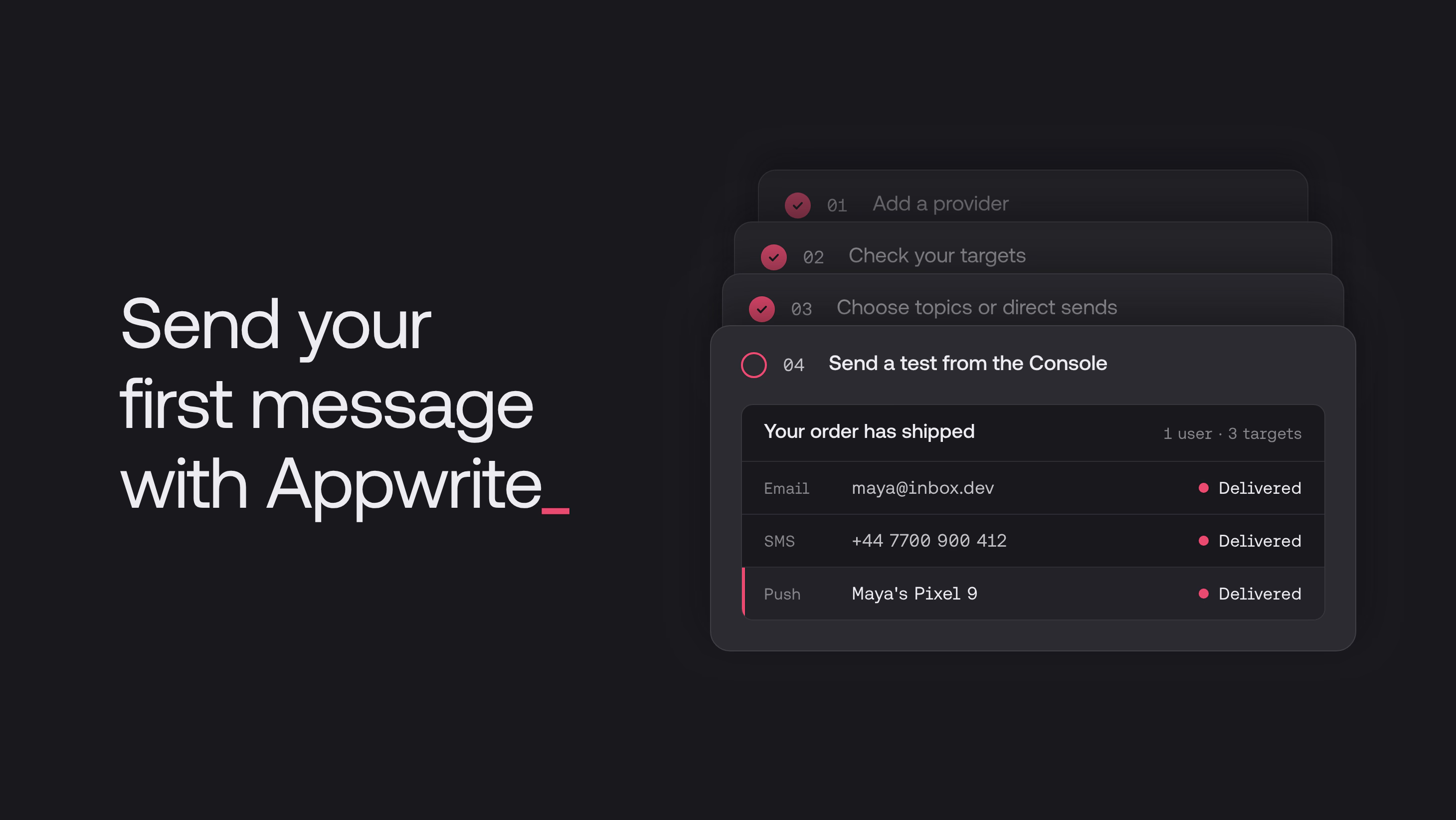
Appwrite Messaging sends email, SMS and push notifications to your users through one API. You connect the service that delivers them, called a provider, and Appwrite takes care of sending.
This guide starts with email. In a few minutes you'll have an email provider connected and your first email delivered to one of your users, all from the Console and without changing your app.
You need an Appwrite project and an account with an email service, such as Resend, SendGrid, Mailgun, Amazon SES or any SMTP server, with a domain you verified there. If you don't have a project yet, create one in the Console.
Step 1: Add an email provider
- In the Console, open Messaging > Providers and click Create provider.
- Under Email, pick your service.
- Give the provider a name and fill in your service's credentials.
- Set Sender name to your app's name and Sender email to an address on the domain you verified.
- Click Create provider.
Your provider now shows Enabled in the Providers tab. The provider docs list the fields for each service.
Step 2: Send your first email
Every user who signs up with an email address can get email from Messaging. To try it on yourself first, create a user with your own email address in Auth > Users.
- Open Messaging > Messages, click Create message and choose Email. The Console opens a new draft.
- Write a subject and a body.
- Under Users, click Add and pick the user to send to.
- Click Update draft to save it.
- Click Send message, then Send.
Step 3: See it delivered
Go back to Messaging > Messages. Your email shows Sent, and Delivered at tells you when it went out.
Sent means your provider accepted the email. Check your inbox for your first Appwrite email.
Step 4: Send to a group
When the same email goes to many users, such as product updates or a weekly digest, send it to a topic: a named list of subscribers you reach in one send.
- Open Messaging > Topics, click Create topic and give it a name.
- On the topic's Subscribers tab, click Add subscriber, select your users' email addresses and click Save selection.
- In your next message, click Add under Topics and pick the topic.
Your app can also let users subscribe themselves. The topics docs show how.
Keep building
Your email provider now works for every user in your project. SMS works the same way: add an SMS provider, then send to users who have a phone number. Push also needs your app to register each device, and the push guide shows how.
When your app needs more channels, or you want to send from your own code, these guides walk you through each one:
For email: Mailgun, Resend, SendGrid, Amazon SES and any SMTP server. For SMS: Twilio, MSG91, Telesign, Textmagic and Vonage. For push: Firebase Cloud Messaging and Apple Push Notification service. See the providers docs.
No. Every user who signs up with an email address, or who you create with one in the Console or the Users API, can receive email from Messaging right away.
Yes. Call messaging.createEmail, createSms or createPush from a server SDK or an Appwrite Function, with an API key that has the messages.write scope. Send email messages shows the code.
Yes. In the Console, save your draft, click Schedule and pick a time. From a server SDK, pass scheduledAt with a future date when you create the message.