Announcing LDAP login: Sign in with your directory_
Appwrite Auth now supports LDAP login. Users sign in with their Active Directory or OpenLDAP username and password, with group restrictions and attribute mapping.

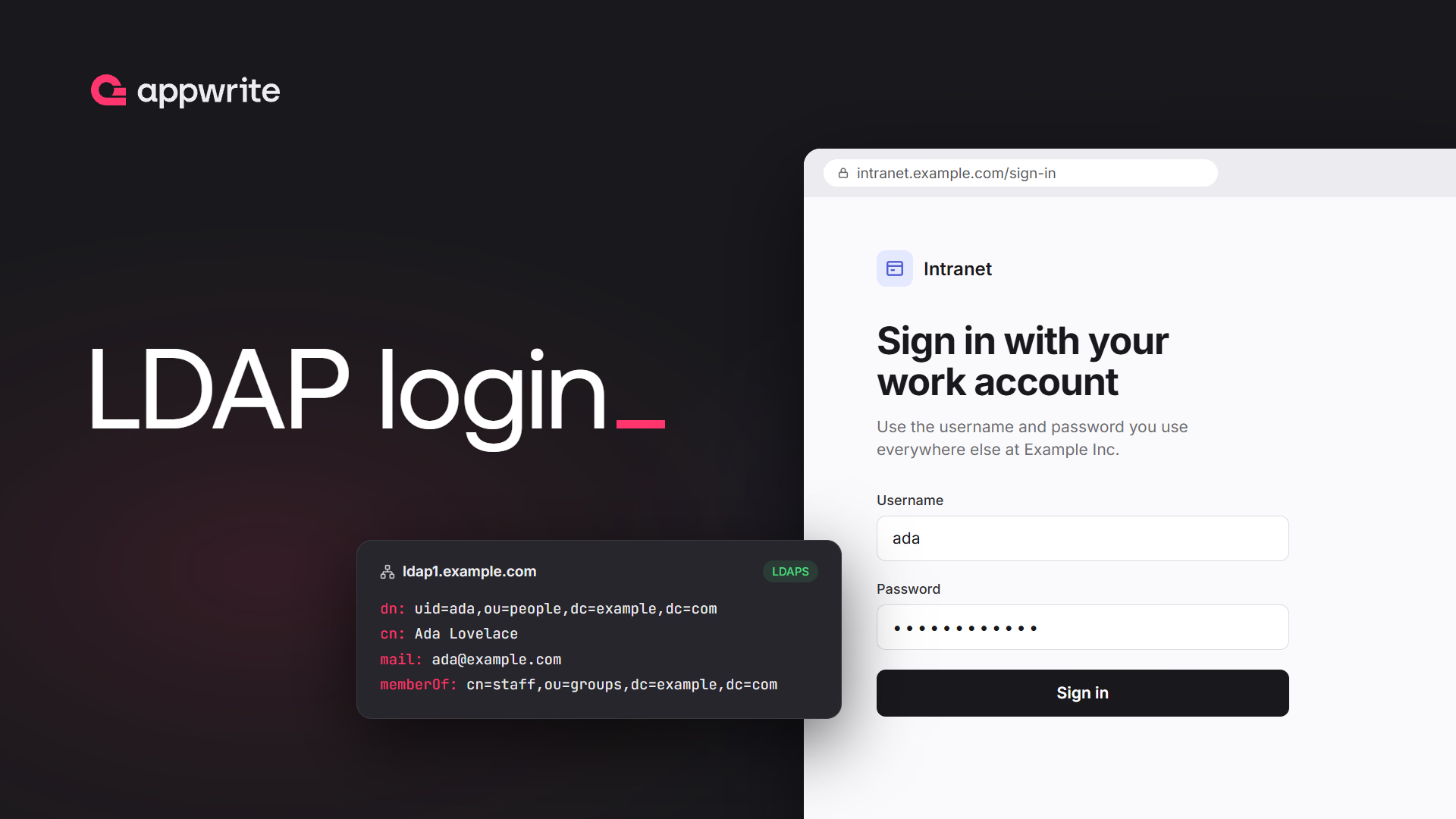
Plenty of apps start with email and password, and then a customer asks a different question: can our people sign in with the account they already have? For a company or a school that runs Active Directory or OpenLDAP, the directory is the source of truth for who belongs there. A school gives every student an account to sign in to its computers and save their work. If the same username and password also open your app, there is nothing new to hand out or remember. A separate password for your app is one more credential to manage, and when someone leaves, it is one more account somebody has to remember to close.
Until now, connecting Appwrite to a directory meant building it yourself: a function that binds to LDAP, checks the password, and mints a custom token. That works, but you own the connection handling, the TLS setup, the group checks, and every edge case in between.
Today, we are announcing LDAP login for Appwrite Auth. Users sign in to your app with their directory username and password, and Appwrite checks them against your directory.
What LDAP login gives you
- Directory credentials, not new passwords. The directory checks the password on every sign-in, and Appwrite never stores it.
- Active Directory, OpenLDAP, and other LDAP directories. Connect over LDAPS or StartTLS, verify the directory's certificate, and list up to 10 hosts that Appwrite tries in order.
- Group restrictions. Limit sign-in to the members of one group, checked on every sign-in, including nested Active Directory groups.
- Accounts that follow the directory. The first sign-in creates an Appwrite account from the directory entry, and later sign-ins keep its name, email, and phone number in sync.
- Flexible lookups. A user filter decides what users type: a login name, an email address, or either.
- A connection test that names the problem. Run a sign-in's steps from the Console and see which one fails and why, without asking anyone for their password.
- Everything else in Appwrite Auth. LDAP sessions work with MFA, teams, permissions, and session limits like any other sign-in.
Connect your directory in the Console
LDAP lives under Settings > Identity servers > LDAP in your project. The settings follow the order you think about a directory in:
- Connection. Your directory's hosts, the encryption, and the certificate to trust. Pasting an LDAP URL, such as
ldaps://ldap.example.com/dc=example,dc=com, fills in the host, encryption, port, and base DN for you. - Directory. The base DN to search under, and a read-only service account that can search it. The bind password is write-only: Appwrite never returns it, and asks for it again whenever you change how it reaches or trusts the server.
- Sign-in rules. The user filter that finds the person signing in, and an optional group they must belong to.
- Attribute mapping. Which attributes hold each user's ID, email, name, and phone number.
The defaults fit OpenLDAP: (uid={username}) to find users, entryUUID as the ID, mail for the email, and cn for the name. For Active Directory, the Console shows the values to use next to Sign-in rules: (sAMAccountName={username}), objectGUID, and displayName.
You can configure the same settings with a server SDK and an API key with the project.ldap.write scope, which suits teams that keep their project setup in code.
Test before you turn it on
Directory settings fail in specific ways: a firewall that drops the connection, a certificate signed by an internal authority, a base DN with a typo, a filter that matches two people. Test connection walks through a sign-in step by step and stops at the first step that fails, with a message that says which one.
With no username, it connects, binds as your service account, and reads the base DN. Add a username to also find the user and check the required group, and a password to also check the password.
When you turn LDAP on from its settings, Appwrite runs the first part of that check. It connects, binds as the service account, and reads the base DN, and repeats the check on every change while LDAP is on. It doesn't look anyone up, so before you turn LDAP on, run the test with the username and password of a test account set up like your users' accounts.
The test also helps once people are signing in. A user whose sign-in fails only sees a generic error, because the details would tell an outsider about your directory. Test with their username to see whether the filter finds them and whether they are in the required group. That needs no password, so you never ask anyone for theirs. To check the password step, use your test account.
Sign in with one call
On the client, LDAP login is one call with the username and password the user enters:
import { Client, Account } from "appwrite";

const client = new Client()
    .setEndpoint('https://<REGION>.cloud.appwrite.io/v1') // Your API Endpoint
    .setProject('<PROJECT_ID>');                           // Your project ID

const account = new Account(client);

const session = await account.createLDAPSession({
    username: 'ada',
    password: 'password'
});
import 'package:appwrite/appwrite.dart';

final client = Client()
    .setEndpoint('https://<REGION>.cloud.appwrite.io/v1') // Your API Endpoint
    .setProject('<PROJECT_ID>');                           // Your project ID

final account = Account(client);

final session = await account.createLDAPSession(
    username: 'ada',
    password: 'password',
);
import io.appwrite.Client
import io.appwrite.services.Account

val client = Client(context)
    .setEndpoint("https://<REGION>.cloud.appwrite.io/v1") // Your API Endpoint
    .setProject("<PROJECT_ID>")                            // Your project ID

val account = Account(client)

val session = account.createLDAPSession(
    username = "ada",
    password = "password",
)
import Appwrite

let client = Client()
    .setEndpoint("https://<REGION>.cloud.appwrite.io/v1") // Your API Endpoint
    .setProject("<PROJECT_ID>")                            // Your project ID

let account = Account(client)

let session = try await account.createLDAPSession(
    username: "ada",
    password: "password"
)
import { Client, Account } from 'react-native-appwrite';

const client = new Client()
    .setEndpoint('https://<REGION>.cloud.appwrite.io/v1') // Your API Endpoint
    .setProject('<PROJECT_ID>');                           // Your project ID

const account = new Account(client);

const session = await account.createLDAPSession({
    username: 'ada',
    password: 'password'
});
The result is a regular Appwrite session. Users who turned on multi-factor authentication complete a second factor next, as they would after an email and password sign-in, and server-side rendered apps create the session from the server as in SSR login.
Group restrictions and offboarding
A required group turns your directory into the access list for your app. Set it to cn=staff,ou=groups,dc=example,dc=com, and only the members of that group can sign in. Appwrite asks the directory itself whether the user is a member, so it works with groupOfNames, groupOfUniqueNames, and POSIX groups, and with Active Directory, including nested groups.
The group is checked on every sign-in, not only the first. When someone leaves the group or the directory, their next sign-in fails. Sessions they already have stay valid until they expire, so to cut access immediately, delete the user's sessions or block them under Auth > Users.
Accounts that stay in sync with the directory
The first time someone signs in, Appwrite links their directory entry to an account by the entry's ID attribute, an identifier that survives renames and moves. If an account already has the entry's email address, Appwrite links that account instead of creating a duplicate, the same way an OAuth2 sign-in with a verified email does. The link shows up as an identity with the provider ldap on the user's Identities tab.
On every sign-in after that, the account's name, email address, and phone number follow the directory. If someone changes their name in Active Directory, your app shows the new one the next time they sign in. An address or number that another account already uses is skipped, and a phone number the user verified for MFA stays as it is.
Built not to leak your directory
A sign-in endpoint is public, so LDAP login is careful about what it tells the caller:
- One error for every refusal. An unknown username, a username that matches two entries, a wrong password, and a missing group membership all return
user_invalid_credentials, so nobody can probe your directory for valid usernames. - No filter injection. The username is never pasted into the filter as text, so typing
*or)(can't widen what the filter matches. - Directory details stay with admins. A directory failure returns a generic error to the caller. The detailed message, with hosts and DNs, only appears to you, in the connection test and when you save your settings.
- Rate limits per username. Each username can fail 10 sign-ins per hour, and each IP address 100.
When to reach for LDAP login
LDAP login fits when a directory is the system of record for your users:
- Internal tools and employee portals, where everyone who should get in is already in Active Directory or OpenLDAP.
- B2B apps sold to companies that run their own directory, where IT wants access to follow group membership.
- Schools and universities, where every student already has a directory account for the school's computers and signs in to your app with the same username and password.
If your users sign in through a cloud identity provider such as Microsoft Entra ID or Okta, an OAuth2 provider is usually the better fit. LDAP login is for when the directory itself is what you have.
LDAP login is available on Appwrite Cloud today, and is coming to self-hosted Appwrite soon. Appwrite Cloud connects to your directory over the internet, so expose it over LDAPS. If you sign its certificate yourself, paste the certificate to trust into the LDAP settings. Enterprise teams that need a private connection, such as a VPN, can contact us.
Getting started with LDAP login in Appwrite
Open your project, go to Settings > Identity servers > LDAP, connect your directory, and test it with a test account before you turn it on. The docs cover every setting, the Active Directory values, and the errors to expect.
LDAP login lets users sign in to your app with the username and password from your organization's LDAP directory, such as Active Directory or OpenLDAP. Appwrite checks the password against the directory, creates an Appwrite account from the user's directory entry on the first sign-in, and keeps its name, email, and phone number in sync with the directory. See the LDAP login docs.
Yes. Set the user filter to (sAMAccountName={username}), the ID attribute to objectGUID, and the name attribute to displayName. Required groups work with Active Directory's memberOf, including nested groups.
No. Appwrite proves the password by binding to the directory as the user, and never stores it. The directory password also doesn't work with email and password login on the same account.
Yes. Set a required group DN, such as cn=staff,ou=groups,dc=example,dc=com, and only its members can sign in. Appwrite checks membership on every sign-in, and it works with groupOfNames, groupOfUniqueNames, POSIX groups, and Active Directory groups.
Their next sign-in fails, because the directory no longer finds them or they are no longer in the group. Sessions they already have stay valid until they expire, so delete their sessions or block the user in the Appwrite Console to sign them out right away.
No. Appwrite Cloud connects to your directory over the internet and refuses hosts that resolve to private addresses. Expose the directory over LDAPS, which encrypts the connection. If you sign its certificate yourself, paste your certificate authority's root certificate, or the self-signed certificate, into the LDAP settings, and Appwrite checks that it is talking to your directory before it sends any password. Enterprise teams that need a private connection, such as a VPN, can contact us.
Yes. An LDAP sign-in counts as the password factor, so users who turned on MFA complete a second factor next, as they would after an email and password sign-in.