Introducing the terminal command in the Appwrite CLI_
The new terminal command in the Appwrite CLI opens your project in an interactive terminal UI to browse resources, query rows, run functions, and watch usage.

The Appwrite CLI is where many teams deploy functions, push table schemas, and script against the API. It's less comfortable for looking around. Checking what's in a table means chaining list-databases, list-tables, and list-rows with IDs copied between them, and reading a function's last few executions means another round of the same. Most of the time, the faster option was to open the Console in a browser, which pulls you out of the terminal you were already working in.
Today, we are introducing the appwrite terminal command, an interactive interface for your Appwrite projects that runs inside your terminal. Run one command, and your organizations, projects, and every resource in them are a few keystrokes away, with live usage alongside.
What appwrite terminal gives you
- One command, no new setup. It signs in with your existing
appwrite loginor a stored API key, and opens the project in yourappwrite.config.jsonwhen you run it inside a project directory. - A project overview with usage. Resource counts, requests, bandwidth, reads, writes, and executions over the last 24 hours, plus the routes your project serves most.
- Every core resource. Databases, tables, rows, columns, indexes, functions, executions, deployments, variables, sites, buckets, files, users, sessions, teams, memberships, messages, topics, subscribers, and providers.
- Queries in place. Filter and sort a table's rows with a short expression such as
status=open sort:-total. - Actions, not just views. Edit and create rows in your
$EDITOR, execute functions, download files, and delete rows, files, sessions, or subscribers behind a typed confirmation. - Live updates. The page on screen refreshes every 5 seconds, so new rows and executions appear as they happen.
- Cloud and self-hosted. It connects to whichever instance your CLI is signed in to, with a light, dark, or automatic theme.
Get started in two commands
appwrite terminal ships in Appwrite CLI 28.13.3 and later. Update your CLI, sign in, and open the interface:
appwrite login
appwrite terminal
With a console login, you land on your organizations and can open any project you have access to. To go straight to a project, pass its ID, or run the command inside a directory with an appwrite.config.json:
appwrite terminal --project-id "<PROJECT_ID>"
For a self-hosted instance, sign in with appwrite login --endpoint "<URL_HERE>" first. To work without a console login, store a project's API key with appwrite client --key "<API_KEY>" and pass --project-id. The interface shows what the key's scopes allow, and the usage.read scope adds usage.
A tour: from a traffic spike to the rows behind it
The quickest way to see what appwrite terminal does is to follow one investigation through it. Say your shop's API traffic jumped overnight and you want to know why.
Start from the project overview
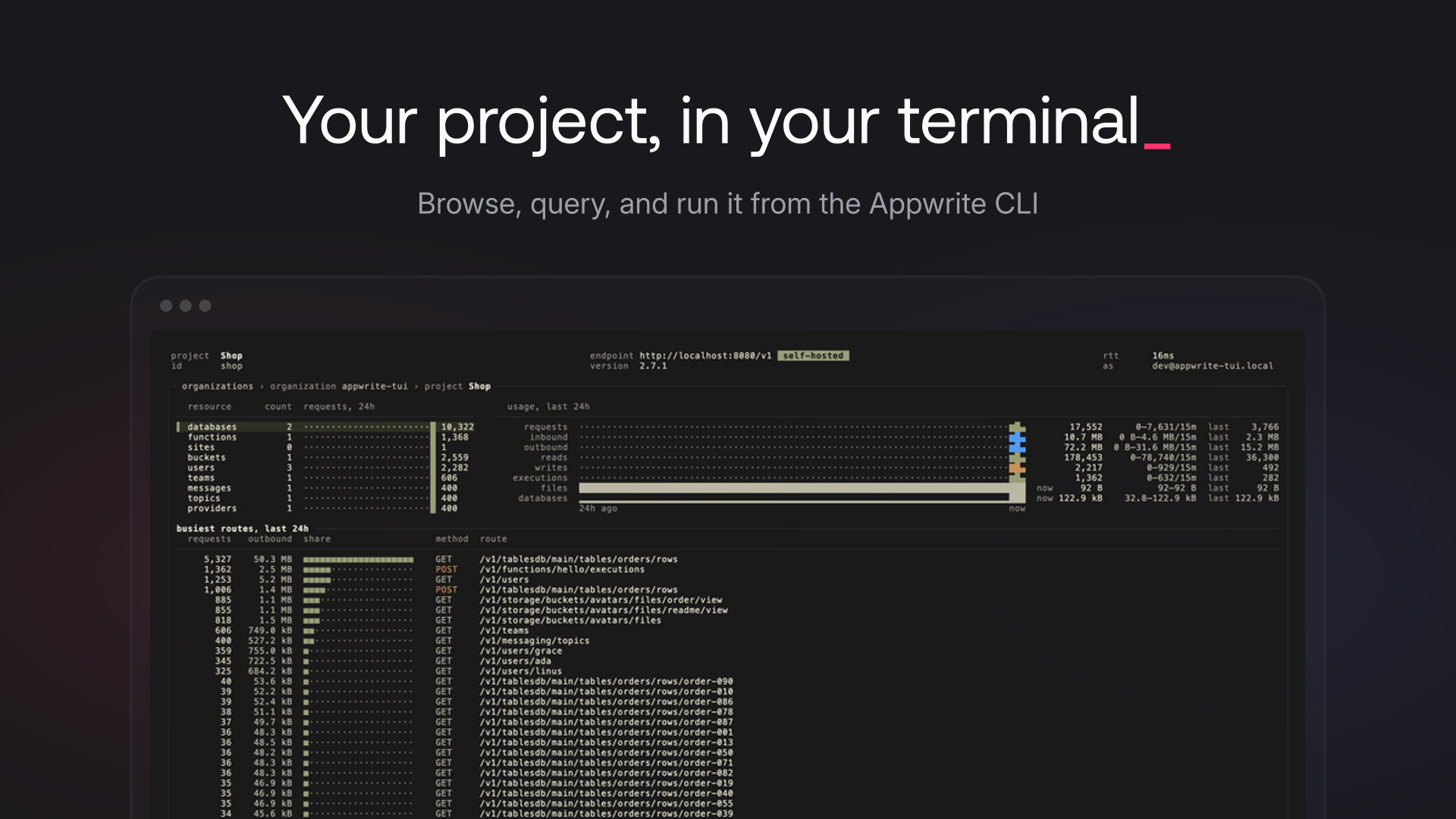
Opening a project lands on its overview. On the left is every kind of resource the project has, how many there are, and a sparkline of the requests to each service over the last 24 hours. On the right are the project's requests, bandwidth, database reads and writes, executions, and storage over the same window, in 15-minute buckets. Below both is a list of the busiest routes.
In this project, one route stands out: GET /v1/tablesdb/main/tables/orders/rows accounts for more than 5,000 requests. That's your lead. Press Enter on databases to follow it.
Drill into a table's usage
Each resource opens on a page with numbered tabs. Open the main database, then the orders table, and press 4 for its usage tab. It shows the requests and the inbound and outbound bandwidth for the table's route and every route below it, along with the busiest routes under the table.
Here, most of the traffic is list requests on the table, not reads of individual rows. That points to a client listing orders far more often than it needs to. Databases have their own usage tab with reads, writes, and storage, and functions add executions and compute, so the same drill-down works wherever the traffic lands.
Query the rows in place
Press 1 to go back to the rows tab, then / to filter. Plain text narrows the loaded rows to the ones that match. A comparison or a sort turns into a query that runs on the server:
customer=ada sort:-total
Conditions use =, !=, >, >=, <, <=, and ~ for contains, with null checks and sort:column or sort:-column for order. The interface sends them as Appwrite queries, so they behave exactly as they would from an SDK, and the footer shows how many rows matched in total. Press m to load the next page, or Esc to clear the query.
Inspect and fix a row
Press Enter on a row to open it. The values tab shows its columns, and the json tab shows the full row as the API returns it. Press c to copy its ID, or Shift + C to copy the JSON.
To change it, press e. The row opens as JSON in your $EDITOR, and the interface saves it when you close the file. Ctrl + N on the rows tab does the same for a new row, starting from a template with the table's columns.
Run a function and read its logs
The same pattern works for compute. Open a function to see its executions, deployments, and variables, and press x to execute it. A short form asks for the method, path, headers, body, and whether to run it asynchronously. When it runs, the execution opens with its output, response, logs, errors, and headers, so you can test a fix and read the result without leaving the keyboard.
Delete with a typed confirmation
Some cleanup belongs in the same session: a test row, a stale file, a session you want to revoke. Press Ctrl + D on a row, file, session, or subscriber, and the interface asks you to type its ID before it deletes anything.
Those are the only deletes the interface offers. Other than these deletes, row edits, and function executions, the interface only reads from your project, so you can look around a production project without changing anything by accident.
When to reach for appwrite terminal
Use appwrite terminal when you want to see and act on a project interactively from the command line:
- During development, to watch rows and executions change as you test, without a browser tab next to your editor.
- While debugging, to go from a usage spike to the route, the table, and the rows behind it in a few keystrokes.
- On remote machines, over SSH or anywhere without a browser, with the credentials the CLI already uses.
- On self-hosted instances, where it reads the same API and, from Appwrite 2.7, the same usage data as the Console.
Keep using commands such as appwrite push and appwrite tables-db list-rows for scripts and CI, where you need repeatable, non-interactive output. Use the Console for settings, permissions, and schema changes, which the terminal interface shows but doesn't edit.
Getting started with appwrite terminal
Update the CLI, run appwrite login, and then appwrite terminal. Press ? on any page to see the shortcuts that work there, and read the docs for the full query syntax, every resource and tab, and the complete key reference.
appwrite terminal is a command in the Appwrite CLI, available from version 28.13.3, that opens your Appwrite projects in an interactive, keyboard-driven interface inside your terminal. You can browse databases, functions, sites, storage, users, teams, and messaging, query and edit rows, execute functions, and see the last 24 hours of usage. See the terminal docs.
Update the Appwrite CLI to version 28.13.3 or later, sign in with appwrite login, and run appwrite terminal. Pass --project-id to open a project directly, or run the command in a directory with an appwrite.config.json to open that project.
Yes. Sign in to your instance with appwrite login --endpoint "<URL>", then run appwrite terminal. It connects to the same endpoint as the rest of the CLI. Usage charts on self-hosted instances require Appwrite 2.7 or later.
Yes. Store a project's API key with appwrite client --key and open the project with appwrite terminal --project-id "<PROJECT_ID>". The interface shows what the key's scopes allow, and the usage.read scope adds usage. Organizations and the project list are only available with a console login.
Open a table's rows tab, press /, and type conditions separated by spaces, such as status=open total>=100 sort:-total. Press Enter to run them as Appwrite queries on the server. It supports =, !=, >, >=, <, <=, ~ for contains, null checks, and sort: for order. See Query rows.
You can delete rows, files, sessions, and subscribers with Ctrl + D. Every delete asks you to type the resource's ID first, and it can't be undone. Other than these deletes, editing and creating rows, and executing functions, the interface only reads from your project.