Sign in with Appwrite_
Let users sign in to your app with their Appwrite account. Enable the Appwrite OAuth2 provider and create sessions with a consent-based flow.
3 min read
Sign in with Appwrite lets users log in to your app with their Appwrite account. It works like other OAuth2 providers such as Google or GitHub. Appwrite is the identity provider. This is a good fit when your users are developers, for example when you build developer tools, dashboards, or education platforms.
The provider requests the openid, profile, and email scopes. Appwrite uses them to read the user's ID, name, and email, and to create the session.
This page covers login only. To access your users' Appwrite projects and organizations with scoped tokens, see Sign in with Appwrite for apps. To make your own product an OAuth2 provider, see the OAuth2 server documentation.
Enable the provider
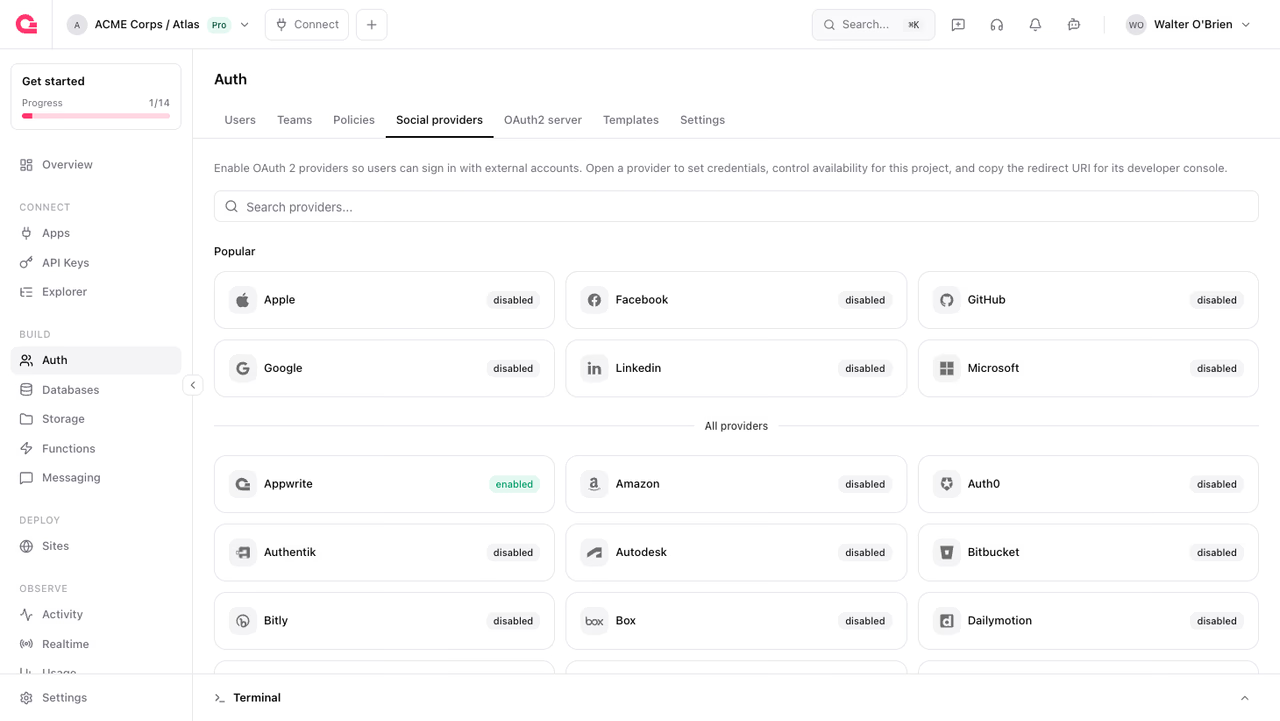
- In the Appwrite Console, open your project.
- Navigate to Auth > Social providers.
- Open the Appwrite provider.
- Turn on the Enabled toggle.
Configure credentials
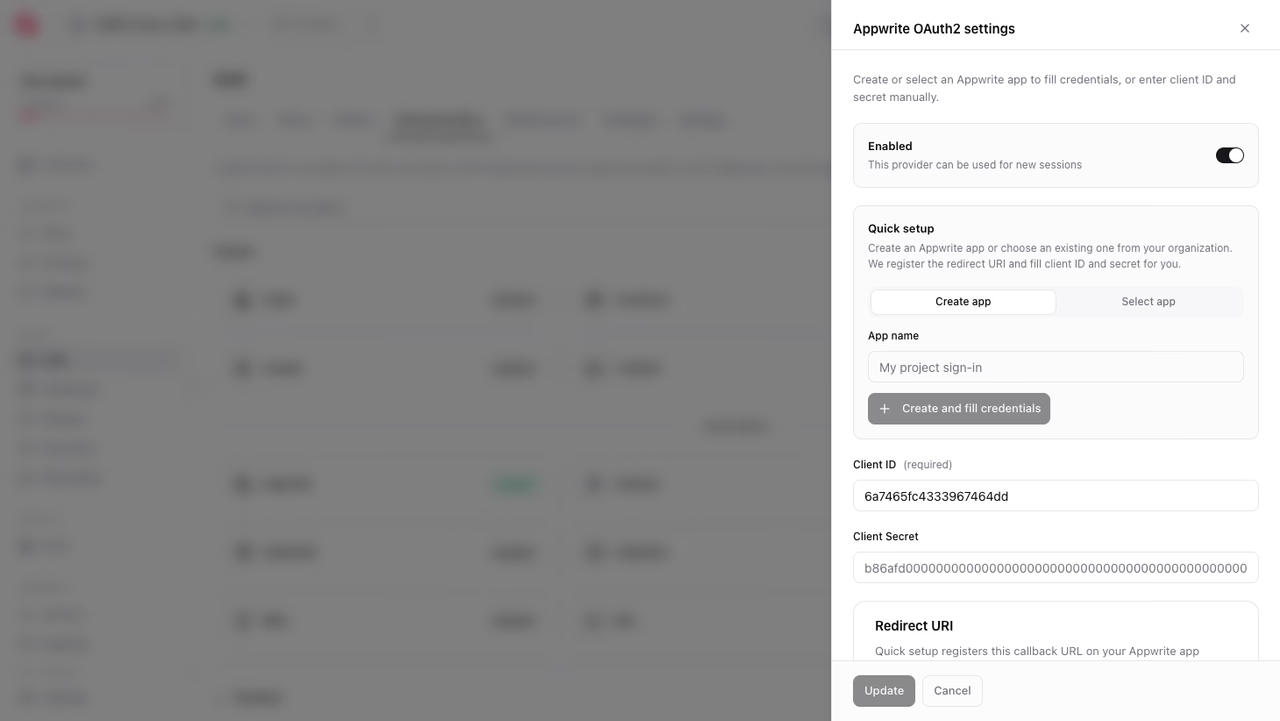
The provider authenticates through an Appwrite app, which acts as the OAuth2 client. The Appwrite OAuth2 settings dialog gives you two ways to configure it.
Quick setup creates the app for you:
- In the Create app tab, enter an app name.
- Click Create and fill credentials.
- Click Update to save the provider settings.
Appwrite creates the app in your organization, registers the redirect URI, and fills the Client ID and Client Secret fields. To reuse an app you registered before, use the Select app tab instead.
You can also enter credentials manually:
- Register an app in your organization.
- Add the redirect URI shown in the dialog to the app.
- Paste the app's client ID and secret into the fields.
- Click Update.
Initialize the sign-in
Start the flow from your app with the Appwrite provider. The user is redirected to Appwrite to approve the request, then redirected back to your app with an active session.
import { Client, Account, OAuthProvider } from "appwrite";
const client = new Client()    .setEndpoint('https://<REGION>.cloud.appwrite.io/v1') // Your API Endpoint    .setProject('<PROJECT_ID>');                          // Your project ID
const account = new Account(client);
// Go to the Appwrite consent screenaccount.createOAuth2Session({    provider: OAuthProvider.Appwrite,    success: 'https://example.com/success', // redirect here on success    failure: 'https://example.com/failed',  // redirect here on failure});
For Android, add the following activity inside the <application> tag in your AndroidManifest.xml. Replace <PROJECT_ID> with your actual Appwrite project ID.
<!-- Add this inside the <application> tag, along side the existing <activity> tags --><activity android:exported="true" android:name="com.linusu.flutter_web_auth_2.CallbackActivity" > <intent-filter android:label="flutter_web_auth_2"> <action android:name="android.intent.action.VIEW" /> <category android:name="android.intent.category.DEFAULT" /> <category android:name="android.intent.category.BROWSABLE" /> <data android:scheme="appwrite-callback-<PROJECT_ID>" /> </intent-filter></activity>No other configuration is required for iOS.
import 'package:appwrite/appwrite.dart';import 'package:appwrite/enums.dart';
final client = Client()    .setEndpoint('https://<REGION>.cloud.appwrite.io/v1') // Your API Endpoint    .setProject('<PROJECT_ID>');               // Your project ID
final account = Account(client);
// Go to the Appwrite consent screenawait account.createOAuth2Session(    provider: OAuthProvider.appwrite,);
For Apple, add the following URL scheme to your Info.plist.
<key>CFBundleURLTypes</key><array><dict> <key>CFBundleTypeRole</key> <string>Editor</string> <key>CFBundleURLName</key> <string>io.appwrite</string> <key>CFBundleURLSchemes</key> <array> <string>appwrite-callback-<PROJECT_ID></string> </array></dict></array>If you're using UIKit, you'll also need to add a hook to your SceneDelegate.swift file to ensure cookies work correctly.
func scene(_ scene: UIScene, openURLContexts URLContexts: Set<UIOpenURLContext>) { guard let url = URLContexts.first?.url, url.absoluteString.contains("appwrite-callback") else { return } WebAuthComponent.handleIncomingCookie(from: url)}import Appwriteimport AppwriteEnums
let client = Client() .setEndpoint("https://<REGION>.cloud.appwrite.io/v1") // Your API Endpoint .setProject("<PROJECT_ID>") // Your project ID
let account = Account(client)
// Go to the Appwrite consent screentry await account.createOAuth2Session( provider: .appwrite)For Android, add the following activity inside the <application> tag in your AndroidManifest.xml. Replace <PROJECT_ID> with your actual Appwrite project ID.
<!-- Add this inside the `<application>` tag, along side the existing `<activity>` tags --><activity android:name="io.appwrite.views.CallbackActivity" android:exported="true"> <intent-filter android:label="android_web_auth"> <action android:name="android.intent.action.VIEW" /> <category android:name="android.intent.category.DEFAULT" /> <category android:name="android.intent.category.BROWSABLE" /> <data android:scheme="appwrite-callback-<PROJECT_ID>" /> </intent-filter></activity>import io.appwrite.Clientimport io.appwrite.services.Accountimport io.appwrite.enums.OAuthProvider
val client = Client(context) // Activity or application context .setEndpoint("https://<REGION>.cloud.appwrite.io/v1") // Your API Endpoint .setProject("<PROJECT_ID>") // Your project ID
val account = Account(client)
// Go to the Appwrite consent screenaccount.createOAuth2Session( activity = activity, provider = OAuthProvider.APPWRITE)If using Expo, set the URL scheme to appwrite-callback-<PROJECT_ID> in your app.json file.
{ "expo": { "scheme": "appwrite-callback-<PROJECT_ID>" }}Then, create a deep link, pass it to account.createOAuth2Token() method to create the login URL, open the URL in a browser, listen for the redirect, and finally create a session with the secret.
import { Client, Account, OAuthProvider } from "react-native-appwrite";import { makeRedirectUri } from 'expo-auth-session'import * as WebBrowser from 'expo-web-browser';
const client = new Client()    .setEndpoint('https://<REGION>.cloud.appwrite.io/v1') // Your API Endpoint    .setProject('<PROJECT_ID>');                          // Your project ID
const account = new Account(client);
// Create deep link that works across Expo environments// Ensure localhost is used for the hostname to avoid a validation error for success/failure URLsconst deepLink = new URL(makeRedirectUri({ preferLocalhost: true }));const scheme = `${deepLink.protocol}//`; // e.g. 'exp://' or 'appwrite-callback-<PROJECT_ID>://'
// Start OAuth flowconst loginUrl = await account.createOAuth2Token({    provider: OAuthProvider.Appwrite,    success: `${deepLink}`,    failure: `${deepLink}`,});
// Open loginUrl and listen for the scheme redirectconst result = await WebBrowser.openAuthSessionAsync(`${loginUrl}`, scheme);
// Extract credentials from OAuth redirect URLconst url = new URL(result.url);const secret = url.searchParams.get('secret');const userId = url.searchParams.get('userId');
// Create session with OAuth credentialsawait account.createSession({    userId,    secret});// Redirect as needed
What users see
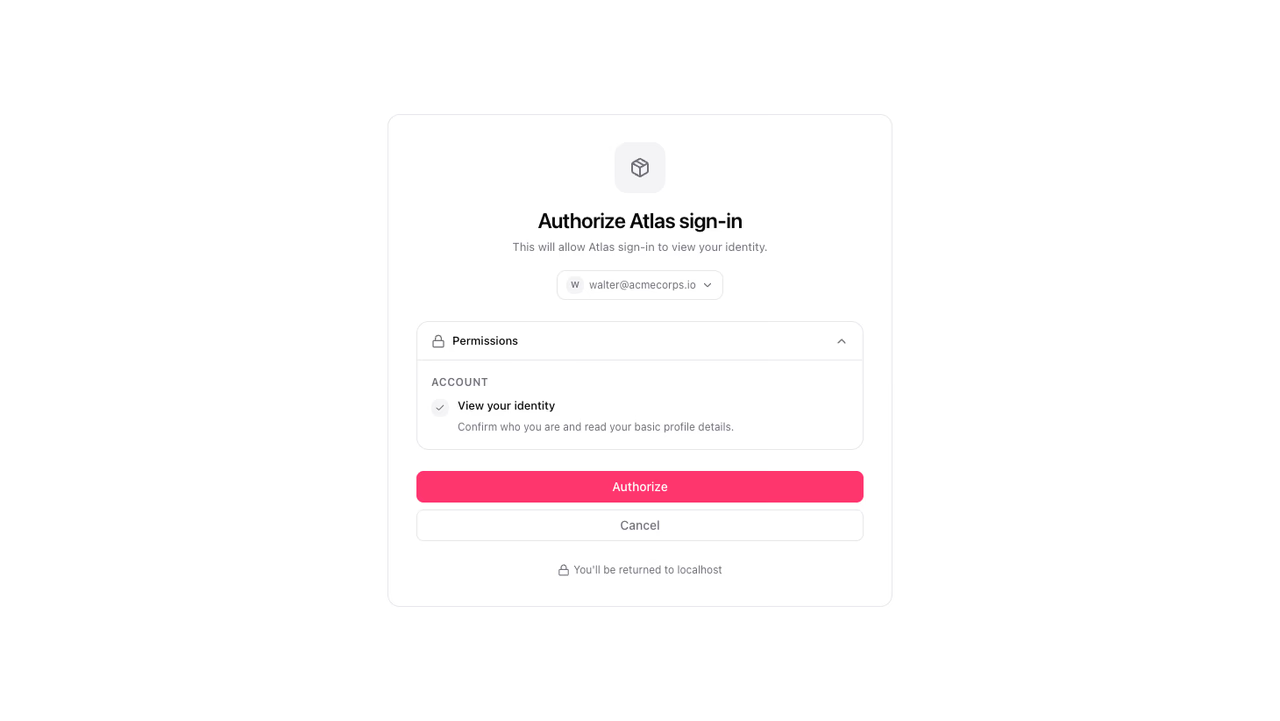
Appwrite asks the user to sign in to their Appwrite account if they have no active session. The consent screen then shows your app's name and the requested permissions. When the user clicks Authorize, Appwrite redirects them back to your app and the session is active. Users can revoke access from their Appwrite account at any time.
Like all OAuth2 logins, a successful sign-in creates an identity for the user. To read provider details from the session or refresh tokens, see OAuth2 login.
Was this page helpful?
Share what worked or what we should fix. Once approved, our agents automatically apply suggested updates to the docs.