Account switching_
Let users stay signed in to several accounts in one browser or app and switch between them with Appwrite Auth devices, without signing out and back in.
5 min read
Account switching lets one browser or app install stay signed in to several accounts at once and switch which one is active. A user can keep a personal and a work account signed in side by side and move between them without signing out and back in.
Account switching is different from identities. Identities link several sign-in methods to one account. Account switching keeps separate accounts, each with its own session.
How account switching works
Account switching is built on devices. A device belongs to one browser or app install. It holds the sessions of every account signed in there and tracks which session is active. Appwrite keeps the device secret in its own cookie, next to the session cookie.
The active session's secret stays in the usual session cookie, so every other Appwrite call keeps working as before. Your app reads data, uploads files, and subscribes to realtime events as the active account, with no extra parameters.
- Sessions join automatically. Once a device exists, every new session joins it and becomes the active one. This works for every sign-in method, including email and password, OAuth2, magic URL, email OTP, phone, passkeys, anonymous, and custom tokens.
- The current session comes along. If the user is already signed in when you create the device, their session joins it, so the account they're using is switchable right away.
- One session per account. A device holds at most one session for each user. Signing in again as an account the device already holds replaces that account's old session.
- No sign-in conflict. Without a device, creating a session while one is active fails with
user_session_already_exists. With a device, the new session joins it instead. - The device expires with its sessions. A device lasts as long as the newest session it holds.
Enable account switching
Account switching is turned on by default for every project. To change it:
- Open your project in the Appwrite Console.
- Navigate to Auth > Policies > Sessions.
- In the Account switching card, turn Allow account switching on or off.
- Click Update.
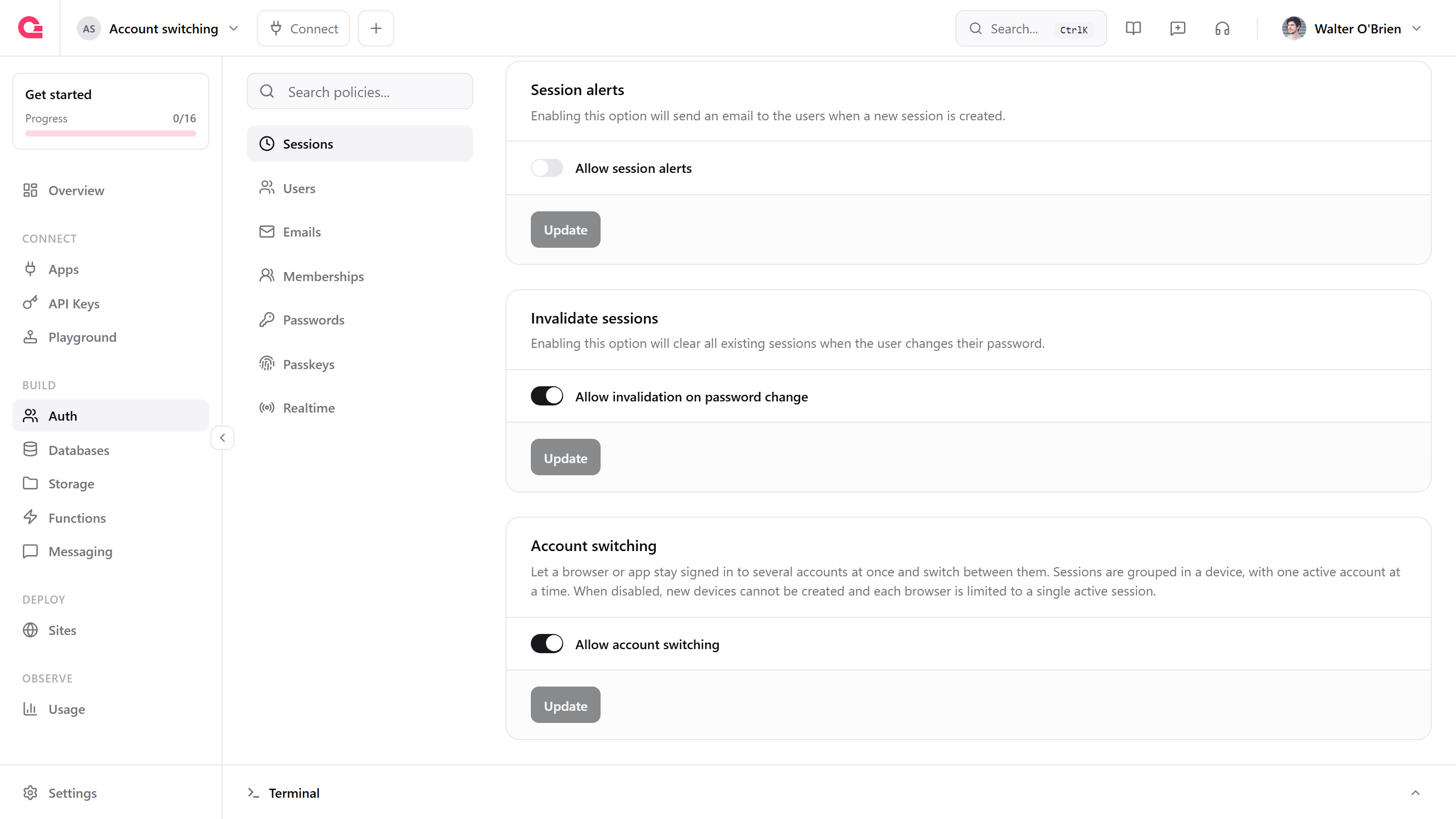
When account switching is off, browsers and apps can't create new devices, so each one is limited to a single active session. You can also change the policy with the Project service's updateAccountDevicesPolicy method, using an API key.
Create a device
Create a device when your app starts. If the browser or app already has a valid device, Appwrite returns the existing one instead of an error, so it's safe to call on every launch.
import { Client, Account } from "appwrite";
const client = new Client()    .setEndpoint('https://<REGION>.cloud.appwrite.io/v1')    .setProject('<PROJECT_ID>');
const account = new Account(client);
await account.createDevice();
Add an account
To add another account, show your sign-in screen again and create a session with any sign-in method. You don't need to sign the current account out first. The new session joins the device and becomes active.
// The first account is signed in and activeawait account.createEmailPasswordSession({    email: 'personal@example.com',    password: '<PASSWORD>'});
// The second account joins the device and becomes the active oneawait account.createEmailPasswordSession({    email: 'work@example.com',    password: '<PASSWORD>'});
List signed-in accounts
Get the device to build an account picker. Use the string current to reference the device of the current browser or app. The device's sessions list holds one session per signed-in account, each with the userId and userName it belongs to, and activeSessionId tells you which one is active.
const device = await account.getDevice({ deviceId: 'current' });
for (const session of device.sessions) {    const active = session.$id === device.activeSessionId;    console.log(session.userName, session.userId, active ? '(active)' : '');}
Switch the active account
Pass the ID of one of the device's sessions to make that account active. Appwrite writes the session's secret to the session cookie, so the next request runs as the account you switched to. Fetch the user again with account.get() and reset any state that belongs to the previous account, such as cached data and realtime subscriptions.
await account.updateDeviceSession({    deviceId: 'current',    sessionId: '<SESSION_ID>'});
const user = await account.get();
Switching to a session the device doesn't hold fails with user_device_session_not_found. Calling a device method before the browser or app has a device fails with user_device_not_found.
Every switch fires the users.[userId].sessions.[sessionId].update event, so webhooks and functions can react to it.
Sign out
To sign out the active account, delete the current session as usual. The other accounts stay signed in, and the device is left with no active account until you switch to another one. Show your account picker at this point.
To sign out of every account at once, delete the device. Appwrite deletes every session it holds and clears both the device and session cookies.
// Sign out the active account onlyawait account.deleteSession({ sessionId: 'current' });
// Sign out of every account on this deviceawait account.deleteDevice({ deviceId: 'current' });
To sign out an account that isn't active, switch to it first, then delete the current session.
Security considerations
- Switching rotates the session secret. Session secrets are stored hashed, so Appwrite can't put the old secret back in a cookie. Each switch issues a new secret for the chosen session, and any other copy of that session's secret stops working. Don't share a session between devices.
- Joining rotates the device secret. Every session that joins a device rotates the device secret and reissues the device cookie. The cookie handles this for you. If your app keeps the device secret itself, replace it from each session response.
- Session limits still apply. Each account counts its device session toward the project's session limit.
- Force sign out covers devices. Signing out all users invalidates every session a device holds.
Was this page helpful?
Share what worked or what we should fix. Once approved, our agents automatically apply suggested updates to the docs.