Your app appears on the consent screen as a registered client: a name, a logo, and a set of credentials tied to redirect URIs. Registration happens in the Console, in your organization's Marketplace tab.
Client types
Every client is confidential or public, and the choice decides how it authenticates.
- Confidential clients have a backend that keeps a secret. They authenticate token requests with the client secret, and their tokens live longer: 8 hours for access tokens and 365 days for refresh tokens by default.
- Public clients run where a secret cannot survive: single-page apps, native apps, CLIs. They carry no secret and must use PKCE with
S256on every authorization. Their tokens default to 1 hour and 30 days.
Choose confidential whenever a server takes part in the flow. Public exists for the rest.
Console
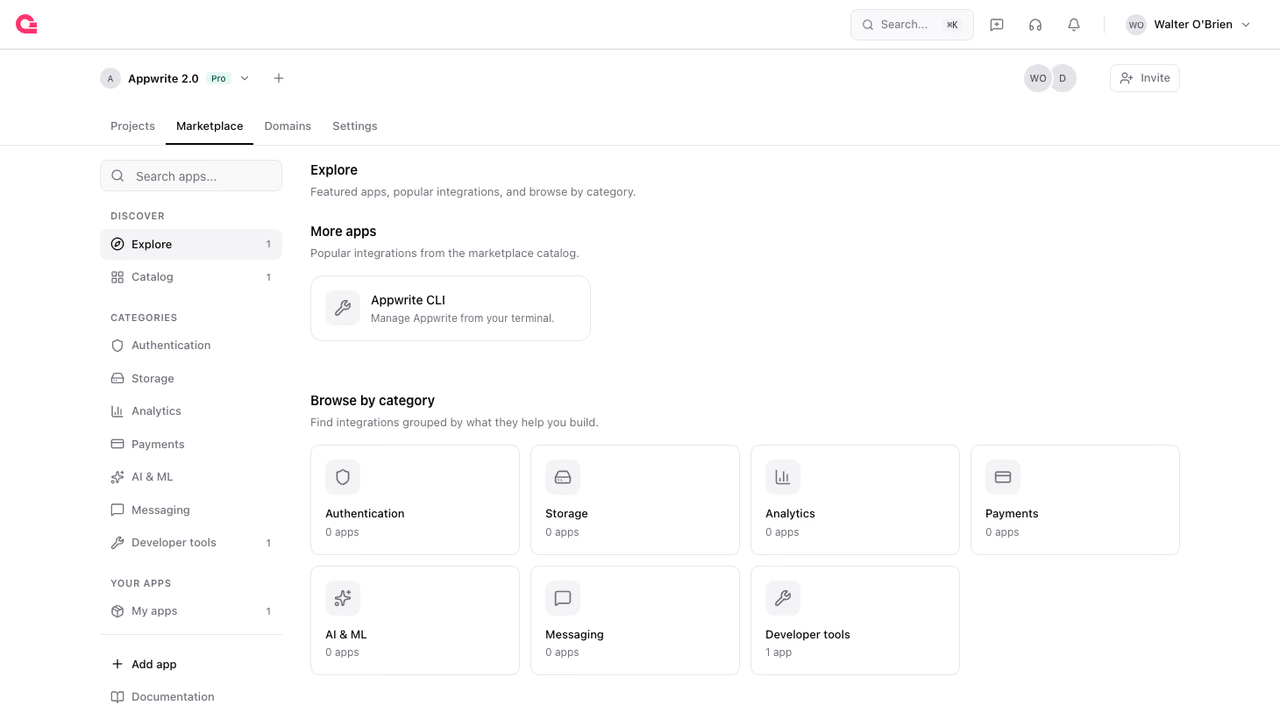
Register through the Console when your app is a product: the same flow that creates the client also builds its marketplace listing. In your organization, open the Marketplace tab and click Add app. Give the app a name, a slug, a category, and a description. The slug becomes the app's client ID, and the app starts as a draft that only your organization sees.
Once created, the app opens on its settings pages. Each page below is one of them, and every page has an Update button that saves that page's fields.
General
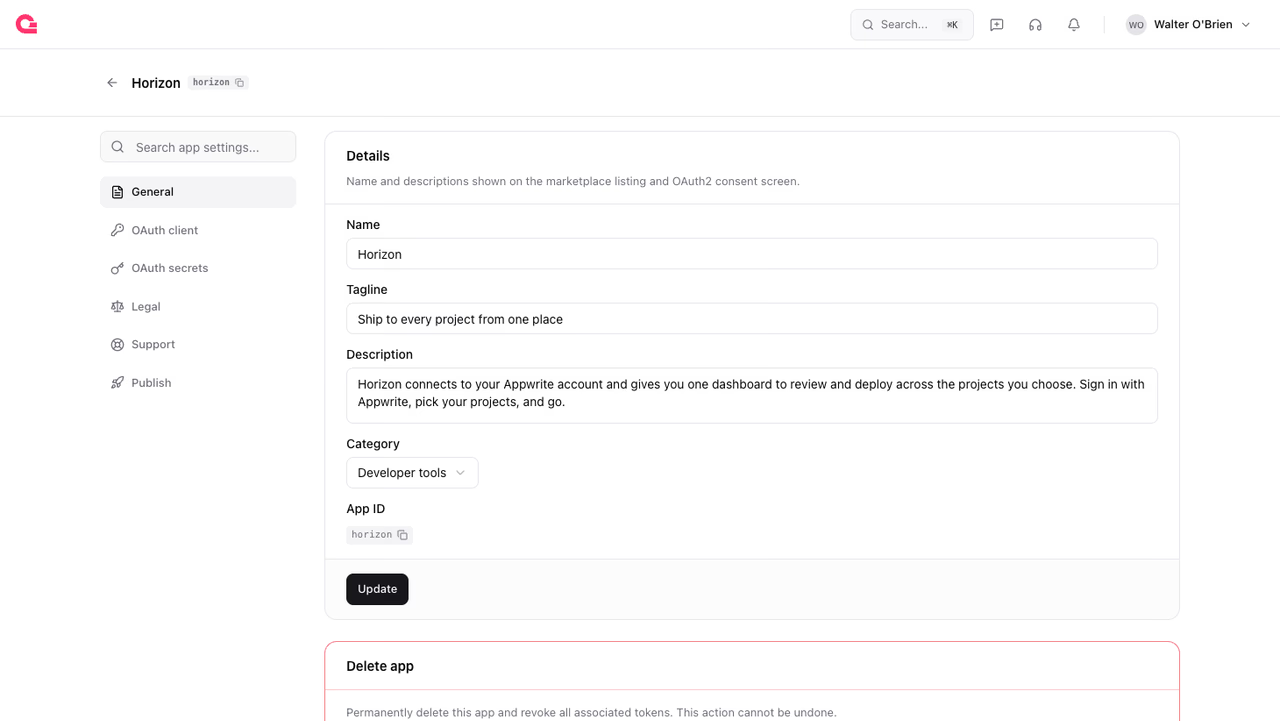
The General page holds the app's identity: its name, a one-line tagline, a longer description, and a category. The name appears on the consent screen; all four appear on the marketplace listing. This page also shows the app ID and the control to delete the app.
OAuth client
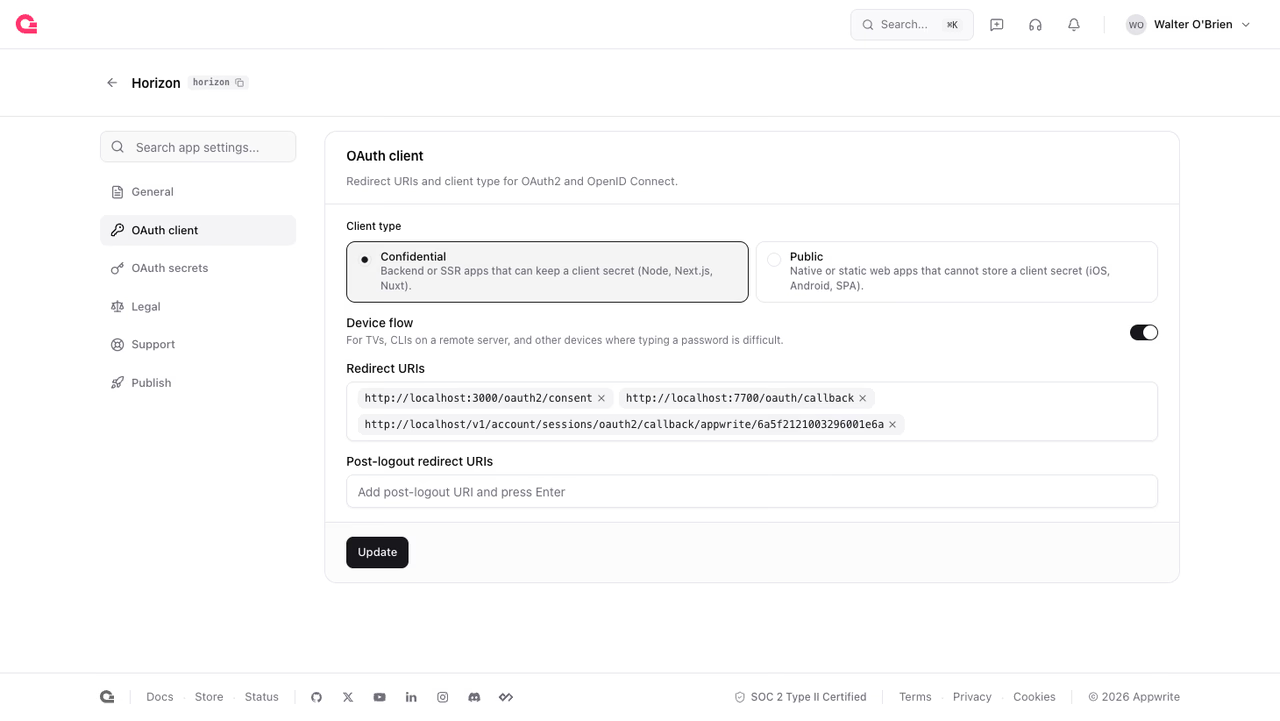
The OAuth client page sets the protocol details: the client type, the device flow toggle for TVs and CLIs, and the redirect URIs. Add every URI your app returns to; the authorization endpoint rejects anything not on the list.
OAuth secrets
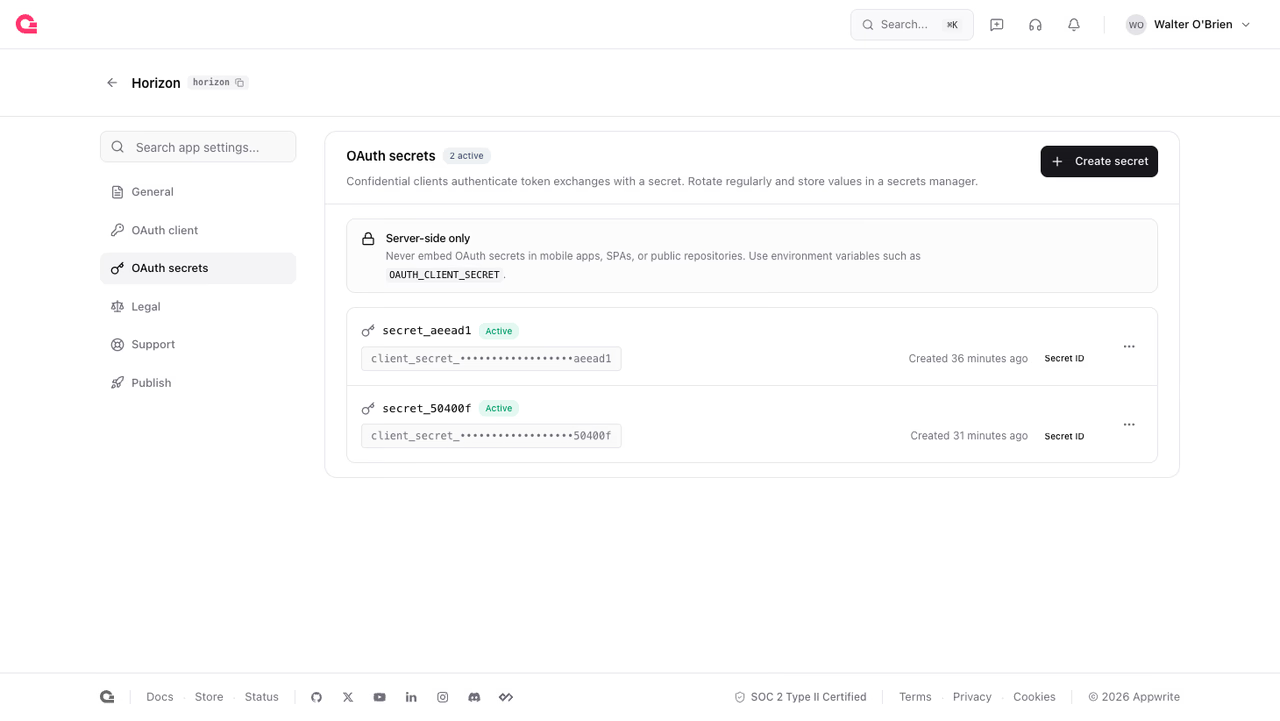
The OAuth secrets page issues client secrets for confidential apps. Each secret's value appears once, at creation; store it in your deployment environment before closing the dialog. The list keeps only a hint of each secret, its creation date, and when it was last used.
An app holds several active secrets at once, so rotation needs no downtime: create a new secret, deploy it, then delete the old one. The last-used timestamp tells you when the old secret is safe to delete.
Legal
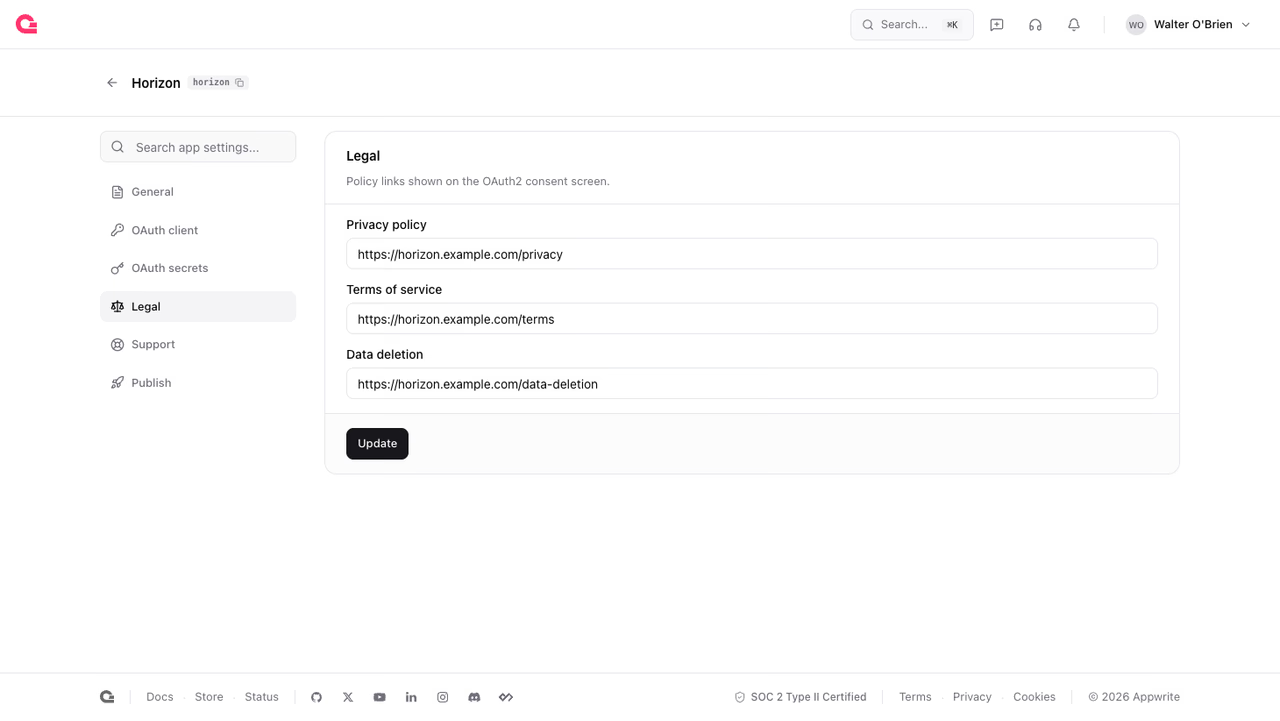
The Legal page holds the privacy policy, terms of service, and data deletion URLs. The consent screen links these so users can read them before they approve your app.
Support
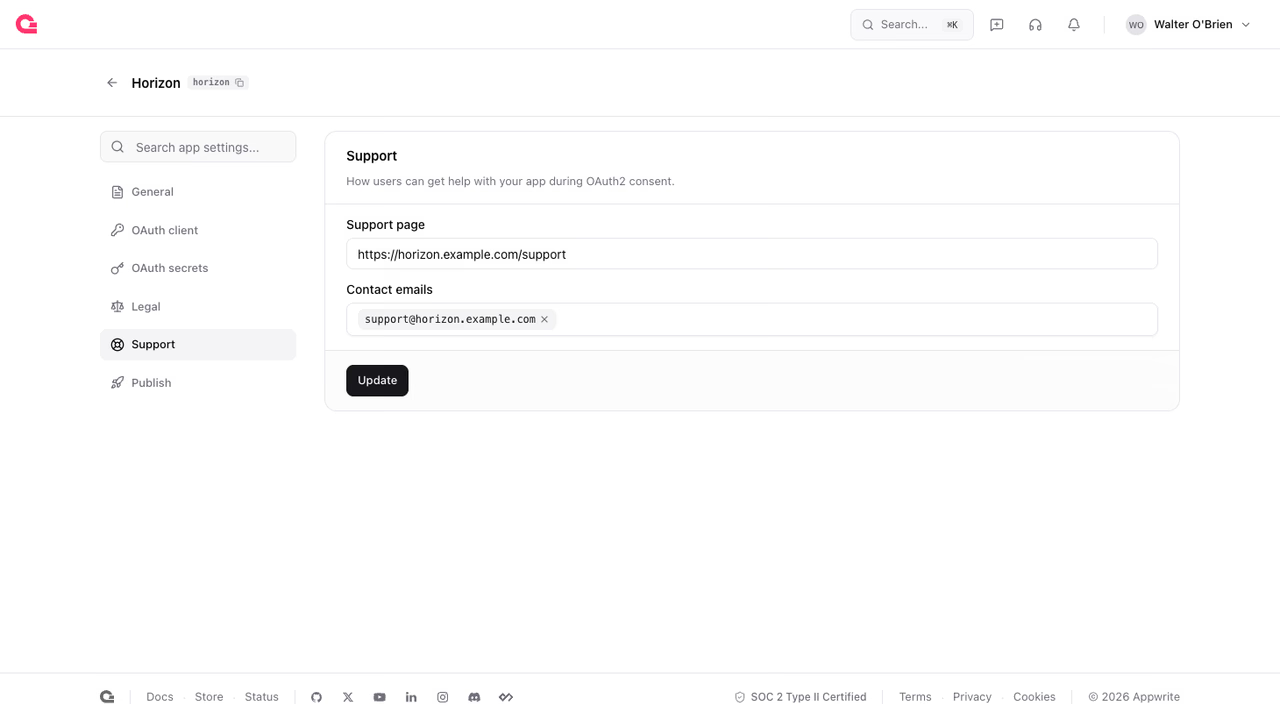
The Support page holds a support URL and contact emails, so users have somewhere to turn when they need help with your app.
Publish
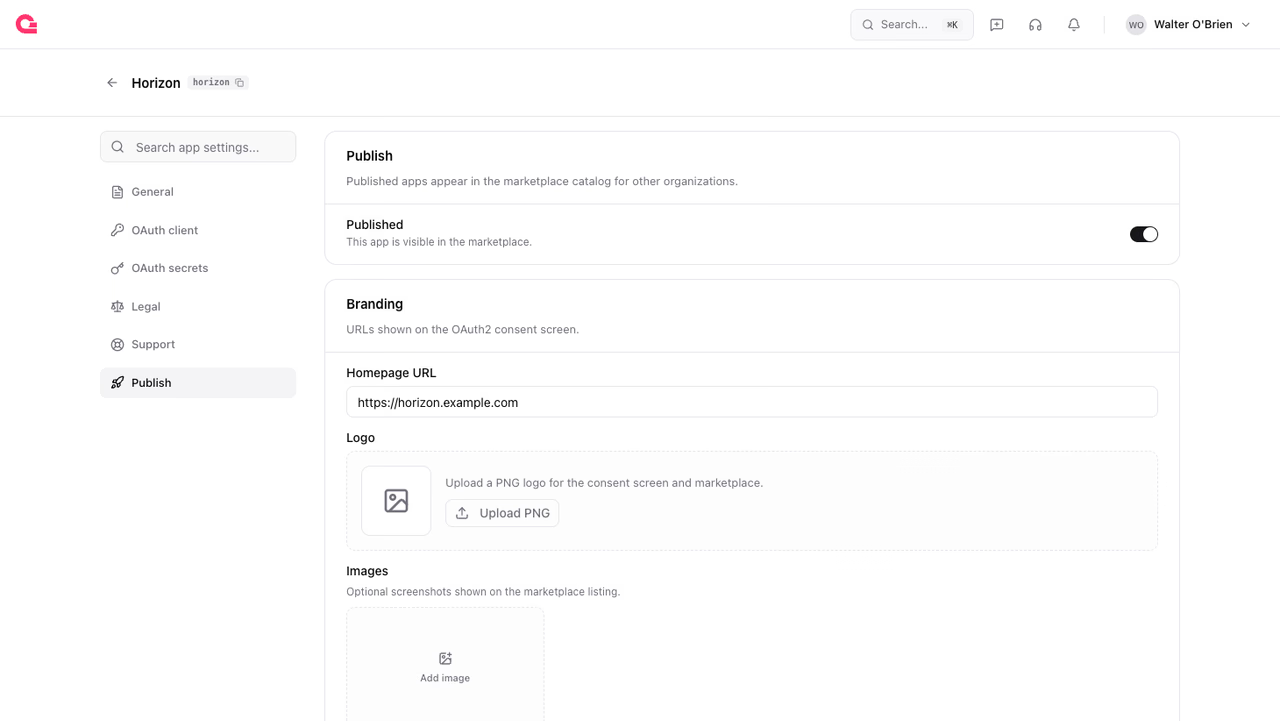
The Publish page carries the branding shown on the consent screen, a homepage URL, a logo, and optional listing images, along with the Published toggle. Turning it on lists the app in the marketplace catalog for every organization. Publishing changes discovery, not authorization: users consent to your app the same way whether it is a draft or published.
Labels
Labels such as official and partner mark apps the platform vouches for, and consent screens surface them as trust signals. Labels are assigned by Appwrite, not by the app itself, so there is no field for them in the Console. Contact your partner manager to have your app labeled.
Was this page helpful?
Share what worked or what we should fix. Once approved, our agents automatically apply suggested updates to the docs.