LDAP login_
Let users sign in to your app with the username and password from your LDAP directory, such as Active Directory or OpenLDAP, with group restrictions and attribute mapping.
11 min read
LDAP login lets users sign in to your app with the username and password they already use in your organization's directory, such as Active Directory or OpenLDAP. The directory checks the password, so it is never stored in Appwrite. The first sign-in creates an Appwrite account from the user's directory entry, and every later sign-in keeps the account's name, email, and phone number in sync with the directory.
Use LDAP login for internal tools, employee and student portals, and apps you sell to companies and schools that manage their people in a directory. You can limit sign-in to the members of one group, and map any attribute your directory uses to the account.
LDAP login is available on Appwrite Cloud, and is coming to self-hosted Appwrite soon.
How it works
When a user signs in with their directory username and password, Appwrite:
- Connects to the first of your directory hosts that answers, and binds as your service account.
- Searches under the base DN with your user filter, with the username in place of
{username}. Exactly one entry must match. - Binds as that entry with the password the user entered. If the directory accepts it, the password is correct.
- Checks that the entry belongs to the required group, if you set one.
- Finds or creates the Appwrite account for the entry, and creates a session.
An unknown username, a username that matches more than one entry, a wrong password, and a missing group membership all return the same error, so nobody can probe your directory for valid usernames.
Appwrite connects to your directory over the network and refuses hosts that resolve to private or reserved addresses, so on Appwrite Cloud your directory must be reachable from the internet. Expose it over LDAPS, and if you sign its certificate yourself, add the certificate to trust. Enterprise teams that need a private connection, such as a VPN, can contact us.
Configure your directory
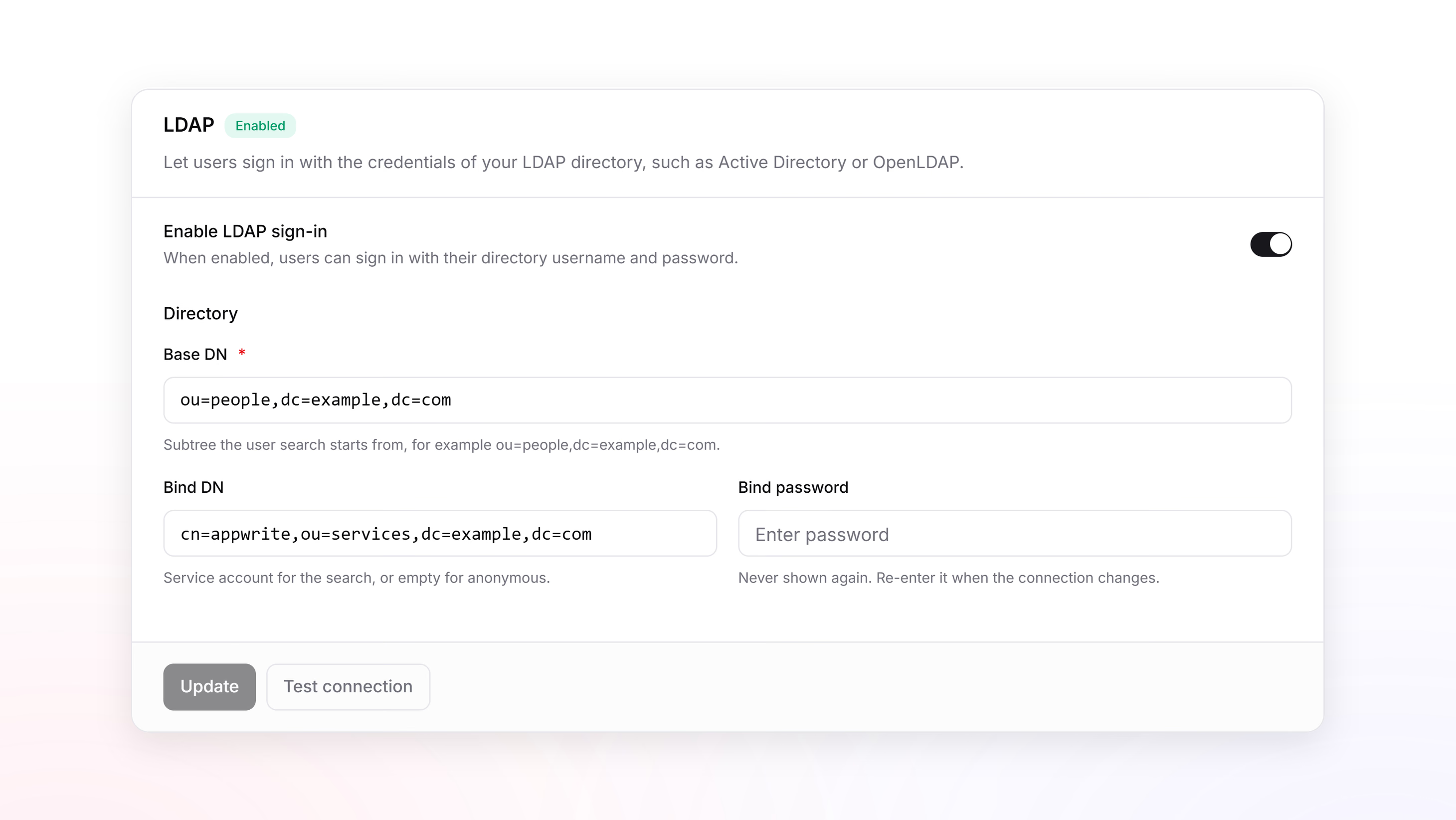
- In the Appwrite Console, open your project and go to Settings > Identity servers > LDAP.
- Under Connection, add your directory's hosts and choose the encryption.
- Under Directory, enter the base DN, and the bind DN and bind password of a read-only service account that can search for users.
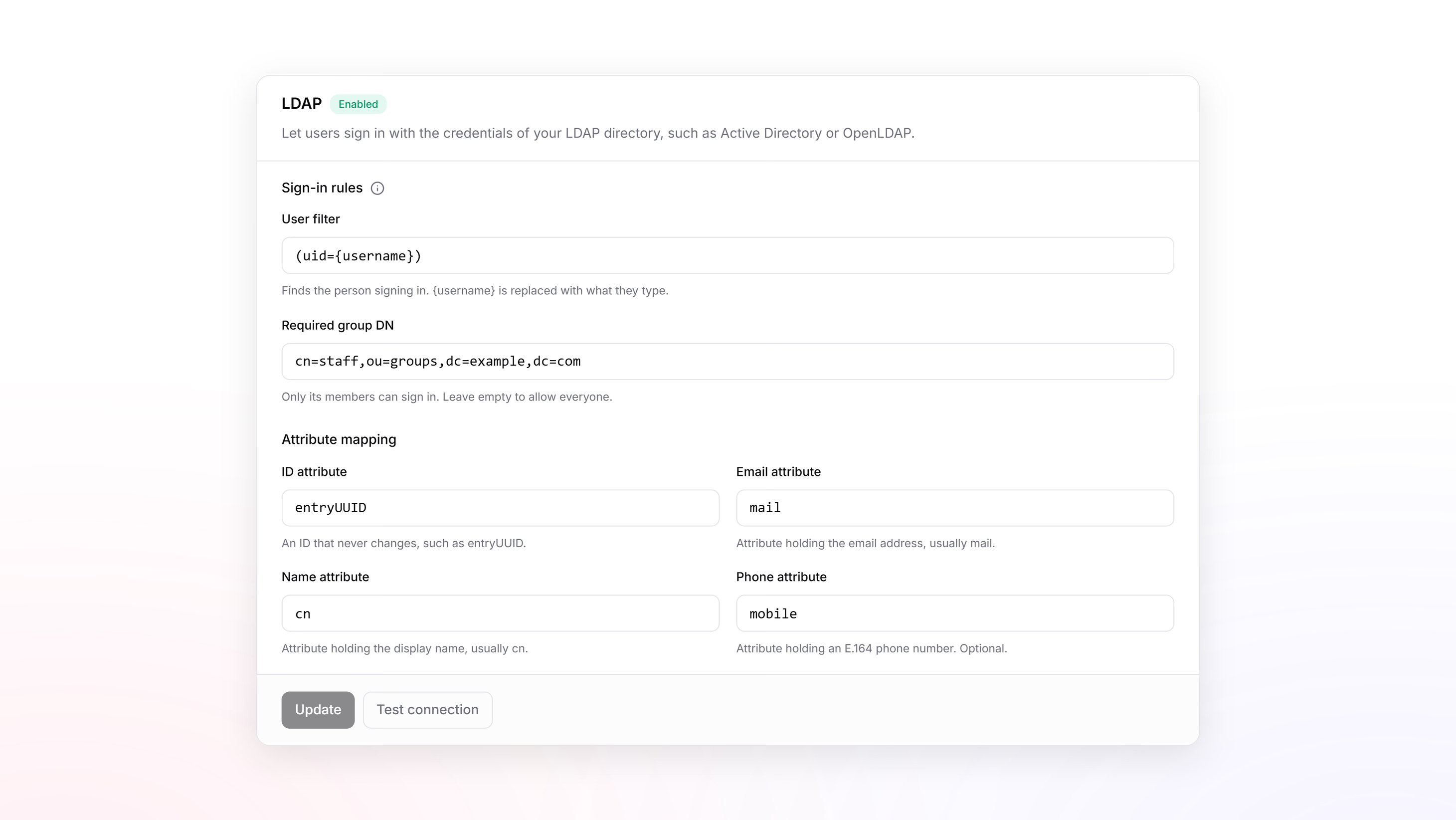
- Under Sign-in rules, adjust the user filter, and optionally enter a group users must belong to.
- Under Attribute mapping, check which attributes hold each user's ID, email, name, and phone number.
- Select Update.
Pasting an LDAP URL, such as ldaps://ldap.example.com:636/dc=example,dc=com, into Hosts fills in the host, encryption, port, and base DN for you.
Connection
| Setting | Description |
|---|---|
| Hosts | Up to 10 hostnames or IP addresses of the same directory, tried in order until one answers. If a host refuses the service account, Appwrite doesn't try the next one. |
| Encryption | LDAPS encrypts the connection from the first byte, and is the default. StartTLS upgrades a plain connection before anything is sent. Use None only on a trusted private network, because passwords cross the network in plain text. |
| Port | Defaults to 636 for LDAPS and 389 otherwise. |
| Verify certificate | Checks the directory's certificate before sending any password. On by default. While it is on, use the hostname on the directory's certificate, not an IP address. |
| Certificate | The certificate to trust, in PEM format. Use the root certificate of the authority that issued your directory's certificate, or the directory's own certificate when it is self-signed. An intermediate certificate on its own isn't enough. If your directory doesn't send its intermediate certificates, paste them along with the root, one after another, in any order. Leave it empty to use the system trust store. |
| Timeout | How many seconds to wait for the directory to connect and answer each operation, from 1 to 30. Defaults to 10. |
Directory
| Setting | Description |
|---|---|
| Base DN | The subtree Appwrite searches for users, such as ou=people,dc=example,dc=com. Required. |
| Bind DN | The service account Appwrite searches as, such as cn=appwrite,ou=services,dc=example,dc=com. Use a dedicated account with read-only access, so its password can't be used to change your directory. Leave it empty if your directory allows anonymous search. |
| Bind password | The service account's password. It is write-only: Appwrite never returns it. Enter it again when you change the hosts, port, encryption, certificate verification, certificate, or bind DN, so a stored password can't be sent to another server. |
The service account only needs to search and read the entries under the base DN, their mapped attributes, and the required group.
Sign-in rules
| Setting | Description |
|---|---|
| User filter | An LDAP filter that finds the person signing in. Appwrite replaces {username} with what they enter, so the filter must contain it at least once. Defaults to (uid={username}). |
| Required group DN | A group users must belong to in order to sign in, such as cn=staff,ou=groups,dc=example,dc=com. Leave it empty to let every user under the base DN sign in. |
The username is never pasted into the filter as text, so characters such as * or ) in a username can't change what the filter matches. Some useful filters:
(uid={username})matches the login name of an OpenLDAP or POSIX account.(sAMAccountName={username})matches the login name of an Active Directory account.(|(uid={username})(mail={username}))lets users sign in with either their username or their email address.
Appwrite asks the directory whether the user is in the required group, so it works with groupOfNames, groupOfUniqueNames, and POSIX groups, and with Active Directory groups, including nested groups. The group is checked on every sign-in. Removing a user from the group stops their next sign-in, but doesn't end the sessions they already have. To sign them out, delete their sessions or block the user under Auth > Users.
Attribute mapping
| Setting | Default | Description |
|---|---|---|
| ID attribute | entryUUID | An identifier that stays the same when an entry is renamed or moved. Appwrite links each account to this value. |
| Email attribute | mail | The user's email address. |
| Name attribute | cn | The user's display name. |
| Phone attribute | None | The user's phone number, in international format, such as +14155550100. Optional. |
Active Directory
Active Directory names its attributes differently. Use these values, which the Console also shows when you select the info icon next to Sign-in rules:
| Setting | Value |
|---|---|
| User filter | (sAMAccountName={username}) |
| ID attribute | objectGUID |
| Name attribute | displayName |
Appwrite stores objectGUID in the same form as Active Directory's own tools show it.
Test the connection
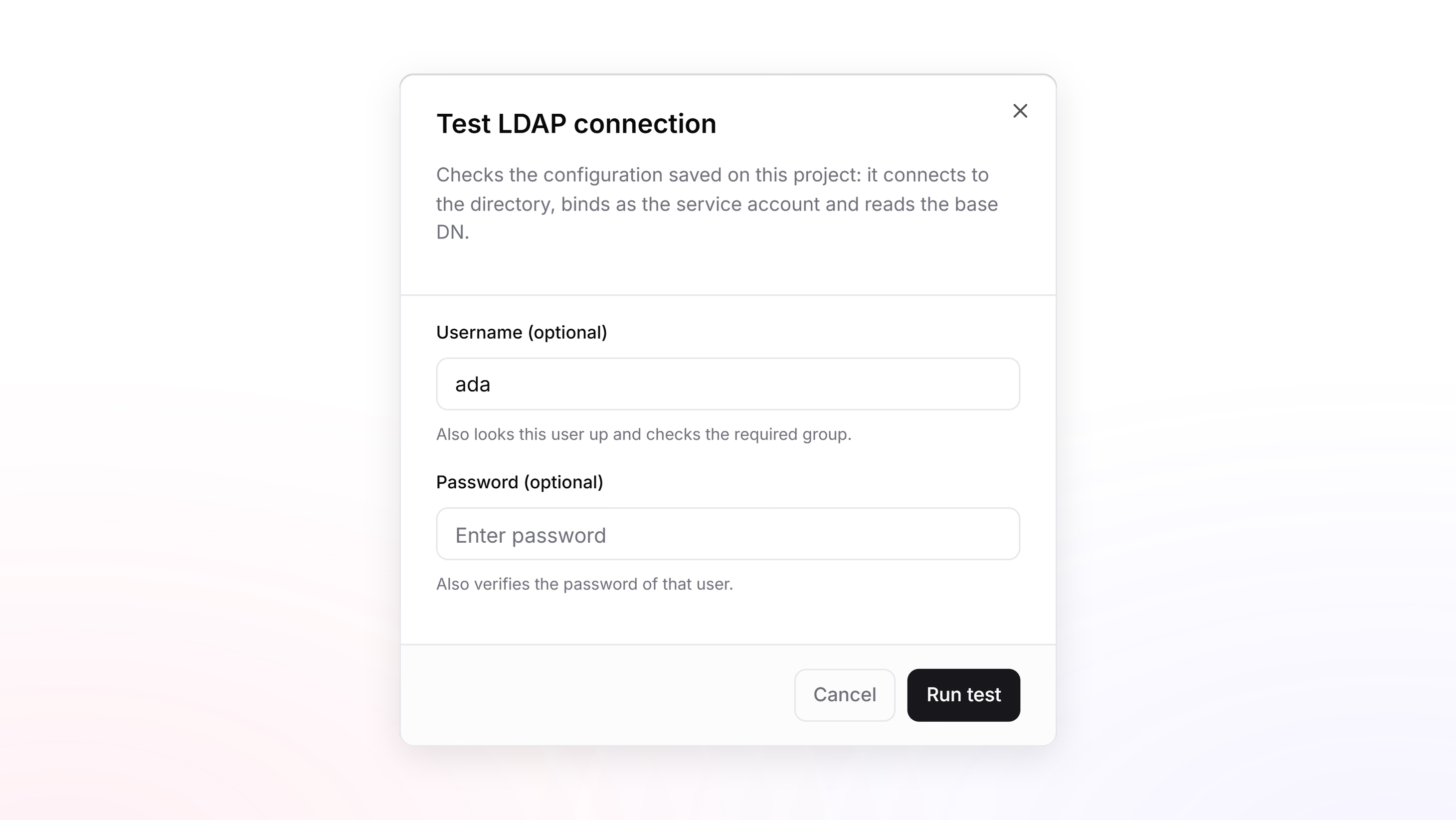
Select Test connection to check your saved settings without signing anyone in. The test runs each step of a sign-in and stops at the first one that fails, with an error that names it.
- With no username, it connects, binds as the service account, and reads the base DN.
- With a username, it also looks up the user with your user filter and checks the required group.
- With a username and password, it also checks the password.
The test uses the saved settings, so select Update before you test a change.
When a user can't sign in, they only see a generic error, so your directory's details stay private. To find the reason, test with their username. The test looks them up, checks the required group, and names the step that fails, all without their password. To check the password step, use a test account in your directory that is set up like theirs, under the same base DN and in the same groups. Never ask users for their directory password.
Turn on LDAP login
Turn on Enable LDAP sign-in at the top of the LDAP settings and select Update, or turn on LDAP under Auth > Settings. You need at least one host and a base DN first.
Turning on LDAP from its settings connects to your directory, binds as the service account, and reads the base DN, and fails if any of those steps does. While LDAP is on, every change to its settings is checked the same way. This check doesn't look anyone up, so it can't catch a user filter that matches nobody, a wrong required group, or a missing ID attribute. Before you turn LDAP on, test the connection with the username and password of a test account set up like your users' accounts. Turning on LDAP under Auth > Settings only checks that a host and a base DN are set.
Configure with a server SDK
You can also configure LDAP with a server SDK and an API key with the project.ldap.write scope. Parameters you leave out keep their saved values.
const sdk = require('node-appwrite');
const client = new sdk.Client()    .setEndpoint('https://<REGION>.cloud.appwrite.io/v1') // Your API Endpoint    .setProject('<PROJECT_ID>')                            // Your project ID    .setKey('<API_KEY>');                                  // Your secret API key
const project = new sdk.Project(client);
// Connect to the directoryawait project.updateLDAP({    hosts: ['ldap.example.com'],    baseDn: 'ou=people,dc=example,dc=com',    bindDn: 'cn=appwrite,ou=services,dc=example,dc=com',    bindPassword: '<BIND_PASSWORD>',    requiredGroupDn: 'cn=staff,ou=groups,dc=example,dc=com',});
// Look up a user and check the required group, without signing them inawait project.createLDAPTest({ username: 'ada' });
// Turn on LDAP loginawait project.updateLDAP({ enabled: true });
Sign in
Call createLDAPSession() with the username and password the user enters. The username is whatever your user filter matches, such as a login name or an email address.
import { Client, Account } from "appwrite";
const client = new Client()    .setEndpoint('https://<REGION>.cloud.appwrite.io/v1') // Your API Endpoint    .setProject('<PROJECT_ID>');                           // Your project ID
const account = new Account(client);
const session = await account.createLDAPSession({    username: 'ada',    password: 'password'});
The session works like any other Appwrite session. It lasts as long as your project's maximum session length, or pass duration to end it sooner, in seconds, from 60. In a server-side rendered app, create the session from your server as in SSR login.
An LDAP sign-in counts as the password factor. If the user has turned on multi-factor authentication, they complete a second factor next, as they would after an email and password sign-in.
Each username can fail to sign in 10 times per hour, and each IP address 100 times per hour. Successful sign-ins don't count.
Accounts
The first time someone signs in, Appwrite links their directory entry to an account:
- An account already linked to the entry's ID signs in.
- Otherwise, an account with the entry's email address is linked to the entry. Your directory vouches for the address, so Appwrite marks it verified.
- Otherwise, Appwrite creates an account with the entry's name, email address, and phone number.
If the account with the matching email address never verified it, Appwrite treats the directory as the address's owner: it signs that account out everywhere and removes its password, phone number, MFA, and other identities before linking it, as it does for OAuth2 sign-ins.
Each linked account gets an identity with the provider ldap, which you can see on the user's Identities tab under Auth > Users. New accounts follow your email policies and your project's user limit, and blocked users can't sign in.
On every sign-in, the account's name, email address, and phone number follow the directory:
- An email address or phone number that another account already uses isn't copied, and the user still signs in.
- A phone number that isn't in international format isn't copied. A new phone number is not verified, and a verified phone number that the user uses for MFA stays as it is.
The directory password is never stored in Appwrite, so it doesn't work with email and password login.
Self-hosted Appwrite
LDAP login is coming to self-hosted Appwrite soon. On a self-hosted instance, Appwrite refuses directory hosts that resolve to private or reserved addresses, and resolves their hostnames with the DNS servers in _APP_DNS_EXTERNAL, or _APP_DNS when it is empty, rather than the container's own resolver. To reach a directory on your internal network, set these environment variables and restart Appwrite:
_APP_ALLOWED_INTERNAL_ADDRESSES: the IP addresses or CIDR ranges of your directory hosts, such as10.0.0.0/8._APP_DNS_EXTERNAL: a DNS server that resolves your directory's hostnames, if public DNS can't.
Errors
| Error | Cause |
|---|---|
user_auth_method_unsupported | LDAP login is turned off, or the project has no directory configured. |
user_invalid_credentials | The username matched no entry or more than one, the password was wrong, or the user isn't in the required group. |
user_ldap_directory_error | The directory couldn't be reached or refused the service account. Test the connection to see which step fails. |
user_blocked | The account is blocked. |
general_invalid_email | The directory entry's email address isn't a valid email address. |
user_email_disposable, user_email_free, user_email_not_corporate, user_email_not_canonical | The directory entry's email address breaks one of your email policies, for a new account or when the address changes in the directory. |
user_count_exceeded | The sign-in would create an account, and the project already has as many users as its user limit allows. |
general_rate_limit_exceeded | Too many failed sign-ins for this username or from this IP address in the last hour. |
project_ldap_config_invalid | LDAP was turned on without a host and base DN, or turning it on or testing the connection failed. The message names the step that failed. |
general_argument_invalid | A setting is invalid, such as a host that resolves to a private address, a user filter without {username}, or a missing bind password after a connection change. |
Was this page helpful?
Share what worked or what we should fix. Once approved, our agents automatically apply suggested updates to the docs.