How to deploy your first Appwrite site and function_
Put your web app live with Appwrite Sites straight from GitHub, then create, deploy and run your first Appwrite Function.

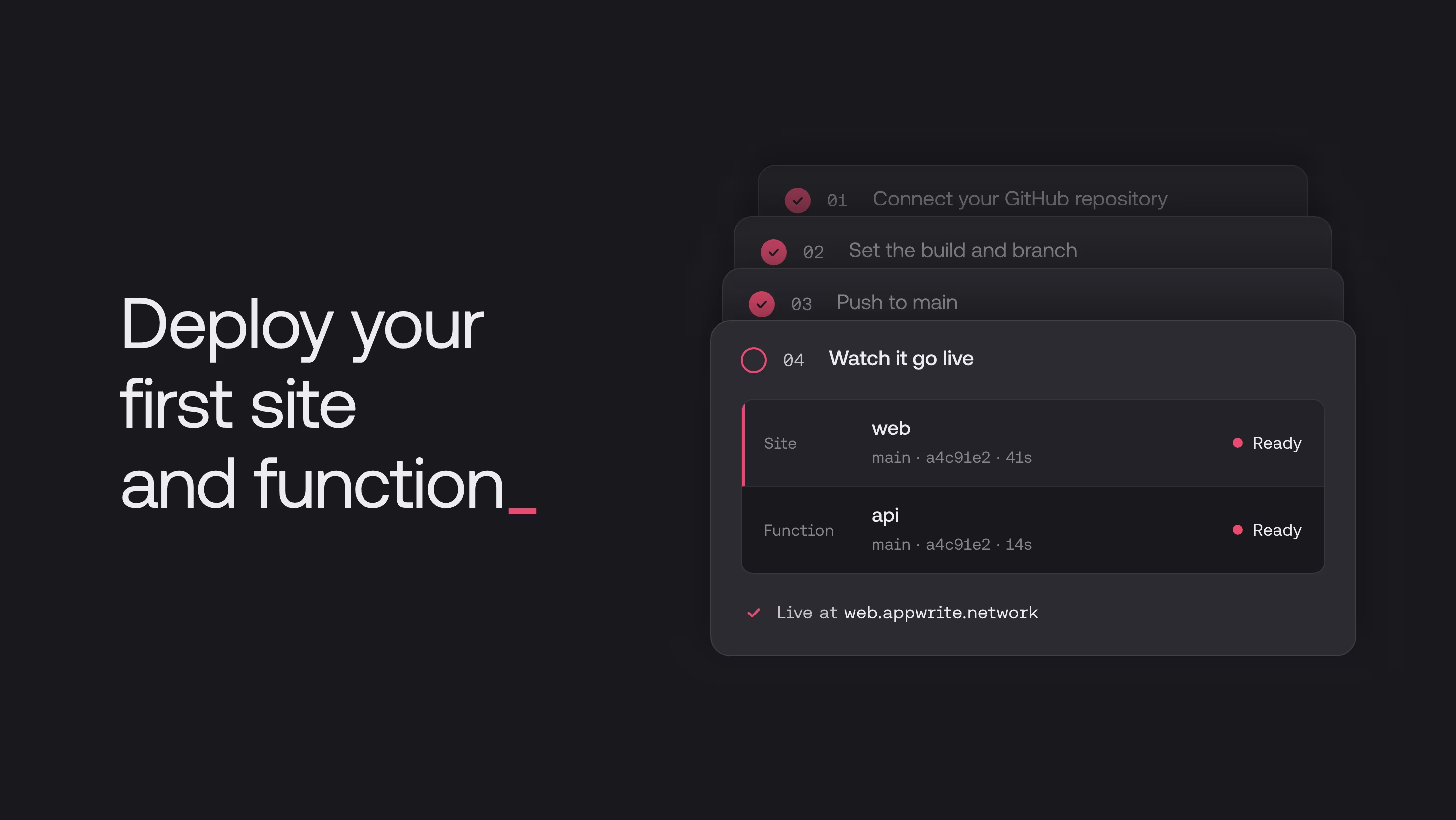
Appwrite Sites hosts the web app your users open, and Appwrite Functions run your backend code, such as API endpoints, webhooks and scheduled jobs. Both deploy from GitHub, so every push to your production branch builds and goes live.
By the end of this guide, your web app runs on its own Appwrite domain, and your first function answers requests from the Console and from your app.
You need an Appwrite project and a web app in a GitHub repository. If you don't have a project yet, create one in the Console.
Step 1: Deploy your site from GitHub
- In the Console, open Sites and click Create site.
- Under Import repository, click Connect GitHub and choose the repositories Appwrite can read.
- Pick your web app's repository and click Connect.
- Appwrite detects your framework and fills in the build settings. If your app needs environment variables, add them under Environment variables.
- Click Deploy.
Step 2: Open your site
Appwrite builds your app and shows a preview when it's ready. Click Visit site to open it on its Appwrite domain. That's the link you share with your users.
Click Go to dashboard to reach your site's Deployments tab, with the active deployment and its domain. From now on, every push to your production branch builds a new deployment and puts it live.
Step 3: Create a function
The quickest start is a starter template, which gives you working code in a repository of your own.
- Open Functions and click Create function.
- Under Clone template, click your language, such as Node. This opens the Starter function.
- Give your function a name.
- Choose Connect your repository, then Create new repository.
- Click Create and deploy.
Appwrite creates the repository, commits the starter code and deploys it. Like your site, the function deploys again on every push to its production branch.
Step 4: Run your function
- Open your function's Executions tab and click Create execution.
- Set Path to
/ping. - Click Execute.
The response body shows Pong, and the run appears in the list.
Your app can call the same function at its domain, listed on the Domains tab. The starter function is public, so you can try it from your terminal:
curl https://<FUNCTION_DOMAIN>/ping
To make it your own, edit src/main.js in your new repository and push. The next run returns your change.
Keep building
Your web app and your backend are both live. Click any run on the Executions tab to see what your function logged, and when you're ready for more, these guides pick up from here:
No. Pick a starter under Clone template on the Create site screen and Appwrite deploys it for you. You can also deploy with the Appwrite CLI or upload your files.
Open its Variables tab, add your keys, and redeploy. New values reach the next deployment. See site environment variables and function environment variables.
Yes. Open your site's Domains tab and add your domain. A subdomain like www.example.com needs one CNAME record at your DNS provider. Custom domains with Sites walks through it.
Node.js, Python, PHP, Go, Dart, Ruby, Rust, Deno, Bun and more. Each has a starter template on the Create function screen. See Functions runtimes for every version.