Announcing passkeys: Sign in without a password on the web, Android, and iOS_
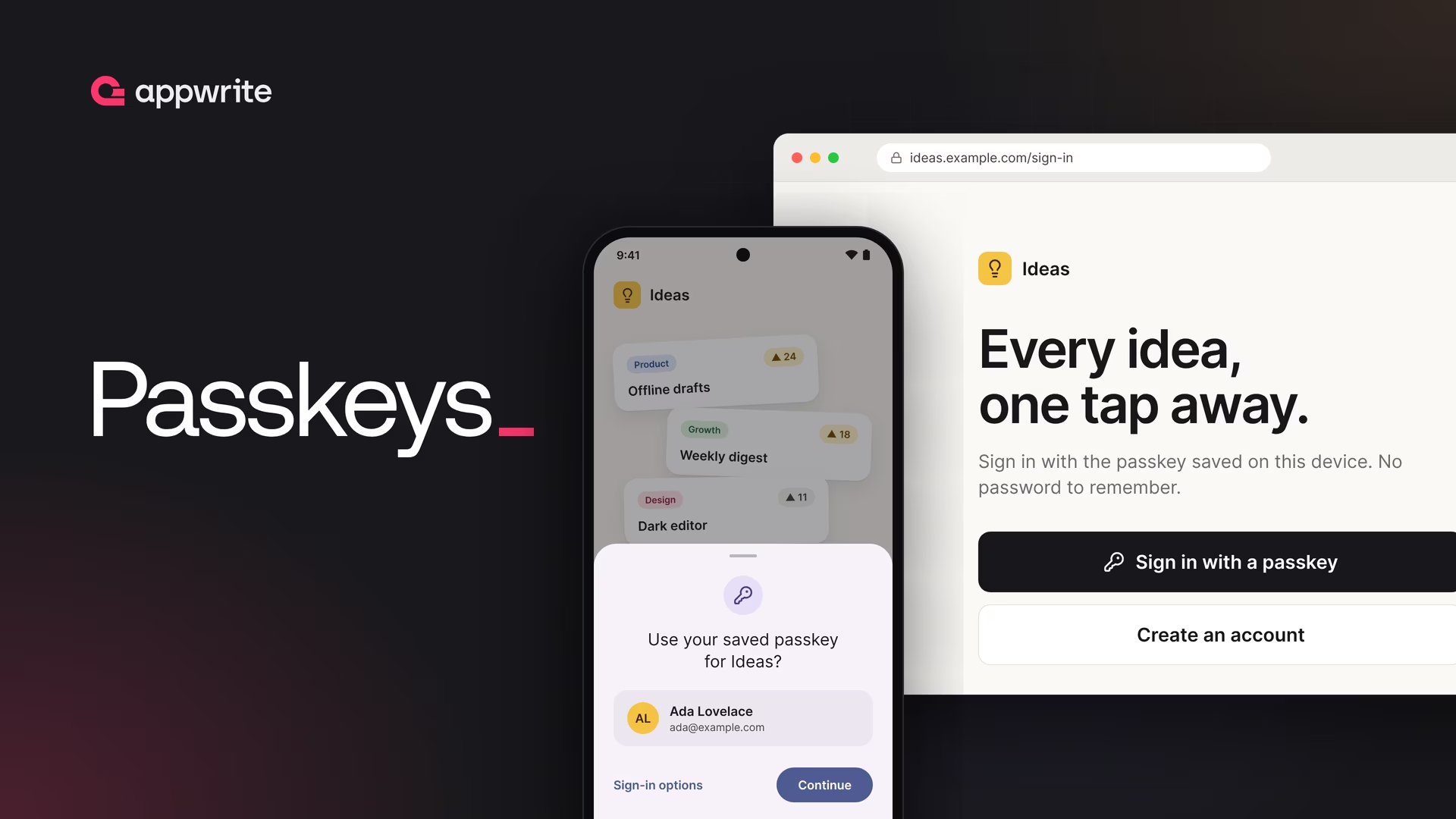
Appwrite Auth now supports passkeys. Users sign up and sign in with Face ID, Touch ID, a fingerprint, or the device PIN, and one passkey works on your website and in your Android and iOS apps.

Passwords are the weakest part of most sign-in flows. Users reuse them, phishing sites collect them, and every breach puts them up for sale. Passkeys fix that by replacing the password with a key pair that never leaves the user's device and only works on the site it was made for.
Today, Appwrite Auth supports passkeys on the web, Android, and Apple platforms.
Sign up and sign in with a passkey
After a user signs up, your app can offer to create a passkey. The next time they sign in, they pick it from the system sheet and confirm with Face ID, Touch ID, a fingerprint, or the device PIN. There is no email field and no password to type, because the passkey tells Appwrite which account it belongs to.
The same passkey works on your website and in your Android and iOS apps. Passkeys in iCloud Keychain and Google Password Manager also sync to the user's other devices.
Every passkey ceremony requires user verification, so a session created with a passkey already proves two factors and satisfies multi-factor authentication.
Turn it on with your domain
Passkeys are bound to your app's domain. When you turn on Passkey under Auth > Settings, the Console suggests a domain from your web platforms, and that is the only thing you need to choose.
Appwrite works out where passkeys may be used from the platforms already in your project:
- Web platforms on that domain and its subdomains, including wildcards such as
*.example.com. - Android apps by the SHA-256 fingerprints of the keys they are signed with.
- Apple apps that list the domain as an associated domain.
- A
localhostweb platform for development, on any port, with its own relying party.
Auth > Policies > Passkeys shows every origin Appwrite accepts, so you can see at a glance where your users' passkeys work.
The same calls on every platform
Registration takes two calls to Appwrite, and sign-in takes two plus the usual createSession, with the platform's own passkey API in between. On the web, that is navigator.credentials:
// Register a passkey for the signed-in user
const challenge = await account.createPasskey({ name: 'MacBook' });
const credential = await navigator.credentials.create({
    publicKey: PublicKeyCredential.parseCreationOptionsFromJSON(challenge.publicKey),
});
await account.updatePasskeyVerification({
    passkeyId: challenge.passkeyId,
    credential: credential.toJSON(),
});

// Later, sign in without an email or password
const signIn = await account.createPasskeyToken();
const assertion = await navigator.credentials.get({
    publicKey: PublicKeyCredential.parseRequestOptionsFromJSON(signIn.publicKey),
});
const token = await account.updatePasskeyToken({
    challengeId: signIn.$id,
    credential: assertion.toJSON(),
});
await account.createSession({ userId: token.userId, secret: token.secret });
Android apps use Credential Manager, Apple apps use Authentication Services, and Flutter and React Native apps use the passkeys and react-native-passkey packages. All of them read and return the same WebAuthn JSON that Appwrite uses, so the calls to Appwrite stay the same.
Native apps sign in with their signing key
An Android app does not have a web origin. Android identifies it by a hash of its signing certificate, so Android platforms in Appwrite now take the SHA-256 fingerprints of your keys, such as your debug key and the Play App Signing key. Each fingerprint becomes an origin that Appwrite accepts, and only builds signed with those keys can use your users' passkeys.
On iOS, the operating system checks your app against your domain's apple-app-site-association file, and the app signs in from the domain itself. Adding an Apple platform is enough on the Appwrite side.
Get started
Passkeys are available today on Appwrite Cloud and in self-hosted Appwrite 2.5. Follow the passkeys docs to turn them on, set up each platform, and add registration and sign-in to your app.
A passkey is a key pair that replaces a password. The private key stays on the user's device or in their password manager, such as iCloud Keychain or Google Password Manager, and is unlocked with Face ID, Touch ID, a fingerprint, or the device PIN. The server only stores the public key, so a database leak exposes nothing an attacker can sign in with.
The web, Android, and Apple platforms, plus Flutter and React Native apps that run on them. One passkey works across all of them, because they share the same relying party: your app's domain.
You need a domain, not a website. Android and iOS only offer an app the passkeys of a domain that lists it, so the domain has to serve /.well-known/assetlinks.json for Android and /.well-known/apple-app-site-association for iOS over HTTPS.
Yes. Every passkey ceremony requires user verification, such as a biometric or the device PIN, so the passkey proves both something the user has and something they are or know. A session created with a passkey satisfies multi-factor authentication.
Yes. Add localhost as a web platform, and passkeys work on http://localhost on any port with their own relying party, without touching your production domain.
Passkeys stored in iCloud Keychain or Google Password Manager sync to the user's other devices. For a passkey that only lived on the lost device, the user can sign in another way and delete it, or you can remove it on their behalf with the Users API.