Add your first Appwrite Firewall rules to a new project_
Use the two Firewall rules on the Appwrite Free plan to rate limit sign-in and cap API traffic, then see what they stop in the Console.

Appwrite Firewall checks every request to your project before it reaches your API. With a couple of rules, you decide how often one address can sign in or call your API, while your users carry on as usual.
The Free plan includes two rules per project, and this guide uses both. By the end, sign-in has a limit of its own, the rest of your API has a broader one, and you can watch both at work in the Console.
You need an Appwrite project whose users sign in with an Appwrite client SDK, in the browser or in a mobile app. If you don't have a project yet, create one in the Console.
Step 1: Open Firewall
Open your project and select Firewall under Protect in the sidebar. The Rules 0/2 counter at the top shows the two rules your plan includes.
Keep the resource selector on API, so your rules cover every request to your project's API.
Step 2: Rate limit sign-in
Your first rule sets how often one address can try to sign in.
- Click Create rule, set Rule name to
Rate limit sign-in, and keep Resource type on API. - Add Path Starts with
/v1/account/sessions, click +, and add Method EqualsPOST. - Under Then, choose Rate limit. Set Request limit to
10and Interval (seconds) to600. - Keep Strategy on Fixed window and Limit by on IP address.
- Keep Priority at
100and click Create rule.
Each address can now sign in 10 times every 10 minutes. That's plenty for someone who mistypes a password, and it slows down anyone trying password after password.
Step 3: Limit all API traffic
Your second rule caps every API request from one address, so no single client can page through your tables at full speed.
- Click Add preset and choose Rate limit project API.
- Keep Request limit at
600per1Minutes and click Create rule. - In the rules list, open the new rule's menu, choose Update, set Priority to
200, and click Update.
Rules run from the lowest priority number up, and each request counts toward the first rule it matches. At 200, sign-in attempts meet your sign-in limit first, and everything else counts toward this one.
The counter now reads Rules 2/2.
Step 4: See what your rules stop
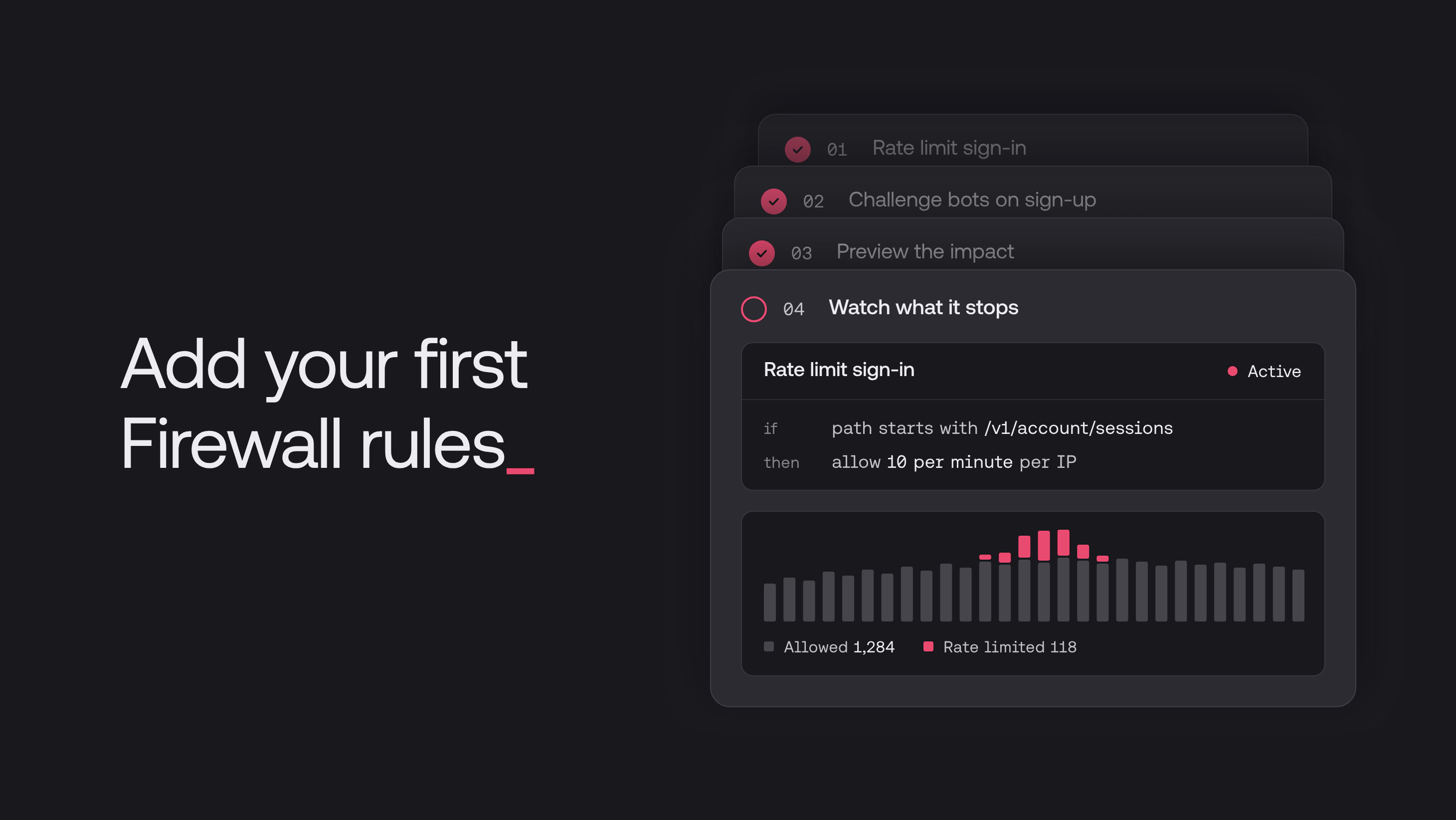
The chart above your rules shows your project's traffic and what Firewall did with it. Requests over one of your limits appear under Rate limited, next to Passed.
With everyday use, Rate limited stays close to zero. When it rises, your rules are slowing down a client that sent more requests than you allow.
Keep building
Your project now has its own limits on sign-in and on API traffic. As real users arrive, open a rule with Update and tune its limit to match your traffic.
On Pro, each project gets 50 rules, with room for the Rate limit OTP preset for SMS sign-in, Attack mode for your sites, and bypass rules for addresses you trust.
Free organizations can create 2 Firewall rules per project, and Pro and Scale organizations can create 50. See Plan limits.
Every Appwrite Cloud plan includes always-on DDoS mitigation, and Appwrite applies built-in rate limits to sensitive endpoints such as sign-in. Firewall rules add limits that you choose on top.
No. Firewall never blocks the Appwrite Console, so you can always update or turn off a rule.
Open the rule's menu in the Firewall rules list, choose Update, and change its Request limit or Interval (seconds).