Add push notifications to your Android app without Firebase_
Send push notifications to a Kotlin app with Appwrite Push. Notify customers when an order ships, deliver while the app is closed, and open the order on tap.

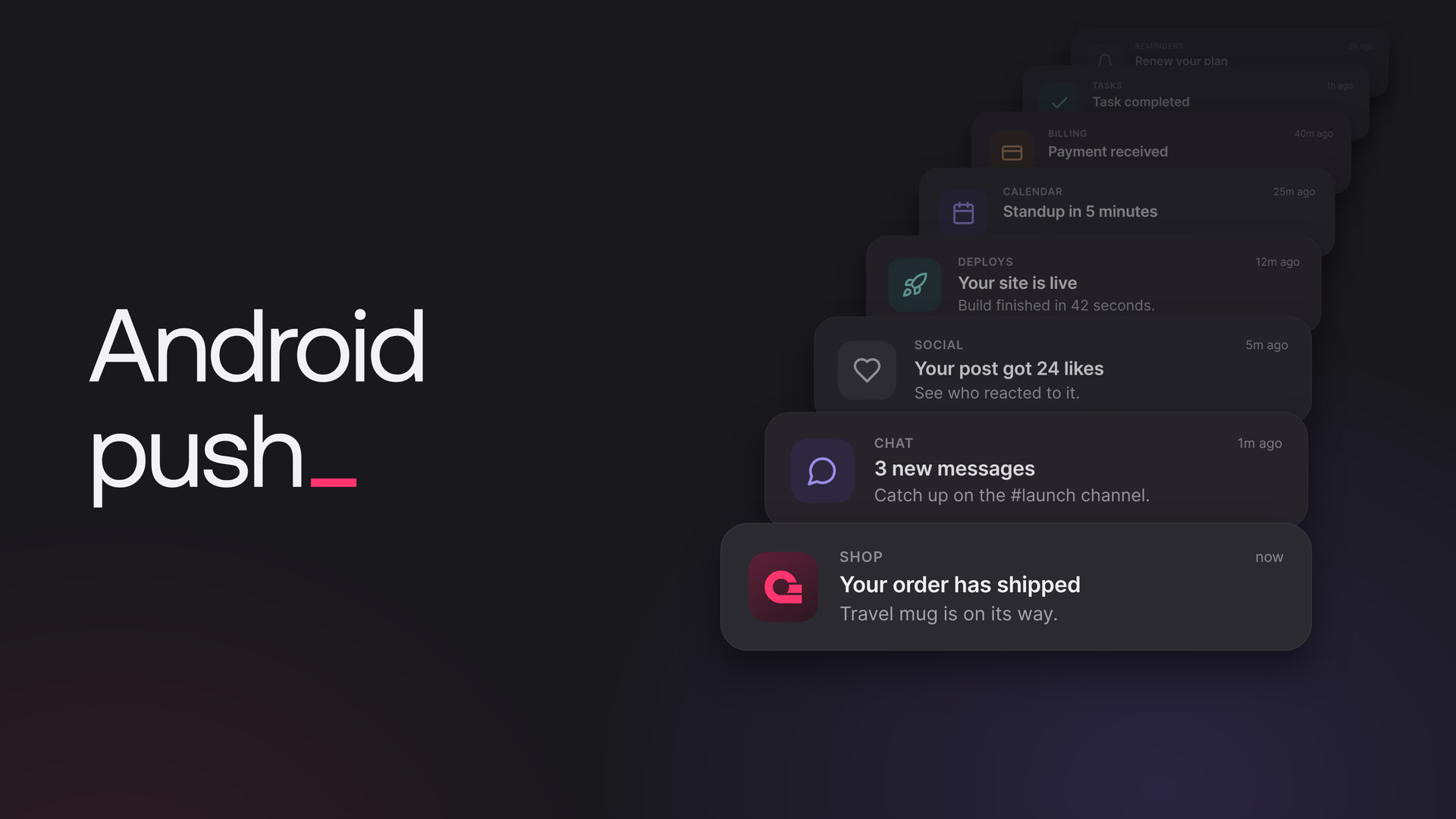
Push notifications on Android usually start in Firebase: a project, a google-services.json file, a messaging service, and code that collects each device's FCM token and stores it on your server. Appwrite Push works without any of that. The Appwrite Android SDK keeps a connection open to Appwrite with the signed-in user's session, and a message you send to that user's ID arrives on every device they use.
This tutorial adds order notifications to a Kotlin app built with Jetpack Compose. When an order's status changes to shipped or delivered, an Appwrite Function sends the customer a notification, and tapping it opens that order. The notifications arrive while the app is in the background, after Android kills its process, and after the phone comes back online.
Create the Appwrite Push provider
In the Console, open your project and go to Messaging > Providers > Create provider. Choose Appwrite under Push, give the provider a name, and click Create provider. Appwrite Push takes no credentials, so the provider can send as soon as it's created.
Register the Android app
Open Apps, click Add app, choose Android, and enter your app's package name, such as io.appwrite.orders. Appwrite only accepts requests from apps registered in the project.
Create the orders table
In Databases, create a database with the ID shop, and in it a table with the ID orders and these columns:
| Column | Type | Settings |
|---|---|---|
userId | Varchar | Size 36, required |
item | Varchar | Size 128, required |
status | Enum | Elements placed, shipped, and delivered, default placed |
In the table's settings, turn on Row security and leave the table permissions empty. Give each order a read permission for its customer, read("user:<USER_ID>"), so a customer can only list their own orders.
Add the Android SDK
Add the SDK to your app module's build.gradle.kts. Push needs Android 7.0 (API 24) or later.
android {
    defaultConfig {
        minSdk = 24
    }
}

dependencies {
    implementation("io.appwrite:sdk-for-android:31.1.0")
}
The SDK's manifest declares the permissions, services, and receivers that background delivery needs. Your manifest only needs the icon the SDK shows on notifications, a white drawable such as ic_notification:
<application>
    <meta-data
        android:name="io.appwrite.push.notification_icon"
        android:resource="@drawable/ic_notification" />
</application>
Connect to Appwrite
Create one client for the whole app, with your project's endpoint and ID from the Console:
object Appwrite {
    lateinit var client: Client
    lateinit var account: Account
    lateinit var tablesDB: TablesDB

    fun init(context: Context) {
        if (::client.isInitialized) return
        client = Client(context)
            .setEndpoint("https://<REGION>.cloud.appwrite.io/v1")
            .setProject("<PROJECT_ID>")
        account = Account(client)
        tablesDB = TablesDB(client)
    }
}
Subscribe after the user signs in
Push connects with the session the user signed in with, so subscribe after sign-in, and again at launch when a session already exists. Without a topic, subscribe listens for messages sent to the signed-in user. It can block while it connects, so call it off the main thread:
suspend fun startPush(push: Push, onMessage: () -> Unit) = withContext(Dispatchers.IO) {
    push.subscribe { message ->
        Log.d("Orders", "Push message: ${message.data}")
        onMessage()
    }
}
Called without a topic, subscribe also turns on background delivery by default. While your app is on screen, the callback receives each message and the SDK shows no notification. While it isn't, the SDK shows a system notification with the title and body you sent. On Android 13 and later, the first background subscription asks for the notification permission.
Call it once the session exists. In this app, the callback reloads the order list, so a new status shows up while your user is looking at it:
scope.launch {
    Appwrite.account.createEmailPasswordSession(email, password)
    startPush(push) { scope.launch { loadOrders() } }
    loadOrders()
}
loadOrders lists the rows with Appwrite.tablesDB.listRows(databaseId = "shop", tableId = "orders"). Row security limits the list to the signed-in customer's orders.
Open the order when a notification is tapped
Create Push once in your activity and pass the activity, so the SDK can ask for the notification permission. getInitialNotification returns the tap that launched the app, and onNotificationOpened reports taps while the app is running. Both include the data you sent with the message:
class MainActivity : ComponentActivity() {
    private lateinit var push: Push
    private val openedOrderId = mutableStateOf<String?>(null)
    private var stopListening: () -> Unit = {}

    override fun onCreate(savedInstanceState: Bundle?) {
        super.onCreate(savedInstanceState)
        Appwrite.init(applicationContext)
        push = Push(Appwrite.client, this)

        // Taps on a notification while the app is running
        stopListening = push.onNotificationOpened { opened ->
            openedOrderId.value = opened.data["orderId"] as? String
        }
        // The tap that launched the app
        push.getInitialNotification()?.let { opened ->
            openedOrderId.value = opened.data["orderId"] as? String
        }

        setContent { OrdersApp(push, openedOrderId) }
    }

    override fun onDestroy() {
        stopListening()
        super.onDestroy()
    }
}
When openedOrderId is set, OrdersApp shows that order. Load the row again instead of reading it from the list, because the status changed after the list loaded:
val order = Appwrite.tablesDB.getRow(databaseId = "shop", tableId = "orders", rowId = orderId)
Send the notification from a Function
An Appwrite Function sends the notification. It runs on every update to an order and sends a push when the new status is shipped or delivered:
import { Client, ID, Messaging } from 'node-appwrite';

const notifications = {
  shipped: {
    title: 'Your order has shipped',
    body: (order) => `${order.item} is on its way.`,
  },
  delivered: {
    title: 'Your order was delivered',
    body: (order) => `${order.item} has arrived.`,
  },
};

export default async ({ req, res, log }) => {
  const order = req.bodyJson;
  const notification = notifications[order.status];

  if (!notification) {
    return res.empty();
  }

  const client = new Client()
    .setEndpoint(process.env.APPWRITE_FUNCTION_API_ENDPOINT)
    .setProject(process.env.APPWRITE_FUNCTION_PROJECT_ID)
    .setKey(req.headers['x-appwrite-key']);

  await new Messaging(client).createPush({
    messageId: ID.unique(),
    title: notification.title,
    body: notification.body(order),
    users: [order.userId],
    data: { orderId: order.$id },
  });

  log(`Sent the ${order.status} notification for order ${order.$id}`);
  return res.empty();
};
The event payload is the updated row. users: [order.userId] reaches every device where the customer is signed in, and data comes back to the app in onNotificationOpened. The function's API key comes from the x-appwrite-key header and has only the scopes you give the function.
Save the code as functions/notify-order-status/src/main.js, with a package.json next to src that sets "type": "module" and depends on node-appwrite. Then add the function to your project's appwrite.config.json:
{
    "projectId": "<PROJECT_ID>",
    "functions": [
        {
            "$id": "notify-order-status",
            "name": "Notify order status",
            "runtime": "node-24",
            "path": "functions/notify-order-status",
            "entrypoint": "src/main.js",
            "commands": "npm install",
            "execute": [],
            "events": ["tablesdb.shop.tables.orders.rows.*.update"],
            "scopes": ["messages.write"],
            "timeout": 15
        }
    ]
}
events runs the function on every update to a row in orders, scopes lets it send messages, and an empty execute list keeps anyone from calling it directly. Deploy it with the Appwrite CLI, signed in with appwrite login:
appwrite push functions
Every update to a shipped order sends the message again. If other columns of an order change after it ships, store the last status you notified about and compare it before sending.
Try it
Sign in to the app as a customer with orders, then leave the app. In the Console, change one of their orders to shipped. The notification appears with your app's icon, and tapping it opens that order. Change it while the app is open and the list updates instead.
How quickly notifications arrive
While your app is open, a message arrives within a second of the function sending it. Once it's in the background, Android limits the app's network access, so the SDK wakes the app on a schedule to reconnect and post what arrived. In our tests on Android 15, background notifications arrived between 15 seconds and two minutes after the order changed. The same held after Android killed the app's process and after a reboot. Messages sent while the phone was offline arrived a few seconds after it reconnected. A force-stopped app receives nothing until it's opened again.
For instant delivery in the background, turn on the SDK's foreground service while the app is on screen, for example from a settings toggle:
push.setForeground(true)
In our tests, notifications then arrived within two seconds. The service shows a quiet ongoing notification and uses the remoteMessaging foreground service type, which Google Play asks you to declare. The setting is saved across restarts. Delivery while the app is closed covers exact alarms and battery optimization, which also affect timing.
Sign out
Close Push before you delete the session. It closes the connection and stops background delivery, so the device stops receiving the previous user's notifications:
push.close()
Appwrite.account.deleteSession("current")
Resources
Add an Appwrite Push provider to your Appwrite project, then subscribe with the Appwrite Android SDK after the user signs in. The SDK keeps its own connection to Appwrite, so you don't add Firebase to the app or collect FCM tokens. A message you send with createPush to the user's ID reaches every device where they are signed in.
Yes. The SDK saves background subscriptions and wakes the app on a schedule to reconnect, so notifications arrive after the user leaves the app, after Android kills its process, and after a reboot. A force-stopped app receives nothing until it is opened again. For instant delivery in the background, turn on the SDK's foreground service with push.setForeground(true).
Android 7.0 (API 24) and later, with the Appwrite Android SDK 30.0.0 or later. On Android 13 and later, the SDK asks for the notification permission the first time the app subscribes in the background.
Send the screen's identifier in the message's data, for example an order ID. In the app, read push.getInitialNotification() at startup for the tap that launched the app, and register push.onNotificationOpened for taps while it runs. Both return the data you sent.
Appwrite keeps them for up to 7 days. When the device reconnects, it replays the newest messages it missed, up to five per topic, oldest first.