Announcing project environments: dev, staging, and QA for Appwrite projects_
Appwrite Cloud projects now have environments: dev, staging, and QA backends with their own data and users, under the same project ID and on the same bill.

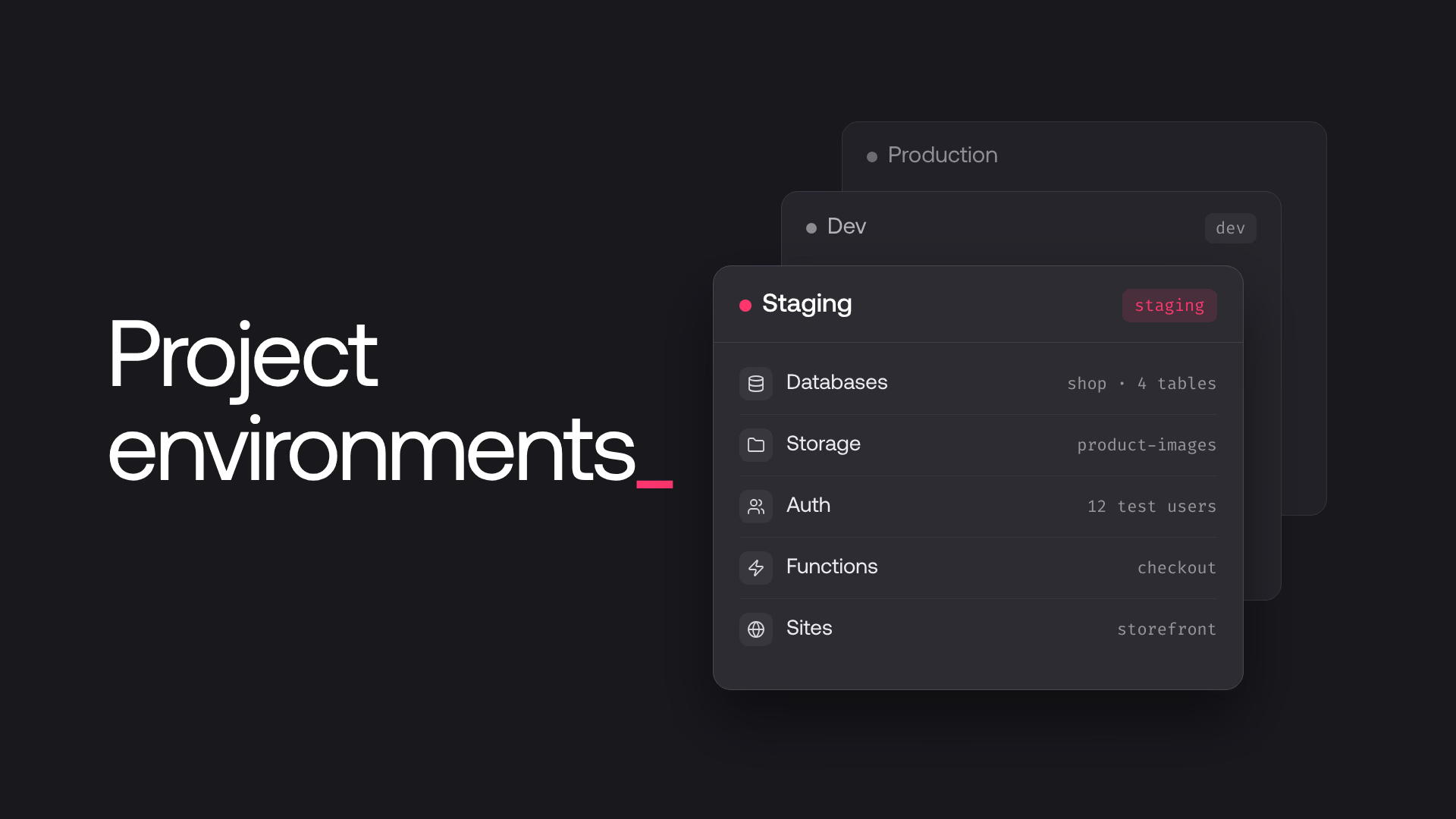
Appwrite Cloud projects now have environments. A project can carry development, staging, and QA backends next to production, each with its own databases, storage, users, functions, sites, and settings, all under the same project ID and on the same bill.
An environment starts empty or as a copy of the project, with the structure copied and data only where it's wanted. Apps switch between production and an environment with one extra value, so the same build can run against either. Environments are live today in beta on the Pro and Enterprise plans.
Why teams asked for environments
Many teams on Appwrite already work this way. They keep a second project for staging and sometimes a third for development, and they copy schema changes between them by hand or with the CLI. It works, but every copy of the backend is a separate project with its own ID, its own settings to keep in sync, and its own place on the bill. Promoting a change means remembering which project is which, and a staging project that drifts from production stops being a useful test.
Environments keep all of that under one project. Production stays where it is, and each environment sits beside it as an isolated backend that knows which project it belongs to.
What an environment is
An environment is a complete Appwrite backend that belongs to a project:
- Its own resources. Databases, tables, rows, buckets, files, users, teams, functions, sites, messaging, and project settings are separate from production's. A row written in
stagingnever shows up in production, and a test account created indevexists only indev. - The project's identity. An environment has no project ID of its own. It shares the project's endpoint, project ID, organization, and region, and it's addressed by an environment ID such as
staging. - The project's bill. An environment doesn't count as a project. Its usage is added to the project's.
Inside the Console, the environment switcher in the project sidebar lists Production and every environment. Picking one moves the whole project view, from Databases to Sites, into that environment, and a purple banner shows where the changes will land.
Create an environment
Open the environment switcher and click Create environment. Give it a name, such as Staging, and an environment ID. The ID follows the name, so Staging becomes staging, and it's what apps pass to reach the environment.
Under Start from, choose an Empty environment for a fresh backend, or a Clone of the project to start from production's shape.
Copy only what you need
A clone copies the structure and settings of every part of the project by default: databases with their tables, columns, and indexes, buckets, teams and auth settings, functions and sites with their variables and active deployments, messaging providers and topics, platforms, SMTP, and email templates. Rows, files, and users stay behind unless you tick them, so a staging environment gets production's shape without production's customer data.
Resources keep their IDs in the copy, so code that reads the orders table works in both. API keys, webhooks, and custom domains are never copied, because they belong to production. The copy runs in the background, and the environment is usable while it finishes.
Connect your app
Every environment's Get started page lists the endpoint, project ID, and environment ID. SDKs take the environment ID next to the project ID:
import { Client } from 'appwrite';

const client = new Client()
    .setEndpoint('https://<REGION>.cloud.appwrite.io/v1')
    .setProject('<PROJECT_ID>')
    .setEnvironment('staging');
Leave setEnvironment out and the same code talks to production. Reading the environment ID from configuration lets one build of a frontend serve preview deployments against staging and the release build against production. Server SDKs work the same way, with an API key created inside the environment, so a production key can never reach staging and a staging key can never reach production.
Promote changes from dev to staging to production
The Appwrite CLI stores the environment in appwrite.config.json as environmentId, next to the project ID. Link your repository to the dev environment, then pull and push as usual. The CLI asks which resources to push and shows the changes before it applies them:
appwrite init project --project-id "<PROJECT_ID>" --environment-id dev
appwrite pull all
appwrite push all
In CI, the APPWRITE_ENVIRONMENT_ID variable picks the environment and takes precedence over the config file. There's no one to answer the CLI's questions there, so --all selects every resource and --force approves the changes:
export APPWRITE_PROJECT_ID="<PROJECT_ID>"
export APPWRITE_ENVIRONMENT_ID=staging
appwrite push all --all --force
A CI job can push every merge to staging, then push the same config to production on release by leaving the environment ID empty. The development workflow guide has a complete GitHub Actions pipeline for it.
What environments unlock
- Safer schema changes. Add a column, change an index, or restructure a table in
dev, and push it to production only once the app works against it. - Real QA. Reviewers get a backend with production's structure, seeded test accounts, and their own data to break.
- A sandbox for AI agents. The Appwrite MCP server takes an
environment_id, so an agent can build features against a development environment with a full backend to change and production's data out of its path. - Preview deployments with a backend of their own. Frontend previews can point at
staginginstead of production.
Plans and limits
Environments are in beta on the Pro and Enterprise plans of Appwrite Cloud, with three environments per project. They don't use a project slot and aren't charged as additional projects; their usage simply adds to the project's.
Environments are built for development and testing, so each one holds up to 100 users and serves 500 API requests per hour, with Console requests not counted. Production traffic stays on the project, where it always was.
Set up your first staging environment
Every team needs a place to try things that isn't production. Environments give each Appwrite project that place without a second project to keep in sync, so changes can be built, reviewed, and tested on a real backend before your users ever see them. Open a Pro project in Appwrite Cloud, create a staging environment as a clone of the project, and point your next preview deployment at it.
A project environment is a separate backend that belongs to an Appwrite Cloud project, such as staging or dev. It has its own databases, storage, users, functions, sites, and settings, and it shares the project's endpoint, project ID, organization, region, and bill. The project itself is production. See Project environments.
With the same endpoint and project ID as production, plus the environment's ID. SDKs take it with setEnvironment, the REST API with the X-Appwrite-Environment header, the CLI with environmentId in appwrite.config.json or the APPWRITE_ENVIRONMENT_ID variable, and the MCP server with environment_id. See Connect to an environment.
When you create an environment as a clone of the project, Appwrite copies the structure and settings of databases, storage, auth, functions, sites, messaging, and project settings, and data such as rows, files, and users only when you tick it. API keys, webhooks, custom domains, message history, and backups are never copied. See Copy a project into an environment.
Three per project on the Pro and Enterprise plans. Production, the project itself, isn't counted. The Free plan doesn't include environments. See Limits and billing.
No. Environments come with the Pro and Enterprise plans. An environment doesn't count as a project on your plan and isn't charged as an additional project. Its usage is added to the project's usage, and the plan's included resources cover the project and its environments together.
Environments are built for development and testing, so each one is limited to 100 users and 500 API requests per hour. Requests from the Appwrite Console don't count toward that limit. Production traffic belongs on the project itself.
No. Project environments are an Appwrite Cloud feature.