Self-hosting Appwrite with MongoDB as the underlying database_
Learn how to self-host Appwrite with MongoDB as the database backend using the new installation wizard.

Appwrite is built on self-hosting, but until now, MariaDB was the only database option. With Appwrite 1.9.0, you can now choose MongoDB as your database backend. This is a big deal if you prefer a document-based database or already have MongoDB expertise on your team.
In this article, you will learn how to self-host Appwrite with MongoDB from scratch using the new web-based installation wizard.
Prerequisites
Before you begin, make sure you have the following ready:
- A server or local machine with at least 2 CPU cores, 4GB of RAM, and 2GB of swap memory
- Docker CLI installed
- If you're installing on a remote server, port 20080 must be open in your firewall (the installation wizard runs on this port). You can close it after installation is complete.
Running the installer
The installer is a single Docker command that launches a web-based setup wizard. Open your terminal and run:
docker run -it --rm \
    --publish 20080:20080 \
    --volume /var/run/docker.sock:/var/run/docker.sock \
    --volume "$(pwd)"/appwrite:/usr/src/code/appwrite:rw \
    --entrypoint="install" \
    appwrite/appwrite:1.9.0
docker run -it --rm ^
    --publish 20080:20080 ^
    --volume //var/run/docker.sock:/var/run/docker.sock ^
    --volume "%cd%"/appwrite:/usr/src/code/appwrite:rw ^
    --entrypoint="install" ^
    appwrite/appwrite:1.9.0
docker run -it --rm `
    --publish 20080:20080 `
    --volume /var/run/docker.sock:/var/run/docker.sock `
    --volume ${pwd}/appwrite:/usr/src/code/appwrite:rw `
    --entrypoint="install" `
    appwrite/appwrite:1.9.0
Once the command is running, open your browser and go to http://localhost:20080 (or your server's IP address on port 20080).
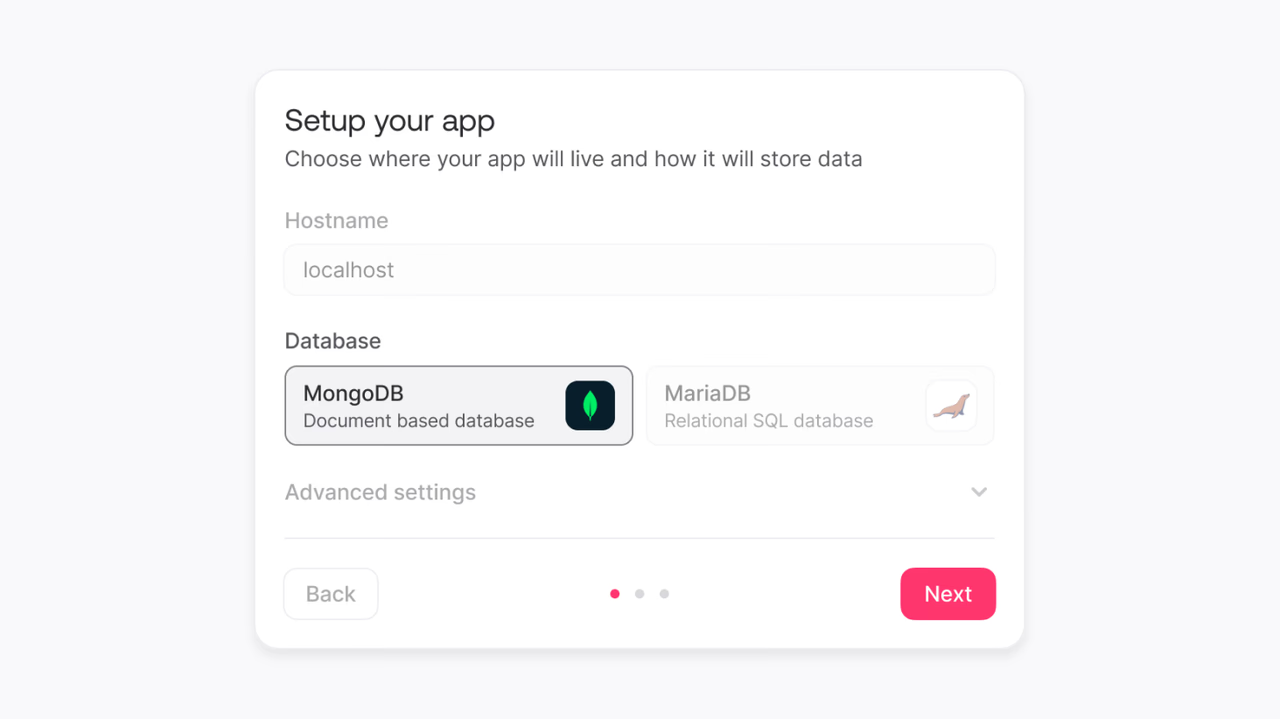
Step 1: Setup your app
The first screen asks you to configure the basics of your Appwrite instance.
- Hostname: Enter the domain or IP address where your Appwrite instance will be accessible. If you're just testing locally,
localhostworks fine. - Database: This is the important part. Select MongoDB. It's already selected by default, but make sure it's the one highlighted.
- Advanced settings: Expand this if you want to change the HTTP/HTTPS ports, set an SSL certificate email, or add an OpenAI key for the Appwrite Assistant. For most setups, the defaults are fine.
One thing to note here: the database choice is permanent. You cannot switch from MongoDB to MariaDB (or vice versa) after installation without starting fresh. So make sure you're happy with your choice before proceeding.
Step 2: Secure your app
Next, the wizard generates a secret API key for your instance. This key is used to encrypt sensitive data on your server.
Copy this key and store it somewhere safe. You won't be able to see it again after this step. If you lose it, you won't be able to decrypt your data. Use the copy button to grab it, or click regenerate if you want a new one.
Step 3: Create your account
Set up the email and password for your Appwrite account. You can use these credentials to sign in to the Appwrite Console later, but you'll be automatically signed in when the installer completes.
Make sure you use a strong password (minimum 8 characters). This is the account that will have full access to your Appwrite instance.
Step 4: Review and install
The final step shows a summary of everything you've configured. Double-check the settings, especially the database selection showing MongoDB.
If everything looks good, hit Install. The wizard will pull the necessary Docker images and set up your Appwrite instance with MongoDB. This might take a few minutes depending on your internet speed.
What happens under the hood
Your Appwrite API stays exactly the same regardless of which database you pick. You still work with tables, columns, and rows through the Appwrite Console and SDKs. The database choice only affects the underlying storage engine.
Here are the environment variables that get configured for MongoDB:
| Variable | Value |
|---|---|
_APP_DB_ADAPTER | mongodb |
_APP_DB_HOST | mongodb |
_APP_DB_PORT | 27017 |
_APP_DB_SCHEMA | appwrite |
You can find these in the .env file inside your appwrite directory after installation.
Backing up your MongoDB data
Once your instance is running, you'll want to set up backups. Here's the command to create a backup of your MongoDB data:
docker compose exec mongodb sh -c 'exec mongodump --username=root --password="$MONGO_INITDB_ROOT_PASSWORD" --authenticationDatabase=admin --archive' > ./dump.archive
And to restore from a backup on a fresh installation:
docker compose exec -T mongodb sh -c 'exec mongorestore --username=root --password="$MONGO_INITDB_ROOT_PASSWORD" --authenticationDatabase=admin --archive' < dump.archive
Only restore to a fresh Appwrite installation to avoid data corruption.
Accessing the Console
After installation completes, you'll be automatically signed in to the Appwrite Console. From here, create your first project.
From here, you can start building with Appwrite's full suite of features: Authentication, Databases, Storage, Functions, Messaging, and Sites. All powered by MongoDB under the hood.
Wrapping up
Self-hosting Appwrite with MongoDB is straightforward with the new installation wizard. The entire process takes a few minutes, and you get a production-ready setup with a database backend you're comfortable with.
If you have any questions, join our Discord server to connect with the team.