Build a permission-aware AI copilot with Appwrite Functions_
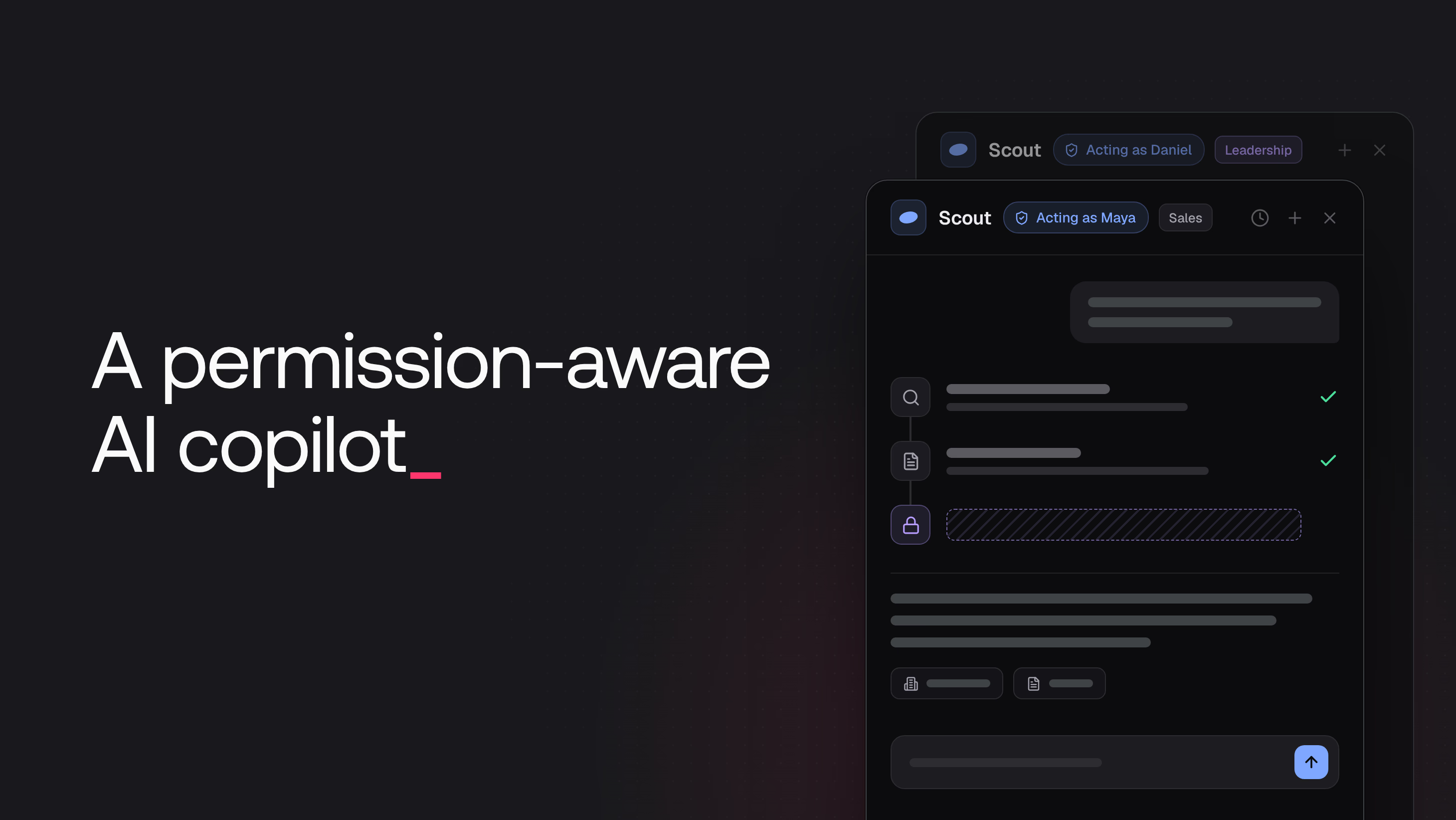
Build a CRM copilot that acts as the signed-in user. An Appwrite Function receives the caller's JWT, so every tool call gets the same row permissions and team roles as the user's own requests.

When an in-app AI assistant reads data with an API key, it can read every row in the project, because requests with an API key skip row permissions. The system prompt is then the only thing between the model and the data that the user must not see.
This tutorial builds Scout, the assistant inside Cairn, a CRM for B2B sales and customer success teams. Scout runs in an Appwrite Function as the signed-in user, and it works with the records that the user can access:
- It briefs the user on an account before a call, from the notes, contacts, and deals that the user can read.
- It logs notes and creates follow-up tasks.
- It moves a deal to another stage when you ask.
Two people who ask Scout the same question can get different answers, because Scout sees only the records that each of them can open in the app.
Scout architecture
Scout has three parts.
The web app starts Scout with the user's session. When a user sends a message to Scout, the web app uses the Appwrite Web SDK to create an asynchronous execution of the copilot function. The request carries the session of that user.
The copilot function acts as the caller. For every execution that a signed-in user starts, Appwrite creates a JSON Web Token (JWT), a short-lived token that identifies the user. The function builds its Appwrite client from that JWT and uses no other credential. GPT-6 Luna, called through OpenRouter, decides which tools to call, and every tool reads or writes rows with the user's permissions.
Realtime shows the run as it happens. The function writes one row for the run and one row for each tool call. The web app subscribes to those rows and shows each step in the Scout panel, then the answer.
User JWTs compared with API keys
Server code can reach the data of a project in two ways. The first way is an API key. A key has scopes, such as rows.read, and a request with a key skips row permissions: it can read every row in every table that its scopes cover. The key that Appwrite gives each execution in the x-appwrite-key header works the same way. The second way is a JWT. A request with the JWT of a user acts as that user, so Appwrite applies the same row permissions and team roles as for the user's own requests from the browser.
With an API key, Scout could read the notes that only the Leadership team may see and the private notes of every user. A prompt could tell the model to leave them out, but the model could still ask for them, and nothing would stop the request. With the user's JWT, Appwrite decides what each tool call returns:
| API key | JWT of the user | |
|---|---|---|
| Rows that a tool can read | Every row that the scopes cover | Only the rows that the user can read |
| What limits the data that reaches the model | The system prompt and the tool code | Row permissions and team roles in Appwrite |
| Result of a read for a row outside the user's access | Appwrite returns the row | Appwrite answers 404, the same as for a missing row |
| Result of a change that the user is not allowed to make | Appwrite applies the change | Appwrite rejects it with 401 |
No line of Scout's code checks permissions. The function sends every request with the user's JWT, and Appwrite applies the user's permissions to each request.
Model the data with teams and row permissions
Cairn is the CRM of a fictional company, Lumina Analytics. Its data has three kinds of boundaries: records that the whole company shares, records that only one team can read, and records that only their author can read. Teams and row permissions express all three.
Teams and roles
A team in Appwrite Auth is a group of users, and each membership can have roles, such as rep or manager. A permission can name a whole team, such as team:sales, or only the members of a team with one role, such as team:sales/manager. Cairn has four teams:
- Lumina Analytics (
workspace) holds every employee. Its members read accounts, contacts, and the notes that are shared with the company. - Sales (
sales) holds the account executives with thereprole and the head of sales with themanagerrole. Its members read deals, and managers can update every deal. - Customer Success (
success) holds the customer success managers. - Leadership (
leadership): its members read Leadership notes and confidential accounts.
The demo has four users, and all four are in Lumina Analytics:
- Maya Chen and Tom Becker are account executives with the
reprole in Sales. - Daniel Okafor is the head of sales, a
managerin Sales, and a member of Leadership. - Priya Raman is a customer success manager.
A user can put only their own teams and roles into row permissions. Every user is in Lumina Analytics, so every user can share a note with the whole company through team:workspace.
Row security on every table
Cairn stores its data in TablesDB, the Appwrite database with tables, rows, and columns. Every table has table permissions. When row security is on, each row can also have its own permissions, and a user can access a row if the table or the row gives them access. Creating a row always needs a table permission.
All Cairn tables have row security on. The only table permission is create for the Lumina Analytics team, on the tables that users write to: notes, tasks, threads, runs, and steps. The accounts, contacts, and deals tables have no table permissions, so every read comes from the permissions of each row. The whole company can read accounts, and Sales can read deals. Only Leadership can read a confidential account and its deal. scripts/schema.ts in the companion repository defines every column and index.
Row permissions for each note
A note is shared with the company, private to its author, or shared with Leadership. The notes table has no visibility column. The app reads the visibility of a note from the row's $permissions, so the visibility badge on each note always matches what Appwrite enforces. To see the permissions of a row in the Console, open the table and select the three-dot button at the end of the row. Select Update, then open the Permissions tab.
The notePermissions function builds those permissions. Scout uses it when it adds a note, and the web app has the same function for notes that users add themselves:
/**
 * Row permissions for a note. The visibility decides who can read it; only
 * the author can change or delete it.
 */
export function notePermissions(visibility, userId) {
  const reader = {
    workspace: Role.team('workspace'),
    private: Role.user(userId),
    leadership: Role.team('leadership'),
  }[visibility];

  return [
    Permission.read(reader),
    Permission.update(Role.user(userId)),
    Permission.delete(Role.user(userId)),
  ];
}
Tasks, threads, runs, and steps belong to the user who creates them, and only that user can read them.
Create the project and the demo data
The companion repository creates the database, the tables, the teams, and the demo data with two scripts. The scripts use an API key for this setup, and the copilot function never uses one.
- In the Appwrite Console, create a project.
- Open Apps and select Add app. Choose Web and enter
localhostas the Hostname. - Open API Keys and select Create API key. Name the key
setupand select these scopes:databases.read,databases.write,tables.read,tables.write,columns.read,columns.write,indexes.read,indexes.write,rows.read,rows.write,teams.read,teams.write,users.read, andusers.write. Then select Create API key and copy the secret.
Clone the companion repository and install the dependencies:
git clone https://github.com/appwrite-community/cairn-copilot.git
cd cairn-copilot
pnpm install
Copy .env.example to .env. Set APPWRITE_ENDPOINT and VITE_APPWRITE_ENDPOINT to the API endpoint of your project's region, and set APPWRITE_PROJECT_ID and VITE_APPWRITE_PROJECT_ID to the project ID. Set APPWRITE_API_KEY to the secret of the setup key, and set DEMO_PASSWORD to a password of at least 8 characters for the four demo users. Then create the tables and the demo data:
pnpm provision
pnpm seed
pnpm provision creates the crm database, its eight tables with row security, and the four teams. pnpm seed creates the four users, adds them to their teams with their roles, and writes the accounts, contacts, deals, notes, and tasks with their row permissions.
Create the copilot function
An Appwrite Function is server code that Appwrite runs when a request, an event, or a schedule starts it. Each function has execute permissions, which decide who can start it, and scopes, which decide what the key of each execution can do. The file appwrite.config.json defines the copilot function:
{
  "projectId": "cairn",
  "projectName": "Cairn",
  "endpoint": "https://fra.cloud.appwrite.io/v1",
  "functions": [
    {
      "$id": "copilot",
      "name": "copilot",
      "runtime": "node-22",
      "execute": ["team:workspace"],
      "enabled": true,
      "logging": true,
      "timeout": 180,
      "entrypoint": "src/main.js",
      "commands": "npm install",
      "path": "functions/copilot",
      "scopes": [],
      "ignore": ["node_modules", ".npm"]
    }
  ]
}
execute limits Scout to the workspace team, and scopes is empty. timeout is 180 seconds, the longest time that one Scout run can take. Set projectId to your project ID and endpoint to the API endpoint of its region. Then deploy the function with the Appwrite CLI:
appwrite login
appwrite push functions
Check who can execute the function
Open the copilot function in the Console and go to Security. The Permissions card lists who can execute the function: only the Lumina Analytics team. A signed-in user outside the team and a visitor without a session both get a 401 error, so nobody outside the company can start a model request.
Check the execution key scopes
Go to Settings and select Executions. The Scopes card shows 0 Scopes for every group. Appwrite creates a key with these scopes for each execution and sends it in the x-appwrite-key header. With no scopes, a request such as listRows with that key fails with a 401 error, so the function can only reach data through the JWT of the user.
Add the OpenRouter key
Go to Variables and add OPENROUTER_API_KEY with your OpenRouter API key. Mark it as secret, so the Console hides the value after you save it. OPENROUTER_MODEL is optional. Without it, the function uses openai/gpt-6-luna. Appwrite applies new variables on the next deployment, so select Redeploy in the banner at the top of the function.
Write the copilot function
The function is JavaScript and lives in functions/copilot/src. main.js checks the input, records the run, and starts the tool loop. The other files hold the client, the run log, the tools, the error handling, and the prompt.
Create a client from the caller's JWT
When a signed-in user creates an execution, Appwrite sends a JWT for that user in the x-appwrite-user-jwt header. A caller cannot send a different value for this header, because Appwrite sets it after it adds the headers of the request. The userClient function in appwrite.js builds the Appwrite client from the JWT:
import { Client } from 'node-appwrite';

export const DATABASE_ID = 'crm';

/** Shorthand for the database and table parameters of TablesDB calls. */
export const table = (tableId) => ({ databaseId: DATABASE_ID, tableId });

/**
 * Creates an Appwrite client that acts as the user who started the execution.
 * Appwrite sends a short-lived JWT for that user in the x-appwrite-user-jwt
 * header, so every request made with this client follows the user's own
 * permissions. Returns null when no signed-in user started the execution.
 */
export function userClient(req) {
  const jwt = req.headers['x-appwrite-user-jwt'];
  if (!jwt) return null;

  return new Client()
    .setEndpoint(process.env.APPWRITE_FUNCTION_API_ENDPOINT)
    .setProject(process.env.APPWRITE_FUNCTION_PROJECT_ID)
    .setJWT(jwt);
}
Appwrite sets APPWRITE_FUNCTION_API_ENDPOINT and APPWRITE_FUNCTION_PROJECT_ID in every execution. The client has no API key, so every request that it sends is a request from the user. The entry point in main.js stops at once when no signed-in user started the execution:
const client = userClient(req);
if (!client) return res.json({ error: 'Sign in to use Scout.' }, 401);
With the same client, the function reads the user's profile and teams for the system prompt. The thread of the conversation is a row that only its creator can read, so reading it is also an ownership check.
Record each run and step as the user
The function records each run in the runs table. The ID of the run row is the execution ID, which the function reads from the x-appwrite-execution-id header as runId. The web app gets the same ID from createExecution, so it can match the run row to the execution. If Appwrite delivers the same execution twice, the second createRow call fails because a row with that ID exists, and the function stops without doing the work again:
// The execution ID is the run ID. If the row already exists, this
// execution was delivered twice and the first delivery owns the run.
let run;
try {
  run = await tablesDB.createRow({
    ...table('runs'),
    rowId: runId,
    data: { threadId, prompt, status: 'running', readCount: 0, writeCount: 0 },
  });
} catch (err) {
  if (err.type === 'row_already_exists') return res.empty();
  throw err;
}
runLog = createRunLog(tablesDB, runId);
The call has no permissions argument. A row that a user creates without permissions gets read, update, and delete permissions for that user only, and the JWT client creates rows as the user. Realtime delivers row events only to users who can read the row, so run and step rows reach the user who asked and nobody else.
Before each tool call, the run log writes a step row with the status running. After the call, it updates the row with the result (done, denied, or error), a short detail such as "4 notes", and the records that the tool read or wrote. The web app shows those records as the Sources of the answer.
Give Scout tools that use the same permissions
Scout has nine tools, and each one makes TablesDB calls with the user's client:
search_recordsfinds accounts and contacts with a fulltext search.list_accounts,get_account,list_deals,list_notes, andlist_tasksread the CRM.create_noteadds a note that is shared with the company, private to the user, or shared with Leadership.create_taskcreates a follow-up task that only the user can see.update_dealchanges the stage, the close date, or the next step of a deal.
No tool checks permissions, and the system prompt does not describe them. Appwrite applies them to every call. list_notes returns only the notes that the user can read, and its total counts only those notes, so the same call returns different notes to Maya and to Daniel.
Writes follow the same rule, with one detail. An update that changes nothing only needs read permission, so Appwrite accepts it even on a deal that the user cannot change. Without a check, Scout could report a change that never happened. The run function of update_deal compares the new values with the stored ones and skips the write when nothing changes:
async run({ dealId, stage, closeDate, nextStep }, { tablesDB, me }) {
  if (closeDate && !isDateOnly(closeDate))
    return invalid('closeDate must be a valid date as YYYY-MM-DD.');
  if (nextStep && nextStep.length > 256)
    return invalid('nextStep must be 256 characters or fewer.');

  const deal = await tablesDB.getRow({ ...table('deals'), rowId: dealId });
  const label = `Updating ${deal.name}`;
  const changes = {};
  if (stage && stage !== deal.stage) changes.stage = stage;
  if (closeDate && closeDate !== dateOnly(deal.closeDate))
    changes.closeDate = noonUtc(closeDate);
  if (nextStep && nextStep !== deal.nextStep) changes.nextStep = nextStep;

  // An update that changes nothing only needs read access, so Appwrite
  // would accept it even on a deal the user cannot change. Skip it.
  if (Object.keys(changes).length === 0) {
    return {
      forModel: { unchanged: true, deal: dealView(deal) },
      label,
      detail: 'Already up to date',
      read: [dealRecord(deal)],
    };
  }

  try {
    const updated = await tablesDB.updateRow({
      ...table('deals'),
      rowId: dealId,
      data: { ...changes, updatedByName: me.name, updatedVia: 'scout' },
    });
    return {
      forModel: { updated: dealView(updated) },
      label,
      detail: describeChanges(changes),
      wrote: [dealRecord(updated)],
    };
  } catch (err) {
    if (err.type !== 'user_unauthorized') throw err;
    return {
      ...notAllowed({
        owner: deal.ownerName,
        detail: `Not allowed: ${deal.ownerName} owns this deal`,
      }),
      label,
      read: [dealRecord(deal)],
    };
  }
},
When Maya asks Scout to move a deal that Tom owns, updateRow fails with a 401 user_unauthorized error. The tool returns not_allowed with the owner's name, which it takes from the deal row that it read before the update. When Maya asks for a note for Leadership only, create_note puts read("team:leadership") into the permissions of the row. Maya is not in Leadership, so Appwrite rejects the row, and Scout tells her that she cannot share notes with that team.
Turn permission errors into answers
A read of a row that the user cannot read returns 404 row_not_found, the same response as for a row that does not exist. A write that the user is not allowed to make returns 401 user_unauthorized. The toToolResult function turns both into results that the model can read:
/**
 * Turns an Appwrite error from a tool call into a result the model can read.
 * A row the user cannot read looks exactly like a row that does not exist,
 * so the model learns nothing about records outside the user's access.
 * Anything unexpected is rethrown and fails the run.
 */
export function toToolResult(err) {
  if (isSessionError(err)) throw new SessionEndedError(err);

  if (err.type === 'row_not_found') {
    return {
      status: 'done',
      detail: 'Not found',
      forModel: { error: 'not_found', message: 'No record with this ID is available to the user.' },
    };
  }
  // Never forward Appwrite's message here: it lists the user's roles.
  if (err.type === 'user_unauthorized') return notAllowed();
  if (err.code === 400) {
    return {
      status: 'error',
      detail: 'Invalid request',
      forModel: { error: 'invalid', message: err.message },
    };
  }
  throw err;
}
A 404 tells the model nothing about records outside the user's access. The function never forwards the message of a 401 error, because Appwrite lists the user's roles in the message for a rejected permission. The system prompt tells the model to say that the user does not have permission when a tool returns not_allowed. It has no rule about who can see what.
Run the tool loop
OpenRouter uses the same API as OpenAI Chat Completions, so the official openai package works with the OpenRouter base URL. The runAgent function in agent.js sends the messages and the tool definitions to GPT-6 Luna. When the model asks for tools, the function runs them one at a time, so the steps appear in the order the model asked for them. The loop ends when the model answers with text, after eight rounds, or when 110 seconds have passed since the function started:
const MAX_ROUNDS = 8;
// The run's JWT lasts the function timeout (180 s) plus 60 s. No new model
// request starts after this budget, so a run always ends while the JWT works.
const ROUND_BUDGET_MS = 110_000;

const NO_ANSWER = 'Scout could not put an answer together. Try asking again.';
const TOO_MANY_STEPS =
  'This request needed more steps than Scout takes in one run. Try asking about one account at a time.';

/**
 * The tool loop. The model asks for tools, Scout runs them as the user, and
 * the results go back to the model until it answers in text. Every tool call
 * becomes a step row that the web app shows while the run is in progress.
 */
export async function runAgent({ openrouter, messages, toolbox, runLog, startedAt }) {
  let rounds = 0;
  while (rounds < MAX_ROUNDS && Date.now() - startedAt < ROUND_BUDGET_MS) {
    rounds++;
    const completion = await openrouter.chat.completions.create({
      model: process.env.OPENROUTER_MODEL || 'openai/gpt-6-luna',
      messages,
      tools: toolbox.definitions,
      reasoning_effort: 'low',
    });
    const message = completion.choices?.[0]?.message;
    if (!message) throw new Error('The model returned no message.');
    if (!message.tool_calls?.length)
      return { answer: message.content?.trim() || NO_ANSWER, rounds };

    messages.push(message);
    // One call at a time, so the steps appear in the order the model asked for them.
    for (const call of message.tool_calls) {
      const step = await runLog.startStep(call.function.name, toolbox.label(call));
      const result = await toolbox.run(call);
      await runLog.finishStep(step, result);
      messages.push({
        role: 'tool',
        tool_call_id: call.id,
        content: JSON.stringify(result.forModel),
      });
    }
  }
  return { answer: TOO_MANY_STEPS, rounds };
}
reasoning_effort: 'low' keeps each model request short. With the Cairn test prompts, low effort chose the same tools as the default effort and answered faster. The messages start with the system prompt and the last six completed runs of the thread, so the user can ask a follow-up question.
Execution time limits and JWT lifetime
Scout runs as an asynchronous execution, because one Scout run can take longer than a synchronous execution allows. Appwrite stops waiting for a synchronous execution after 30 seconds, whatever the function timeout is. A Scout run makes several model requests and several Appwrite calls, and the first run after a deployment also waits for the runtime to start. An asynchronous execution runs up to the function timeout, 180 seconds for copilot. Appwrite does not store the response body of an asynchronous execution, so the function writes its results to rows, and the web app follows those rows through Realtime.
The JWT in the execution expires 60 seconds after the function timeout, counted from when Appwrite creates the execution. For copilot, that is 240 seconds. The loop limits keep a run inside that window: no new model request starts after 110 seconds, and each model request times out after 30 seconds with one retry.
The JWT is also tied to the session that started the execution. If the user signs out while Scout works, later requests with the JWT act as a guest, and a listRows call as a guest returns no rows and no error. Scout writes a step row as the user before every tool call. After sign-out, that write fails with a 401 error, and the run stops instead of answering from empty results. The web app shows the run as interrupted, with a Try again button.
Call Scout from the web app
The web app uses the Appwrite Web SDK. The startRun function in apps/web/src/lib/scout.ts starts a run. For the first message of a conversation, it creates a thread row. Then it creates the execution with async: true, so Appwrite returns at once:
/**
 * Starts a Scout run. The execution is asynchronous, so createExecution
 * returns at once and the function's progress arrives through Realtime.
 * Appwrite gives the function a JWT for the signed-in user, so Scout reads
 * and writes with this user's permissions.
 */
export async function startRun({ threadId, prompt }: { threadId: string | null; prompt: string }) {
  const thread = threadId ?? (await createThread(prompt)).$id;

  const execution = await functions.createExecution({
    functionId: SCOUT_FUNCTION_ID,
    async: true,
    body: JSON.stringify({
      threadId: thread,
      prompt,
      timeZone: Intl.DateTimeFormat().resolvedOptions().timeZone,
    }),
  });

  // The function uses the execution ID as the ID of the run row it writes.
  return { threadId: thread, runId: execution.$id };
}
The body holds the thread ID, the prompt, and the time zone of the browser, so Scout can turn "on Friday" into a date. The session of the user goes with the request, and that is how the function gets the JWT.
Follow the run with Realtime
Realtime sends changes to the browser over a WebSocket. A subscription names channels, such as the rows of one table, and Appwrite delivers a row event only to users who can read the row. The subscribeToScout function subscribes to the runs and steps rows and to the user's executions:
const rows = (tableId: TableId) => Channel.tablesdb(DATABASE_ID).table(tableId).row();

/**
 * Follows Scout while it works: the run and step rows the copilot function
 * writes, and the execution that runs it. There are no filters here.
 * The function writes those rows as the signed-in user, and executions
 * belong to the user who started them, so Appwrite delivers them to that
 * user only.
 */
export function subscribeToScout(handlers: {
  onRun: (change: RowChange<Run>) => void;
  onStep: (change: RowChange<Step>) => void;
  onExecution: (execution: Models.Execution) => void;
}) {
  return realtime.subscribe(
    [rows('runs'), rows('steps'), Channel.executions()],
    ({ events, channels, payload }) => {
      const change = rowChange(events);
      if (change?.tableId === 'runs') handlers.onRun({ ...change, row: payload as Run });
      else if (change?.tableId === 'steps') handlers.onStep({ ...change, row: payload as Step });
      else if (channels.includes(Channel.executions())) {
        handlers.onExecution(payload as Models.Execution);
      }
    },
  );
}
The executions channel covers a run that stops early: when an execution completes or fails and its run row still has the status running, the panel marks the run as interrupted.
Start the Cairn web app
From the root of the repository, start the web app:
pnpm dev
The command starts the web app on http://localhost:5173. Sign in with the email of a demo user, such as maya.chen@example.com, and DEMO_PASSWORD. Select Ask Scout in the sidebar to open the Scout panel.
Try Scout as different users
Prepare for a call
Sign in as Maya and open Alder Freight from Accounts. Select Ask Scout about Alder Freight and send "Prep me for my call with Alder Freight". Each tool call appears as a step while Scout works.
When the run completes, the answer appears with its Sources. The briefing draws only on the rows that Maya can read: the account, its contacts, the deal, the notes that are shared with the company, and her own private notes.
Ask the same question as two users
As Maya, ask "What pricing flexibility do we have on Alder Freight?". Scout answers from the notes that Maya can read, including the 8 percent discount limit from her private note. The answer does not mention a discount approval, because Maya cannot read one.
Sign in as Daniel and ask the same question. Daniel is in Leadership, so list_notes also returns his Leadership note, which approves up to 12 percent off list for a signed two-year term. It does not return Maya's private note. Scout uses the same prompt and the same tools for both users, and the row permissions of the Leadership note make the difference.
Log a note and a follow-up task
As Maya, send "Log that Ana Ruiz wants a two-year term and remind me to email her the Fleet rollout plan on Friday". Scout calls create_note and create_task. The note appears in the Alder Freight timeline with a via Scout chip, and the task appears under Your tasks here, both through Realtime. Priya sees the note on the same page, but not the task, because only Maya can read her tasks.
Ask for a change that the user cannot make
As Maya, send "Move the Kestrel Biotech expansion to closed won". Tom owns that deal, and Maya is not a sales manager, so Appwrite rejects the update. The step shows "Not allowed", and Scout answers that Tom Becker owns the deal. The deal stays in its stage.
Resources
When a signed-in user creates an execution, Appwrite sends a short-lived JWT for that user in the x-appwrite-user-jwt header. The function creates a node-appwrite client with setJWT and that token. Every request the client sends is a request from the user, so Appwrite applies the same row permissions and team roles as for the user's own requests from the app.
Requests with an API key skip row permissions, so a key with rows.read can read every row in the project, including private notes and records that only one team may see. The system prompt is then the only thing that keeps that data away from the model. With the user's JWT, Appwrite checks every tool call, and a row the user cannot read never reaches the model.
It expires 60 seconds after the function timeout, counted from when Appwrite creates the execution. A function with a 180-second timeout gets a JWT that lasts 240 seconds. The JWT is also tied to the user's session: after the user signs out, requests with it act as a guest, so reads return no rows and writes fail with a 401 error.
The same thing it sees for a row that does not exist. getRow returns a 404 row_not_found error for both, and listRows leaves out every row the user cannot read, with a total that counts only the rows it returns. Nothing tells the model that hidden rows exist.