Introducing worker topologies for self-hosted Appwrite_
Self-hosted Appwrite now runs all background workers in a single container by default. Learn how the combined topology works and when to scale out with separate workers.

Every Appwrite instance processes background work through queues: sending emails, running function builds, issuing TLS certificates, delivering webhooks, and more. Until now, self-hosting Appwrite meant running a dedicated container for each of these queues, plus a container for each scheduler. That design scales well, but most self-hosted instances never need that much separation. They pay for it anyway in containers to run, monitor, and update.
Self-hosted Appwrite now supports two worker topologies, and the new default cuts background processing down to 2 containers.
Two topologies, same behavior
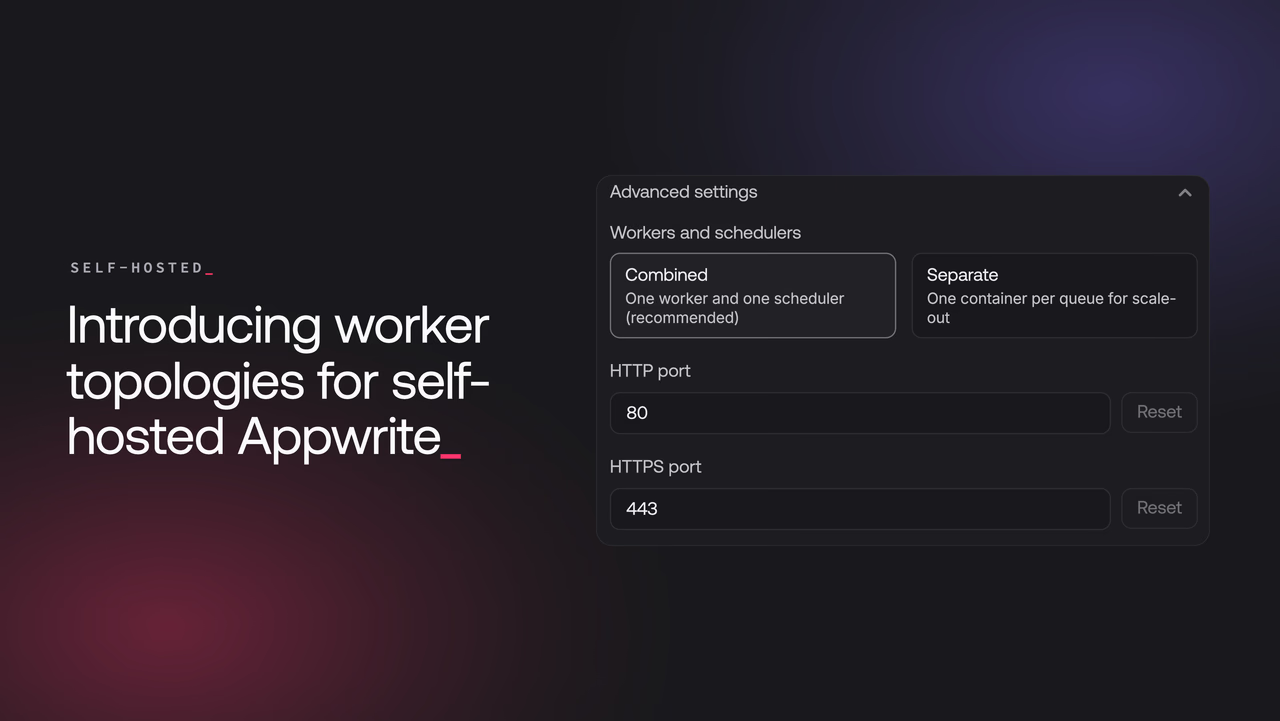
A topology defines how workers and schedulers run:
- Combined runs every queue in a single
appwrite-workercontainer and every scheduler in a singleappwrite-task-schedulercontainer. This is the new default and the recommended choice for most installations. - Separate keeps the previous model: one container per queue and one per scheduler, 16 containers in total.
Both topologies process the same queues with the same behavior. Inside the combined worker, each queue gets its own pool of coroutines, so a busy builds queue doesn't block emails or webhooks. Queues that must process jobs in order, like databases, still process one job at a time. The rest handle up to 8 jobs concurrently.
The choice only affects how many containers your instance runs and how you scale them.
Choosing a topology during installation
The setup wizard asks for the topology in Step 1, under Advanced settings. Combined is preselected, so most installations don't need to change anything.
If you install from the command line, pass the --topology parameter instead:
docker run -it --rm \
    --volume /var/run/docker.sock:/var/run/docker.sock \
    --volume "$(pwd)"/appwrite:/usr/src/code/appwrite:rw \
    --entrypoint="install" \
    appwrite/appwrite:latest \
    --topology=separate
Either way, the installer writes a docker-compose.yml that contains only the services for the topology you selected.
Simpler operations by default
The combined topology makes day-to-day operations simpler:
- One log stream.
docker compose logs -f appwrite-workershows every queue. You don't have to remember which container handles certificates and which handles emails. - Fewer containers to watch. Health checks, restarts, and version updates apply to 2 containers for background work instead of 16.
- Lower idle footprint. Small instances no longer keep 16 processes alive to handle queues that are mostly empty.
Scaling out with separate workers
The separate topology exists for instances that outgrow a single worker. It helps when:
- One queue, such as builds or executions, needs more replicas or dedicated resources than the rest.
- You want per-queue logs, metrics, and resource limits.
- You want to restart a misbehaving queue without touching the others.
If you run Appwrite from the repository's Compose file, the separate services sit behind a Compose profile:
docker compose -f docker-compose.yml -f docker-compose.separate.yml --profile separate up -d
Run one topology at a time. Both consume the same queues, so running them together makes jobs race between two consumers.
Switching an existing installation
Upgrades respect the topology you already run. Appwrite detects it from your Compose file and keeps it, so existing multi-worker installations stay on separate workers after upgrading.
To switch, run the upgrade command with an explicit --topology parameter:
docker run -it --rm \
    --volume /var/run/docker.sock:/var/run/docker.sock \
    --volume "$(pwd)"/appwrite:/usr/src/code/appwrite:rw \
    --entrypoint="upgrade" \
    appwrite/appwrite:latest \
    --topology=combined
Appwrite rewrites your docker-compose.yml with the other topology's services and restarts the stack. The switch doesn't touch your data.
Get started
The combined topology is the default for new installations, so the fastest way to try it is a fresh install with the setup wizard. To go deeper:
- Worker topologies covers both topologies, the full container list, and switching.
- Scaling explains how topology choice fits your scaling strategy.
- Environment variables documents
_APP_WORKER_MAX_COROUTINESfor tuning worker concurrency.
A topology defines how Appwrite runs its background queue workers and schedulers. The combined topology runs every queue in one worker container and every scheduler in one scheduler container. The separate topology runs one container per queue, which lets you scale each queue on its own.
Use the combined topology unless you need to scale or isolate individual queues. It is the default and runs 2 containers for background work instead of 16. Move to the separate topology when one queue needs more replicas, dedicated resources, or its own logs and limits.
No. Both topologies process the same queues with the same per-queue concurrency limits. The choice only affects how many containers your instance runs and how you scale them.
Yes. Run the upgrade command with the --topology parameter and Appwrite rewrites your Docker Compose file with the other topology's services. The switch doesn't touch your data. Without the parameter, upgrades detect and keep your current topology.
All queues log to the single worker container, so one command shows everything: docker compose logs -f appwrite-worker. In the separate topology, each queue keeps its own container and log stream, such as appwrite-worker-mails.