Announcing one-click APNs setup with the Appwrite CLI_
Run appwrite init apns and the CLI creates your APNs providers, configures Xcode, checks your App ID with Apple, and can even create the APNs key for you.

Getting push notifications working on iOS has always meant a long checklist across three tools. Create an APNs key in the Apple Developer portal, download the .p8 file before Apple hides it forever, note the key ID and team ID, look up the bundle ID, create a provider in the Appwrite Console, create a second one for sandbox, then open Xcode to add the Push Notifications capability and the background mode. Miss one step, or register the wrong bundle ID, and the whole setup quietly falls apart.
None of it is hard. It is just easy to get one value slightly wrong, and the error only shows up when the first push fails.
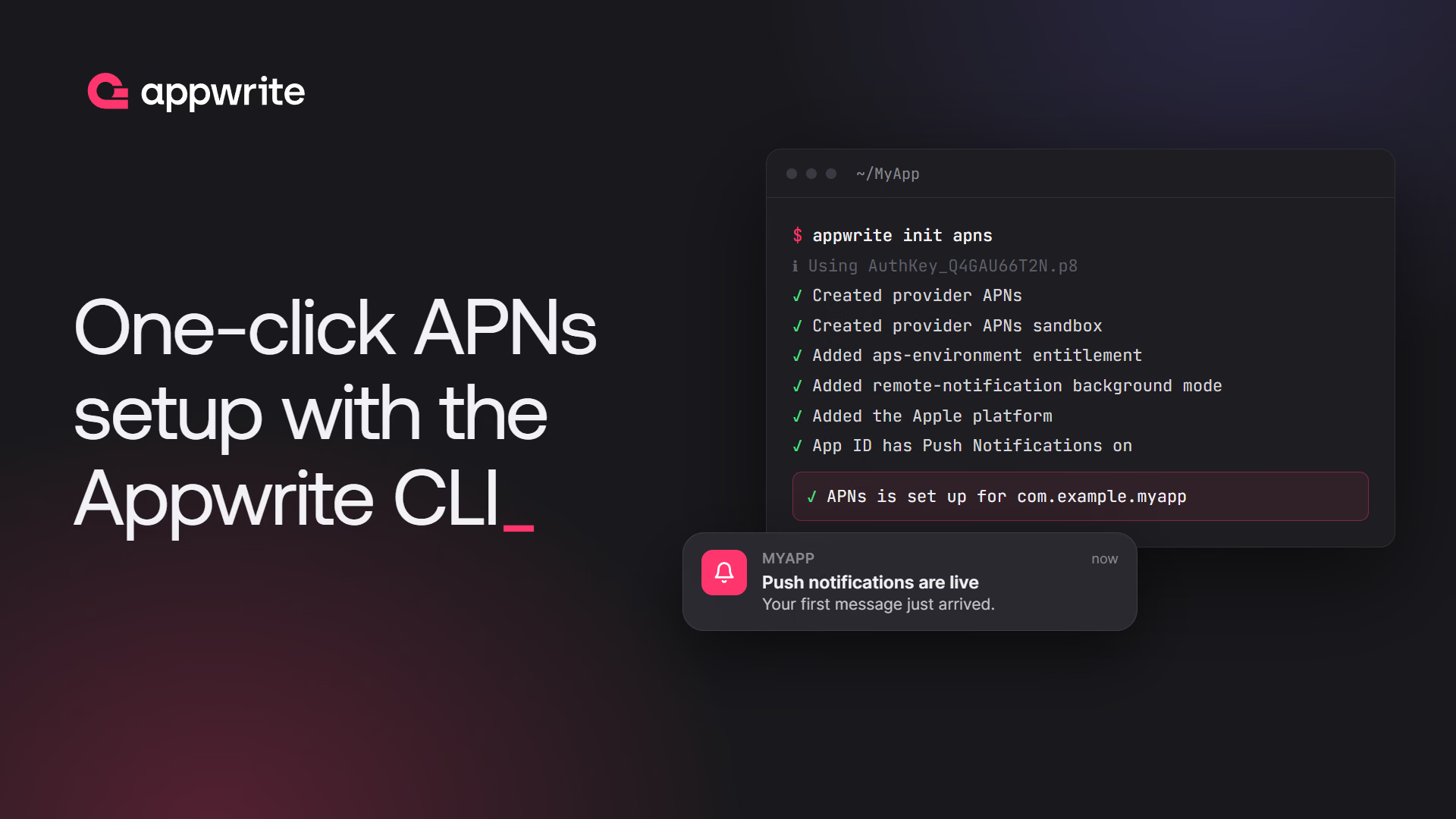
Today we are announcing one-click APNs setup in the Appwrite CLI. Run appwrite init apns in your iOS project, and the CLI configures Appwrite Messaging, your Xcode project, and your Apple App ID in one pass.
What one-click APNs setup gives you
- Production and sandbox providers in one run. The CLI creates or updates both APNs providers and enables them, so development builds and App Store builds both receive pushes. Use
--environment sandboxor--environment productionto set up only one. - Xcode configured for you. It adds the
aps-environmententitlement and theremote-notificationbackground mode to your app target. - Values read from your project. The bundle ID and team ID come from your Xcode project or Expo
app.json, and the key ID comes from theAuthKey_<KEYID>.p8file name. With a key in the project folder, you don't type any of them. - An Apple platform when you need one. If your project has no Apple platform for the bundle ID, the CLI adds it. Without one, Appwrite rejects the app's requests as an unknown origin, device registration included.
- An App ID check on every run. The CLI confirms with Apple that your bundle ID is an App ID with Push Notifications on, and offers to fix it if not. Unless you pass
--register-app-id, it asks before signing in or changing anything. - An APNs key without the portal. With
--create-key, the CLI signs in with your Apple ID and creates the key itself. - Safe reruns. When both providers are set up and enabled, running the command again leaves them alone and rechecks everything else. With
--forceor--key-path, it replaces the key on the existing providers instead of duplicating them.
Set up APNs with a key you already have
If you already have an APNs auth key, put the .p8 file in your project folder and run the command from there:
appwrite init apns
The output walks through each step:
ℹ Info: Setting up APNs ...
ℹ Info: Using AuthKey_Q4GAU66T2N.p8 from the project folder.
✓ Success: Created provider APNs (io.appwrite.apnstest.native) ( … )
✓ Success: Created provider APNs sandbox (io.appwrite.apnstest.native) ( … )
✓ Success: Added aps-environment to APNsNative/APNsNative.entitlements
✓ Success: Added the remote-notification background mode to APNsNative/Info.plist
✓ Success: APNs is set up for io.appwrite.apnstest.native.
✓ Success: Added the Apple platform io.appwrite.apnstest.native to the project.
ℹ Info: Checking the App ID for io.appwrite.apnstest.native ...
✓ Success: io.appwrite.apnstest.native is registered as an App ID with Push Notifications.
Keep your keys somewhere else? Point the CLI at the file and pass the team ID:
appwrite init apns --key-path ~/keys/AuthKey_Q4GAU66T2N.p8 --team-id ABCDE12345
Create the APNs key with your Apple ID
The slowest part of APNs setup is usually the Apple Developer portal. With --create-key, you skip it:
appwrite init apns --create-key
If both providers are already set up and enabled, add --force to replace their key with the new one.
The CLI signs in with your Apple ID, asks for your password and two-factor code, lets you pick a team, and creates the key. It saves the key as AuthKey_<KEYID>.p8 in your project folder and warns you if git would commit it. Apple lets you download a key only once, so keep that file somewhere safe.
The CLI saves your Apple sign-in, readable only by you, so later runs skip the password and two-factor code until Apple expires the session. Pass --reset to sign in again, which also creates a new key.
If you run appwrite init apns without a key and without --create-key, the CLI offers three choices: create the key with your Apple ID, create it in the Apple Developer portal, or pick a file.
Key creation is experimental. It talks to Apple's private developer APIs, which can change without notice. To keep you unblocked when that happens, the CLI ships three interchangeable ways to talk to Apple:
| Setup | Built on |
|---|---|
appwrite (default) | Native Go client built into the CLI |
expo | @expo/apple-utils |
fastlane | fastlane's spaceship |
Switch with --provider or the APPWRITE_APNS_SETUP environment variable. This flag only picks how the CLI signs in to Apple, not which APNs providers it creates in your project:
appwrite init apns --create-key --provider fastlane
If Apple breaks one setup, switch to another instead of waiting for a CLI release.
What you still set up yourself
appwrite init apns stops at what it can configure safely and leaves the rest to you:
- Expo config.
expo prebuildregenerates theiosfolder, so in an Expo project also set the entitlement and background mode inapp.json. The CLI prints the exact keys to add. - Device registration and sending. Request permission, register the device token as a push target, and send your first message by following Send push notifications.
When to reach for one-click APNs setup
- You are adding push to a new iOS app. One command replaces the portal, the Console provider form, and the Xcode capability editor.
- You run separate development and production builds. Both APNs environments are configured together, so sandbox pushes work from the first debug build.
- You build with Expo or fastlane. The CLI reads Expo's
app.jsonand can sign in through the same tools you already use. - You keep seeing
TopicDisallowed. Rerun the command and let the App ID check find the mismatch.
Stick with the Console when you are configuring an app you don't have the source for, or when you want to paste in credentials by hand. The manual APNs steps still work exactly as before.
Get started with APNs in Appwrite
Update the Appwrite CLI to the latest version, log in to your Appwrite Cloud project, and run appwrite init apns from your iOS project folder.
It sets up push notifications for an iOS app in one command. It creates or updates the APNs production and sandbox providers in your Appwrite project, adds the aps-environment entitlement and the remote-notification background mode to your Xcode target, adds an Apple platform for your bundle ID if the project has none, and checks with Apple that the bundle ID is an App ID with Push Notifications on. See the APNs docs.
No. Pass --create-key and the CLI signs in with your Apple ID, password, and two-factor code, then creates the key for you. This option is experimental. When both providers are already set up and enabled, add --force to create a new key. If you already have a key, drop the AuthKey_<KEYID>.p8 file in your project folder or pass --key-path, and the CLI reads the key ID from the file name.
From your project. For native Xcode projects it reads PRODUCT_BUNDLE_IDENTIFIER and DEVELOPMENT_TEAM from the app target. For Expo projects it reads ios.bundleIdentifier and ios.appleTeamId from app.json. You can override either with --bundle-id and --team-id.
APNs rejects pushes for any bundle ID that isn't registered as an App ID with Push Notifications turned on, and returns TopicDisallowed. The CLI checks this on every run and asks before it signs in to Apple or changes anything. Pass --register-app-id to register the App ID and turn on Push Notifications without being asked.
Yes, with an existing key. APPWRITE_APPLE_ID and APPWRITE_APPLE_PASSWORD answer the Apple sign-in prompts, but Apple's two-factor code always needs a terminal, so pass --key-path in CI. The App ID check uses a saved Apple sign-in if there is one, and otherwise reports that it skipped the check. It only fails the command when --register-app-id is passed.
Yes. When both providers are already set up, a rerun leaves them as they are, and still updates Xcode, adds the Apple platform if it's missing, and checks the App ID. To replace the key, pass --force or --key-path, and the CLI updates the existing providers instead of creating duplicates. If either provider is missing or disabled, the CLI updates both with the key it uses.