Add push notifications to your iOS app with Appwrite Push_
Send push notifications to a SwiftUI app with Appwrite Push. Notify customers when an order ships, show the message while the app is suspended, and open the order on tap.

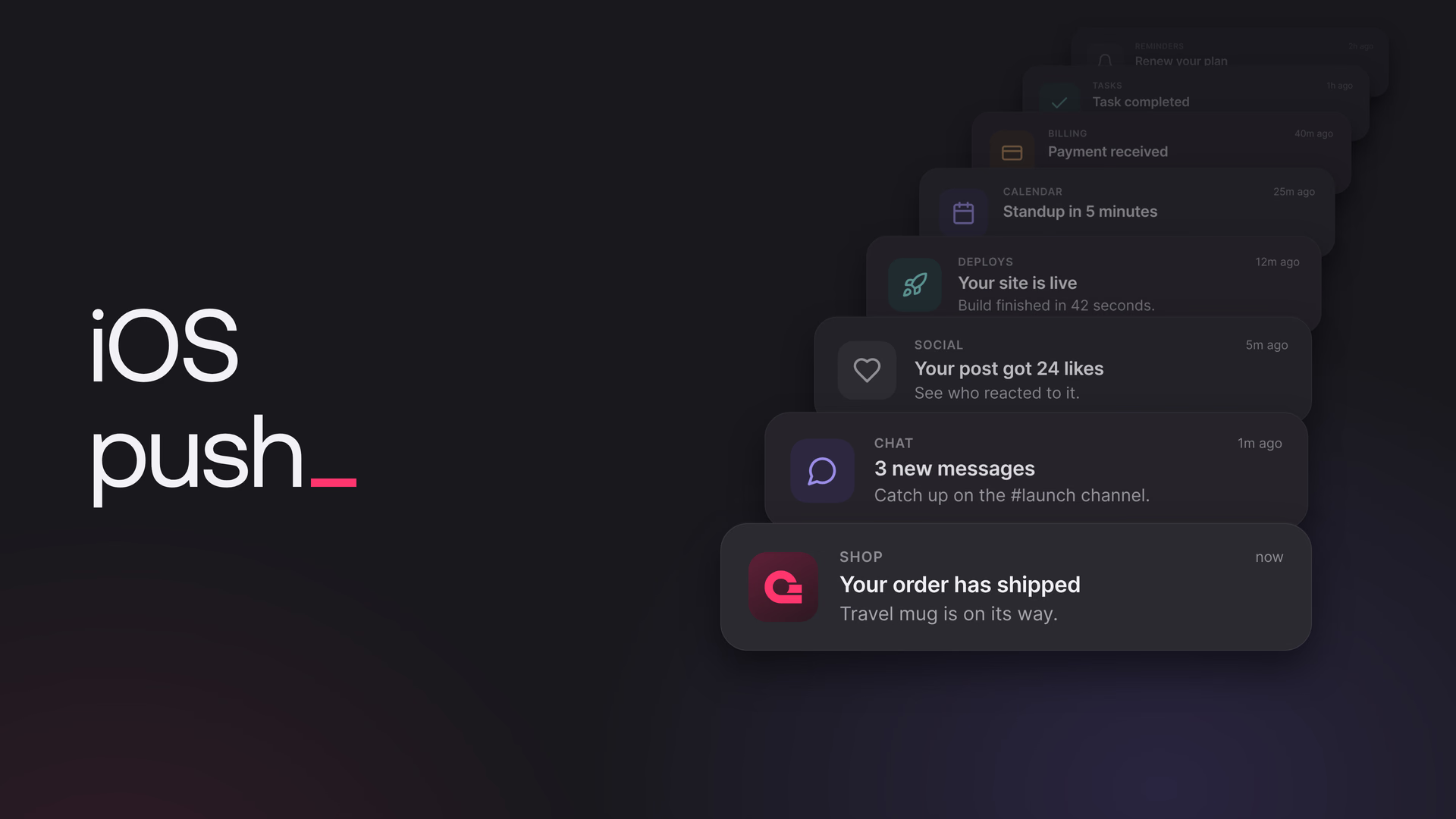
Push notifications on iOS usually mean an APNs key, a call to registerForRemoteNotifications, and a server that stores each device token next to its user and sends to APNs with the right one. With Appwrite Push, the Appwrite Apple SDK registers the device for the signed-in user, and a message you send to that user's ID reaches every device where they're signed in, Android phones and browsers included.
This tutorial adds order notifications to a SwiftUI app. When an order's status changes to shipped or delivered, an Appwrite Function sends the customer a notification, and tapping it opens that order. While the app is open, messages arrive over its own connection to Appwrite. Once iOS suspends the app, Appwrite reaches the phone through APNs.
You need Xcode and a membership in the Apple Developer Program, which APNs requires.
Create the Appwrite Push provider
In the Console, open your project and go to Messaging > Providers > Create provider. Choose Appwrite under Push, give the provider a name, and click Create provider. Appwrite Push takes no credentials. Copy the new provider's ID from the providers list, because the app needs it later.
Set up APNs
iOS suspends an app a few seconds after the user leaves it, so the app's connection to Appwrite closes. To reach a suspended app, Appwrite sends a notification through APNs.
In Xcode, open your app target's Signing & Capabilities tab. Add Push Notifications, then add Background Modes and check Remote notifications.
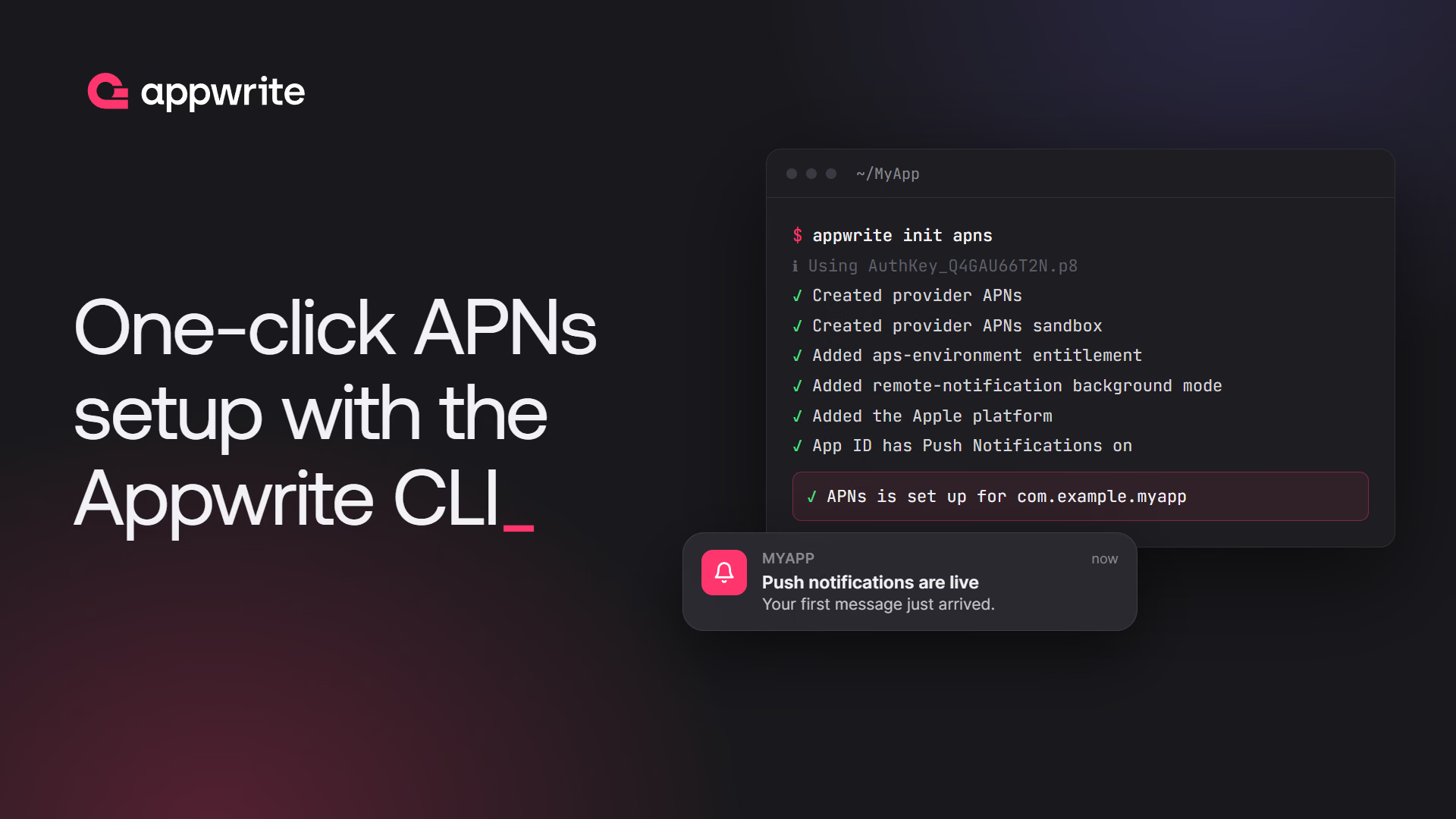
The Appwrite CLI sets up the rest of APNs in one command. Sign in with appwrite login, then run it from your Xcode project's folder:
appwrite init apns
The CLI reads the bundle ID and team ID from your Xcode project and asks for your APNs key, or creates one for you with --create-key. It then:
- Creates two APNs providers, sandbox for builds you run from Xcode and production for TestFlight and App Store builds.
- Adds an Apple platform with your bundle ID to the project. Appwrite only accepts requests from apps registered in the project.
- Checks that your app target has the APNs entitlement and the remote notifications background mode, which the capabilities you added provide.
One-click APNs setup lists every option.
Create the orders table
In Databases, create a database with the ID shop, and in it a table with the ID orders and these columns:
| Column | Type | Settings |
|---|---|---|
userId | Varchar | Size 36, required |
item | Varchar | Size 128, required |
status | Enum | Elements placed, shipped, and delivered, default placed |
In the table's settings, turn on Row security and leave the table permissions empty. Give each order a read permission for its customer, read("user:<USER_ID>"), so a customer can only list their own orders.
Add the Apple SDK
In Xcode, go to File > Add Package Dependencies, enter https://github.com/appwrite/sdk-for-apple, and add the Appwrite library to your app target. Push needs iOS 15 or later.
Add a Notification Service Extension
While your app is suspended, Appwrite sends the phone an APNs notification titled "New message" instead of the real message. A Notification Service Extension is a small target that iOS runs before it shows a notification. Appwrite's extension class fetches the real message and shows its title, body, and image in place of "New message".
In Xcode, go to File > New > Target, choose Notification Service Extension, and name it NotificationService. In the new target's General tab, add the Appwrite library under Frameworks and Libraries. Then replace the code in NotificationService.swift with:
import Appwrite

class NotificationService: AppwriteNotificationService {}
The extension connects to Appwrite as the signed-in user, so the app has to share its session with it. Apps and extensions share data through an App Group:
- In the app target's Signing & Capabilities tab, add App Groups with a new group, such as
group.io.appwrite.orders. - Add App Groups with the same group to the
NotificationServicetarget. - In the Info tab of both targets, add the key
AppwritePushAppGroupwith the group as its value.
The Info.plist entry looks like this in source form:
<key>AppwritePushAppGroup</key>
<string>group.io.appwrite.orders</string>
Connect to Appwrite
Create the client and Push once, while the app launches, so Push is ready for the tap that opened the app. This app keeps them in a model that holds the screen's state. The SDK's services aren't marked Sendable yet, so the model imports Appwrite with @preconcurrency, which lets it call them from the main actor in Swift 6 mode:
@preconcurrency import Appwrite
import Foundation

typealias Order = AppwriteModels.Row<[String: AnyCodable]>

@MainActor
final class OrdersModel: ObservableObject {
    @Published var signedIn: Bool?
    @Published var orders: [Order] = []
    @Published var openedOrderId: String?

    let client: Client
    let account: Account
    let tablesDB: TablesDB
    let push: Push

    init() {
        client = Client()
            .setEndpoint("https://<REGION>.cloud.appwrite.io/v1")
            .setProject("<PROJECT_ID>")
            .setPushClientId(Self.installId())
        account = Account(client)
        tablesDB = TablesDB(client)
        push = Push(client)
    }

    // One ID per install, so each of the user's devices gets back the messages it missed
    private static func installId() -> String {
        if let id = UserDefaults.standard.string(forKey: "pushClientId") {
            return id
        }
        let id = UUID().uuidString
        UserDefaults.standard.set(id, forKey: "pushClientId")
        return id
    }
}
Appwrite keeps each message for a while and replays the ones a device missed when it reconnects. It tracks this per client ID. On iOS, all of a user's devices share the default ID, so the model sets its own ID for each install.
Create the model when the app struct is created, rather than as a @StateObject, so Push exists before the app finishes launching. iOS reports the tap that opened the app during launch. The Appwrite module has its own App type, so write SwiftUI.App:
import SwiftUI

@main
struct OrdersApp: SwiftUI.App {
    private let model = OrdersModel()

    var body: some Scene {
        WindowGroup {
            ContentView()
                .environmentObject(model)
        }
    }
}
Subscribe after the user signs in
Push connects with the session the user signed in with, so subscribe after sign-in, and again at launch when a session already exists. Without a topic, subscribe listens for messages sent to the signed-in user and turns on background delivery. The SDK then asks for the notification permission, registers the device with APNs, and shares the session with your extension.
Before subscribing, create an Appwrite push target once for the new session. A target is a record that tells Appwrite how to reach one of the user's devices. With an Appwrite push target, Appwrite sends APNs only the "New message" wake-up, and the user's other devices, such as an Android phone, keep receiving messages over Appwrite Push. Use the provider ID you copied:
extension OrdersModel {
    func signIn(email: String, password: String) async throws {
        _ = try await account.createEmailPasswordSession(email: email, password: password)
        _ = try await account.createPushTarget(
            targetId: ID.unique(),
            identifier: ID.unique(),
            providerId: "<APPWRITE_PROVIDER_ID>"
        )
        signedIn = true
        await start()
    }

    // At launch, from ContentView's .task
    func restore() async {
        guard (try? await account.get()) != nil else {
            signedIn = false
            return
        }
        signedIn = true
        await start()
    }

    func start() async {
        do {
            // The SDK calls this off the main thread
            _ = try await push.subscribe { @Sendable message in
                print("Push message: \(message.data)")
                Task { await self.loadOrders() }
            }
        } catch {
            print("Push failed to subscribe: \(error)")
        }
        await loadOrders()
    }

    func loadOrders() async {
        if let list = try? await tablesDB.listRows(databaseId: "shop", tableId: "orders") {
            orders = list.rows
        }
    }
}
The target belongs to the session, so Appwrite deletes it when the user signs out. While your app is on screen, the callback receives each message, and the app shows no notification. In this app, the callback reloads the order list, so a new status shows up while your user is looking at it. Row security limits the list to the signed-in customer's orders.
Open the order when a notification is tapped
Register onNotificationOpened in the model's init, right after you create Push. Registered at launch, it also receives the tap that launched the app. data is the data you sent with the message:
// In init(), after push = Push(client). The SDK calls this off the main thread.
push.onNotificationOpened { @Sendable opened in
    let orderId = opened.data["orderId"] as? String
    Task { @MainActor in self.openedOrderId = orderId }
}
When openedOrderId is set, ContentView shows that order. Load the row again instead of reading it from the list, because the status changed after the list loaded:
let order = try await model.tablesDB.getRow(databaseId: "shop", tableId: "orders", rowId: orderId)
let item = order.data["item"]?.value as? String
Send the notification from a Function
An Appwrite Function sends the notification. It runs on every update to an order and sends a push when the new status is shipped or delivered:
import { Client, ID, Messaging } from 'node-appwrite';

const notifications = {
  shipped: {
    title: 'Your order has shipped',
    body: (order) => `${order.item} is on its way.`,
  },
  delivered: {
    title: 'Your order was delivered',
    body: (order) => `${order.item} has arrived.`,
  },
};

export default async ({ req, res, log }) => {
  const order = req.bodyJson;
  const notification = notifications[order.status];

  if (!notification) {
    return res.empty();
  }

  const client = new Client()
    .setEndpoint(process.env.APPWRITE_FUNCTION_API_ENDPOINT)
    .setProject(process.env.APPWRITE_FUNCTION_PROJECT_ID)
    .setKey(req.headers['x-appwrite-key']);

  await new Messaging(client).createPush({
    messageId: ID.unique(),
    title: notification.title,
    body: notification.body(order),
    users: [order.userId],
    data: { orderId: order.$id },
  });

  log(`Sent the ${order.status} notification for order ${order.$id}`);
  return res.empty();
};
The event payload is the updated row. users: [order.userId] reaches every device where the customer is signed in, and data comes back to the app in onNotificationOpened. The function's API key comes from the x-appwrite-key header and has only the scopes you give the function.
Save the code as functions/notify-order-status/src/main.js, with a package.json next to src that sets "type": "module" and depends on node-appwrite. Then add the function to your project's appwrite.config.json:
{
    "projectId": "<PROJECT_ID>",
    "functions": [
        {
            "$id": "notify-order-status",
            "name": "Notify order status",
            "runtime": "node-24",
            "path": "functions/notify-order-status",
            "entrypoint": "src/main.js",
            "commands": "npm install",
            "execute": [],
            "events": ["tablesdb.shop.tables.orders.rows.*.update"],
            "scopes": ["messages.write"],
            "timeout": 15
        }
    ]
}
events runs the function on every update to a row in orders, scopes lets it send messages, and an empty execute list keeps anyone from calling it directly. Deploy it with the CLI:
appwrite push functions
Every update to a shipped order sends the message again. If other columns of an order change after it ships, store the last status you notified about and compare it before sending.
Try it
Run the app on an iPhone, sign in as a customer with orders, and allow notifications. Leave the app and wait a few seconds, then change one of their orders to shipped in the Console. The notification shows the order's title and body, and tapping it opens that order. Change an order while the app is open and the list updates instead.
How messages reach a suspended app
When you send to a user, Appwrite delivers the message over Appwrite Push to each of their devices that is connected. Because the user has an Appwrite push target, it also sends the APNs wake-up to each of their iOS devices. iOS runs your extension, which connects with the shared session, fetches the message, and shows it in place of "New message". This also works after the user swipes the app away.
If a notification still says "New message", the extension couldn't fetch the message. Check that the extension target includes the Appwrite library, that both targets have the same App Group, and that both have AppwritePushAppGroup set to it. The troubleshooting table covers more cases, such as an APNs provider that doesn't match the build.
Sign out
Close Push before you delete the session. It closes the connection, stops background delivery, and deletes the device's APNs push target, so the device stops receiving the previous user's notifications:
func signOut() async {
    push.close()
    _ = try? await account.deleteSession(sessionId: "current")
    orders = []
    signedIn = false
}
Resources
Add an Appwrite Push provider and an APNs provider to your project, then subscribe with the Appwrite Apple SDK after the user signs in. The SDK registers the device with APNs and with Appwrite, so you don't store device tokens. A message you send with createPush to the user's ID reaches every device where they are signed in.
iOS suspends an app a few seconds after the user leaves it, and only APNs can reach a suspended app. Appwrite sends the device a short APNs wake-up, and a Notification Service Extension in your app fetches the real message from Appwrite and shows it. While the app is open, messages arrive over its own connection to Appwrite.
iOS runs it for each wake-up Appwrite sends, also when the user swiped the app away. It connects to Appwrite with the user's session, which the app shares with it through an App Group, and replaces the wake-up's placeholder with the message's title, body, and image.
iOS 15 and later, with the Appwrite Apple SDK 21.0.0 or later. The SDK also supports Push on macOS 12, tvOS 15, and watchOS 8 and later.
Send the screen's identifier in the message's data, for example an order ID, and register push.onNotificationOpened while the app launches. It reports the tap that launched the app and taps while the app runs, with the data you sent.