Project environments_
Give an Appwrite Cloud project development, staging, and QA environments with their own databases, storage, users, functions, and sites, under the same project ID and bill.
4 min read
A project environment is a separate copy of your project's backend for work that shouldn't touch production, such as staging, development, or QA. Each environment has its own databases, storage, users, functions, sites, and settings. It shares the project's endpoint, project ID, organization, region, and bill.
The project itself is Production. Environments sit under it, and the Console switches between them from the project sidebar. Apps reach an environment with the same endpoint and project ID as production, plus the environment's ID.
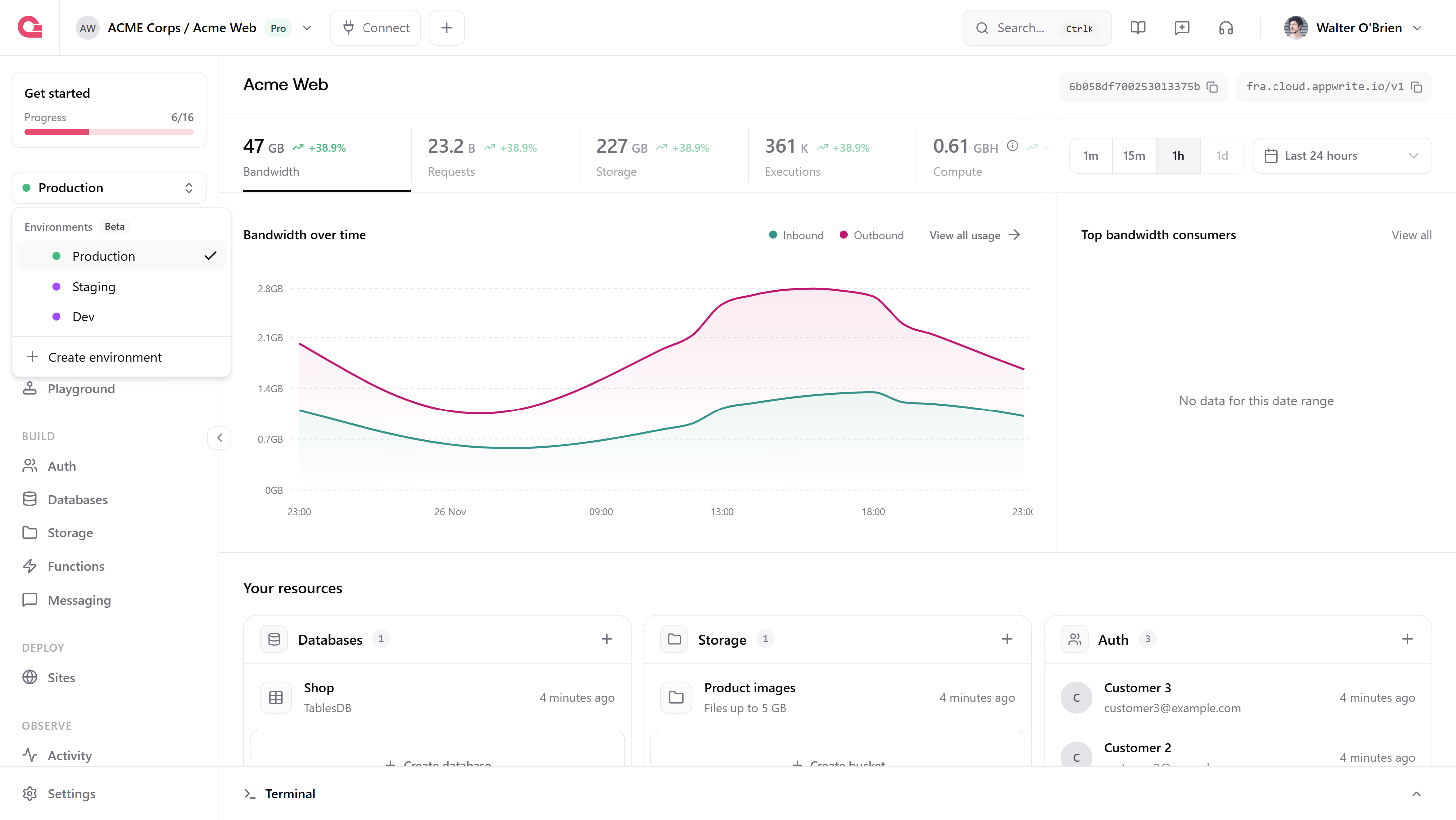
Project environments are in beta on Appwrite Cloud. They are available on the Pro and Enterprise plans, with up to 3 environments per project. See Limits and billing.
How environments work
- Production is the project. Real users, live traffic, and backups stay on the project. Environments are for building and testing changes before they reach it.
- Each environment is isolated. A row written in
stagingnever shows up in production, and a user who signs up indevexists only indev. - An environment starts empty or as a copy. A copy brings over the project's structure and settings, and data only where you ask for it. See Copy a project into an environment.
- Apps pick an environment with one extra value. SDKs, the CLI, and the MCP server keep the project's ID and add the environment's ID, which they send in the
X-Appwrite-Environmentheader. See Connect to an environment. - Usage is billed under the project. An environment doesn't count as a project on your plan. See Limits and billing.
What's shared and what's isolated
| Part of the project | In an environment |
|---|---|
| Databases, tables, rows, and indexes | Its own |
| Storage buckets and files | Its own |
| Users, teams, memberships, and sessions | Its own, up to 100 users |
| Auth methods, OAuth2 providers, and security policies | Its own |
| Functions, sites, deployments, and variables | Its own |
| Messaging providers, topics, and subscribers | Its own |
| Platforms, SMTP, email templates, and project variables | Its own |
| API keys and webhooks | Its own, never copied |
| Endpoint and project ID | Shared with the project |
| Organization, members, and region | Shared with the project |
| Plan, add-ons, and billing | Shared with the project |
| Database backups | Not available. Back up the project. |
Because each environment holds its own resources, a key created in production can't read staging, and a webhook in production never fires for an event in staging.
Typical environments
- Development. A place to try schema changes, new functions, and new auth settings without breaking anyone else's work.
- Staging. A copy of production's structure where a release is deployed and checked before it goes to production.
- QA or preview. A shared environment with test accounts and seed data for reviewers and automated tests.
Environments are built for this kind of work, so each one has an API request budget and a user limit sized for testing rather than live traffic. Keep production traffic on the project.
Get started
Create an environment from the Console, as an empty environment or as a copy of the project.
Learn more
Copy a project
What a copy brings over, what stays behind, and how the copy runs.
Connect to an environment
Point SDKs, the REST API, the CLI, and the MCP server at an environment.
Development workflow
Move changes from development to staging to production with the CLI and CI.
Manage environments
Rename, reorder, and delete environments, and what happens when the project moves or is deleted.
Limits and billing
Environments per plan, request and user limits, and how usage is billed.
Was this page helpful?
Share what worked or what we should fix. Once approved, our agents automatically apply suggested updates to the docs.