Best practices for handling screenshots in your app_
Learn how to efficiently capture, store, and serve webpage screenshots without wasting resources or slowing down your app.

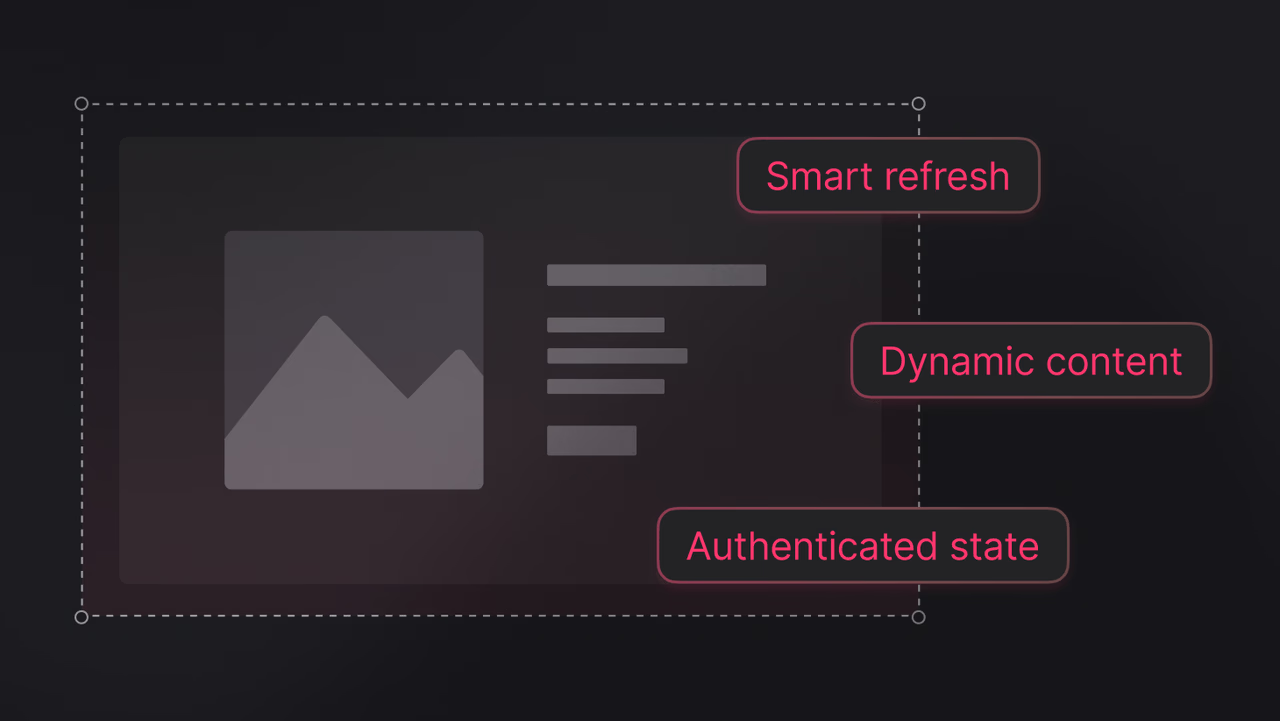
Screenshots are everywhere in modern applications. Link previews in chat apps, visual documentation in developer tools, thumbnail galleries in dashboards, and compliance archives in enterprise software. What seems like a simple feature, "show me what this page looks like", can quickly become a performance bottleneck and maintenance headache if not handled properly.
The naive approach of generating a screenshot every time it is needed works fine during development. But in production, with real traffic, that approach falls apart. API rate limits get hit, response times spike, users stare at loading spinners, and costs climb.
This guide covers practical patterns for handling screenshots efficiently. Whether you are building link previews, automated reports, or visual testing pipelines, these best practices will help you avoid common pitfalls and build a robust screenshot workflow.
Stop regenerating the same screenshot
The most common mistake is treating screenshot generation as a real-time operation. Every time a user requests a preview, the app fires off a new screenshot request, waits for it to render, and serves the result. This works for a handful of requests but scales poorly.
The fix is simple: store screenshots in persistent storage and serve them from there.
Here is how this looks with Appwrite. Wrap the capture and store logic in a reusable function:
import { Client, Avatars, Storage, ID } from "appwrite";

const client = new Client()
    .setEndpoint('https://<REGION>.cloud.appwrite.io/v1')
    .setProject('<PROJECT_ID>');

const avatars = new Avatars(client);
const storage = new Storage(client);

async function captureAndStore(url) {
    const screenshotUrl = avatars.getScreenshot({
        url,
        viewportWidth: 1200,
        viewportHeight: 630,
        output: 'webp',
        quality: 85
    });

    const response = await fetch(screenshotUrl);
    const blob = await response.blob();

    const file = await storage.createFile({
        bucketId: 'screenshots',
        fileId: ID.unique(),
        file: new File([blob], 'screenshot.webp', { type: 'image/webp' })
    });

    return file.$id;
}
Now you have a reusable function that captures a screenshot and stores it. Subsequent requests can fetch from storage instead of regenerating.
Track screenshots in a table
When storing screenshots, you need a way to look them up later. Use a table to map URLs to their stored file IDs:
import { Client, Storage, TablesDB, Avatars, ID, Query } from "appwrite";

const client = new Client()
    .setEndpoint('https://<REGION>.cloud.appwrite.io/v1')
    .setProject('<PROJECT_ID>');

const storage = new Storage(client);
const tablesDB = new TablesDB(client);
const avatars = new Avatars(client);

// captureAndStore from the previous example

async function createScreenshot(url) {
    const fileId = await captureAndStore(url);

    await tablesDB.createRow({
        databaseId: 'main',
        tableId: 'screenshots',
        rowId: ID.unique(),
        data: { url, fileId }
    });

    return fileId;
}

async function getOrCreateScreenshot(url) {
    const existing = await tablesDB.listRows({
        databaseId: 'main',
        tableId: 'screenshots',
        queries: [Query.equal('url', [url])]
    });

    if (existing.total > 0) {
        return existing.rows[0].fileId;
    }

    return createScreenshot(url);
}
This lets you query by URL directly. Each row automatically gets $createdAt and $updatedAt timestamps you can use for invalidation.
Implement smart refresh strategies
Stored screenshots go stale. A page you captured last week might look completely different today. You need a strategy for keeping screenshots fresh without regenerating them unnecessarily.
Time-based expiration is the simplest approach. Check the $updatedAt timestamp and regenerate when the screenshot is too old:
async function getScreenshot(url, maxAgeHours = 24) {
    const existing = await tablesDB.listRows({
        databaseId: 'main',
        tableId: 'screenshots',
        queries: [Query.equal('url', [url])]
    });

    if (existing.total > 0) {
        const row = existing.rows[0];
        const age = Date.now() - new Date(row.$updatedAt).getTime();
        const maxAge = maxAgeHours * 60 * 60 * 1000;

        if (age < maxAge) {
            return row.fileId;
        }

        // Screenshot expired, regenerate and update the row
        const newFileId = await captureAndStore(url);
        await tablesDB.updateRow({
            databaseId: 'main',
            tableId: 'screenshots',
            rowId: row.$id,
            data: { fileId: newFileId }
        });
        return newFileId;
    }

    return createScreenshot(url);
}
On-demand refresh works well for user-facing features. Add a "refresh preview" button that regenerates the screenshot when clicked, rather than on a timer.
Choose the right format for your use case
Screenshot APIs typically support multiple output formats. Each has trade-offs.
| Format | Best for | Considerations |
|---|---|---|
| WebP | Web delivery, general use | Best size-to-quality ratio, wide browser support |
| PNG | Screenshots with text, transparency | Larger files, lossless quality |
| JPEG | Photographs, gradients | Smaller files, no transparency, some quality loss |
For most web applications, WebP at 80-85% quality offers the best balance:
const screenshot = avatars.getScreenshot({
    url: 'https://example.com',
    output: 'webp',
    quality: 85
});
If you need to support older browsers, generate both WebP and JPEG versions and serve the appropriate one based on the Accept header.
Size screenshots for their purpose
A full-page screenshot at 1920x1080 might be 2MB. If you are displaying it as a 300px thumbnail, you are wasting bandwidth and slowing down your page.
Generate screenshots at the size you actually need:
// For link preview cards (Open Graph size)
const ogPreview = avatars.getScreenshot({
    url: 'https://example.com',
    viewportWidth: 1200,
    viewportHeight: 630,
    width: 1200,
    height: 630
});

// For thumbnail galleries
const thumbnail = avatars.getScreenshot({
    url: 'https://example.com',
    viewportWidth: 1280,
    viewportHeight: 720,
    width: 400,
    height: 225
});

// For full documentation
const fullPage = avatars.getScreenshot({
    url: 'https://example.com',
    fullpage: true,
    viewportWidth: 1280
});
If you need multiple sizes, consider generating at the largest size and using Appwrite Storage's image transformation to serve smaller versions:
// Get a resized version from storage
const thumbnail = storage.getFilePreview({
    bucketId: 'screenshots',
    fileId: screenshotFileId,
    width: 400,
    height: 225,
    gravity: 'center',
    quality: 80,
    output: 'webp'
});
Handle dynamic content correctly
Modern web pages are full of dynamic content: animations, lazy-loaded images, JavaScript-rendered components. A screenshot taken too early captures a half-loaded page.
Use the sleep parameter to wait for the page to fully load before capturing:
// Wait 3 seconds for animations and lazy loading
const screenshot = avatars.getScreenshot({
    url: 'https://example.com',
    sleep: 3
});
For pages with significant client-side rendering, 2-3 seconds is usually sufficient. For simple static pages, you can skip the delay entirely.
Some pages require specific browser permissions to render correctly. A mapping application needs geolocation permission, or it shows a permission prompt instead of the map:
const mapScreenshot = avatars.getScreenshot({
    url: 'https://maps.example.com',
    permissions: ['geolocation'],
    latitude: 40.7128,
    longitude: -74.0060
});
For authenticated pages, use the headers parameter to pass authorization tokens or session cookies:
const authenticatedScreenshot = avatars.getScreenshot({
    url: 'https://dashboard.example.com',
    headers: {
        'Authorization': 'Bearer your-access-token',
        'Cookie': 'session=your-session-id'
    }
});
This lets you capture internal dashboards, admin panels, or any page that requires authentication.
Final thoughts
Handling screenshots well comes down to a few key principles:
- Store, do not regenerate - Store screenshots in persistent storage and serve from there
- Size appropriately - Generate at the dimensions you need, not the largest possible
- Choose the right format - WebP for most cases, PNG when you need lossless quality
- Handle staleness - Implement TTL-based or on-demand refresh strategies
- Wait for dynamic content - Use sleep and permissions to capture fully-loaded pages
With these patterns in place, screenshots become a reliable, performant feature rather than a source of production headaches.
To get started, check out the Screenshots API documentation and try capturing your first screenshot. As always, we would love to see what you build with it.