Image transformation with Appwrite Storage_
Learn how to dynamically transform images with Appwrite Storage for better performance.

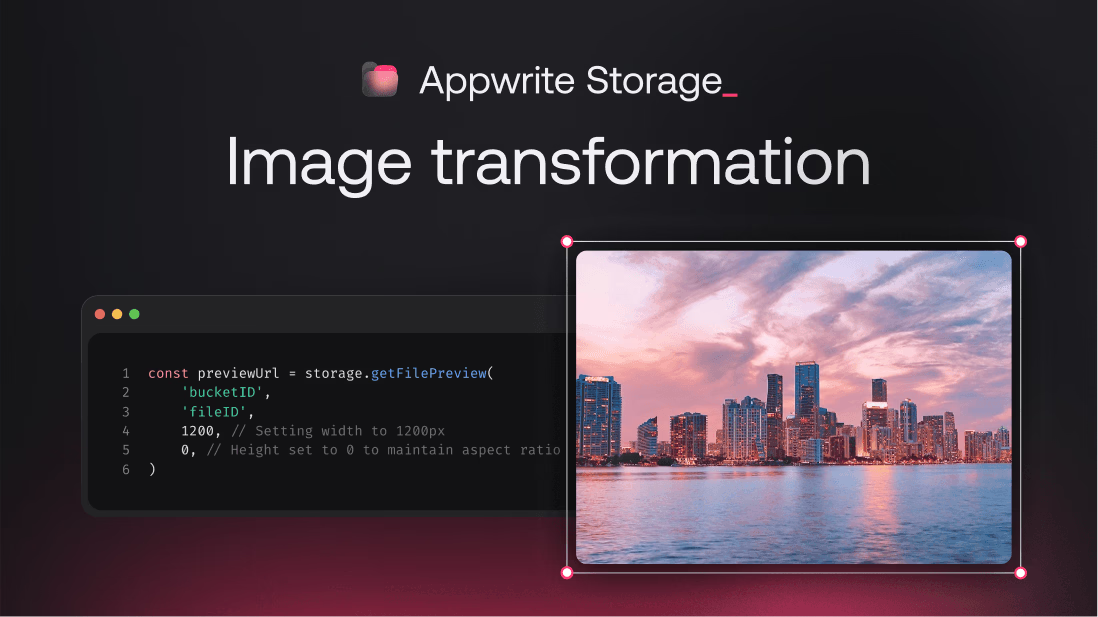
Images are a core part of any modern web or mobile application. Whether you're displaying user avatars, product thumbnails, or full-screen backgrounds, images need to be optimized for performance, aesthetics, and consistency. Loading large, uncompressed images can slow down your app, and mismatched styles can break your UI. This is why dynamic image transformation should be a part of your app.
Instead of manually editing images before uploading them or storing multiple variations of the same file, Appwrite lets you manipulate images on the fly using the Storage preview endpoint. With a simple API call, you can resize, crop, compress, change formats, add borders, round corners, adjust opacity, and even apply background colors. The best part is that Appwrite automatically caches the transformed images, speeding up repeat requests.
This guide will walk you through everything you need to know about image transformation with Appwrite, and how to use the Storage preview endpoint to transform images. By the end, you'll be able to integrate image transformations into your app without touching an image editor.
If you are deciding between Appwrite Storage previews and a dedicated media CDN, see Appwrite vs Cloudinary for trade-offs around features, CDN delivery, and pricing.
Why dynamic image transformations?
Here are some of the benefits of transforming images dynamically:
- Optimize performance - Uncompressed images can slow down your app and increase bandwidth usage. Appwrite allows you to dynamically resize and compress images, improving load times and reducing network costs.
- Maintain a consistent UI - By adjusting borders, border-radius, and background color, you can ensure images match your app's theme and display correctly across different screen sizes.
- Improve user experience - You can crop, rotate, and adjust opacity to fine-tune how images appear. This is useful for dynamic UI elements like profile pictures, cards, and galleries.
- Built-in caching - Appwrite caches transformed images, which reduces processing time and ensures faster repeat requests.
How image transformation works in Appwrite
Appwrite's Storage preview endpoint applies transformations dynamically when retrieving an image. The original file remains unchanged, while Appwrite generates a modified version on-the-fly and returns the transformed image.
Here's an example of how to transform an image. With each example, we'll use the Appwrite Storage SDK to show the actual result:
import { Client, Storage } from 'appwrite'

const client = new Client()
const storage = new Storage(client)

client
  .setEndpoint('<https://cloud.appwrite.io/v1>') // API Endpoint
  .setProject('<PROJECT_ID>') // Project ID

const result = storage.getFilePreview({
  bucketId: 'photos',
  fileId: 'sunset.png',
  width: 1600,
  gravity: 'center',
  quality: 90,
  borderWidth: 5,
  borderColor: 'FD346E',
  borderRadius: 15,
  background: 'FFFFFF',
  output: 'webp'
})
This returns a new URL for the transformed image, which can be used directly in your app. Let's break down the parameters:
1. Resizing the image
Resizing is one of the most common transformations. Whether you're displaying thumbnails, profile pictures, or high-resolution banners, controlling the width and height ensures that images fit well within your design. Appwrite allows you to set:
- width: 0-4000 pixels (Resizes while maintaining aspect ratio if height is not provided)
- height: 0-4000 pixels (Resizes while maintaining aspect ratio if width is not provided)
If only one dimension is set, Appwrite adjusts the other proportionally.
Example:
const previewUrl = storage.getFilePreview({
	bucketId: 'bucketID',
	fileId: 'fileID',
	width: 1600,
	height: 600
})
2. Cropping with gravity
Cropping allows you to remove unnecessary parts of an image and focus on the important area. The gravity parameter controls which part of the image remains visible when cropping.
Common use cases
- Ensuring a profile picture always centers on a face
- Keeping product images aligned in an e-commerce store
- Removing excess background in UI components
Gravity options
center(default)top-left,top,top-rightleft,rightbottom-left,bottom,bottom-right
Example:
const previewUrl = storage.getFilePreview({
  bucketId: 'bucketID',
  fileId: 'fileID',
  width: 1600,
  height: 1600,
  gravity: ImageGravity.TopLeft
})
3. Adjusting image quality
The quality parameter controls image compression, helping to balance clarity and file size.
- Higher values (80-100): Retain more detail but result in larger file sizes.
- Lower values (10-50): Reduce file size significantly but may introduce visible compression artifacts.
Example:
const compressedImage = storage.getFilePreview({
    bucketId: 'bucketID',
    fileId: 'fileID',
    width: 1600,
    height: 800,
    quality: 10
})
4. Adding borders and border radius
Borders help separate images from the background, while border radius adds rounded corners for a softer appearance.
- borderWidth: 0-100px
- borderColor: Hex color code (without
#) - borderRadius: 0-4000px (Higher values create more rounded corners)
Example:
const previewUrl = storage.getFilePreview({
    bucketId: 'bucketID',
    fileId: 'fileID',
    width: 1600,
    height: 1000,
    borderWidth: 8,
    borderColor: 'FF3366',
    borderRadius: 80
})
5. Controlling opacity
Setting opacity allows images to blend into backgrounds or appear as overlays.
0 = Fully transparent1 = Fully opaque
Example:
const overlayImage = storage.getFilePreview({
    bucketId: 'bucketID',
    fileId: 'fileID',
    width: 1600,
    height: 1000,
    opacity: 0.3  // Opacity for overlay effect
})
6. Rotating an Image
The rotation parameter allows you to rotate an image by a specified number of degrees.
- 0-360 degrees
Example:
// 45-degree rotation with padding
const rotatedImage = storage.getFilePreview({
    bucketId: 'bucketID',
    fileId: 'fileID',
    width: 400,
    height: 400,
    rotation: 45  // 45-degree rotation
})
7. Changing background color
For transparent images (like PNGs), you can set a background color.
- Hex color code (without
#)
Example:
const previewUrl = storage.getFilePreview({
    bucketId: 'bucketID',
    fileId: 'fileID',
    width: 1600,
    height: 800,
    opacity: 0.7,
    background: 'FF9900'
})
8. Configure output format
The output parameter lets you convert images between different formats on the fly, regardless of the original image format.
Example:
const webpImage = storage.getFilePreview({
    bucketId: 'bucketID',
    fileId: 'fileID',
    width: 1600,
    height: 800,
    quality: 90,
    output: 'webp'
})
The above image is originally a PNG file. However, by setting the output format to WebP, Appwrite automatically converts the image to WebP format and returns the transformed image. You can confirm this by downloading the image or inspecting its source.
The output parameter supports png, jpeg, webp, gif, and heic.
Choosing the right format can significantly impact your application's performance. For example, WebP is a modern format that offers better compression and quality than JPEG and PNG. However, while it's supported in most modern browsers, it's good practice to implement a fallback for older browsers.
Final thoughts
With just a few lines of code, Appwrite's image transformations eliminate the need for:
- Multiple image versions cluttering your storage
- Complex client-side image processing
- Manual image editing for each use case
- Third-party image processing services
Try replacing your next image processing task with a single API call, and you might be surprised how much time and performance you can gain.
Check out the docs for more information on how to use Appwrite Storage.
Further reading
Appwrite uses the Storage preview endpoint to apply transformations dynamically when retrieving an image. The original file stays untouched, and Appwrite generates and caches the modified version on demand. See Appwrite Storage for the full list of supported parameters.
Appwrite supports resizing, cropping, compression, format conversion, borders, rounded corners, opacity changes, rotation, and background colors. You can also chain multiple transformations in a single request to the preview endpoint.
Appwrite Storage previews can output JPG, PNG, WebP, AVIF, and GIF. WebP and AVIF give the best compression for the web and are typically the right default for new projects.
Yes, transformed images are cached automatically. Repeat requests for the same transformation are served from cache, so you don't pay the processing cost on every page load.
Transforming on the fly avoids maintaining multiple file variants and keeps your storage layer simple. Pre-resizing only makes sense if you have a fixed set of dimensions and want to skip the first request's processing latency.
Image transformation handles resizing, cropping, and format conversion at request time. A media CDN handles global delivery and caching. Appwrite Storage previews give you both since the responses are cached and served from Appwrite's network.