Build and deploy a CRM dashboard with React Admin on Appwrite Sites_
Learn how to deploy the CRM dashboard template powered by React Admin on Appwrite Sites, configure it with your Appwrite project, and customize it to your needs.

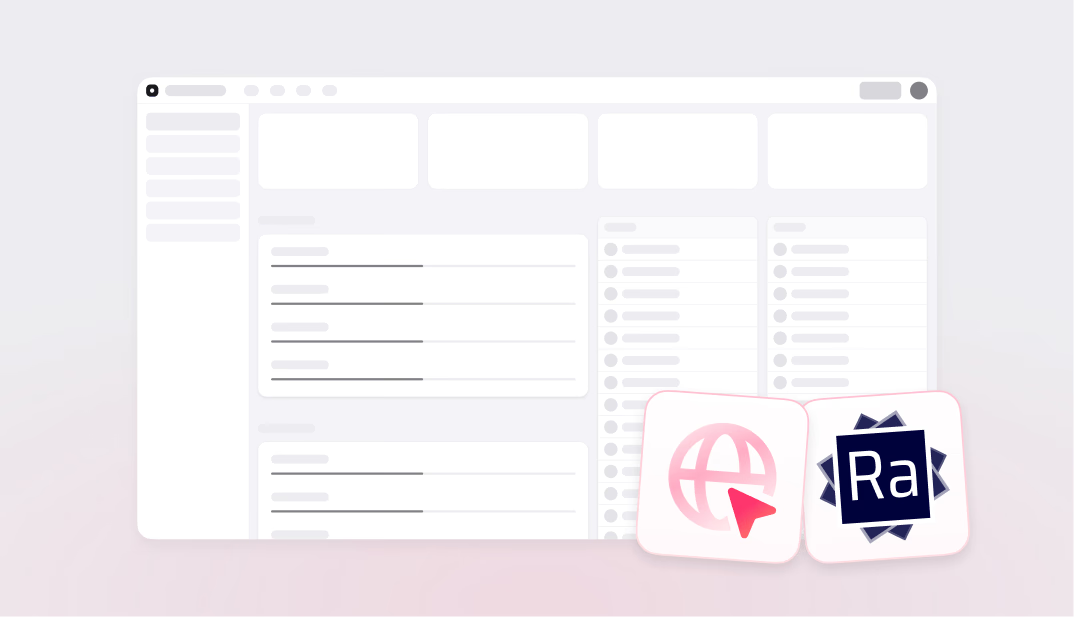
Admin dashboards are at the heart of most business applications. Whether you're managing customers, tracking orders, or reviewing invoices, having a well-structured internal tool can make or break your team's productivity. However, building one from scratch, with data grids, filters, forms, and CRUD operations, takes significant time and effort.
That's where the new CRM dashboard with React Admin site template comes in. Built on top of React Admin, one of the most popular open-source frameworks for building admin interfaces, this template gives you a fully functional CRM dashboard that connects directly to your Appwrite backend. And with Appwrite Sites, you can deploy it in just a few clicks.
What is React Admin?
React Admin is an open-source framework, licensed under the MIT license, for building B2B applications and internal tools on top of REST or GraphQL APIs. It provides a rich set of UI components powered by Material-UI, including data grids, forms, filters, authentication, and more, all following best practices for enterprise-grade admin interfaces. While React Admin also offers an Enterprise Edition with additional features, the open-source version is fully functional and is what this template uses.
When combined with Appwrite's backend services (TablesDB, authentication), React Admin becomes a powerful foundation for building full-stack admin dashboards without reinventing the wheel.
Overview of the CRM dashboard template
The CRM dashboard template is a React-based admin panel designed for managing common business entities. It includes:
- Customers management: View, create, edit, and delete customer records
- Orders tracking: Keep track of orders with statuses and details
- Products catalog: Manage your product listings and categories
- Invoices: Generate and review invoices
- Reviews: Monitor and manage customer reviews
- Segments: Group and filter customers by segments
- Dashboard overview: A landing page summarizing key metrics
- Rich UI components: Built with Material-UI for a polished, professional look
The template uses Appwrite TablesDB as its data layer and comes with an automatic seeding script that creates the necessary database, tables, and a demo user during deployment, so you can explore the dashboard immediately.
Deploy the CRM dashboard on Appwrite
To get started, head to Appwrite Cloud and sign in (or create an account if you haven't already). Create a project, then navigate to the Sites page from the left sidebar.
Click the Create site button and select the Clone a template option.
Find the template
On the template listing page, you can filter by Use case and select Dashboard, or simply search for React Admin in the search bar. Click on the CRM dashboard with React Admin template to proceed.
Configure site details
You'll be prompted to enter a Site name and Site ID. The Site ID will be part of your deployment URL, so keep it lowercase with hyphens.
Next, connect a GitHub repository. You can either create a new repository from the template or connect to an existing one. If you would prefer not to connect a GitHub repository immediately, you can do so at a later point too.
Set environment variables
The template requires a few environment variables to connect to your Appwrite project:
| Variable | Description | Required |
|---|---|---|
VITE_APPWRITE_ENDPOINT | Your Appwrite API endpoint | Yes |
VITE_APPWRITE_PROJECT_ID | Your Appwrite project ID | Yes |
APPWRITE_API_KEY | An Appwrite API key (used for seeding data during build) | Yes |
VITE_APPWRITE_DATABASE_ID | Database ID (defaults to admin) | No |
VITE_APPWRITE_TABLE_REVIEWS | Table ID for reviews (defaults to reviews) | No |
VITE_APPWRITE_TABLE_INVOICES | Table ID for invoices (defaults to invoices) | No |
VITE_APPWRITE_TABLE_ORDERS | Table ID for orders (defaults to orders) | No |
VITE_APPWRITE_TABLE_PRODUCTS | Table ID for products (defaults to products) | No |
VITE_APPWRITE_TABLE_CATEGORIES | Table ID for categories (defaults to categories) | No |
VITE_APPWRITE_TABLE_CUSTOMERS | Table ID for customers (defaults to customers) | No |
The VITE_APPWRITE_ENDPOINT and VITE_APPWRITE_PROJECT_ID variables will be pre-filled for you. For the APPWRITE_API_KEY, you need to create an API key on your Appwrite project. On the project overview page, head to the Integrations section, click on the API keys tab, and create a key with the users and databases scopes.
Note: The API key is used only during the build step to seed the database, tables, and demo user. Since this is a static site built with Vite, the API key is not included in the final deployed assets and is not accessible to end users.
This template also works with self-hosted Appwrite instances. Just set VITE_APPWRITE_ENDPOINT to point to your self-hosted instance's API endpoint.
Deploy
Once everything is configured, update the domain name if you'd like, and click Deploy. Appwrite will build the project using pnpm install and pnpm build && pnpm db-seed, which compiles the React app and runs the seeding script to create the database, tables, and a demo user.
You can watch the deployment logs in real time as the build progresses.
After a successful deployment, you'll see the Congratulations page. Click Visit site to open your new CRM dashboard, or Go to dashboard to view site configuration details.
You can also add a custom domain to your site. Head to your Site's Settings > Domains in the Appwrite Console and add your domain. Appwrite automatically provisions SSL certificates for secure HTTPS access.
You can log in to the dashboard using the demo credentials created by the seed script:
- Email:
john.doe@marmelab.com - Password:
changeme
Customizing the dashboard
Since the template creates a GitHub repository with the full source code, you can customize it however you like. Once your GitHub repository is connected, every push to your production branch automatically triggers a rebuild and deployment on Appwrite Sites. Here are a few ideas to get started:
Customize authentication
The template already uses the official ra-appwrite adapter, which provides both a Data Provider and an Auth Provider for Appwrite. Out of the box, it uses Appwrite's email and password authentication; the demo user created by the seed script is an example of this. You can extend the authentication to add role-based access control, restrict specific resources to certain users, or customize the login page to match your branding.
Create new resources
The template comes with customers, orders, products, categories, invoices, and reviews. You can add new resources by:
- Creating a new table in Appwrite TablesDB
- Adding the corresponding React Admin resource component
- Registering it in the app's resource configuration
React Admin's component library makes it straightforward to build list views, edit forms, and detail pages for any new entity.
Connect to your own data
If you already have data in Appwrite (with the same schema), you can point the environment variables to your existing database and table IDs. You'll also need to update the setup.ts file and remove the generateData function so the seed script doesn't overwrite your existing data. Once done, your dashboard will work directly with your production data.
Next steps
With the CRM dashboard deployed, you have a solid foundation for building internal tools on Appwrite. Here are some resources to continue: