Automatic image cropping in Appwrite with AutoGravity_
AutoGravity brings automatic image cropping to Appwrite Storage. Learn how saliency detection and face detection pick the focal point behind gravity=auto.

Cropping an image is easy when its subject is in the center. Real images are rarely that predictable. A person may stand near one edge, an animal may occupy a corner, or the most important object may be surrounded by empty space.
Appwrite's file preview endpoint already supports fixed crop positions such as center, top, and bottom-right. These options are predictable, but they require the developer to know the composition of every image in advance.
Today, we are introducing AutoGravity, an open-source Go service that adds automatic image cropping to Appwrite Storage. It analyzes an image, finds the point a crop should keep visible, and returns it as a normalized coordinate. Appwrite exposes it through a single new gravity value:
?width=400&height=400&gravity=auto
Behind that one parameter is a model pipeline that turns arbitrary image content into a single crop coordinate. The AutoGravity source is public, so every decision described below can be read in the code.
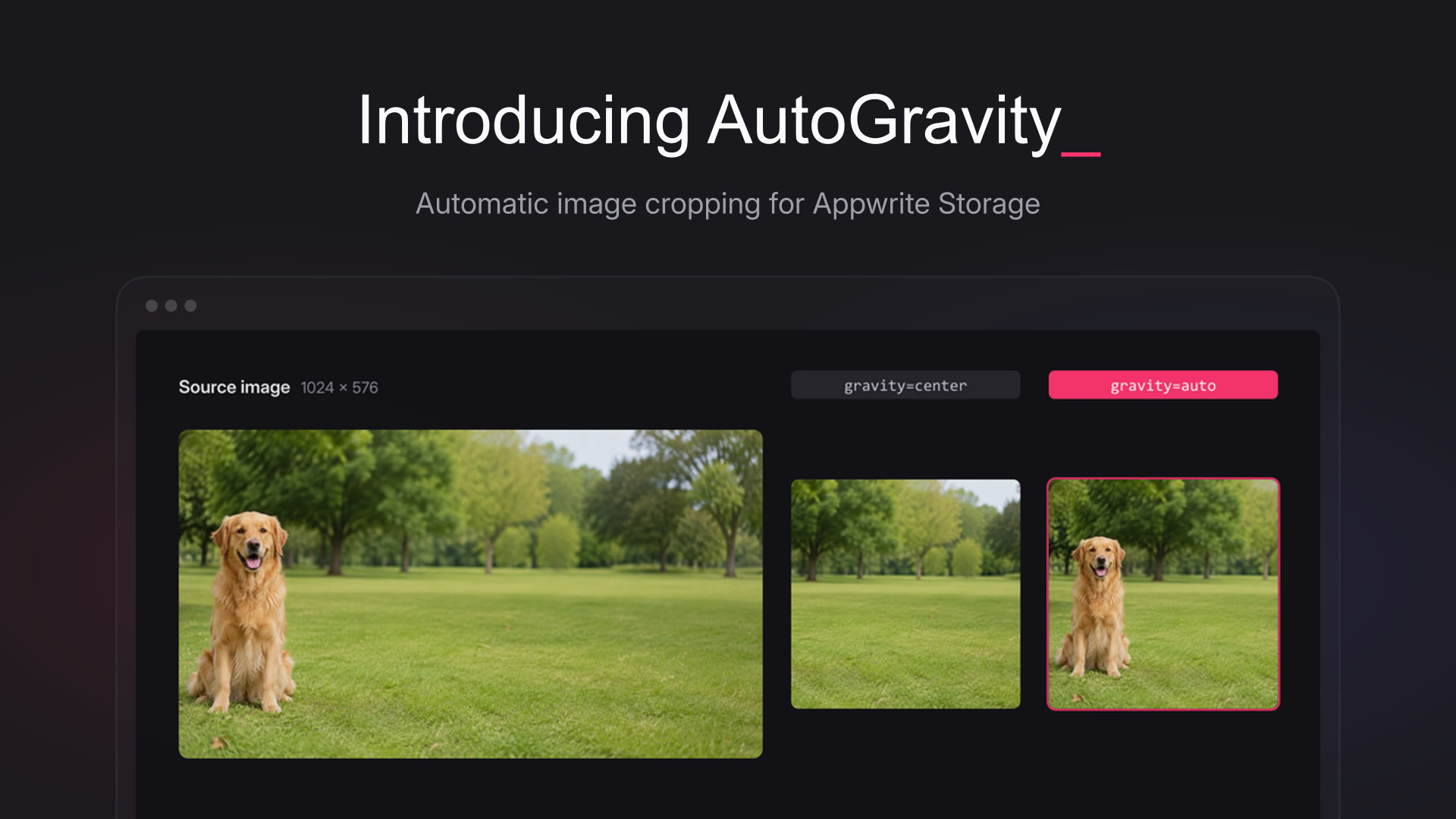
The difference is easiest to see when the subject is far from the middle of the source image:
gravity=center | gravity=auto |
|---|---|
The fixed center crop preserves the middle of the image, which is mostly grass. Automatic gravity finds the dog and keeps it in view.
What gravity=auto returns
AutoGravity does not crop the image itself. It finds a focal point, the X/Y coordinate that Appwrite should try to keep visible while cropping.
The result is normalized to values between 0.0 and 1.0, so it works independently of the original dimensions. A point at (0.5, 0.5) is the center, while (0.8, 0.2) is near the top-right corner.
{
  "gravity": {
    "x": 0.68,
    "y": 0.37
  },
  "confidence": 0.91,
  "source": "saliency"
}
Appwrite passes that point to its existing image transformation pipeline, which handles the actual crop. AutoGravity only answers one question: where should the crop focus?
Using automatic cropping in a preview request
Nothing changes in how you request a preview. The gravity parameter accepts auto alongside the fixed positions it already supported, and every other option such as quality, output, and borderRadius combines with it as before.
With the Web SDK, an automatically cropped square thumbnail looks like this:
import { Client, Storage } from "appwrite";

const client = new Client()
    .setEndpoint('https://<REGION>.cloud.appwrite.io/v1')
    .setProject('<PROJECT_ID>');

const storage = new Storage(client);

const thumbnail = storage.getFilePreview({
    bucketId: 'photos',
    fileId: 'golden-retriever.jpg',
    width: 400,
    height: 400,
    gravity: 'auto'
});

console.log(thumbnail.href);
The same request as a plain URL, which is what the SDK builds for you:
GET /v1/storage/buckets/photos/files/golden-retriever.jpg/preview?width=400&height=400&gravity=auto&project=<PROJECT_ID>
Appwrite caches transformed images, so the model pipeline runs once per unique combination of file and parameters. Repeated requests for the same thumbnail are served from cache and never touch AutoGravity again.
Fixed gravity values are untouched. If you rely on center or top-left today, your previews keep rendering exactly as they did.
How saliency detection finds the subject
The main model behind AutoGravity is U²-Net, a neural network built for salient object detection. In computer vision, salient means visually noticeable or likely to attract attention.
U²-Net does not classify an image or name its contents. It does not need to know whether it is looking at a dog, flower, car, or product. Instead, it produces a saliency map containing a score for every pixel. Higher-scoring regions are more likely to belong to the main visual subject.
Before inference, AutoGravity fits the image into U²-Net's 320 × 320 input while preserving its aspect ratio. Wide and tall images receive neutral padding rather than being stretched. That padding is excluded when the result is mapped back to the source image.
The model produces a 320 × 320 fused saliency map, but a crop needs one point. Calculating the average of the entire map seems reasonable until an image contains two separated subjects. Their average may land in the empty space between them.
AutoGravity instead finds the strongest coherent region:
- Find the peak saliency value.
- Keep pixels reaching at least half of that peak.
- Group neighboring pixels into connected components.
- Select the component with the greatest total saliency.
- Calculate its saliency-weighted centroid.
A connected component is a group of neighboring high-saliency pixels. AutoGravity considers pixels connected horizontally, vertically, and diagonally. This lets it treat the shape of a subject as one region.
The weighted centroid is the region's average position, with stronger saliency values contributing more than weaker ones. The resulting point stays near the most visually important part of the strongest subject instead of drifting between unrelated subjects. If the map contains no usable saliency, AutoGravity safely falls back to the image center.
All-saliency centroid (0.47, 0.48) | Strongest connected region (0.08, 0.48) |
|---|---|
Averaging every salient pixel places the focal point in the sky between the two dogs. Selecting the strongest connected region lands it on one subject.
Face detection for portrait crops
Saliency works across many types of images, but the center of a person's full silhouette often falls around their torso. For a portrait crop, the face is usually a better focal point.
Saliency only (0.48, 0.61) | Face priority (0.48, 0.27) |
|---|---|
AutoGravity uses YuNet, a lightweight face detector, as an additional signal. A face detector returns rectangular face locations, called bounding boxes, and a confidence score for each detection. It finds where a face is but does not identify the person.
YuNet runs first because it is small and fast. If it finds a face above the conservative 0.85 confidence threshold, AutoGravity uses the center of that face. If several faces are present, it combines confidence with bounding-box size to favor a prominent foreground face:
priority = confidence × √(bounding box area)
If no reliable face is found, the request continues through U²-Net as usual. This makes face detection a useful hint rather than a requirement. Animals, objects, landscapes, blurred faces, and uncertain detections all retain the general saliency behavior.
Running U²-Net and YuNet with ONNX Runtime
Both models use ONNX, a portable format for representing trained machine-learning models. ONNX Runtime performs inference, which means running a new image through a trained model to produce an output. AutoGravity loads both models once and reuses their inference sessions across requests.
For saliency, we chose full U²-Net over the smaller U²-NetP variant because the smaller model missed clear subjects in some natural scenes. The full model originally stored its weights as 32-bit floating-point numbers, commonly called FP32, and occupied approximately 168 MiB.
We quantized those weights to 8-bit integers, or INT8, reducing the model to approximately 42 MiB. Quantization stores model weights with lower-precision numbers, trading a small amount of numerical precision for a much smaller artifact and lower resource usage.
The YuNet model adds only about 230 KiB. When it selects a face, AutoGravity can return immediately without running the larger saliency model.
What AutoGravity does and does not do
The response includes source: "face" or source: "saliency" to show which signal supplied the focal point. Its confidence value comes from the selected model, so confidence values from the two sources should not be compared directly or treated as calibrated probabilities.
AutoGravity never crops, stores, or modifies the submitted image. It does not perform face recognition or generate biometric embeddings. Its job is deliberately narrow: examine an image and return the point that a crop should preserve.
The public interface remains one query parameter, gravity=auto. The saliency maps, model selection, coordinate mapping, and fallback behavior stay behind it, giving Appwrite a crop that adapts to the image without asking developers to specify where every subject will appear.
Try automatic image cropping in Appwrite
Add gravity=auto to any file preview request and the crop follows the subject instead of the frame. Fixed gravity values keep working exactly as before, so nothing changes until you opt in.
Automatic gravity is available today on Appwrite Cloud for every existing bucket with no configuration, with self-hosted support arriving in an upcoming release. The service itself is open source, so you can read how every focal point is chosen or run it on your own infrastructure.
AutoGravity is an open-source Go service that finds a useful crop focus in an image. It returns normalized X/Y coordinates for Appwrite's file preview endpoint without cropping, storing, or modifying the image itself.
AutoGravity looks for a confident face first, then falls back to U²-Net saliency detection. It converts the selected model's output into a normalized focal point that Appwrite uses for cropping.
Saliency describes which parts of an image stand out visually. U²-Net produces a map that scores every pixel, allowing AutoGravity to locate the strongest coherent subject without knowing what the subject is.
AutoGravity combines a quantized full U²-Net model for general saliency analysis with the lightweight YuNet face detector for portrait composition. Both run through ONNX Runtime.
No. YuNet only detects face bounding boxes. AutoGravity does not identify people or create or store biometric embeddings.
Yes. The fixed values such as center, top, and bottom-right behave exactly as before. Automatic cropping only runs when a request sets gravity to auto.