Skip to content
Blog / Improve your Appwrite developer experience with dev keys
7 min

Improve your Appwrite developer experience with dev keys

Learn how you can create a dev key on Appwrite and use it in a web project to improve your developer experience.

Improve your Appwrite developer experience with dev keys

When building applications with Appwrite, developers often need a way to test and debug services repeatedly over short periods. Sometimes, this can become a hassle, as Appwrite enforces strict rate limits on client apps to prevent abuse. Developers needed a way to bypass these rate limits in their test environments and CI/CD workflows to ensure the robustness of their app functionalities.

And this is the exact problem dev keys are here to solve!

What are dev keys?

Dev keys are a type of secret used by Appwrite's client SDKs. They allow the developer to bypass any rate limits enforced by Appwrite and suppress any CORS errors caused by not using a configured hostname. A developer can configure the expiration date of a dev key to any of the three preset options (1 day, 7 days, or 30 days).

Dev keys should never be used in production environments, as they can make your app more susceptible to abuse and security breaches.

Try out dev keys in an app

To test dev keys, I created a simple demo web app that sends 200 requests to create a new document in an Appwrite database. To set this app up, you must complete the following steps:

Step 1: Setup Appwrite project

First, create an Appwrite Cloud account or self-host Appwrite 1.7. Create a project (which will lead you to the project overview page) and head to the Databases page from the left sidebar. Create a new database with the ID testDb and a new collection with the ID testCollection. Store both of these IDs for future usage. In this collection, add the following attribute:

NameTypeRequired
number
Integer
True

Then, head to the Settings tab of the collection, scroll down to the Permissions section, and add the following permissions:

CreateReadUpdateDelete
Any
False
False
False
False

Lastly, return to the project overview page, head to the Settings page from the left sidebar, and copy your API endpoint and project ID for future usage.

Step 2: Create web app

Next up, we'll create our test app. This will require us to create two files in our working directory:

  • index.html
HTML
<!DOCTYPE html>
<html lang="en">
<head>
    <meta charset="UTF-8">
    <meta name="viewport" content="width=device-width, initial-scale=1.0">
    <title>Dev keys demo</title>
</head>
<body>
    <h1>Dev keys demo</h1>
    <p>Click on this button to add 200 documents to the database in less than 1 minute.</p>
    <button type="button">Add documents</button>

    <!-- Appwrite Web SDK -->
    <script src="https://cdn.jsdelivr.net/npm/appwrite"></script>

    <!-- Our app's script -->
    <script src="app.js"></script>
</body>
</html>
  • app.js
JavaScript
const client = new Appwrite.Client()
    .setEndpoint('https://<REGION>.cloud.appwrite.io/v1') // Your API Endpoint
    .setProject('<YOUR_PROJECT_ID>'); // Your project ID

const database = new Appwrite.Databases(client);

document.querySelector('button').addEventListener('click', async () => {
    const promises = [];
    for (let i = 0; i < 200; i++) {
        const promise = database.createDocument({
            databaseId: 'testDb', // Your database ID
            collectionId: 'testCollection', // Your collection ID
            documentId: Appwrite.ID.unique(),
            data: { number: i + i }
        });
        promises.push(promise);
        console.log('Request initiated:', i+1);
    }

    await Promise.all(promises);
});

If you open the HTML page in your browser and click on the Add documents button, you will notice numerous errors in the console with the HTTP code 429, as Appwrite's rate limits allow one client to create 120 requests per minute for this API endpoint.

Step 3: Create dev key

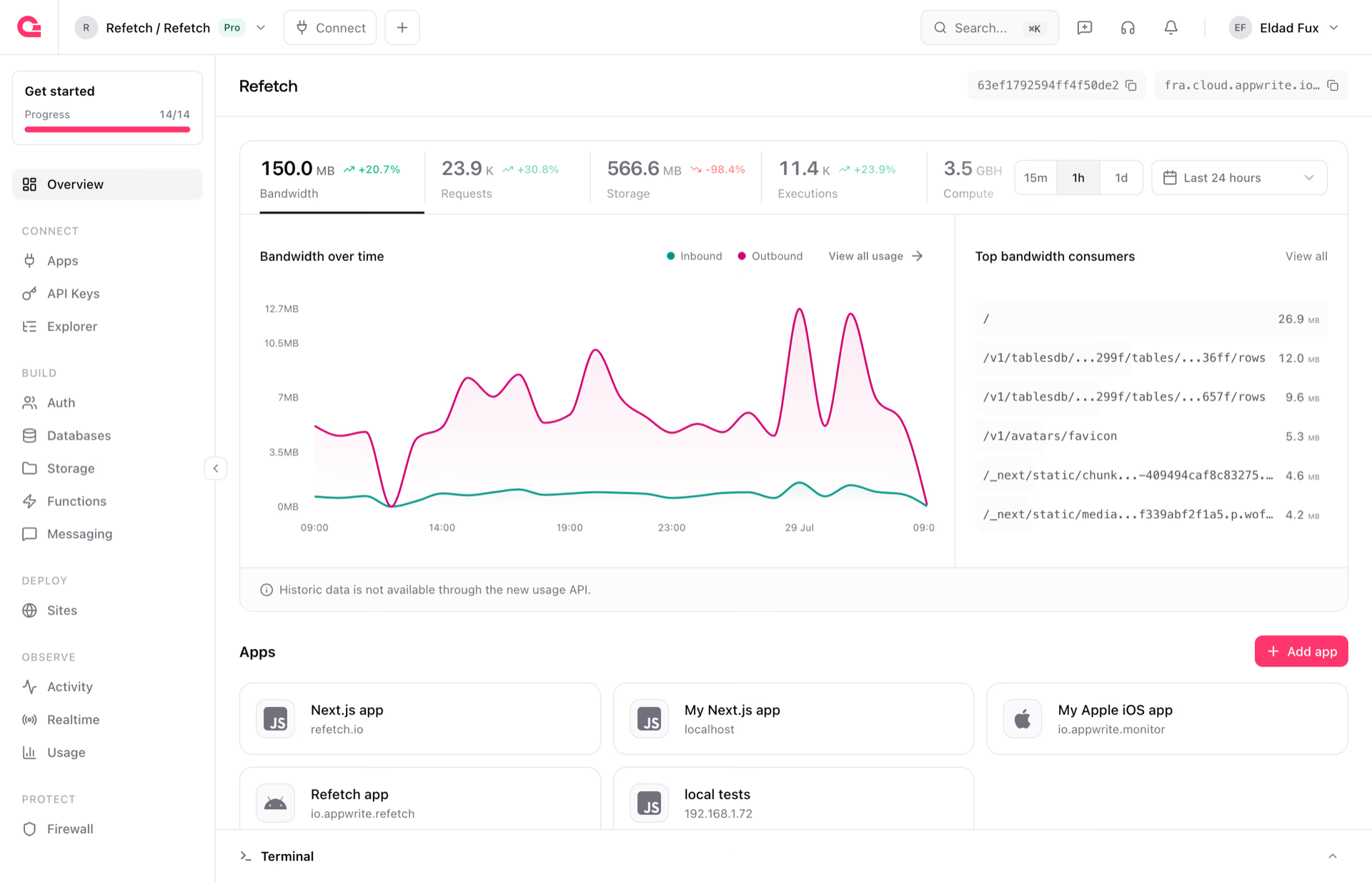
Head back to your Appwrite project. On the overview page, select the Dev keys tab under the Integrations section and create a new dev key. You can add whatever name and expiry date you like.

Dev key

After creating this dev key, head to the app.js file and update the Appwrite client to the following:

JavaScript
const client = new Appwrite.Client()
    .setEndpoint('https://<REGION>.cloud.appwrite.io/v1')
    .setProject('<YOUR_PROJECT_ID>')
    .setDevKey('<YOUR_DEV_KEY>'); // Your dev key

Step 4: Test the app

Reopen the HTML page in your browser. Clicking the Add documents button will allow all 200 requests to execute successfully.

Build fast, scale faster

Backend infrastructure and web hosting built for developers who ship.

  • Start for free
  • Open source
  • Support for over 13 SDKs
  • Managed cloud solution

Next steps

And with that, you have successfully tested dev keys! Learn more about Appwrite by visiting the docs and joining the Discord community.

Frequently asked questions

  • What are Appwrite dev keys?

    Dev keys are secrets used by Appwrite's client SDKs that bypass rate limits and suppress CORS errors caused by unconfigured hostnames. They are designed for local development, automated tests, and CI/CD workflows where strict client limits get in the way.

  • How is a dev key different from an API key?

    API keys are server side credentials with scoped permissions and are used by the server SDKs. Dev keys are tied to client SDKs and only relax rate limiting and hostname checks. They do not grant elevated permissions to bypass collection or storage rules.

  • Are dev keys safe to use in production?

    No. Dev keys disable protections that exist specifically to prevent abuse, so shipping one in a production app exposes you to floods of requests and denial of service. Use them only in development, testing, and CI environments.

  • How long does a dev key last?

    When you create a dev key, you pick an expiration of 1 day, 7 days, or 30 days. The key stops working after that window, which limits the blast radius if it ever leaks.

  • Can I use dev keys in CI/CD pipelines?

    Yes, that is one of the primary use cases. A dev key lets your test suite hit Appwrite endpoints without being throttled, so end to end tests stay reliable even when they run hundreds of requests in a short window.

  • Where do I create a dev key for my project?

    Open your project in the Appwrite Console, go to the Overview page, and use the Dev Keys section. You can generate, copy, and rotate keys from there without affecting your existing API keys.

Start building with Appwrite today