How to deploy from Entire to Appwrite Sites and Functions_
Connect an Entire repository to Appwrite and deploy a site and a function on every push, with private branch previews and path filters for your monorepo.

Entire is a Git forge built for coding agents: it stores the agent session behind each change alongside the code. Appwrite supports Entire as a Git provider, so once you connect an Entire project, every push to a connected repository builds and deploys your site or function.
This guide deploys a React web app with Appwrite Sites and a Node.js API with Appwrite Functions from a single Entire repository. By the end, pushes to main update production, pushes to other branches produce private previews, and path filters keep the site and the function from rebuilding each other.
How deploying from Entire to Appwrite works
To deploy from Entire, you must connect your Entire project to Appwrite from Project settings > Git configuration, approve the installation on entire.com, then create a Site or Function from one of the project's repositories. From then on, every push to that repository triggers a build:
- Production branch: the deployment builds and activates.
- Any other branch: the deployment builds but stays inactive. Sites get preview URLs for the branch and the commit.
- Every build: unless Silent mode is on, Appwrite reports the result back to Entire as a check run on the commit.
Under the hood, Appwrite installs as a plugin on your Entire project. Entire notifies Appwrite of each push, Appwrite fetches that commit through Entire's own Git tooling, builds it, and reports the outcome back.
Prerequisites
- An Appwrite Cloud account with a project.
- An Entire account.
- The Entire CLI, installed and signed in with
entire login. Its installer also addsgit-remote-entire, the helper Git calls forentire://remotes, so plaingit pushworks. - Node.js, if you want to build the example site locally.
Step 1: Create an Entire project and repository
This guide deploys code you already have, so the repository has to exist before you connect it. When you start a site or function from an Appwrite template instead, Appwrite can create the repository on Entire for you. If your code lives on GitHub, you can also deploy from a GitHub repository mirror on Entire, as the Entire integration guide explains.
Entire repositories live inside projects. A project has an owner, usually your organization, and a primary region where new repositories are created by default. Each Appwrite installation connects to one Entire project, so keep the repositories you plan to deploy in the same project when you can.
Create both from the CLI:
entire login
entire project create acme --owner acme-org
entire repo create storefront --project acme
entire repo view /et/acme/storefront
Here the project belongs to the acme-org organization. To own it with your account instead, pass --owner github:<handle> --owner-type account. Project names are 3 to 32 characters of lowercase letters, numbers, and hyphens, and they must be unique across Entire. entire repo view prints the repository's region and its clone URL, which uses Entire's entire:// scheme:
CLUSTER                     ROLE     CLONE URL                                                STATUS
aws-eu-central-1.entire.io  primary  entire://aws-eu-central-1.entire.io/et/acme/storefront  ready
You can do the same on entire.com: create a project from your organization, then a repository inside it. The repository's Clone menu shows the command for a fresh clone and the one for connecting a project you already have. Entire's repository docs cover regions and regional mirrors in more detail.
Push your code
This guide uses one repository for both the site and the function. The React site sits at the root, which lets Appwrite detect the framework on its own, and the function lives in its own folder:
storefront/
├── index.html
├── package.json        # React and Vite site
├── vite.config.js
├── src/
│   ├── App.jsx
│   └── main.jsx
└── functions/
    └── api/            # Node.js function
        ├── package.json
        └── src/
            └── main.js
The function can start small. Appwrite calls the default export with a context object that carries the request, the response, and logging helpers:
// functions/api/src/main.js
export default async ({ req, res, log }) => {
  log(`Handling ${req.method} ${req.path}`);
  return res.json({ ok: true, path: req.path });
};
Mark the function's package as an ES module so the export default syntax works:
{
  "name": "api",
  "type": "module",
  "main": "src/main.js"
}
From your local project, point origin at the Entire repository and push:
entire repo remote add origin --override /et/acme/storefront
git push -u origin main
A plain git remote add origin <clone URL> works too, since git-remote-entire handles the entire:// address.
Step 2: Connect Entire to your Appwrite project
- In the Appwrite Console, open your project and go to Project settings > Git configuration.
- Click Connect to Entire. If the project already has a Git installation, the button reads Connect with Entire.
- entire.com opens Appwrite's installation page. Choose your Entire project, then pick the access Appwrite gets: All repositories, which also covers repositories you add to the project later, or Only selected repositories, here
storefront. - Click Install. Entire sends you back to the Console.
The installation page lists what Appwrite can do, including reading and writing repository contents, writing checks on commits, and creating repositories in the project. It cannot delete repositories. Back in the Console, your Entire project appears in the Owner column of the installation list.
Approval is per Entire project, so to deploy from a second project, click Connect with Entire again. You can also start from the Site or Function creation wizard: when the project has no Git installation yet, Import repository shows a Connect Entire button that runs the same flow.
Step 3: Deploy a site from your Entire repository
- Go to Sites and click Create site.
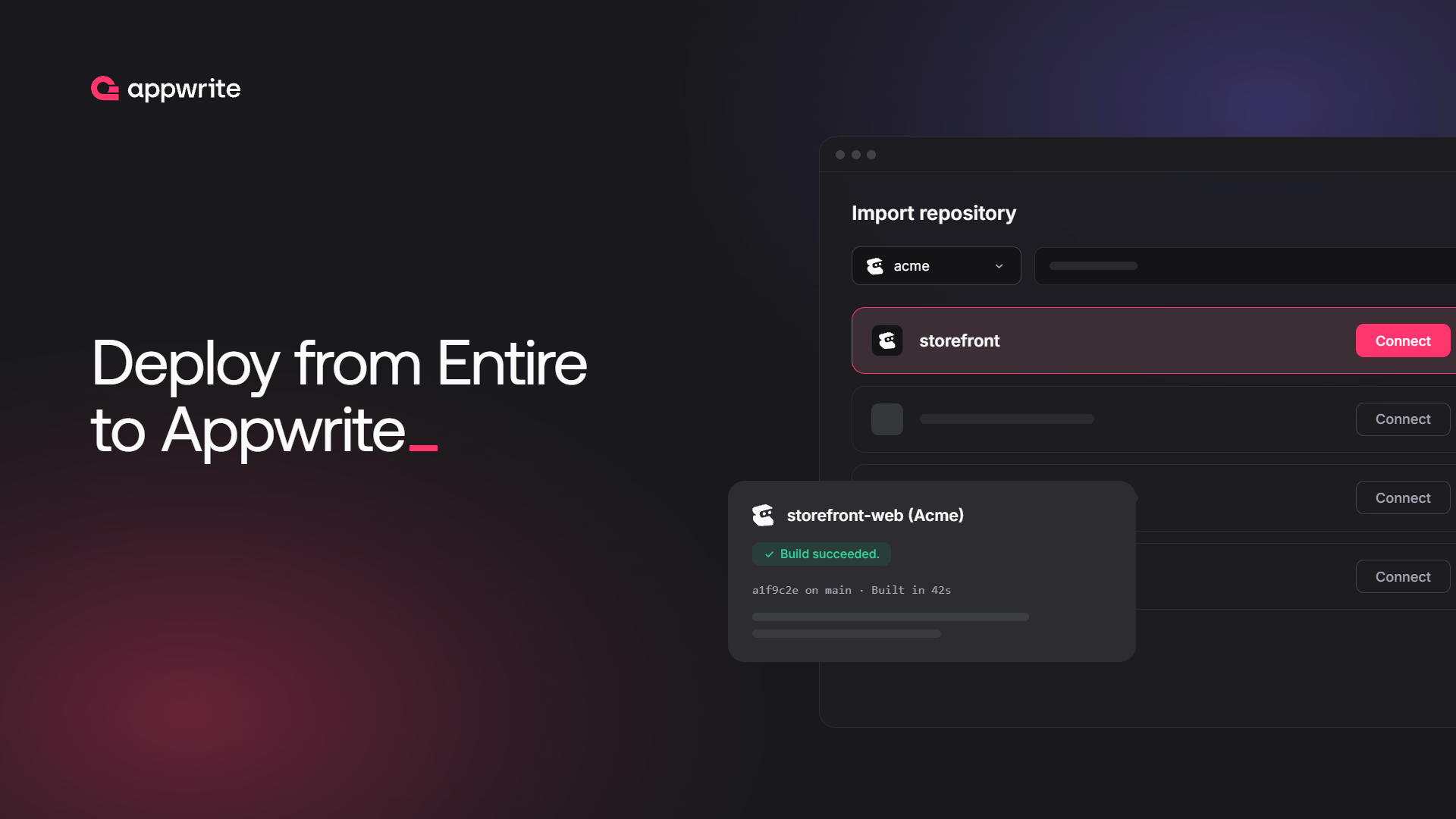
- Under Import repository, open the organization menu and choose your Entire project. Entire projects are marked with the Entire icon.
- Find
storefrontand click Connect.
- Enter a Site name, such as
storefront-web, and pick a Domain onappwrite.network. - Confirm the Framework. Appwrite reads the
package.jsonin the root directory, detects React, and fills in the install command, build command, and output directory. The Branch ismainand the Root directory is./. - Add any environment variables your app needs under Environment variables.
- Click Deploy.
Appwrite fetches the commit from Entire, runs the install and build commands, and serves the output on the site's domain. Because main is the production branch, this first deployment activates as soon as the build succeeds. In our test, the build took 15 seconds.
Step 4: Push to deploy
Make a change to the site, commit it, and push to main:
git commit -am "Update the landing page copy"
git push
Entire notifies Appwrite of the push. Appwrite creates a deployment, builds it, and activates it, replacing the previous production deployment. The site's Deployments tab shows the new active deployment, with the Entire repository as its source.
Each deployment links back to Entire: clicking its commit message opens that commit on entire.com. Appwrite also reports the build to Entire as a check run on the commit, with the result and a link to the deployment. When the branch has a trail, the check shows under its Appwrite gate.
Step 5: Preview a branch before it ships
Push a branch other than main:
git switch -c redesign-hero
# edit src/App.jsx
git commit -am "Try a new hero section"
git push -u origin redesign-hero
Appwrite builds this deployment but does not activate it, so production keeps serving the previous version. In the Deployments list, the branch deployment shows as Ready while the main deployment stays Active.
Click the deployment to open it. Its panel shows a preview of the branch, plus URLs for the branch and the commit. Live traffic keeps using the active deployment until you click Activate.
Preview deployments are private. Opening one requires an Appwrite account in the organization that owns the site, and the first time you open one, Appwrite asks you to authorize Appwrite Preview so it can confirm your membership. When the branch is ready, merge it into main and push to deploy it to production.
Step 6: Deploy a function from the same repository
- Go to Functions and click Create function.
- Under Connect Git repository, choose your Entire project, find
storefront, and click Connect. - Enter a Function name, such as
api. Appwrite detects the Node.js Runtime from the repository. - Check Public. It's on by default and lets anyone execute the function, so turn it off if the function should only run for signed-in users or server calls.
- Under Production branch, keep
mainand set the Root directory tofunctions/api. - Under Build, set the Entrypoint to
src/main.jsand keepnpm installas the Build command. - Click Create and deploy.
Once the build finishes, call the function's domain to check it:
curl https://<your-function-domain>/hello
# {"ok":true,"path":"/hello"}
From now on, pushes to main create a function deployment that activates once it builds. Pushes to other branches create deployments that stay inactive until you activate them. For more on entrypoints, runtimes, and the context object, see Develop Appwrite Functions.
Step 7: Scope builds with path filters
With a site and a function in one repository, every push now builds both. A copy change to the site shouldn't rebuild your API, and a fix in functions/api shouldn't redeploy your site. Build triggers fix that.
For the site, go to Sites > your site > Settings > Build. Under Triggers, add a path filter that excludes the function's folder, then click Update:
!functions/**
For the function, go to Functions > your function > Settings > Build and add a path filter for its own folder:
functions/api/**
Path filters match from the repository root, not from the root directory you set. Branch filters work the same way: add patterns such as main and preview/** to limit which branches create deployments at all.
Appwrite works out which files a push changed by comparing the push's previous and new commits on Entire. In our test, a push that only touched functions/api deployed and activated the function and left the site alone. For the first push of a new branch, Appwrite compares the branch with the point where it branched off main, so the filters apply from the first push.
Manage and troubleshoot the connection
To add repositories to the installation later, disconnect it, or uninstall Appwrite from Entire, see Manage the Entire connection in the Entire integration guide. If a repository isn't listed, a push doesn't deploy, or a build fails, the guide's troubleshooting section covers the common causes.
Getting started with Entire on Appwrite Cloud
Once the installation is in place, deploying from Entire looks like any other Git workflow on Appwrite: push to main to ship, push a branch to preview, and use path filters to keep a monorepo's builds independent. The difference is that the repository also keeps the agent sessions that produced each change, so the commit, its history, and its running deployment are all one click apart.
- Sign up for Appwrite Cloud to connect your first Entire project.
- The Entire integration guide is a short reference for connecting, managing, and troubleshooting Entire on Appwrite.
- Deploy Sites from Git covers build triggers, install and build commands, and output directories.
- Deploy Functions from Git covers the same ground for serverless functions.
- Preview deployments explains how branch previews are created and who can open them.
Go to Project settings > Git configuration in the Appwrite Console and click Connect to Entire. Approve the installation on entire.com and choose which repositories Appwrite can see. Then create a Site or Function, pick your Entire project and repository under Import repository, confirm the settings, and deploy. Every later push to that repository deploys automatically.
The ones you choose on the installation page on entire.com: All repositories, which includes repositories added to the project later, or Only selected repositories. Appwrite can read and write repository contents, write checks on commits, and create repositories in the project, but it cannot delete repositories on Entire. To change the selection later, use Update Entire permissions in the creation wizard or Configure on the installation in Project settings > Git configuration.
Yes. Each installation covers one Entire project. Click Connect with Entire in Project settings > Git configuration to add another, and each Entire project appears as its own owner in the repository picker.
Yes, but they don't go live. A push to a branch other than the production branch creates a deployment that is built but not activated. For Sites, the deployment gets its own preview URLs, which only members of your Appwrite organization can open.
Check three things: the repository is connected to the Site or Function, the branch matches the branch filters under Settings > Build > Triggers, and at least one changed file matches the path filters. Path filters match from the repository root. For the first push of a new branch, Appwrite compares it with the point where it branched off the default branch.
No. Unless Silent mode is on, Appwrite reports each build to Entire as a check run on the commit instead, and the deployment itself, with its logs and preview, lives in the Appwrite Console.