

Entire is a Git forge built for development with coding agents. It hosts repositories on its own Git network across several regions and keeps the agent session behind each change next to the code, so a commit can carry the conversation that produced it. Work is organized into trails, Entire's unit of work, which follow one branch from the first intent to shipped code.
How does the integration work?
Entire is one of Appwrite's Git providers for Appwrite Sites and Appwrite Functions. You connect an Entire project to your Appwrite project once, then create Sites and Functions from its repositories. Appwrite installs as a plugin on your Entire project: Entire notifies Appwrite of each push, and Appwrite fetches that commit, builds it, and reports the result back.
Each push to a connected repository can create a deployment:
- Production branch: the deployment builds and activates.
- Any other branch: the deployment builds but stays inactive. Sites get preview links for the branch and the commit, which only members of your Appwrite organization can open.
- Every build: Appwrite reports the result to the commit on Entire as a check run, unless Silent mode is on.
Appwrite asks Entire to read and write repository contents, write checks on commits, and create repositories in the project. It only reaches the repositories you select, plus any it creates for you, and it cannot delete repositories on Entire.
Entire is available as a Git provider on Appwrite Cloud. The self-hosted Appwrite Console does not offer new Entire connections.
Prerequisites
- An Appwrite Cloud account with a project.
- An Entire account.
- The Entire CLI, installed and signed in with
entire login.
How to implement
To deploy from Entire to Appwrite, there are several steps you must complete:
Step 1: Create or mirror a repository on Entire
To deploy code you already have, create the repository and push your code before you connect it. If you start from an Appwrite template instead, Appwrite can create the repository for you, as described in Step 3. Entire repositories live inside projects, and each Appwrite installation connects to one Entire project, so keep the repositories you plan to deploy in the same project when you can.
Create a project and a repository with the Entire CLI, then point your local project at the repository and push:
entire project create acme --owner acme-orgentire repo create storefront --project acmeentire repo remote add origin --override /et/acme/storefrontgit push -u origin mainHere the project belongs to the acme-org organization. To own it with your account instead, pass --owner github:<handle> --owner-type account. You can also create the project and the repository on Entire. Entire's repository docs cover regions in more detail.
If your code lives on GitHub, you don't have to move it. Create a GitHub repository mirror on Entire, and Appwrite deploys from the mirror. Mirroring needs an Entire account linked to GitHub and the Entire GitHub App with access to the repository. A mirror belongs to no Entire project, so when you connect Entire in the next step, choose the mirror's GitHub owner instead. The mirror then appears under gh/<owner> in the repository picker.
entire repo mirror add /gh/acme/storefront --cluster aws-us-east-2.entire.ioentire repo remote add entire /gh/acme/storefront--cluster sets the region the mirror lives in. Without it, a terminal asks you to pick regions. The second command adds the mirror as a remote named entire and leaves origin pointing at GitHub.
GitHub stays the source of truth. Entire syncs pushes made on GitHub to the mirror within seconds, and Appwrite deploys them. Entire protects a mirror's default branch, so push your production branch to origin. Other branches can go to either remote, since Entire forwards pushes through the mirror to GitHub.
To move a mirrored repository off GitHub, detach it into an Entire project in the same region as the mirror. For a mirror on aws-us-east-2, create the target project with --region us. Run the detach with --dry-run first to check its requirements, such as the mirror being on a single cluster. The old /gh/ address stops resolving afterwards, so point origin at the new repository and remove the entire remote:
entire repo mirror detach /gh/acme/storefront --into /et/acme/storefrontentire repo remote add origin --override /et/acme/storefrontgit remote remove entireGitHub stops syncing, and the installation for the GitHub owner no longer covers the repository. Connect Entire again, choose the new project, and reconnect each Site and Function to the repository so later pushes deploy.
Step 2: Connect Entire to your Appwrite project
In the Appwrite Console, open your project, go to Project settings > Git configuration, and click Connect to Entire. If the project already has a Git installation, the button reads Connect with Entire.
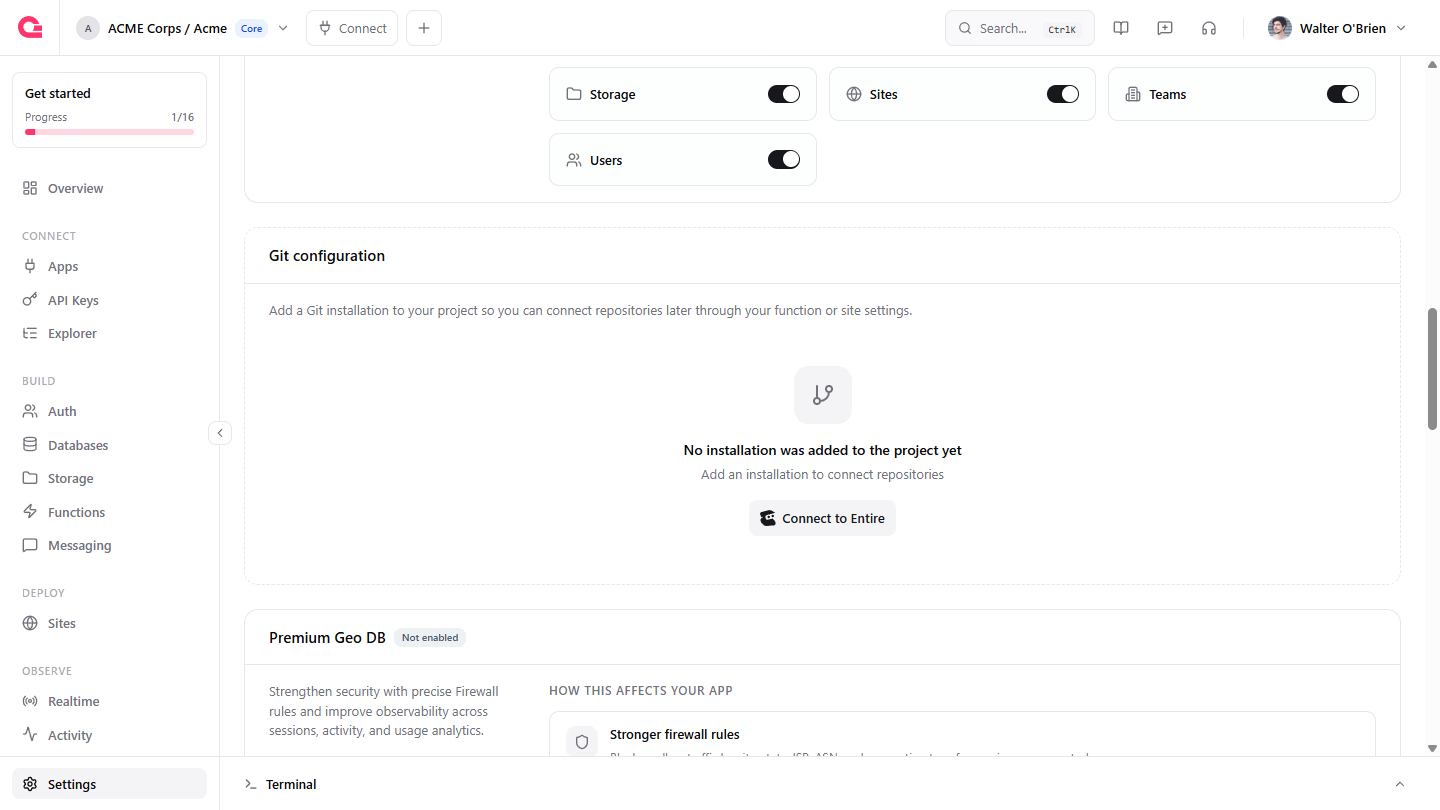
Appwrite's installation page opens on Entire. Choose your Entire project, then pick the access Appwrite gets: All repositories, which also covers repositories you add to the project later, or Only selected repositories. Click Install, and Entire sends you back to the Console, where your Entire project appears in the Owner column of the installation list.
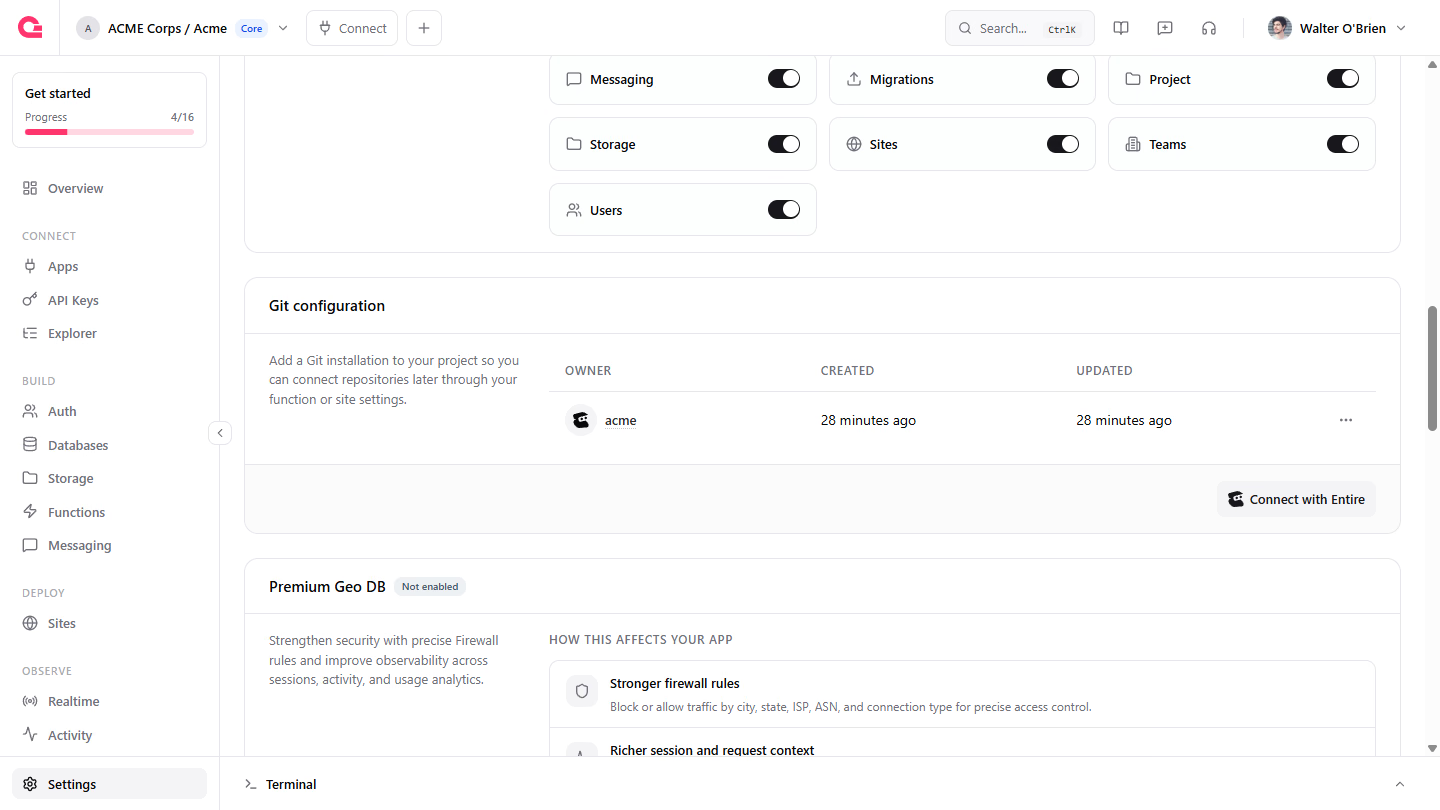
Each installation covers one Entire project. To deploy from another project, click Connect with Entire again. You can also start from the Site or Function creation wizard: when the project has no Git installation yet, Import repository shows a Connect Entire button that runs the same flow.
Step 3: Create a Site or Function from the repository
To deploy a site, go to Sites and click Create site. Under Import repository, open the organization menu and choose your Entire project, which is marked with the Entire icon. Find your repository and click Connect.
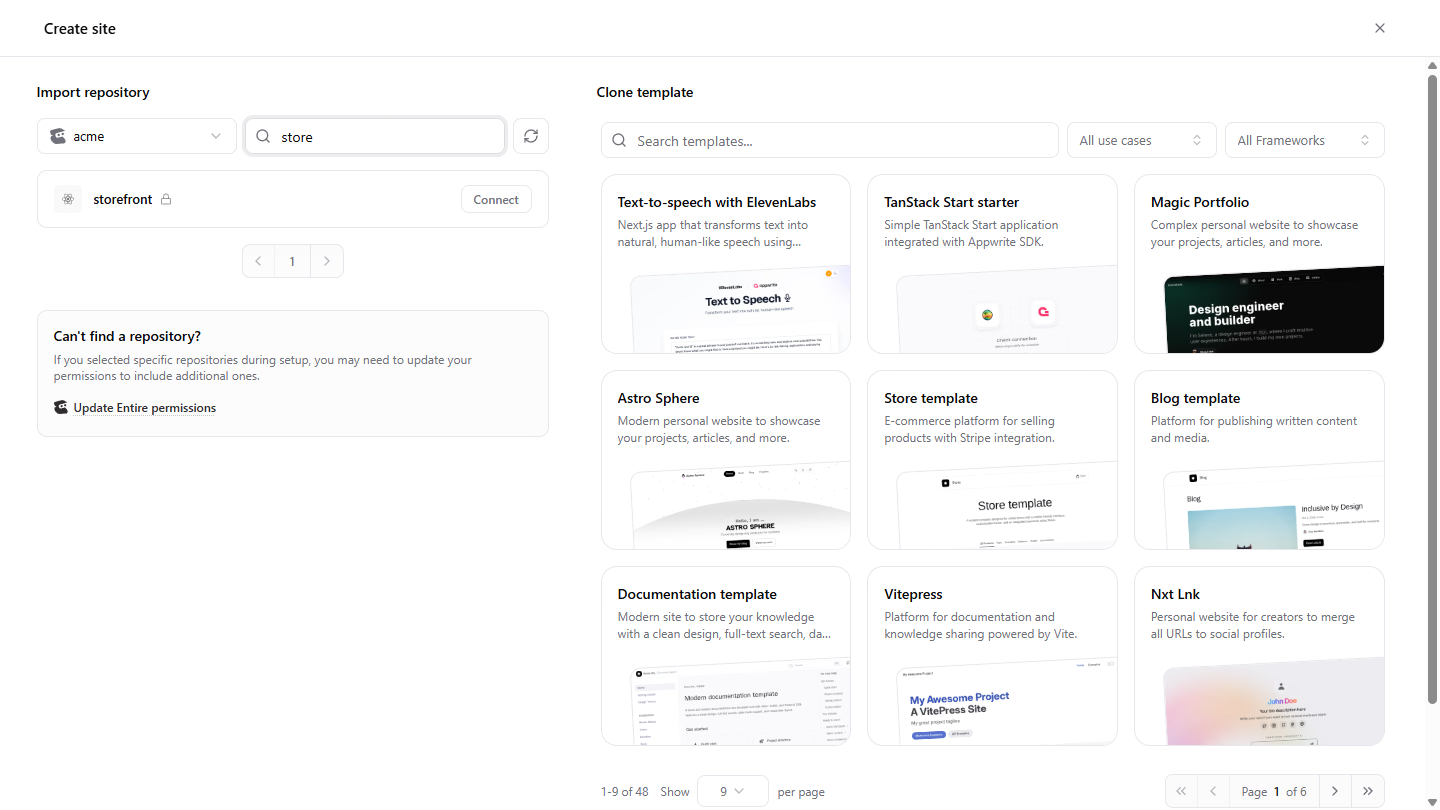
Appwrite reads the package.json in the root directory, detects the framework, and fills in the install command, build command, and output directory. Confirm the Branch and Root directory, add any Environment variables, and click Deploy. Because the first deployment comes from the production branch, it activates as soon as the build succeeds.
To deploy a function, go to Functions and click Create function. Under Connect Git repository, choose your Entire project, find your repository, and click Connect. Appwrite detects the runtime from the repository. Set the Root directory and the Entrypoint, then click Create and deploy.
To start from a template instead, pick one when you create the site or function, and choose Connect your repository. Under Git repository, choose Create new repository, pick your Entire project under Organization, enter a Repository name, and click Create. Appwrite creates a private repository in that project, commits the template into it, and deploys it.
Step 4: Push to deploy
From now on, every push to the repository creates a deployment. Pushes to the production branch build and activate, replacing the previous production deployment. Pushes to any other branch build without activating, so production keeps serving the previous version until you click Activate. In the Deployments list, a branch deployment shows as Ready while the production deployment stays Active.
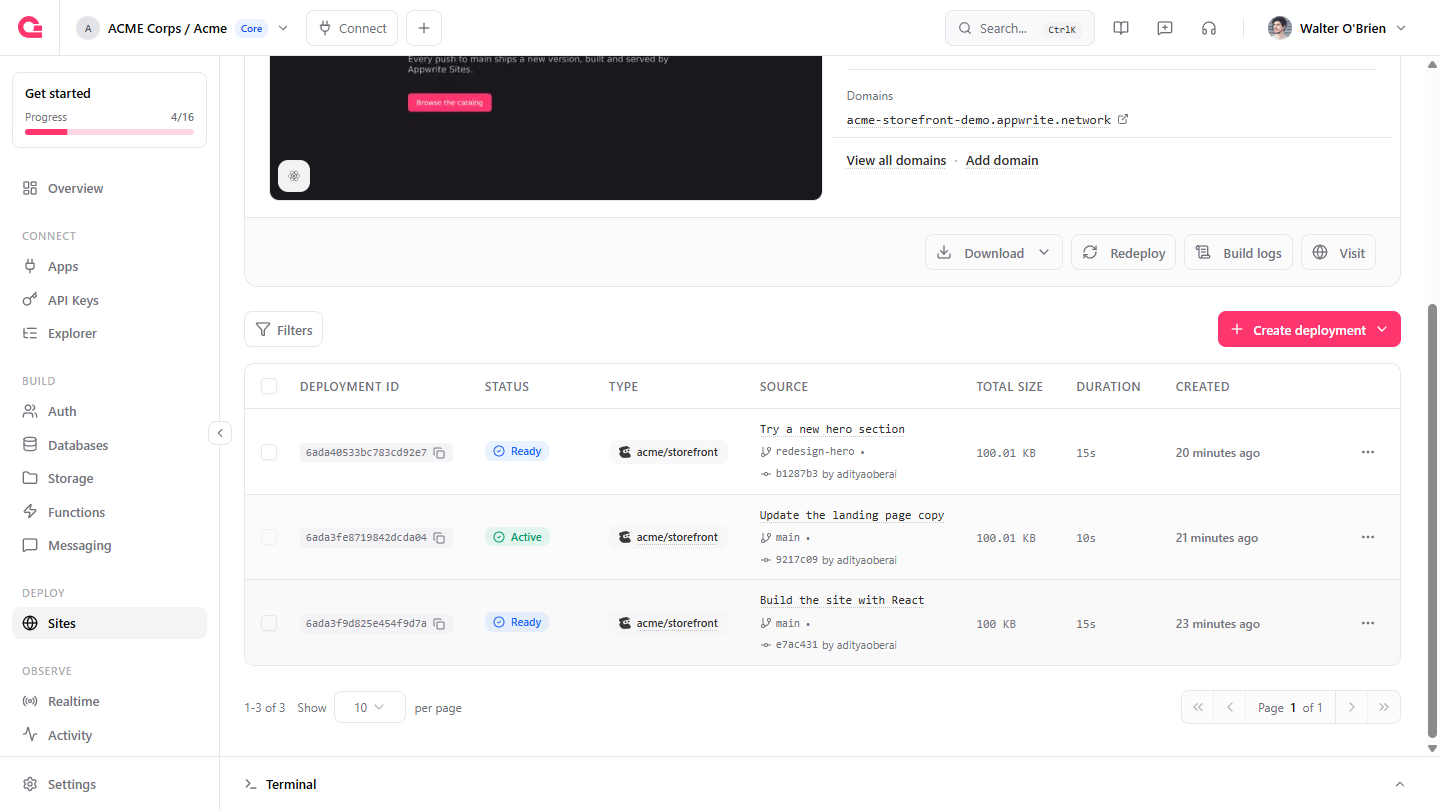
Appwrite reports each build back to the commit on Entire as a check run. The check moves from starting to building to succeeded or failed, and its summary links to the deployment in the Console and, for Sites, to the running preview. When the branch has a trail, the check shows under its Appwrite gate. In the Console, each deployment links back to its repository, branch, and commit on Entire.
Branch and path filters, root directories, install and build commands, and environment variables work exactly as they do for any Git-connected Site or Function. Set filters under Settings > Build > Triggers. Path filters match from the repository root, so a site and a function in the same repository can each rebuild only when their own files change.
For the full walkthrough, from creating the repository to branch previews and path filters for a monorepo, follow the step-by-step tutorial.
Manage the Entire connection
- Add repositories. If a repository is missing from the picker, the installation doesn't cover it. Click Update Entire permissions under Can't find a repository? in the creation wizard, or open the installation's menu in Project settings > Git configuration and click Configure. Both reopen Appwrite's installation page on Entire. Choosing All repositories there covers new repositories automatically.
- Disconnect from Appwrite. Open the installation's menu in Project settings > Git configuration and click Disconnect. The dialog lists the Sites and Functions that use the installation before you confirm.
- Uninstall from Entire. If you remove Appwrite from your Entire project, Appwrite disconnects every Site and Function that deployed from it and removes the installation. Their current deployments keep serving, but new pushes stop deploying.
Troubleshooting Entire deployments
- The repository isn't listed. Add it to the installation as described in Manage the Entire connection, then click Refresh repositories in the wizard.
- Appwrite can't create the repository. The installation needs Entire's permission to create repositories. Accept Appwrite's updated permissions on Entire if it asks for them, or create the repository on Entire and connect it instead. A name that's already taken in the project fails too.
- The framework shows as Other. Appwrite detects the framework from the
package.jsonin the root directory. If your app lives in a subfolder, set the Root directory to that folder, and if Appwrite still doesn't recognize the framework, select it yourself. - A push didn't create a deployment. Check that the repository is connected to the Site or Function, that the branch matches the branch filters, and that at least one changed file matches the path filters. For the first push of a new branch, Appwrite compares it with the point where it branched off the default branch.
- No check runs appear on the commit. Silent mode stops Appwrite from reporting builds back to Entire. Turn it off in the site or function's Git settings.
- The build fails. Open the deployment in the Console and read the build logs. Most failures come from a root directory that doesn't contain the app, or a build command that doesn't match the package manager.
Read more about Entire and Appwrite
If you would like to learn more about Entire and Appwrite, we have some resources that you should visit:

