Building with Appwrite Sites templates_
To make it easier, and a lot faster to build a website, we have added templates. From e-commerce stores, to documentation, you can get started with a couple of clicks.

Your web application only provides value when it is live and accessible to users. Appwrite Sites simplifies deployment, allowing you to launch modern, production-ready websites directly from your Appwrite console. With built-in templates, you can quickly deploy complete websites that include integrated version control, environment configuration, and secure global delivery, all without complicated setup or infrastructure.
In this guide, we will walk through the process of deploying your website using one of Appwrite's pre-built templates. We'll build an ecommerce store for this example, but the process is the same for any other type of site.
Opening the Sites page
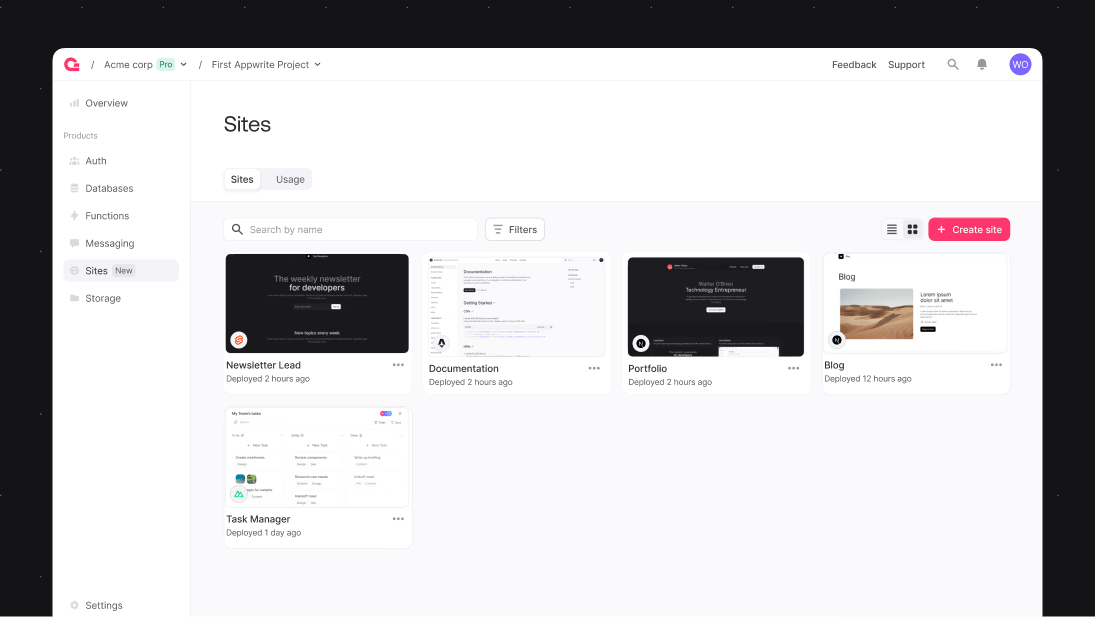
After signing into your Appwrite console, look at the sidebar on the left. Under the Deploy section, you will find the Sites button.
Clicking it opens the Sites page. Here, you will see the Sites tab selected by default. Click Create site to start the deployment process.
At this point, Appwrite offers two options: Clone a template or Connect a repository. For this guide, we will focus on cloning a template, which lets you quickly set up a site based on a pre-built project.
Choosing a template
When you select Clone a template, Appwrite displays a library of available templates. You can browse through them by scrolling, or you can narrow down the selection using the filters on the left side of the screen.
Templates can be sorted by framework. If you are looking for something specific, you can check one or more framework options like Next.js, Svelte, Astro, and others.
Templates can also be sorted by use case. The available categories include:
- Blog
- Documentation
- Ecommerce
- Events
- Portfolio
- Starter
You can also use the search bar above the list to find a template by name. For this walkthrough, we'll use the Store template under the Ecommerce category, so if you don't see it right away, you can search for it.
Clicking the template will open a new page where you can configure your new site.
Setting up site details
Once you have selected the template, you will be prompted to enter basic details for your site.
You will need to provide a Site name and a Site ID. The Site ID becomes part of your site's URL, so it should be lowercase and use hyphens if necessary.
At this stage, you can choose whether to connect your repository now or later.
If you choose Connect your repository, you will be able to either create a new repository based on the template or link it to an existing one. If you prefer to skip this step for now, you can choose Connect later and connect your version control later using the CLI or through the settings page.
If you opt to connect a repository immediately, you will see the following options:
- Select whether to create a new repository or connect to an existing one
- (Optional) Choose a GitHub organization if you have access to multiple organizations
- Name your repository if you are creating a new one
- Decide whether to keep the repository private by ticking the checkbox
Once your settings are ready, click Create to move to the next step.
Configuring deployment settings
After creating your site, you will be taken to the deployment configuration screen.
Here, you will select your Production branch. This is the branch that Appwrite Sites will use for deployments.
You can optionally set a Root directory if your production build is inside a specific folder within your repository.
There is also a Silent mode option. If enabled, Appwrite will not automatically create comments when pushing changes to the connected repository.
Next, you will configure your Environment variables. Two variables will already be present:
PUBLIC_APPWRITE_ENDPOINTPUBLIC_APPWRITE_PROJECT_ID
You can edit these values if needed, and you can add more environment variables if your application requires them.
Additionally, you can define the domain for your site, using the Appwrite Sites domain.
After reviewing your configuration, click Deploy.
Monitoring the deployment
Once you initiate the deployment, you will be taken to a progress page where you can monitor the build and deployment in real time.
The logs will show you the different stages of the build process. Depending on the size of your template and the dependencies involved, this process can take anywhere from a few seconds to a few minutes.
When deployment is complete, Appwrite will display a success screen showing:
- A preview image of your live site
- The domain name
- The size of the deployment
- Global CDN status (should show Connected)
- DDoS protection status (should show Connected)
You will also see a Visit site button that you can click to view your newly deployed website.
After deployment: Next steps
After successfully deploying your site, Appwrite provides a few options to help you continue setting up or expanding your project.
You can Add domain, connecting an existing custom domain you own or registering a new one through the console.
You can Share site, allowing you to collaborate with your team by sharing access to your project.
You can also Open on mobile, previewing your live site directly from a mobile or tablet device to ensure everything looks and functions as expected across different screen sizes.
Wrapping up
Deploying a site using templates on Appwrite Sites provides a straightforward path from project setup to a live deployment. By using a template, you can quickly spin up a professional-quality application without needing to configure hosting infrastructure manually. Connecting a repository, setting environment variables, and defining your site domain are all built directly into the console, allowing you to move from idea to launch with clarity.
Once your site is deployed, you can continue to customize it, link it to a custom domain, or expand it as your project grows. If you have any questions, don’t hesitate to reach out to us via Discord.