Introducing Appwrite Terminal_
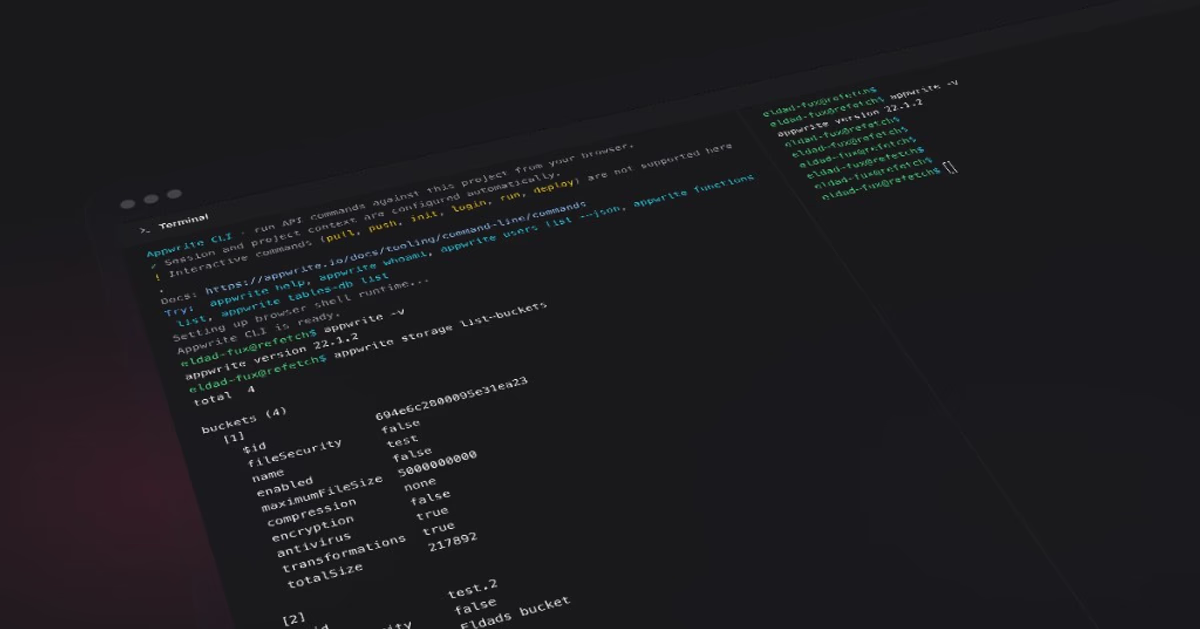
Appwrite Terminal runs the Appwrite CLI directly inside the Console. Your session and project context are preconfigured, with keyboard-first controls and multi-tab workflows, so you can inspect resources without leaving the project.

Every time you need to list users, inspect a deployment, or pull JSON from the Appwrite API, the workflow usually looks the same: leave the Console, open a local terminal, make sure the CLI is installed, confirm you are logged in, and point appwrite.config.json at the right project.
That context switching adds friction, especially when you are already deep in a project and just want a quick answer from the API.
Today we are introducing Appwrite Terminal: the Appwrite CLI, built into the Console. It runs in your browser, preconfigured with your Console session and the project you are viewing, so you can run commands where you already are.
Less context switching, more shipping
Appwrite Terminal lives in the project footer on every project route. Open it once and keep working: the panel stays mounted while minimized, your command history persists per project, and the CLI install is cached in IndexedDB so later commands start faster.
The goal is simple: reduce the distance between seeing something in the Console and acting on it with the CLI.
Instead of copying a resource ID into a local shell, you can run:
appwrite users list --json
appwrite functions list
appwrite tables-db list
Right from the project you are already inspecting.
Zero setup auth and project linking
When Appwrite Terminal bootstraps, it:
- Resolves your Console session and writes CLI prefs (
~/.appwrite/prefs.json) soappwrite whoamiworks immediately. - Links the active project by generating
appwrite.config.jsonunder/projectwith the correct endpoint, project ID, and organization ID. - Installs Appwrite CLI 22.1.2 into an in-browser Node.js runtime (powered by almostnode) and restores the install from IndexedDB when possible.
If your session cookie is httpOnly-only, a fetch bridge forwards browser credentials for Appwrite API requests transparently. You stay signed in without copying secrets into the shell.
On first open you will see a welcome message with suggested commands and clickable suggestions you can run with one click.
Full Appwrite CLI coverage (where it makes sense)
Appwrite Terminal supports the same API-oriented commands you would run locally. Tab completion covers:
- Appwrite topics: account, databases, functions, messaging, projects, proxy, sites, storage, tables-db, teams, tokens, users, vcs, webhooks, and more.
- Subcommands per topic (for example
users list,functions list-deployments,tables-db list-rows). - Shell builtins such as
cd,ls,cat,grep, andecho. - Paths inside the virtual filesystem when a command expects a file argument.
Commands that require interactive prompts or a local machine are blocked with clear guidance:
| Command | Why it is blocked | What to do instead |
|---|---|---|
login / logout | You are already signed in through the Console | Sign out from the account menu if needed |
init | The project is already linked | Run appwrite init locally to scaffold resources |
pull / push | Interactive prompts are required | Run appwrite pull all or appwrite push all on your machine |
run | Requires Docker and local emulation | Run appwrite run functions locally |
deploy | Removed from the CLI | Use appwrite push locally |
Everything else, including JSON output flags, list/get/create/update/delete operations, and help topics, works as expected.
Keyboard-first by design
Appwrite Terminal is optimized for keyboard access alongside the rest of the Console's keyboard shortcuts.
Console-level shortcuts
These work anywhere on a project route:
| Shortcut (macOS) | Shortcut (Windows / Linux) | Action |
|---|---|---|
⌘ + ; | Ctrl + ; | Toggle Appwrite Terminal |
⌘ + Enter | Ctrl + Enter | Enter or exit full screen |
⌘ + F | Ctrl + F | Search terminal output |
⌘ + Shift + ; | Ctrl + Shift + ; | New terminal session |
You can also press ⌘ + K (or Ctrl + K) to open the Command Center and choose Open terminal.
Input line shortcuts
While typing a command, standard readline-style bindings apply:
| Shortcut | Action |
|---|---|
Home / Ctrl + A | Move to start of line |
End / Ctrl + E | Move to end of line |
Alt + ← / Alt + → | Move by word |
↑ / ↓ | Previous / next command in history |
Ctrl + W / Alt + Backspace | Delete word before cursor |
Ctrl + U | Clear from cursor to start of line |
Ctrl + K | Clear from cursor to end of line |
Ctrl + C | Clear input line or cancel a running command |
Tab | Tab completion |
Delete | Delete character at cursor |
Command history stores up to 200 entries per project and persists across sessions.
Multi-session workflows
Power users can treat Appwrite Terminal like a desktop shell:
- Multiple tabs: Up to 10 named sessions per project (
Terminal 1,Terminal 2, …). Rename sessions from the sidebar. - Split panes: Split a session horizontally to compare command output side by side.
- Reorder tabs: Drag root sessions in the sidebar to match your workflow.
- Resizable panel: Drag the top edge to set terminal height; your preference is saved to account prefs.
- Full screen: Expand Appwrite Terminal to the full viewport when you need maximum space.
Each session maintains its own scrollback buffer and running state.
Search, copy, and export
Long JSON responses are easier to work with thanks to built-in output tools:
- Search (
⌘/Ctrl+F): Find text across the full scrollback with case-sensitive matching and next/previous navigation. - Copy selection: Copy highlighted text from the buffer.
- Copy last command: Quickly reuse the previous command elsewhere.
- Copy all output: Copy the entire scrollback to the clipboard.
- Export: Download terminal output as a
.txtfile for sharing or debugging.
URLs printed in command output are linkified. Ctrl + click (or Cmd + click) opens them in a new tab.
Performance and caching
The first time you open Appwrite Terminal in a browser, the Appwrite CLI package is downloaded and installed into the virtual filesystem. Subsequent visits restore the install from IndexedDB, so bootstrap skips the full npm install when the cached version matches. When the Console updates the pinned CLI version, Appwrite Terminal reinstalls automatically.
Who can use it
When organization roles are enabled, Appwrite Terminal is available to owners and developers on the project's organization. The Command Center Open terminal action and footer controls respect the same permission checks.
Try it now
Open any project in the Console and press ⌘ + ; (or Ctrl + ;). When Appwrite Terminal opens, start with:
appwrite whoami
appwrite users list --json
appwrite functions list
appwrite tables-db list
Appwrite Terminal meets you where you already work: signed in, linked to your project, and ready for the next command.
Resources
Appwrite Terminal is a built-in terminal panel at the bottom of every project in the Appwrite Console. It runs the Appwrite CLI (version 22.1.2) in your browser using an in-memory Node.js runtime, so you can call appwrite commands against the project you are viewing without installing the CLI locally or switching to another window.
No. Appwrite Terminal reuses your Console session and automatically writes ~/.appwrite/prefs.json and appwrite.config.json for the active project. Run appwrite whoami to confirm you are signed in, then list users, functions, tables, or any other resource immediately.
All non-interactive API commands are supported: listing and creating resources, reading JSON output, managing users, functions, storage, tables-db, messaging, and more. Interactive workflows such as login, init, pull, push, run, and deploy are blocked with guidance to run them on your machine instead.
Press ⌘ + ; on macOS or Ctrl + ; on Windows and Linux, use the terminal icon in the project footer, or open the Command Center and choose Open terminal. The same shortcut toggles the panel closed.
Organization owners and developers can open Appwrite Terminal when organization roles are enabled on your Console profile. Billing-only or read-only roles do not see the terminal action.
Open the Command Center with ⌘ + K (or Ctrl + K) and choose Keyboard shortcuts in the footer. Appwrite Terminal shortcuts appear when you are on a project route.