Announcing Appwrite Firewall: traffic control for your project_
Appwrite Firewall adds project-level traffic rules to Appwrite Cloud. Deny, bypass, challenge, rate limit, or redirect requests to your API, Functions, and Sites, with an impact preview before every change.

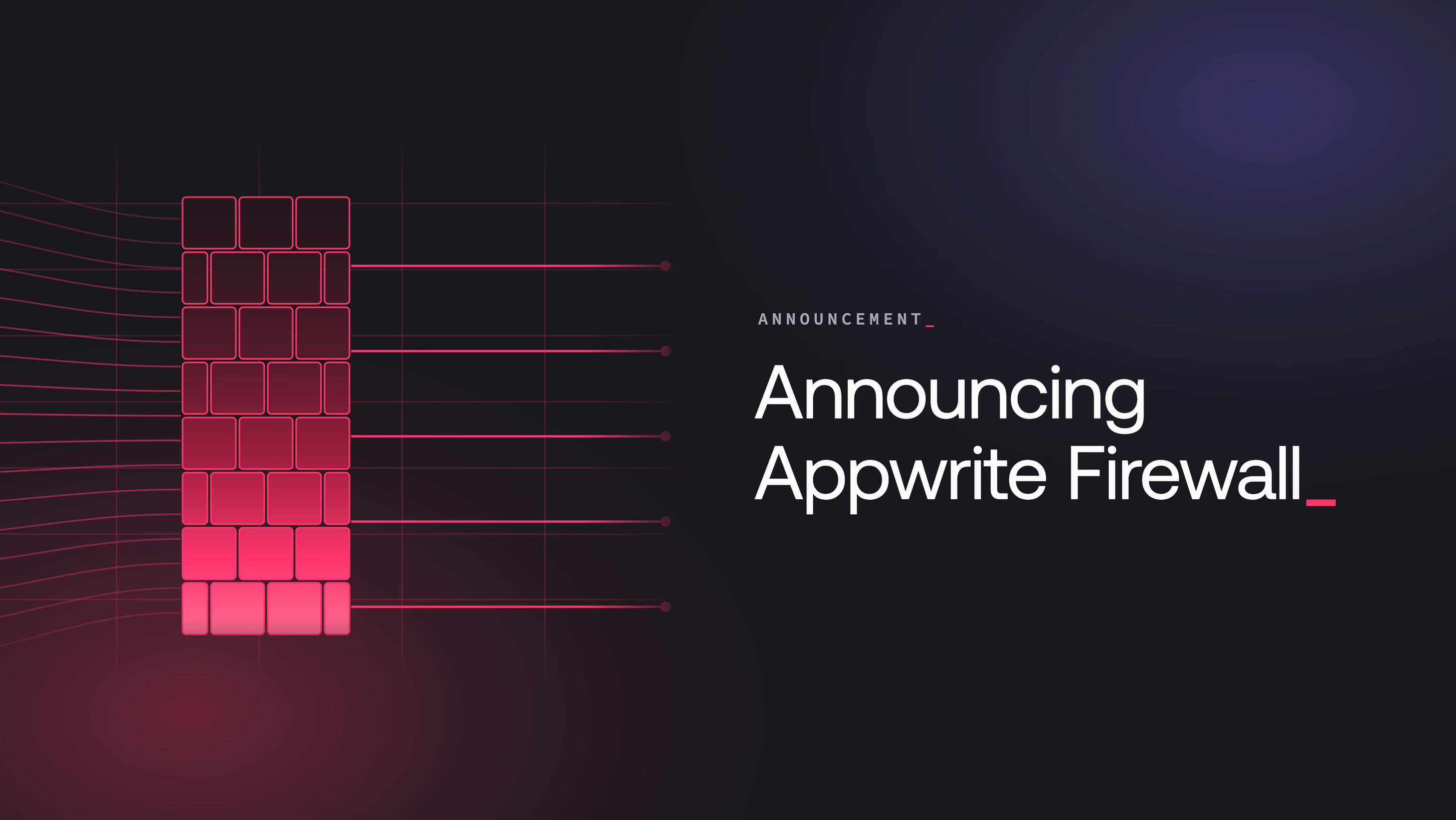
Every application on the internet receives traffic it never asked for. Scrapers hit your API, bots probe your sign-up flow, and one misbehaving client can drown out everyone else. Until now, filtering that traffic meant putting a proxy or a third-party WAF in front of your backend and managing one more service.
Today, we are announcing Appwrite Firewall, project-level traffic control built into Appwrite Cloud. You define rules in the Console, and Appwrite applies them before requests reach your API, Functions, or Sites. No proxy to deploy, no DNS to change, and no extra service to keep alive.
How Firewall rules work
A Firewall rule combines four ideas:
- Resource scope: the traffic the rule considers. Choose the project API, one function, or one site.
- Conditions: filters on request attributes, such as IP address, hostname, path, method, headers, query parameters, user agent, country, or continent. Every condition on a rule must match.
- Action: what happens when the conditions match.
- Priority: the evaluation order. Lower numbers run first, and the first matching enabled rule decides the outcome.
Your rules live on the project's Firewall page, next to a live overview of what they do.
Five actions to shape your traffic
Each rule applies one action when it matches:
| Action | What the client receives |
|---|---|
| Deny | A 403 response before the request reaches your application |
| Bypass | Normal service, and later Firewall rules are skipped |
| Challenge | A verification step that filters out automated clients |
| Rate limit | Normal service under the quota, and a 429 response with a Retry-After header over it |
| Redirect | An HTTP redirect to the location you configure |
The actions compose. A bypass rule at priority 10 allowlists your office IP range, while a deny rule at priority 100 blocks everyone else on the same path. A rate limit with a per-IP or per-user quota protects your sign-in flow without touching normal users.
Create a rule in the Console
Rules take a minute to set up:
- Open Firewall in your project.
- Click Create rule.
- Name the rule, pick a scope, and build your conditions.
- Pick an action and set its options.
- Review the impact preview, then click Create rule.
The impact preview on the right estimates how many recent requests would have matched your conditions. It answers the question every firewall change raises: what will this rule actually hit? Tighten a path filter or narrow an IP range before the rule touches production traffic, not after.
Monitor every outcome
The Firewall page charts your traffic alongside every Firewall decision. The Passed series shows requests that got through, and dedicated series track denied, challenged, rate-limited, and redirected requests for the date range you select. Challenge rules also report how many challenges were solved and how fast.
One thing you never have to worry about: Firewall does not block the Appwrite Console. You keep full access to your project and your rules even while a broad deny rule is active, so an aggressive rule never locks you out of the tool you need to fix it.
Available today on Appwrite Cloud
Firewall is available for every project on Appwrite Cloud. Free organizations can create 2 rules per project, and Pro and Scale organizations can create 50. Disabled rules stay in your project and count toward the limit, but they are not evaluated.
The documentation covers the full model, plus step-by-step guides for the most common policies: country blocks, IP allowlists, rate limits on authentication traffic, bot challenges, and maintenance redirects.
Resources
Appwrite Firewall is project-level traffic control on Appwrite Cloud. You create rules that match requests by attributes such as IP address, path, method, headers, user agent, or location, and each rule applies an action before the traffic reaches your API, Functions, or Sites.
A rule can deny a request with a 403 response, bypass later rules for trusted traffic, challenge a suspected bot, rate limit traffic over a quota with a 429 response, or redirect the client to another location. The first matching enabled rule decides the outcome.
No. Firewall does not block Console access. You can keep managing your project and its rules even when deny or rate limit rules are active for client and API key traffic.
The create wizard shows an impact preview. It estimates how many recent requests would have matched your conditions for the selected scope and date range, so you can tighten a rule before it affects production traffic.
A rule scopes to the project API, to one function, or to one site. API rules protect requests to Appwrite services such as Auth, Databases, and Storage. Function and site rules protect the public traffic of the resource you select.
Firewall is available on Appwrite Cloud. Free organizations can create 2 rules per project, and Pro and Scale organizations can create 50. Disabled rules count toward the limit but are not evaluated.