Announcing the official Appwrite Helm chart for Kubernetes_
Self-host Appwrite on Kubernetes with the official Helm chart, using built-in or managed PostgreSQL, Redis, and ClickHouse, S3, and Functions and Sites.

Self-hosted Appwrite has always shipped as a Docker Compose stack. On one server, that's the right shape: one installer, one docker-compose.yml, and an upgrade command that rewrites it. Teams that run everything else on Kubernetes had a harder time. They translated the Compose file into manifests or Helm charts of their own, then kept that translation working through every Appwrite release.
That translation is more work than it looks. Compose starts services in order with depends_on, and Kubernetes has no equivalent. Appwrite's scheduler has no leader election, so a second replica runs every scheduled function twice. Database pools size themselves from the CPU count, which inside a container is the node's count, not the pod's.
Today, we are announcing the official Appwrite Helm chart.
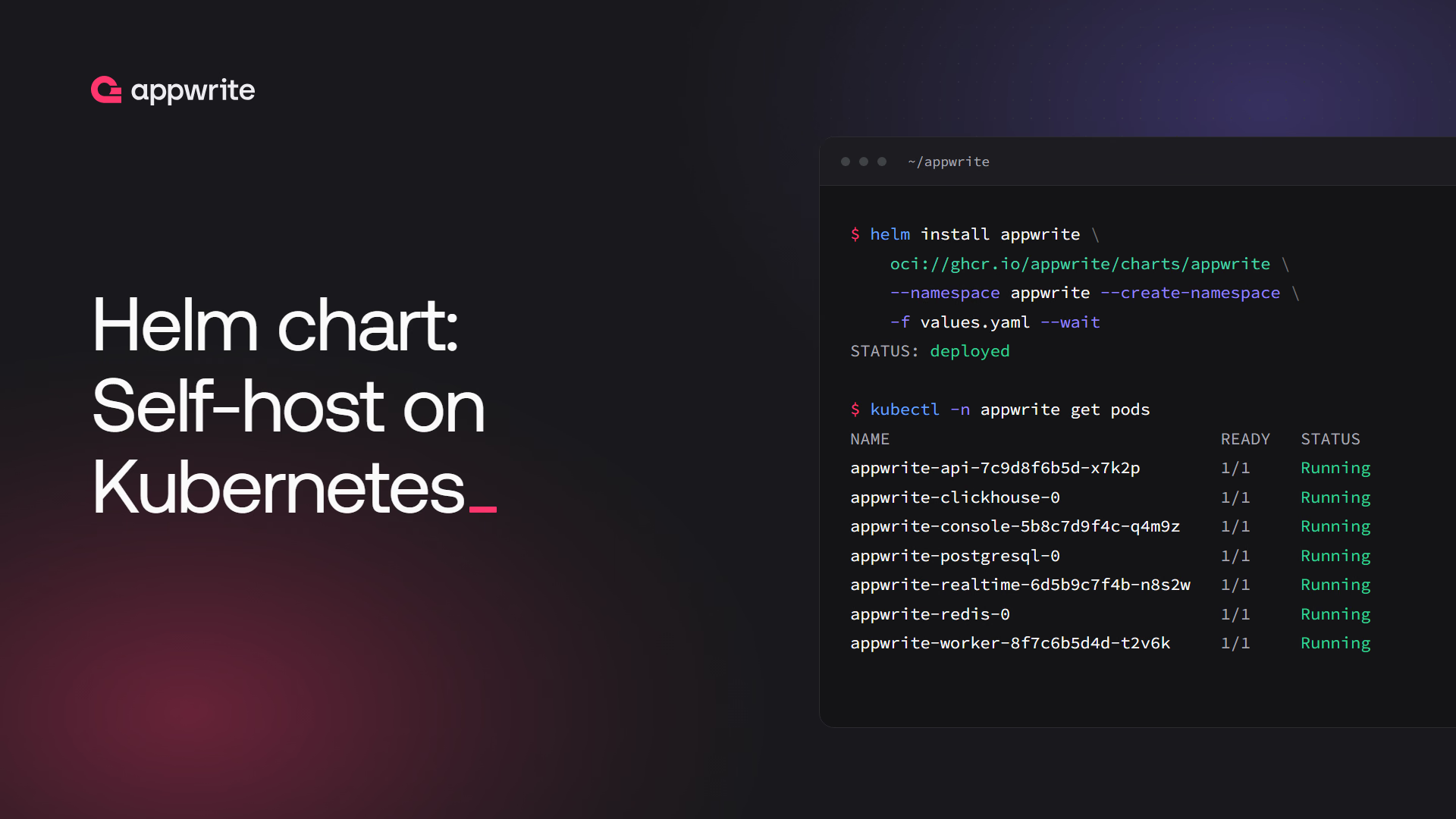
It installs self-hosted Appwrite on your own Kubernetes cluster with one command, and upgrades it with helm upgrade. The chart is published to oci://ghcr.io/appwrite/charts/appwrite, licensed under BSD 3-Clause, and developed in the appwrite/helm-chart repository.
What the Appwrite Helm chart gives you
The chart deploys the same images as the Docker installation, wired together the way Kubernetes expects:
- Everything in one install. The API, console, realtime, workers, schedulers, and geo service, plus built-in PostgreSQL, Redis, ClickHouse, and S3-compatible object storage, so a plain install works on an empty cluster.
- Managed services, one at a time. Each datastore has its own
modeswitch. Move PostgreSQL to RDS, Cloud SQL, or CloudNativePG while keeping the built-in Redis, and move Redis later. - Ingress or Gateway API routes for the API, console, realtime, function and site previews, and custom domains.
- Functions and Sites in the cluster, on by default. Builds run as Kubernetes Jobs, and executions run on the Open Runtimes executor in a namespace of its own.
- Three worker topologies.
combinedruns every queue in one worker andseparateruns one worker per queue, as in the Docker installation. The newgroupedtopology runs one worker per group of queues you choose. - Credentials that survive upgrades. The chart generates the encryption key and datastore passwords once, keeps them across upgrades and uninstalls, and refuses changes that would make your data unreadable.
- Data migrations on upgrade. When the Appwrite version changes,
helm upgraderuns the migration and waits for it to finish. - Hardened defaults. Every pod in the Appwrite namespace passes the
restrictedPod Security Standard, and releases are signed with cosign.
Install Appwrite on Kubernetes
You need Kubernetes 1.29 or later with a default StorageClass, Helm 4 or Helm 3.18 or later, and an ingress controller or a Gateway API implementation. You need one of the two: the console and the API share one hostname, and something has to send /v1 to the API and everything else to the console.
Try it on your laptop
The fastest way to see it running is a local kind cluster with Traefik, over plain HTTP:
kind create cluster --name appwrite

helm install traefik traefik --repo https://traefik.github.io/charts \
  --namespace traefik --create-namespace \
  --set service.type=ClusterIP --wait

helm install appwrite oci://ghcr.io/appwrite/charts/appwrite \
  --namespace appwrite --create-namespace \
  --set appwrite.domain=appwrite.localhost \
  --set appwrite.certificatesEmail=you@example.com \
  --set appwrite.forceHttps=false \
  --set ingress.enabled=true \
  --wait --timeout 15m

kubectl -n traefik port-forward svc/traefik 80:80
Open http://appwrite.localhost and sign up. The first account becomes the console administrator, and everyone after it needs an invitation. The first start pulls about 2 GB of images, so expect the whole thing to take around ten minutes.
Install on a real cluster
On a real cluster, you bring a domain, a DNS record that points at your ingress controller, and cert-manager for certificates. Create a values.yaml with your domain and ingress settings, replacing appwrite.example.com with your domain:
appwrite:
  domain: appwrite.example.com
  certificatesEmail: ops@example.com

ingress:
  enabled: true
  className: traefik
  annotations:
    cert-manager.io/cluster-issuer: letsencrypt
  tls:
    enabled: true
Then install the chart with that file:
helm install appwrite oci://ghcr.io/appwrite/charts/appwrite \
  --namespace appwrite --create-namespace \
  -f values.yaml --wait --timeout 15m
The chart checks your values before it creates anything, and when something is missing, the error names the setting. After the install, run helm test appwrite -n appwrite, then back up the encryption key the chart generated. Without it, a database backup can't be read.
Pick the release name, domain, database engine, and storage device before you store real data. Changing any of them later means migrating that data. The Kubernetes docs explain why for each one.
Bring your own PostgreSQL, Redis, and S3
The built-in datastores and object storage run one replica each. That's fine for evaluation and small installs, and it's not where you want production data. Every external service takes the same shape: a mode, an external block, and a password that comes from a Secret.
database:
  mode: external
  external:
    host: appwrite-db.example.internal
  password:
    secretName: appwrite-external

storage:
  device: s3
  s3:
    mode: external                      # the default, builtin, runs object storage in the release
    external:
      region: eu-central-1              # no endpoint: AWS S3
    bucket: appwrite
    accessKeyId:
      secretName: appwrite-external
    secretAccessKey:
      secretName: appwrite-external

compute:
  executor:
    existingSecret: appwrite-executor   # the executor's copy of the S3 keys, in its own namespace
Functions and Sites, on by default, run the executor in a namespace of its own, so S3 keys from your Secret need a copy there too (executor guide), or set compute.enabled: false.
Every credential in the chart, including database passwords, S3 keys, and SMTP passwords, accepts value, secretName, and secretKey. Secrets created by External Secrets, Sealed Secrets, or SOPS plug in without changes. The repository also has example values for AWS, Google Cloud, and Azure, each wiring Appwrite to that provider's managed database, cache, and storage.
Settings without a dedicated value, such as Git deployments or error tracking, go in appwrite.config as the same environment variables the Docker installation uses.
What the chart handles for you
Most of the chart's work goes into details that a hand-written set of manifests gets wrong the first time.
Startup order. API pods wait until PostgreSQL, Redis, and ClickHouse accept connections. Realtime, workers, and tasks wait until the API answers, because Appwrite's workers exit if they start before the schema exists.
Singletons stay single. The scheduler, maintenance, and interval tasks have no leader election, so the chart always runs exactly one of each, and recreates them on updates instead of rolling them. The worker that consumes the databases queue gets the same treatment, because schema changes must apply in order.
CPU-aware sizing. Appwrite sizes its Swoole workers and database pools from the CPU count. Inside a container, that count is the node's. A small pod on a 64-core node would start hundreds of workers and open far more database connections than you planned for. The chart sets _APP_CPU_NUM from each pod's CPU limit.
Migrations at the right moment. When an upgrade changes the Appwrite version, a post-upgrade Job runs the data migration once the new pods are ready. Helm reports success only after the migration finishes, and the chart refuses an upgrade that would downgrade Appwrite.
Credentials that can't drift. On the first install, the chart generates the encryption key, the datastore passwords, and the executor secrets, and keeps them in a Secret that survives helm upgrade and helm uninstall. It fails to render if a new encryption key would replace the stored one.
Functions and Sites on Kubernetes
Functions and Sites are on by default. Builds run as ordinary, unprivileged Kubernetes Jobs in a namespace of their own, started by the Open Runtimes orchestrator. Executions are harder. The Open Runtimes executor starts a container per runtime through a Docker daemon, and Kubernetes has no Docker daemon to offer. The chart gives each executor pod its own, and that daemon runs as a privileged container, which is root on its node.
We kept that trade-off contained. The executor gets its own namespace with its own copy of its credentials, and a NetworkPolicy, on by default, only lets Appwrite in and only lets the executor reach DNS, S3, and public addresses. Give it dedicated nodes. Where your policies forbid privileged pods, set compute.enabled: false, or let Sysbox run the daemon without privileged (compute.executor.privileged: false with its runtime class) on nodes where you can install it, though the chart's CI doesn't test that path yet.
Builds and the executor exchange code through a bucket, which the chart's built-in object storage provides out of the box: SeaweedFS, one replica, with its keys generated and its bucket created for you. For production, point the chart at an S3 store with redundancy, and add wildcard certificates for preview URLs. The Functions and Sites section of the docs has the values.
Scale workers the way your queues need
Appwrite's background work runs on 15 queues. The chart supports both worker topologies from the Docker installation, combined and separate, and adds a third. grouped runs one Deployment per group of queues you define, so you can isolate the busy ones without running 15 pods:
workers:
  mode: grouped
  groups:
    core:
      queues: [databases, deletes, mails, messaging, notifications, certificates, migrations, webhooks]
    usage:
      queues: [stats-usage, stats-resources]
      replicaCount: 2
    compute:
      queues: [builds, jobs, functions, executions, screenshots]
Here the usage queues run on two replicas of their own, builds and executions get their own pod, and neither group competes with emails and webhooks for CPU or memory.
How we test the Helm chart
Every change is linted with chart-testing and helm lint --strict on Helm 3.18 and Helm 4, unit tested with helm-unittest, and validated with kubeconform against several Kubernetes versions. CI then installs the chart on kind, in a namespace that enforces the restricted profile. The scenarios cover built-in and external datastores, every worker topology, Ingress and Gateway API routing, NetworkPolicies with restricted egress, and an upgrade from the published chart 1.0.0 that runs the data migration. Every install runs Functions and Sites on the built-in object storage, and a nightly run builds and executes a function inside the cluster.
Each install runs helm test, an end-to-end smoke test, and a second upgrade that must keep the credentials and leave every pod alone.
The first release was 1.0.0, for Appwrite 2.3.0. 2.0.0 brings Appwrite 2.5.0, the built-in object storage, and Functions and Sites on by default. The chart follows semantic versioning: only a new major version changes or renames values. Read the version notes before you upgrade.
When to use the Helm chart
Use the Helm chart when you already operate Kubernetes and want managed datastores, replicas across nodes, rolling upgrades, or GitOps with Argo CD or Flux.
Stay on the Docker installation when one server is enough. It's simpler to run, and Functions and Sites work there without a privileged pod.
Already on Docker and ready to move? The chart's migration guide moves an existing installation with its data. You dump PostgreSQL and the file volumes, install the chart with the API scaled to zero, restore, and then start Appwrite.
If you'd rather not operate any of this, Appwrite Cloud runs Appwrite for you.
Install Appwrite on Kubernetes today
- Kubernetes docs cover requirements, installation, configuration, Functions and Sites, and upgrades.
- appwrite/helm-chart has the chart's source, guides, and example values files.
- Production checklist lists what to change before real users depend on the install.
- Migrating from Docker moves an existing installation to the chart.
Install the official Helm chart from oci://ghcr.io/appwrite/charts/appwrite. You need Kubernetes 1.29 or later with a default StorageClass, Helm 4 or Helm 3.18 or later, and an ingress controller or Gateway API implementation. Write a values file with appwrite.domain and your ingress settings, then run helm install appwrite oci://ghcr.io/appwrite/charts/appwrite --namespace appwrite --create-namespace -f values.yaml --wait --timeout 15m. The Kubernetes docs walk through a local install on kind and a production install with cert-manager.
Each chart version deploys one Appwrite version, its appVersion, so upgrading the chart upgrades Appwrite. Run helm show chart oci://ghcr.io/appwrite/charts/appwrite to see the Appwrite version of the latest chart, and check the version table in the docs.
Yes. The chart runs built-in PostgreSQL, Redis, ClickHouse, and object storage by default, and each one has a mode switch you set to external on its own. It works with Amazon RDS and Aurora, Cloud SQL, Azure Database for PostgreSQL, CloudNativePG, ElastiCache, Memorystore, Valkey, ClickHouse Cloud, and any S3-compatible object store. External PostgreSQL needs the postgis, vector, and pg_trgm extensions. See built-in or external services.
Builds run as unprivileged Kubernetes Jobs, but executions run on the Open Runtimes executor, which starts a container per runtime through a Docker daemon. The chart gives each executor pod its own Docker daemon, which runs as a privileged container in a namespace of its own. Functions and Sites are on by default, so a plain install runs one. Run it on dedicated nodes. Where privileged pods aren't allowed, set compute.enabled: false, or use Sysbox with compute.executor.privileged: false and compute.executor.runtimeClassName: sysbox-runc.
Yes. Upgrade the Docker installation to the Appwrite version the chart deploys, put its encryption key and core secrets in a Kubernetes Secret, dump PostgreSQL and the file volumes, install the chart with the API scaled to zero, restore the data, and then start Appwrite with helm upgrade. The chart's migration guide has every command.
Use the Docker installation when one server is enough. It's simpler to run, and Functions and Sites work without a privileged pod. Use the Helm chart when you already operate Kubernetes and want managed datastores, replicas across nodes, rolling upgrades, or GitOps with Argo CD or Flux. If you'd rather not operate Appwrite at all, use Appwrite Cloud.