Introducing user impersonation for Appwrite Auth_
Trusted operators can now act as another user in Appwrite Auth to debug issues, validate permissions, and support customers without sharing credentials.

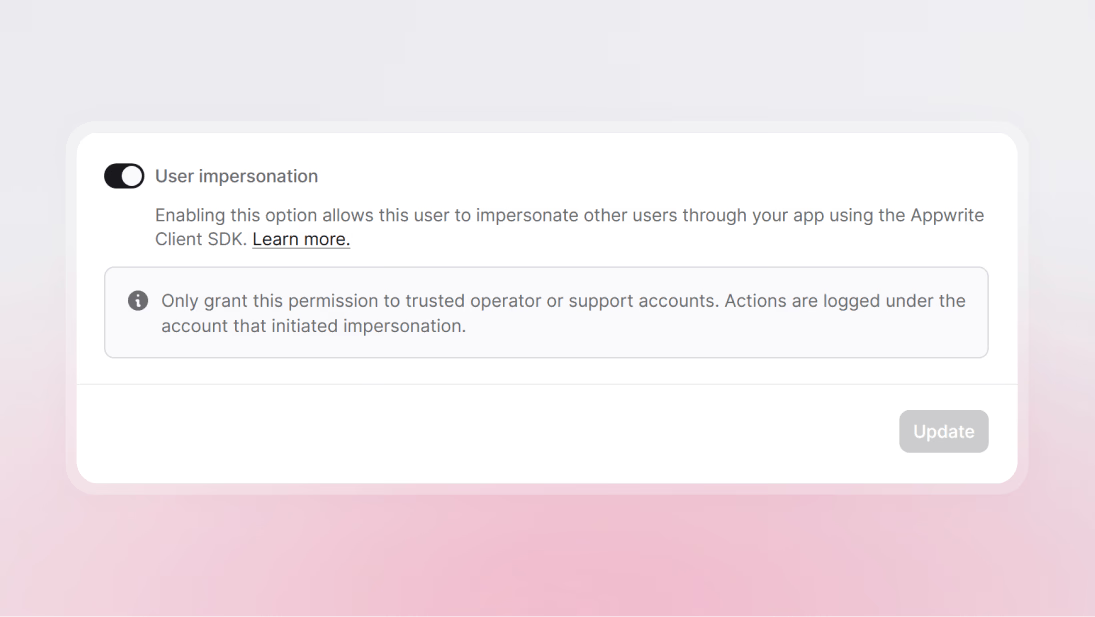
Debugging user-specific issues is one of the hardest parts of building authentication-heavy apps.
You get a bug report that only happens for one customer. A teammate needs to confirm whether a permission is misconfigured. Support wants to walk through the exact experience an end user is seeing. Until now, that usually meant asking for screenshots, requesting temporary credentials, or trying to recreate the entire account setup by hand.
Appwrite now supports user impersonation in Auth.
With impersonation, a trusted operator can sign in as themselves, choose a target user, and send subsequent requests using that user's permissions and access level. That makes it much easier to troubleshoot production issues, validate access rules, and review critical flows exactly as the user experiences them.
Simpler than previous impersonation flows
This kind of workflow was already possible before if you were willing to build it yourself with Server SDKs, SSR session handling, or custom internal tooling.
Teams could create operator-specific flows that acted on behalf of users, pass sessions into a server-side client, and proxy requests through backend code. That approach worked, but it also meant more plumbing around session handling, more support-only code paths, and more room for mistakes in internal tools.
With native impersonation support, the flow becomes much simpler:
- Mark a trusted operator as an impersonator in the Console or through the Users API
- Have them authenticate as themselves
- Set the impersonation target directly on the Appwrite client
- Use the same SDKs and product APIs you already use everywhere else
Instead of building the entire mechanism around impersonation, you can focus on the operator experience around it.
What ships with this release
This release adds the building blocks needed to support impersonation safely inside Appwrite:
- A new
impersonatorboolean on the user model - A dedicated endpoint to enable or disable impersonation for a user from any of the server SDKs
- Console support so trusted operators can be marked as impersonators directly from Auth > Users
- Automatic
users.readscope for impersonators so they can browse project users and build internal user-pickers from either client or server side - Three client setters for selecting the target user by ID, email, or phone
- Response models that expose
impersonatorUserIdwhen impersonation is active
In practice, the flow is simple:
- Mark a trusted operator as an impersonator.
- Have them sign in normally using Appwrite Auth.
- Set one impersonation target value on the client using the new client SDK methods.
- Appwrite resolves the target user and evaluates the request as that user.
Why this matters
Impersonation removes a lot of friction from real-world support and operations work.
Here are a few scenarios where it helps immediately:
- Customer support: Reproduce account-specific issues without asking users to share passwords.
- QA and testing: Confirm exactly what different users can and cannot access.
- Permissions debugging: Validate role, team, or label-based behavior from the user's point of view.
- Onboarding reviews: Walk through signup, billing, or upgrade flows as a real user would see them.
- High-touch enterprise support: Investigate tenant-specific issues without sharing temporary logins across teams.
- Internal release validation: Test new rollout logic against real-world user configurations before support tickets arrive.
Instead of rebuilding the environment from scratch or guessing what a user is seeing, your team can verify the behavior directly.
Another practical detail: once a user is marked as an impersonator, Appwrite automatically grants them the users.read scope. That means your internal support or operations tools can show a full project user list, add search, and let operators choose a target user from an admin-like UI before they start impersonating.
How it looks in code
Once the operator has signed in as themselves, impersonation becomes a small client configuration step.
By user ID
import { Client, Account } from "appwrite";

const client = new Client()
    .setEndpoint('https://<REGION>.cloud.appwrite.io/v1')
    .setProject('<PROJECT_ID>')
    .setImpersonateUserId('<TARGET_USER_ID>');

const account = new Account(client);
const user = await account.get();

if (user.impersonatorUserId) {
    console.log(`Impersonating as ${user.name}`);
}
import 'package:appwrite/appwrite.dart';

Client client = Client()
  .setEndpoint('https://<REGION>.cloud.appwrite.io/v1')
  .setProject('<PROJECT_ID>')
  .setImpersonateUserId('<TARGET_USER_ID>');

Account account = Account(client);
final user = await account.get();
import Appwrite

let client = Client()
    .setEndpoint("https://<REGION>.cloud.appwrite.io/v1")
    .setProject("<PROJECT_ID>")
    .setImpersonateUserId("<TARGET_USER_ID>")

let account = Account(client)
let user = try await account.get()
import io.appwrite.Client
import io.appwrite.services.Account

val client = Client(context)
    .setEndpoint("https://<REGION>.cloud.appwrite.io/v1")
    .setProject("<PROJECT_ID>")
    .setImpersonateUserId("<TARGET_USER_ID>")

val account = Account(client)
val user = account.get()
By email
import { Client, Account } from "appwrite";

const client = new Client()
    .setEndpoint('https://<REGION>.cloud.appwrite.io/v1')
    .setProject('<PROJECT_ID>')
    .setImpersonateUserEmail('user@example.com');

const account = new Account(client);
const user = await account.get();
import 'package:appwrite/appwrite.dart';

Client client = Client()
  .setEndpoint('https://<REGION>.cloud.appwrite.io/v1')
  .setProject('<PROJECT_ID>')
  .setImpersonateUserEmail('user@example.com');

Account account = Account(client);
final user = await account.get();
import Appwrite

let client = Client()
    .setEndpoint("https://<REGION>.cloud.appwrite.io/v1")
    .setProject("<PROJECT_ID>")
    .setImpersonateUserEmail("user@example.com")

let account = Account(client)
let user = try await account.get()
import io.appwrite.Client
import io.appwrite.services.Account

val client = Client(context)
    .setEndpoint("https://<REGION>.cloud.appwrite.io/v1")
    .setProject("<PROJECT_ID>")
    .setImpersonateUserEmail("user@example.com")

val account = Account(client)
val user = account.get()
By phone
import { Client, Account } from "appwrite";

const client = new Client()
    .setEndpoint('https://<REGION>.cloud.appwrite.io/v1')
    .setProject('<PROJECT_ID>')
    .setImpersonateUserPhone('+12065550100');

const account = new Account(client);
const user = await account.get();
import 'package:appwrite/appwrite.dart';

Client client = Client()
  .setEndpoint('https://<REGION>.cloud.appwrite.io/v1')
  .setProject('<PROJECT_ID>')
  .setImpersonateUserPhone('+12065550100');

Account account = Account(client);
final user = await account.get();
import Appwrite

let client = Client()
    .setEndpoint("https://<REGION>.cloud.appwrite.io/v1")
    .setProject("<PROJECT_ID>")
    .setImpersonateUserPhone("+12065550100")

let account = Account(client)
let user = try await account.get()
import io.appwrite.Client
import io.appwrite.services.Account

val client = Client(context)
    .setEndpoint("https://<REGION>.cloud.appwrite.io/v1")
    .setProject("<PROJECT_ID>")
    .setImpersonateUserPhone("+12065550100")

val account = Account(client)
val user = account.get()
That means support and QA teams can keep using the same Appwrite SDK patterns they already know, while switching the effective user only when needed.
Built for controlled use
Impersonation requires a real user-authenticated session. An API key alone is not enough. Operators must sign in as themselves first, and Appwrite uses that session to verify who is performing the impersonation before resolving the target user.
A few constraints worth knowing:
- Only one impersonation target can be active per request. To switch targets, replace the impersonation value on the client or create a fresh one.
- Each operator should have their own dedicated account rather than sharing a single support login. This keeps audit activity attributable to individuals and makes it straightforward to revoke access when needed.
How logs are treated
We also added clear behavior around auditability and visibility:
- Users with the impersonator capability automatically receive
users.read, so they can list project users before choosing a target - The user model includes
impersonatorUserIdwhen impersonation is active - Internal audit logs continue to attribute actions to the original impersonator
- Internal audit payload data also records the impersonated target
This matters because support and operations teams usually need two answers at the same time:
- Who actually performed the action?
- Which user experience was being impersonated?
With this release, Appwrite keeps the real actor in internal audits while still preserving the effective target in the audit payload. That makes it much easier to investigate incidents, review support activity, and keep internal tooling accountable.
On the app side, you can also use impersonatorUserId to show a persistent banner whenever someone is currently acting on behalf of another user.
How to get started
To enable impersonation for an operator, you can use the Appwrite Console under Auth > Users or the Users API reference flow for updating the impersonator capability.
After that, authenticated requests from that user can impersonate another user by setting one of the impersonation helpers on the Appwrite client:
setImpersonateUserId()setImpersonateUserEmail()setImpersonateUserPhone()
If you're building an internal support dashboard, a good pattern is:
- Let admins search for users
- Start impersonation only after an explicit action
- Show a visible banner while impersonation is active
- Make it easy to stop impersonating and return to the operator's own session
More resources
User impersonation lets a trusted operator sign in as themselves and then act as another user, with that user's permissions and access level. It is built into Appwrite Auth so support, QA, and operations teams can reproduce issues without sharing credentials.
Open Auth > Users in the Console and toggle the impersonator flag on that user, or call the dedicated endpoint from any Server SDK. Once flagged, the operator gains an automatic users.read scope so they can browse the project user list.
After the operator signs in, call one of the new client setters (by user ID, email, or phone) on the Appwrite client. From that point on, requests are evaluated as the target user, and responses include an impersonatorUserId so you know impersonation is active.
Yes, when limited to a small set of trusted operators. Impersonation is opt-in per user, requires the operator to authenticate as themselves first, and surfaces the impersonatorUserId on responses so you can log and audit every impersonated request.
Use impersonation when you need to see exactly what the user sees, for example debugging permissions, team access, or label-based rules. Use server-side admin APIs when you only need to read or modify data and do not care about replicating the user's view.