Announcing Firewall presets: ready-made traffic rules_
Appwrite Firewall presets turn OTP, geo, and scraping policies into ready-made rules. See the available presets, when to use each, and how to apply one.

Most teams already know the policy they need. Cap OTP sends per IP. Serve the API only from the countries where you have users. Slow bulk reads on TablesDB. What they do not want is to rebuild that policy from a blank rule every time: pick the path, pick the method, pick the action, guess a quota, then hope the conditions match production traffic.
That guesswork has a cost. SMS pumping burns through phone-OTP budget by requesting codes against numbers the attacker controls. Scrapers paginate your tables until the dataset is gone. A country restriction written with AND instead of separate rules never matches, and you find out when a launch market cannot sign in.
Today, we are announcing Firewall presets.
A preset is a starting point for a policy you would otherwise assemble by hand. You pick it, fill in the few details that are unique to your project, review the impact preview, and Appwrite creates the rules. From there they behave like any other rule. You can tighten them, disable them, or delete them.
What Firewall presets give you
Presets sit on the project's Firewall page, next to Create rule. They currently target the project API, the /v1/... traffic that hits Auth, Databases, Storage, and the rest of the Appwrite services.
Each preset ships with:
- A named policy already mapped to conditions and an action
- Defaults you can adjust before you save
- An impact preview of recent matching traffic before anything is saved
- Ordinary rules after create, so you are never locked into the template
They do not replace custom rules. If you need a bypass for an office CIDR, a challenge on a Site, or a redirect for maintenance, keep using Create rule. Presets exist for the policies we see teams rebuild over and over.
Apply a preset in the Console
- Sign in to Appwrite Cloud and open a project.
- Open Firewall and keep the resource selector on API.
- Click Add preset and pick a policy.
- Set the options the preset asks for, then read the impact preview.
- Create the rules.
If a preset would create more than one rule, the preview combines the estimate so you can see the full effect. After create, the new rows appear in the rules list like any other policy.
When presets help most
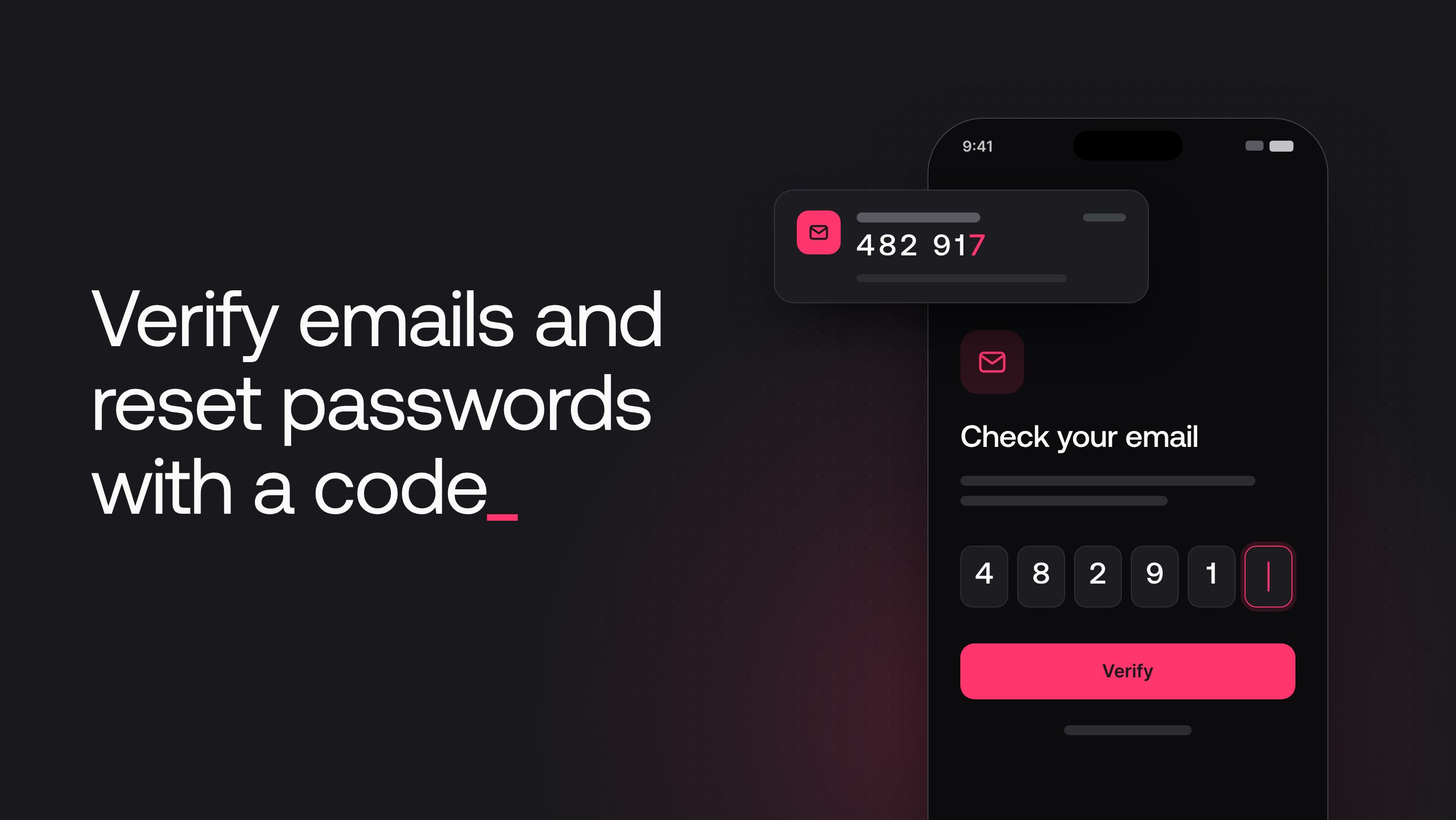
OTP abuse. Phone and email codes are a common target for automated traffic. Presets in the OTP group rate-limit or geo-filter Auth OTP paths so you can slow abuse before it turns into billable sends or noisy logs. Stack a rate limit with a country rule when the attack is mixed.
Regional access. When your product only serves certain markets, country presets block or allow API traffic at the edge instead of in application code. They are blunt: travelers, VPNs, and shared office IPs can get caught. Use the impact preview and adjust before you rely on them for compliance.
Scraping and bulk reads. Presets can cap broad API traffic, tighten limits on database reads, or deny requests that look like hosting provider networks. Some options need the premium Geo DB addon. Server-side SDKs and Functions can look like hosting traffic too, so confirm the preview against real usage and add a bypass for trusted callers when you need one.
The Console lists every preset, its defaults, and what it creates. Tune quotas from the impact preview rather than guessing from a blog post.
Plan limits and testing
Presets create normal Firewall rules, and some presets create more than one. Check your plan limit before you apply a preset that expands into several rules.
Firewall still never blocks the Console. An aggressive preset cannot lock you out of the page you need to disable it. Test with a client SDK or an API key, then watch the Denied and Rate limited series on the traffic overview.
Request the next Firewall preset
The first set covers the policies we kept seeing: OTP cost, geo boundaries, and scrape volume. That is not the full list of policies worth encoding.
If you have a rule you keep recreating, we want it. Open an issue on GitHub with the preset name you would look for, what it should protect, and the policy it should encode. The more concrete the request, the easier it is to ship something others can reuse.
Getting started with Firewall presets
Open Appwrite Cloud, go to Firewall on a project, and apply the preset that matches the traffic you already see. Read the impact preview once, then confirm the outcome in the chart.
New to Firewall? Read the announcement first. The guides below show you how to set up your first rules.
Firewall presets are ready-made policies in the Appwrite Console. Each preset creates one or more Firewall rules with conditions and an action already filled in for a common job, such as rate limiting OTP traffic, allowing API access from selected countries, or denying hosting-provider networks. You still review the impact preview and can edit the rules after they are created.
Open Firewall in your project, keep the resource selector on API, and choose Add preset. Pick a preset, set the options it asks for, review the impact preview, then create the rules. Presets currently apply to project API traffic, not to a single Function or Site.
Presets are grouped around OTP abuse, regional access, and scraping. Open Add preset in the Console to see the full list, defaults, and any add-ons a preset needs (for example premium Geo DB for network-based denies).
Not yet. Presets are available when the Firewall resource selector is set to API. Function and Site traffic still uses custom rules, including deny, bypass, challenge, rate limit, and redirect. See Resource scopes.
Yes. A preset only helps you create the rules. After that they are ordinary Firewall rules: you can rename them, change conditions, update a rate-limit quota, disable them, or delete them. You cannot change a rate-limit strategy after creation. To switch strategies, delete the rule and create a new one, as described in Actions.
Open a GitHub issue on appwrite/appwrite with the policy you want, the paths or attributes it should match, and the action it should apply. The more specific the request, the easier it is to turn into a preset other teams can reuse.