Terminal_
Browse, query, and manage your Appwrite projects in an interactive, keyboard-driven interface with the terminal command in the Appwrite CLI.
8 min read
The appwrite terminal command opens your Appwrite projects in an interactive, keyboard-driven interface inside your terminal. Browse databases, functions, sites, storage, users, teams, and messaging, query rows, execute functions, and watch your project's usage, without leaving the command line. It works with Appwrite Cloud and self-hosted instances.
appwrite terminal is available in Appwrite CLI version 28.13.3 and later. Update your CLI to the latest version before you start.
Open the terminal interface
Sign in with the CLI, then run the command:
appwrite loginappwrite terminalappwrite terminal uses the credentials the CLI already has, so there is nothing new to set up. It signs in as your console login, or, without one, with the API key you stored with appwrite client --key.
The interface opens on the first project it finds in this order:
- The
--project-idflag. - The
APPWRITE_PROJECT_IDenvironment variable. - The
projectIdin the project config: the file chosen with--config-fileorAPPWRITE_CONFIG_FILE, or else the nearestappwrite.config.json, so running the command inside a project directory opens that project. Learn more about multiple environments.
Without a project, a console login opens on your organizations, where you can pick any project you have access to.
appwrite terminal --project-id "<PROJECT_ID>"The interface connects to the endpoint you signed in to. To use a self-hosted instance, sign in with appwrite login --endpoint "<URL_HERE>" first. If a project config or APPWRITE_ENDPOINT points at a different instance than your login, the command stops and tells you how to switch.
Sign in with an API key
To use the interface without a console login, store a project's API key and open that project:
appwrite client --key "<API_KEY>"appwrite terminal --project-id "<PROJECT_ID>"An API key reaches one project, so the interface opens directly on it and has no organizations view. It shows what the key's scopes allow and tells you on each page what the key cannot read. Add the usage.read scope to see usage.
Options
| Flag | Description |
|---|---|
--project-id <ID> | Project to open, instead of APPWRITE_PROJECT_ID or the project config's projectId. |
--theme <theme> | Color theme: auto (default) follows your terminal; dark or light also paint the background. |
--debug | Write debug logs to debug.log in the working directory. |
Navigate the interface
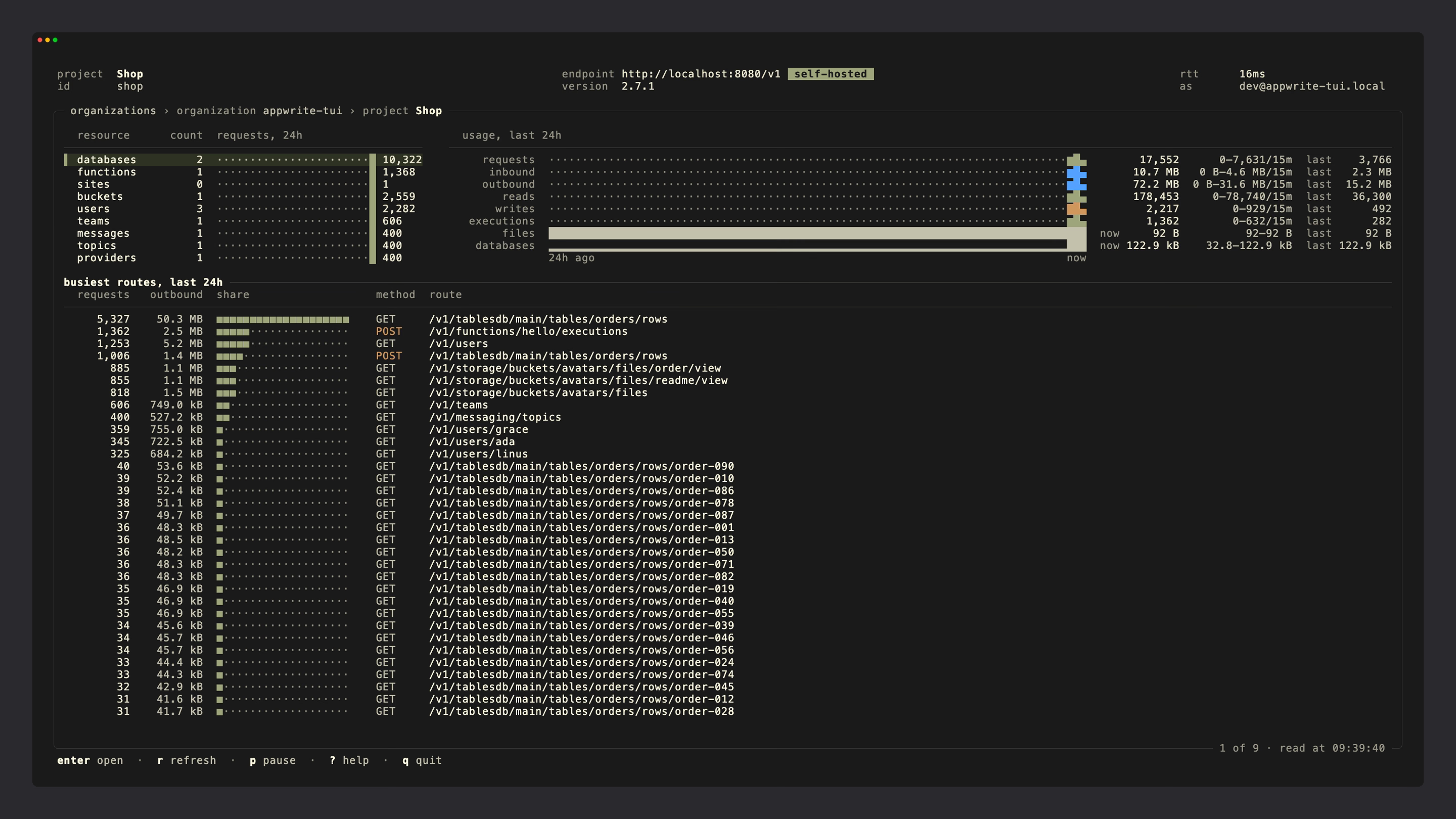
The header shows the project, the endpoint and its Appwrite version, whether it's Appwrite Cloud or self-hosted, the round-trip time, and who you're signed in as. Below it, a breadcrumb shows where you are, such as project Shop › databases › database main › table orders › rows.
- Move through a list with the arrow keys or
jandk, and pressEnterto open the selected resource. - Each resource page has numbered tabs. Press a number to open a tab, or
TabandShift+Tabto cycle through them. - Press
qorEscto go back one level. On the project overview,qquits.Ctrl+Cquits from anywhere. - Press
?to see every shortcut that works on the current page.
The page on screen refreshes every 5 seconds, so new rows, executions, and deployments show up as they happen. Press r to refresh now, and p to pause or resume refreshing.
Project overview
Opening a project lands on its overview:
- Resources. How many databases, functions, sites, buckets, users, teams, messages, topics, and providers the project has, each with a sparkline of the requests to that service over the last 24 hours.
- Usage, last 24h. Requests, inbound and outbound bandwidth, database reads and writes, function executions, and file and database storage.
- Busiest routes. The API routes your project served most over the last 24 hours, with their request count, outbound bandwidth, and HTTP method.
Select a resource and press Enter to open its list.
Browse resources
Every resource opens on a page with its details and a set of tabs. Each page also has a json tab with the full resource as the API returns it.
| Resource | Tabs |
|---|---|
| Organizations | Projects. Shown with a console login only. |
| Databases | Tables, usage |
| Tables | Rows, columns, indexes, usage |
| Rows | Values, usage |
| Functions | Executions, deployments, variables, usage |
| Executions | Output, response, logs, errors, headers |
| Sites | Deployments, logs, usage |
| Buckets | Files, usage |
| Users | Sessions, memberships, targets, prefs, usage |
| Teams | Memberships, prefs, usage |
| Messages | Content, targets, errors, usage |
| Topics | Subscribers, usage |
| Providers | Options, credentials, usage |
Long lists load one page at a time. The footer shows how many items are loaded out of the total, and m reads the next page.
Search and filter
Press / on a list to filter it. As you type, the list narrows to the items whose name or ID matches. On lists the server can search, such as functions, users, and buckets, press Enter to run the search on the server and find items that aren't loaded yet. Press Esc to clear the filter.
Query rows
On a table's rows tab, / also takes a query. Write one or more conditions separated by spaces, and press Enter to run them as Appwrite queries on the server. A row must meet every condition.
status=open total>=100 sort:-total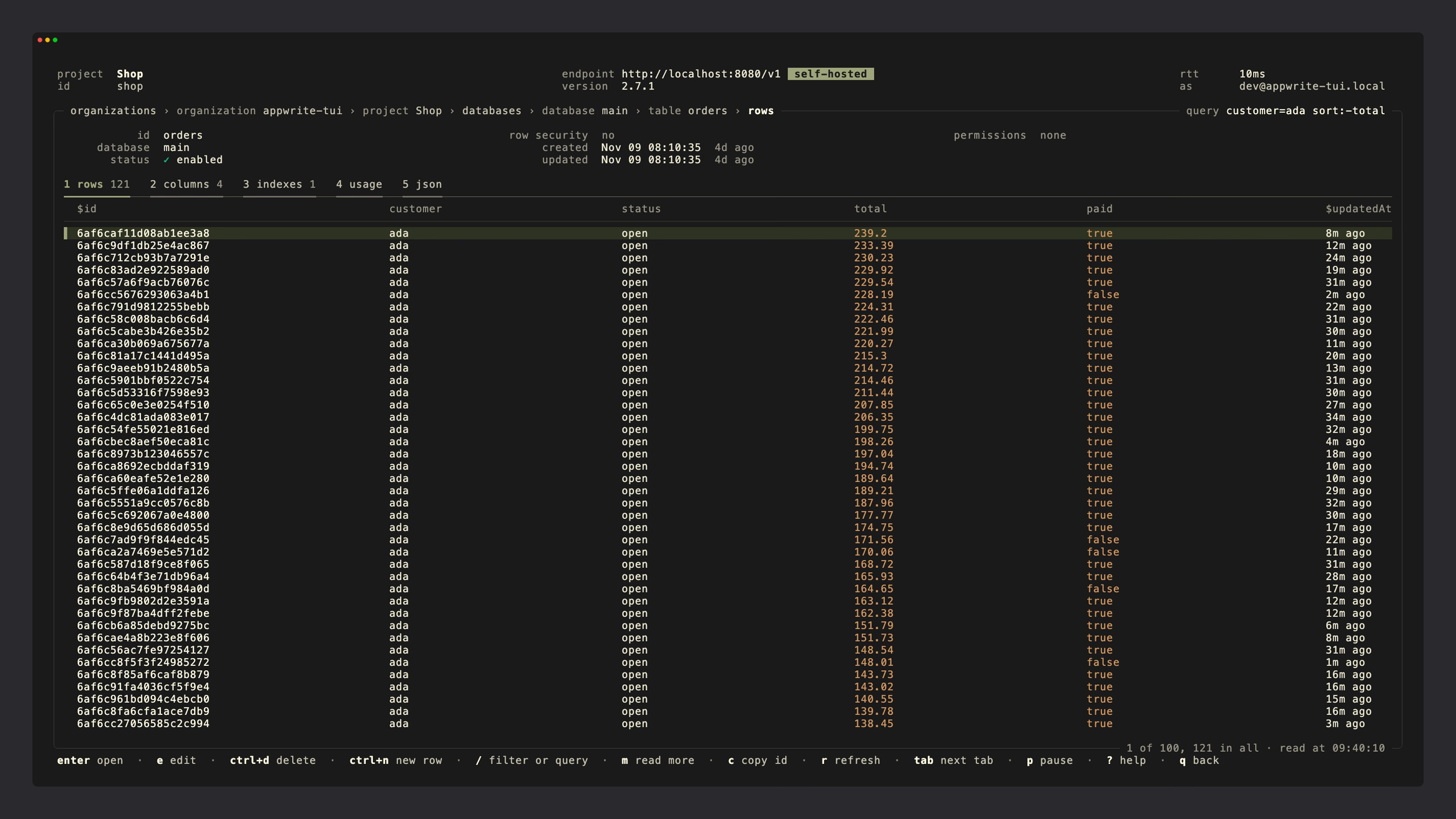
| Syntax | Query |
|---|---|
column=value | Equal to |
column!=value | Not equal to |
column>value, column>=value | Greater than, greater than or equal to |
column<value, column<=value | Less than, less than or equal to |
column~text | Contains |
column=null, column!=null | Is null, is not null |
sort:column, sort:-column | Sort ascending, sort descending |
A value that reads as a number, true, false, or null is sent as one. Wrap a value in double quotes to keep spaces in it or to send it as text, for example name~"van der" or code="404". The current query shows in the top-right corner of the frame, and Esc clears it.
Edit and create rows
Rows can be edited and created from the interface:
- Press
eon a row to open its values as JSON in your editor. When you save and close the file, the interface updates the row. If nothing changed, nothing is saved. - Press
Ctrl+Non a table's rows to open a template for a new row with the table's columns. Save and close the file to create the row.
The interface opens $VISUAL, then $EDITOR, and falls back to vi, or Notepad on Windows. Set a command with its arguments for editors that need one, such as export EDITOR="code --wait".
Execute functions
Press x on a function to execute it. A form asks for the method, path, headers, and body of the request, and whether to run it asynchronously. Press Ctrl + R to run it. The interface then opens the execution with its output, response, logs, and errors. A synchronous execution opens once the function returns. An asynchronous one opens right away, and its page updates as it runs.
Download, copy, and delete
- Download. Press
Ctrl+Son a file to save it to the working directory. - Copy. Press
cto copy the selected resource's ID, orShift+Cto copy the whole resource as JSON. - Delete. Press
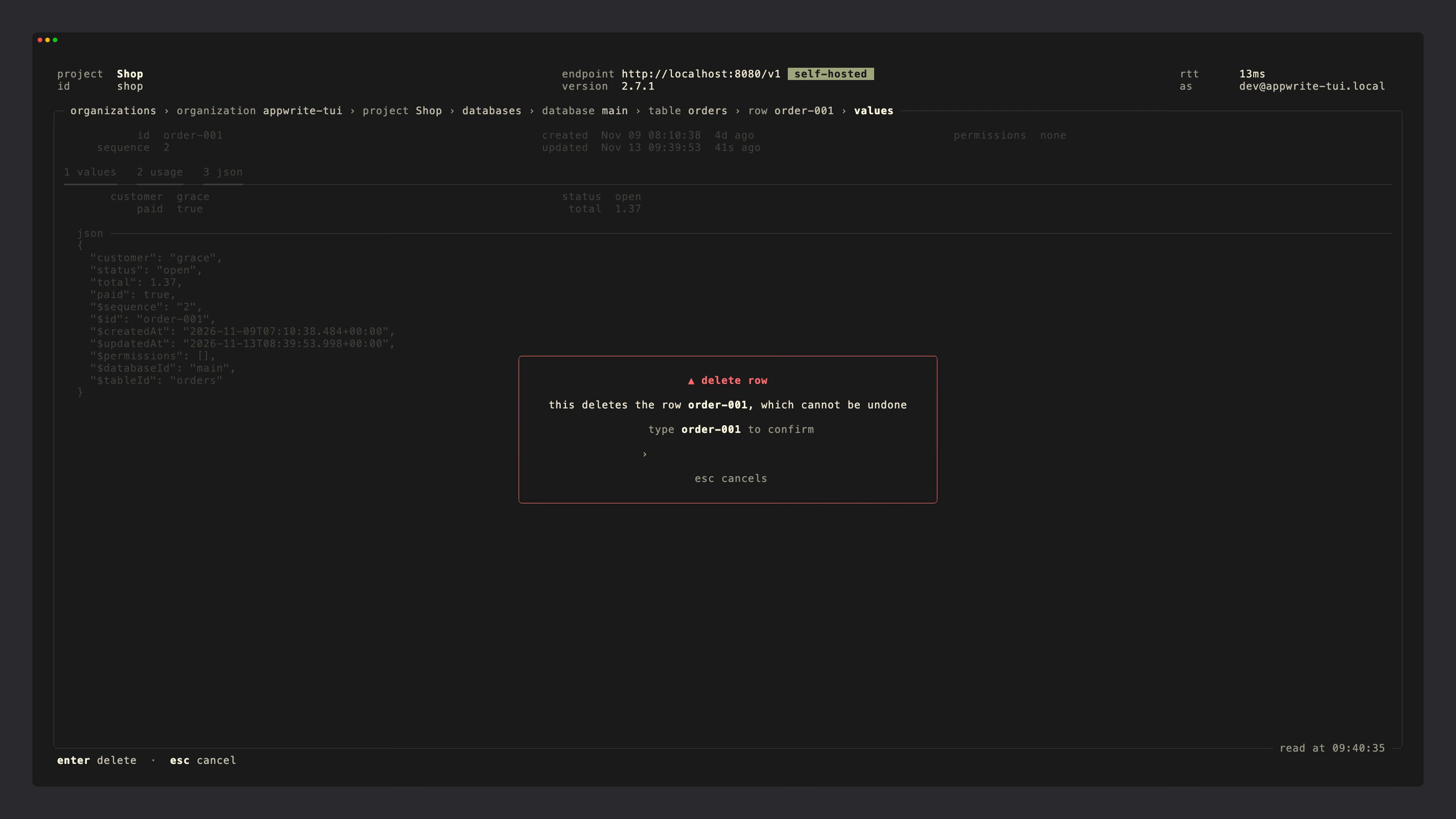
Ctrl+Dto delete a row, file, session, or subscriber. To confirm, type the resource's ID and pressEnter. Deleting can't be undone.
Usage
The project overview and the usage tab show usage over the last 24 hours, in 15-minute buckets, next to the total, the range, and the latest value. Not every resource has a usage tab: the resources table lists the ones that do.
- Requests, inbound, and outbound count the requests to the resource's API route and the routes below it, other than the Console's, with a list of the busiest routes.
- Databases add reads, writes, and storage.
- Functions add executions, compute, and deployment storage.
- Sites show the requests and bandwidth the site served, plus the API calls to the site's route.
- Buckets add the number of files.
Lists of databases, functions, sites, and buckets also show a 24-hour sparkline next to each item.
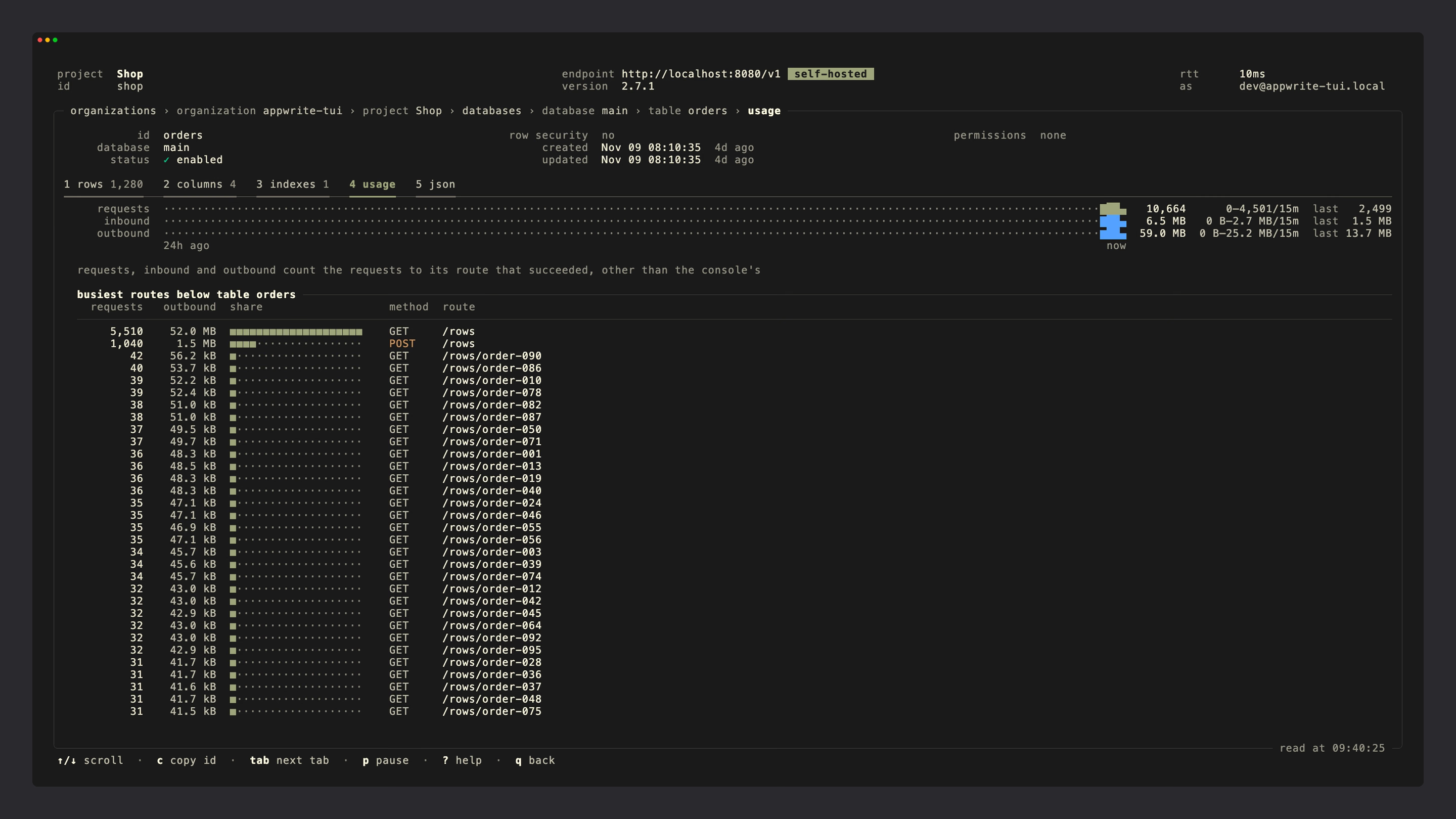
Usage needs a console login or an API key with the usage.read scope. On self-hosted instances, usage requires Appwrite 2.7 or later.
Keyboard shortcuts
Press ? in the interface to see the shortcuts for the current page. The full set:
| Key | Action |
|---|---|
↑ ↓ or k j | Move up and down |
← → or h l | Move left and right |
PgUp PgDn | Page up and down |
g or Home, G or End | Go to the top or bottom |
Enter | Open the selected resource |
1-9 | Open a tab by its number |
Tab, Shift + Tab | Next tab, previous tab |
/ | Filter, search, or query |
m | Load more items |
r | Refresh |
p | Pause or resume refreshing |
c | Copy the ID |
Shift + C | Copy the JSON |
e | Edit a row |
Ctrl + N | Create a row |
x | Execute a function |
Ctrl + S | Download a file |
Ctrl + D | Delete the selected resource |
? | Show help |
q or Esc | Go back |
Ctrl + C | Quit |
Was this page helpful?
Share what worked or what we should fix. Once approved, our agents automatically apply suggested updates to the docs.