12 Appwrite Firewall rules to stop attacks_
Explore 12 practical Appwrite Firewall rules to stop OTP abuse, limit database scraping, block bots, secure webhooks, and protect your apps from attacks.

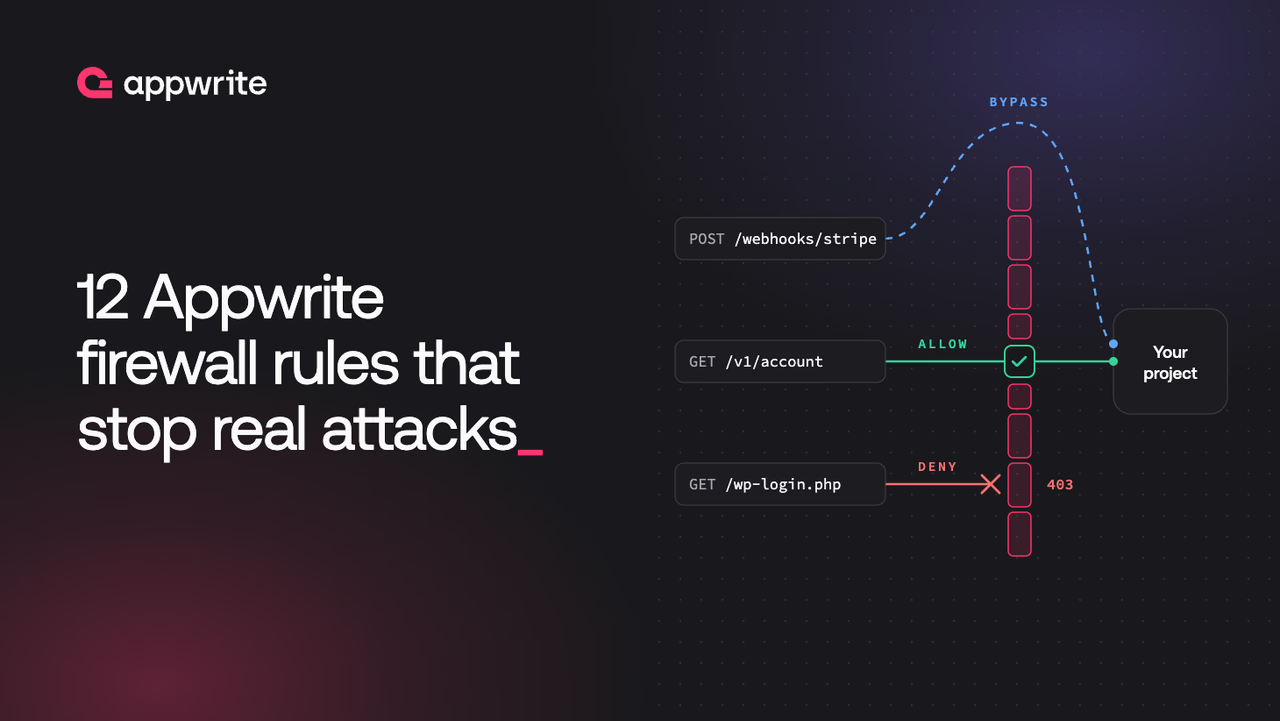
A firewall rule is a set of conditions and an action. OTP abuse, scrapers, a noisy webhook endpoint, and a site under attack each need different conditions and actions, and one wrong setting can stop a rule from matching.
This post collects Appwrite Firewall rules for common traffic problems. Some rules come from Firewall presets. The other rules come from Create rule.
All rules below belong to one of three resource types:
- API rules apply to your project API, the requests behind Auth, Databases, Storage, and the other services.
- Functions rules apply to public traffic to one function.
- Sites rules apply to public traffic to one site.
Stop OTP abuse and SMS pumping
Phone and email OTP endpoints send a message every time someone calls them. An attacker who scripts those calls makes your project send SMS messages to numbers the attacker controls. This attack is known as SMS pumping. For email, a flood of OTP messages hurts your sender reputation.
The Rate limit OTP preset handles this. On the Firewall page, keep the resource selector on API, click Add preset, and pick Rate limit OTP. Select phone, email, or both, select the send step, the verification step, or both, and then set the quota. The preset creates one rate limit rule for each channel and step you select:
- Rate limit phone OTP send and Rate limit email OTP send cover requests that send codes.
- Rate limit phone OTP verification and Rate limit email OTP verification cover requests that verify codes.
The preset counts requests per IP address, not per phone number or email address. Each rule also has a separate counter. With a limit of 5 requests per hour on the email send rule, one IP address can request five email codes in that hour, for any mix of email addresses. The sixth request gets HTTP 429 with a Retry-After header. Phone codes use the phone send rule, so they have a separate quota of five. The limit on the verification step also slows down guesses against a code that was already sent.
The preset uses the fixed window strategy, so the window follows the clock. The Retry-After value counts the seconds until the current hour ends, not a full hour from the last request. If attackers time bursts around the window edge, delete the rule and create one with the sliding window strategy. Choosing a rate limit strategy explains the difference.
Slow down scraping of your tables
A scraper reads your public tables page by page until it has the full dataset. Table permissions control who can read a row, not how often.
The Rate limit database API preset caps reads per IP address. It creates one rate limit rule that matches all TablesDB requests, with a default of 120 requests per minute. After 120 requests in a minute, the same IP address gets 429 until the window resets.
Before you save, check the Estimated impact panel. It shows how much of the last 24 hours of traffic the rule would have matched. If your own app reads tables faster than the default on a normal page load, raise the limit until the preview no longer matches ordinary usage.
For a wider cap, the Rate limit project API preset applies the same idea to every request to your project API.
Give each signed-in user a separate quota
An IP-based limit treats everyone behind one address as one client. An office, a university, or a mobile carrier can put hundreds of users behind a single IP address, and one heavy user then spends the quota for all of them.
A rate limit with Limit by set to User ID fixes this. The rule in the screenshot matches POST requests to paths that start with /v1/tablesdb and allows each signed-in user 30 writes per 60 seconds, with the sliding window strategy. Two users on the same network get separate counters. When one user reaches the limit, the other user continues to write.
A User ID rule does not apply to requests without a signed-in user. To cover anonymous traffic as well, pair it with an IP-based rule, and give the per-user rule a lower priority number:
- Priority 50: rate limit by User ID.
- Priority 100: rate limit by IP address.
Priority order matters here because of how rate limit rules end evaluation. When a request is under the quota of a rate limit rule, Appwrite allows the request and does not evaluate later rules. A signed-in user's request stops at the per-user rule, so the IP counter never sees it. An anonymous request skips the per-user rule and reaches the IP rule. If the order is reversed, the IP rule catches every request first, and the per-user rule never runs. Rule priority covers the evaluation order in detail.
The same behavior affects deny rules. A request that a rate limit allows never reaches a deny rule with a higher priority number. For example, a signed-in user outside your allowed countries passes the per-user rate limit at priority 50 and skips a country deny at priority 100. Give deny rules a lower priority number than your rate limits, for example 20, so that Appwrite evaluates them first.
Serve only the regions you operate in
If your product only operates in some markets, for licensing, data residency, or support reasons, you can refuse API traffic from other countries before it reaches your app.
The Allow API only from countries preset creates one deny rule. With Germany and France selected, the rule has three conditions:
- Country Not equal
DE - Country Not equal
FR - Country Not equal
UNRESOLVED
All conditions in a rule must match. A request from the United States matches all three, so Appwrite denies it with 403. A request from Germany fails the first condition, so the rule does not apply. The third condition lets through requests whose location Appwrite cannot resolve. Without it, a failed geo lookup would lock out a legitimate user.
The same logic explains a common mistake. A rule that says Country Equals DE and Country Equals FR never matches, because a request cannot come from two countries at once. To block several countries, use Block API from countries, or create one rule per country.
Country rules can block legitimate users. Travelers, VPN users, and corporate proxies can appear in a country they are not in. The next section shows how to let trusted networks through.
Let trusted networks through first
Your own team is often the first to hit a strict rule. Engineers work from a country outside the allowlist, a CI job runs more reads than the scraping limit allows, or a support tool shares an IP address with office traffic.
A Bypass rule solves this. The rule in the screenshot matches the office range 72.14.200.0/24 with the IP address condition. IP address accepts single addresses and CIDR blocks. With Equals, the block matches every address in the range.
Give the bypass rule a lower priority number than the rules it should skip. At priority 10, it runs before the country deny and the rate limits. A request from the office network matches the bypass, and Appwrite does not evaluate later rules. The country rule does not deny that request, and the rate limits do not count it.
Keep bypass rules narrow. Everything a bypass matches skips every later rule, including rate limits.
Protect a public webhook Function
A webhook function has a public URL, and it only needs requests from one sender. Requests from other sources are unwanted, and some of them probe the handler for weaknesses. Function rules run on the Appwrite Network edge, before a request reaches your function, so a denied request does not start an execution.
Set Resource type to Functions and select the function. Two rules cover the common cases.
The first rule denies every method except the one the sender uses. Payment providers and most webhook senders use POST, so the condition is Method Not equal POST and the action is Deny. GET, PUT, and DELETE requests to the function get 403. POST requests continue.
The second rule denies requests without the sender's signature header. The condition is Header stripe-signature Is empty. Requests without the header get 403, and requests that include it continue to the function. Use the header name your sender documents.
This rule only checks that the header exists. It does not check that the signature is valid, so your function must still verify the signature with the sender's secret. The rule removes unsigned traffic before it starts an execution.
Keep bots off a Site's forms and admin paths
Sites receive traffic from scanners that try every well-known path, and from scripts that submit forms. Set Resource type to Sites and select the site.
A Challenge rule on the sign-up path makes each visitor's browser solve a proof-of-work puzzle before the page loads. The rule in the screenshot matches paths that start with /signup, with difficulty 3 and a TTL of 1800 seconds. A visitor who passes the challenge stays cleared for 30 minutes, on every path of the site.
A browser that navigates to /signup sees the page above while the check runs. A request that is not a browser navigation, such as a script that posts to /signup, gets 403 instead. Appwrite denies known bots and headless browsers without a challenge page.
Scanners also request paths your site does not have. If the site does not run WordPress, a Deny rule on paths that start with /wp- blocks /wp-login.php, /wp-admin/, and every other WordPress probe with 403. The same pattern works for /.env, /.git, or any admin path that should never be public.
Redirect retired pages
When a page moves, a Redirect rule sends visitors to the new address before the request reaches your site. The rule in the screenshot matches paths that start with /pricing and responds with 301 and Location: /plans.
Starts with also matches subpaths. A request for /pricing/enterprise also goes to /plans, because the redirect location is fixed. Use Equals if only the exact path should move. The redirect location must not match the rule's own condition, or the visitor ends up in a loop.
A redirect to a maintenance page works the same way. The site maintenance guide shows that setup.
Respond to an attack on a Site
During a flood of traffic, precise rules take too long to write. Attack mode challenges every visitor to a site until you turn it off, and it needs no rule setup. With the site selected on the Firewall page, click Attack mode, then Turn on.
Attack mode creates a challenge rule that matches every path and runs at priority 0, before the rules at the default priority of 100. While it is on, every page of the site returns the challenge first.
Your own automation also gets the challenge, and an uptime monitor then reports the site as down. A bypass rule must run before the attack mode rule, so it needs a negative priority. In the example above, the bypass rule matches User agent Starts with UptimeRobot at priority -10. Use the user agent of your own monitor or automation. Requests from that tool pass, and every other visitor still gets the challenge. Any client can send any user agent, so an attacker who copies it also skips the challenge. If your monitor publishes its IP addresses, match on IP address instead. To stop attack mode, click Turn off in the banner.
Find out which rule acted on a request
When a request gets an unexpected 403, 429, or redirect, the response headers name the rule. When a rule denies, challenges, rate limits, or redirects a request, the response includes two headers:
X-Appwrite-WAF-Rule: 6ab372a00013ec78aab4
X-Appwrite-WAF-Action: rateLimit
X-Appwrite-WAF-Rule is the rule ID, which you can search for in the rules list. X-Appwrite-WAF-Action is the action that the rule applied. A 429 from a rate limit rule also includes Retry-After. The headers appear on API, Function, and Site responses.
Firewall rules do not apply to the Console. A rule that is too strict cannot lock you out of the page where you disable it.
Conclusion
Each problem in this post takes one or two rules to fix. The OTP preset stops SMS pumping, and one rate limit protects your tables from scrapers. Rules by country, IP address, and header control who reaches your API, your Functions, and your Sites. Attack mode protects a site during a flood with one click, and the response headers name the rule for every blocked request.
Appwrite checks the rules before your code or your data. Blocked traffic never starts a function execution, reads a row, or sends a message, and your code stays the same. A saved rule applies to new requests within moments, so you stop a new attack without a deploy.
Start with the presets, check the Estimated impact panel before you save, and add your own rules as your traffic changes.
Resources
Appwrite Firewall applies rules to three kinds of traffic: your project API (the requests behind Auth, Databases, Storage, and the other services), public traffic to a single Function, and public traffic to a single Site. Each rule matches requests on conditions such as path, method, header, IP address, or country, and then denies, bypasses, challenges, rate limits, or redirects them. See Resource scopes.
Open Firewall in your project, choose Add preset, and pick Rate limit OTP. The preset creates one rate limit rule for each channel and step you select: phone and email, send and verification. Each rule counts requests per IP address. Requests over the quota get HTTP 429 with a Retry-After header.
Yes. Set Limit by to User ID on a rate limit rule. Each signed-in user then gets a separate quota, even when many users share one IP address. Requests without a signed-in user skip that rule, so pair it with an IP-based rule for anonymous traffic.
When a rule denies, challenges, rate limits, or redirects a request, the response includes the X-Appwrite-WAF-Rule header with the rule ID and the X-Appwrite-WAF-Action header with the action, for example deny or rateLimit.