Build a notes app with user impersonation_
Learn how to build a notes app where an admin can impersonate users to view and manage their private data using Appwrite's user impersonation feature.

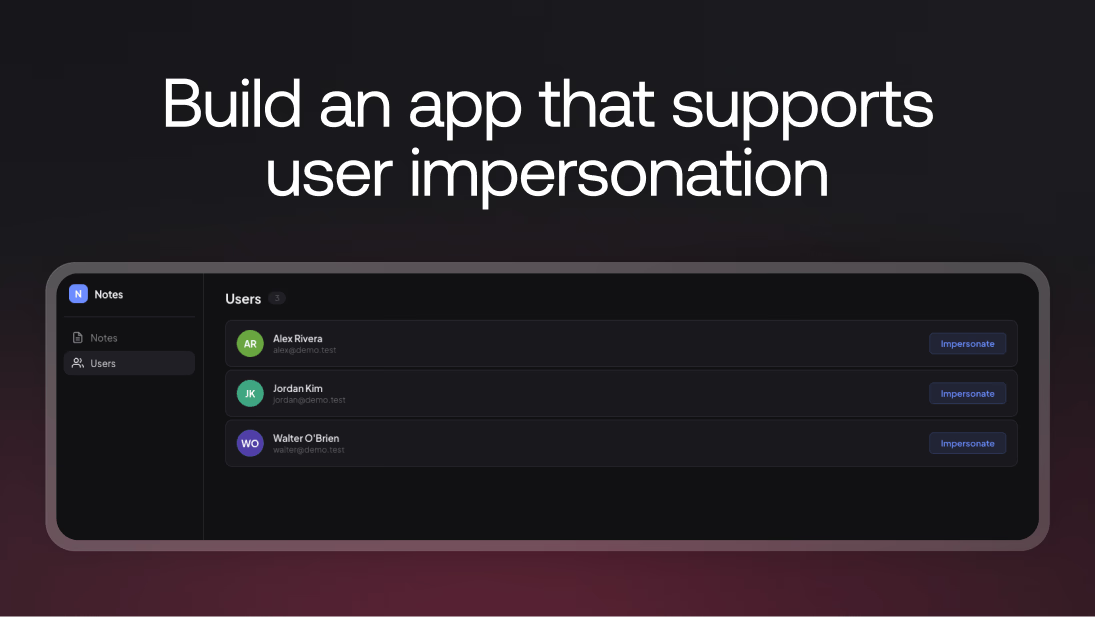
User impersonation lets a trusted operator act as another user without sharing credentials. It is useful when your support team needs to debug a user-specific issue, verify what someone sees with their permissions, or manage data on their behalf.
In this tutorial, you will build a notes app where an admin with the impersonator capability can browse all users, impersonate any of them, and view or create notes as that user. You will also learn how Appwrite handles this under the hood using request headers, scoped permissions, and audit logging.
Prerequisites
- An Appwrite Cloud account or a self-hosted Appwrite instance
- Node.js 18+ installed
- Basic knowledge of React and TypeScript
Set up the Appwrite project
Start by creating a new project in the Appwrite Console. Head to the Console, create a project, and note the project ID and API endpoint from the overview page.
Create users
Navigate to Auth → Users and create four users:
| Name | Password | |
|---|---|---|
| Sarah Chen | sarah@demo.test | password123 |
| Alex Rivera | alex@demo.test | password123 |
| Jordan Kim | jordan@demo.test | password123 |
| Walter O'Brien | walter@demo.test | password123 |
Sarah Chen will be the admin with impersonation capability. The other three are regular users.
Enable impersonation
Open Sarah Chen's user profile and scroll down to the User impersonation section. Toggle it on and click Update.
When a user is marked as an impersonator, Appwrite automatically grants them the users.read scope. This allows them to list all users in the project, which is what makes the "Users" tab in our app possible. Regular users without this capability cannot call the list users endpoint.
Create the database
Navigate to Databases and create a new database called Notes App (ID: notes-app). Inside it, create a table called Notes (ID: notes) with the following columns:
| Column | Type | Required |
|---|---|---|
title | text | Yes |
content | text | Yes |
color | text | No |
userId | text | Yes |
Configure permissions
Go to the table's Settings tab. You need two things:
- Under Permissions, add the Users role and check only Create. This allows any authenticated user to create rows.
- Under Row security, enable the toggle. This ensures each row's permissions are respected individually.
With this setup, when a user creates a note through the Client SDK, Appwrite automatically grants that user read, update, and delete permissions on the row. No manual permission assignment needed in your code.
Build the app
Scaffold a new React project and install the Appwrite SDK:
npm create vite@latest impersonation-demo -- --template react-ts
cd impersonation-demo
npm install
npm install appwrite
Environment variables
Create a .env file in the project root with your Appwrite credentials:
VITE_APPWRITE_ENDPOINT=https://fra.cloud.appwrite.io/v1
VITE_APPWRITE_PROJECT_ID=<YOUR_PROJECT_ID>
VITE_APPWRITE_DATABASE_ID=notes-app
VITE_APPWRITE_TABLE_ID=notes
Replace <YOUR_PROJECT_ID> with your project ID from the Console, and update the endpoint to match your project's region.
Appwrite client setup
Create src/lib/appwrite.ts with the client configuration and helper functions:
import { Client, Account, TablesDB, type Models } from "appwrite";

const ENDPOINT = import.meta.env.VITE_APPWRITE_ENDPOINT;
const PROJECT_ID = import.meta.env.VITE_APPWRITE_PROJECT_ID;

export const DATABASE_ID = import.meta.env.VITE_APPWRITE_DATABASE_ID;
export const TABLE_ID = import.meta.env.VITE_APPWRITE_TABLE_ID;

export const client = new Client().setEndpoint(ENDPOINT).setProject(PROJECT_ID);
export const account = new Account(client);
export const tablesDB = new TablesDB(client);

export type AppwriteUser = Models.User<Models.Preferences>;

export interface NoteData {
  title: string;
  content: string;
  color: string | null;
  userId: string;
}

export type Note = Models.Row & NoteData;
A single client is shared across the app. When impersonation is active, we call client.setImpersonateUserId(userId) to set the header, and client.setImpersonateUserId("") to clear it. Since account and tablesDB reference the same client, they automatically pick up the impersonation context.
The Client SDK cannot query all users, so impersonators list them through the REST API directly. The session cookie and the auto-granted users.read scope handle authentication:
export async function listUsers(): Promise<AppwriteUser[]> {
  const res = await fetch(`${ENDPOINT}/users`, {
    headers: {
      "Content-Type": "application/json",
      "X-Appwrite-Project": PROJECT_ID,
    },
    credentials: "include",
  });
  if (!res.ok) throw new Error("Failed to list users");
  const data = await res.json();
  return data.users;
}
Application component
Replace src/App.tsx with the main application. The key parts are session detection, impersonation, and note management.
Session detection on mount checks if the user is already logged in:
useEffect(() => {
  const checkSession = async () => {
    try {
      const user = await account.get();
      setCurrentUser(user);
      await fetchNotes(user.$id);

      if (user.impersonator) {
        const allUsers = await listUsers();
        setUsers(allUsers.filter((u) => u.$id !== user.$id));
      }
    } catch {
      // No active session
    } finally {
      setLoading(false);
    }
  };
  checkSession();
}, [fetchNotes]);
Notice how user.impersonator controls whether the user list is fetched. Regular users skip this entirely.
Starting impersonation sets the impersonation header on the existing client:
const impersonate = async (userId: string) => {
  client.setImpersonateUserId(userId);
  const impUser = await account.get();
  setImpersonatedUser(impUser);
  await fetchNotes(userId);
};

const stopImpersonating = async () => {
  client.setImpersonateUserId("");
  setImpersonatedUser(null);
  if (currentUser) await fetchNotes(currentUser.$id);
};
Calling setImpersonateUserId on the client adds the X-Appwrite-Impersonate-User-Id header to every subsequent request. Appwrite resolves the target user and executes requests using their permissions. Passing an empty string clears the header and returns to the operator's own context.
Creating notes while impersonating just uses the same tablesDB. Since it shares the client, the impersonation header is already set:
const createNote = async () => {
  await tablesDB.createRow({
    databaseId: DATABASE_ID,
    tableId: TABLE_ID,
    rowId: ID.unique(),
    data: {
      title: newTitle.trim(),
      content: newContent.trim(),
      color,
      userId: activeUserId,
    },
  });
};
Because the request runs as the impersonated user, Appwrite automatically grants that user read, update, and delete permissions on the new row.
The sidebar conditionally shows the Users tab based on the impersonator capability and current impersonation state:
{isImpersonator && !isImpersonating && (
  <button onClick={() => setTab("users")}>
    Users
  </button>
)}
When impersonating, the Users tab disappears and the impersonation banner appears at the top of the page with a button to stop impersonating.
Run the demo
Start the development server:
npm run dev
The app flow works like this:
- Sign in as Sarah Chen. The app detects her impersonator capability and shows the Users tab in the sidebar.
- Click Users to see all other users in the project with an Impersonate button next to each one.
- Click Impersonate on a user. The Users tab disappears, an amber banner shows who you are viewing as, and the notes switch to that user's private notes.
- Create or edit notes as the impersonated user. The notes are created with that user's permissions.
- Click Stop impersonating to return to Sarah's own notes. The Users tab reappears.
How it works under the hood
When you call client.setImpersonateUserId(userId), the SDK adds the X-Appwrite-Impersonate-User-Id header to every request. On the server side, Appwrite:
- Verifies the requesting user has a valid session and the
impersonatorcapability enabled - Looks up the target user by the provided ID
- Switches the request context to the target user, executing the request with their permissions
- Records the original impersonator in metadata for audit purposes
The target user's accessedAt timestamp is not updated during impersonation, so it does not inflate their activity metrics.
Appwrite also supports impersonation by email (setImpersonateUserEmail) and by phone (setImpersonateUserPhone) for different lookup workflows.
Security considerations
- Each operator should have their own account. Do not share a single impersonator login across a team. Individual accounts make audit trails meaningful.
- Only grant the capability to users who need it. The impersonator flag gives broad access. Treat it like an admin privilege.
- A real user session is required. An API key alone cannot trigger impersonation. The operator must authenticate first.
- Always show the impersonation state in the UI. Use the
impersonatorUserIdfield fromaccount.get()to detect active impersonation and display a clear banner. - Only one target at a time. You cannot impersonate multiple users simultaneously. To switch targets, replace the impersonation value on the client or create a fresh one.