Using $sequence to track row order in Appwrite_
Learn how to use Appwrite's $sequence column to track row order in your database.

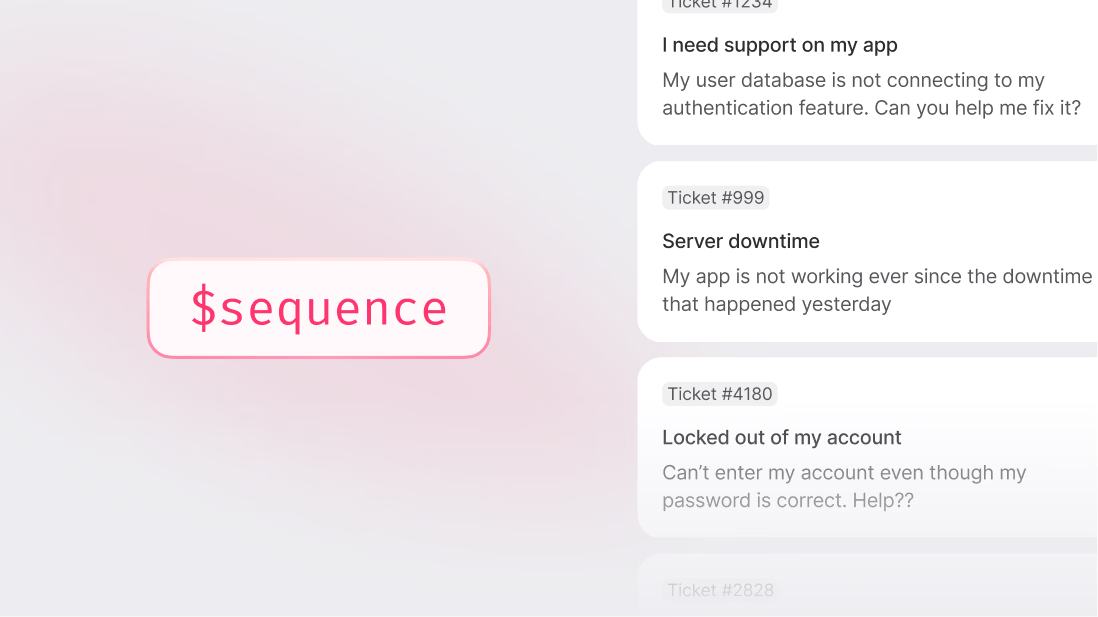
Some systems need to reflect the order in which actions happen. A ticketing system, for example, should assign "Ticket #41" before "Ticket #42". But in a user interface, it often makes sense to display the latest tickets first, so "Ticket #42" may appear above #41.
Relying on timestamps to get this right is often not enough. Two rows can be created almost simultaneously, and the sort order might vary. What is needed is a consistent, backend-assigned number that increases with each insert and cannot be modified or skipped.
Appwrite's $sequence column provides exactly this. Every time a row is added to a table, the system assigns it a unique, auto-incrementing integer. This value reflects the insert history of the table and can be used for sorting, display, filtering, and pagination.
In this tutorial, we will build a simple web-based support ticket tracker using plain HTML and JavaScript. Each submitted ticket will be stored in Appwrite with a title and description, and each will receive a $sequence number automatically. We will use that number to display and order the tickets.
Start by opening the Appwrite console. If you do not have a project yet, create one now.
Create a new project
Give it a name like Support Tracker. After creation, note the Project ID, as you will need it later in your frontend code.
Create a database and table
Inside your project:
- Go to the Database section
- Create a new database named "Support DB"
- Inside that database, create a new table named "Tickets"
Add row columns
In the Tickets table, define the following columns:
title- type:text, required:yes, size: 256body- type:text, required:yes, size: 1000
Appwrite will automatically include system columns such as $id and $sequence. You do not need to create $sequence manually.
Confirm the schema once all columns are added.
Set permissions for testing
For now, allow anyone to create and read rows:
- In the table's Settings, under Permissions
- Add
role:anyto Create and Read
You can change this later when adding authentication.
Also take note of your Database ID and Table ID. You will use them in your frontend.
Configure web platform
To avoid CORS errors when testing your application, you need to add your domain to the allowed platforms:
- In your project Overview, under Integrations, go to the Platforms tab
- Click Add Platform
- Select Web
- In the web platform type, select JavaScript
- For hostname, add your domain or
localhost, depending on your development environment. If running with something like VS Code Live Server, addhttp://127.0.0.1:5500(or whatever port you're using) - Click Create Platform
This tells Appwrite to allow requests from your domain or local development environment.
In your project directory, create two files:
index.htmlscript.js
You can open them in any code editor. We'll build the interface in index.html and put all the JavaScript logic into script.js.
Set up the HTML structure
Start with a clean HTML layout. In index.html, first add the document structure and dependencies:
<!DOCTYPE html>
<html>
  <head>
    <meta charset="UTF-8" />
    <title>Support Tracker</title>
    <script src="<https://cdn.jsdelivr.net/npm/appwrite@17.0.0>"></script>
    <!-- Appwrite Pink Design System -->
    <link rel="stylesheet" href="<https://unpkg.com/@appwrite.io/pink>" />
    <link rel="stylesheet" href="<https://unpkg.com/@appwrite.io/pink-icons>" />
  </head>
  <body class="u-bg-color-neutral-5">
    <div class="container">
      <div class="u-max-width-700 u-margin-inline-auto u-padding-32"></div>
    </div>
  </body>
</html>
This sets up the basic HTML structure and includes the Appwrite SDK and Pink design system for styling.
Next, add the ticket submission form inside the container:
<!-- New Ticket Form -->
<section class="u-margin-block-end-32">
  <h2 class="heading-level-3 u-margin-block-end-24 u-color-text-accent">
    Create New Ticket
  </h2>

  <div class="card u-padding-24 u-border-width-1 u-border-color-primary">
    <form id="ticket-form" class="u-flex u-flex-vertical u-gap-16">
      <div class="input-text-wrapper is-with-end-button">
        <label class="label u-margin-block-end-8">
          <span class="text u-color-text-accent">Ticket Subject</span>
        </label>
        <input
          type="text"
          id="title"
          class="input-text"
          placeholder="Brief description of your issue"
          required
        />
      </div>

      <div class="input-text-wrapper">
        <label class="label u-margin-block-end-8">
          <span class="text u-color-text-accent">Issue Description</span>
        </label>
        <textarea
          id="body"
          class="input-text"
          placeholder="Please provide detailed information about your issue..."
          rows="4"
          required
        ></textarea>
      </div>

      <div class="u-flex u-main-end">
        <button type="submit" class="button is-primary is-big">
          <span class="icon-send" aria-hidden="true"></span>
          <span class="text">Submit Ticket</span>
        </button>
      </div>
    </form>
  </div>
</section>
This form captures the ticket title and description. Note the id attributes on the form and inputs. We'll use these in our JavaScript.
Finally, add the tickets display section and close the document:
        <!-- Tickets List -->
        <section>
          <div
            class="u-flex u-cross-center u-main-space-between u-margin-block-end-24"
          >
            <h2 class="heading-level-3 u-color-text-accent">Tickets</h2>
            <div class="tag u-color-text-info">
              <span class="icon-list" aria-hidden="true"></span>
              <span class="text" id="ticket-count">0 tickets</span>
            </div>
          </div>

          <div id="ticket-list" class="u-flex u-flex-vertical u-gap-16"></div>

          <div
            id="empty-state"
            class="u-text-center u-padding-48 u-color-text-neutral-100"
            style="display: none"
          >
            <span
              class="icon-inbox"
              style="font-size: 3rem; opacity: 0.5"
            ></span>
            <p class="body-text-1 u-margin-block-start-16">
              No tickets yet. Create your first support request above.
            </p>
          </div>
        </section>
      </div>
    </div>

    <script src="script.js"></script>
  </body>
</html>
This page includes a form to submit a ticket and a container to display submitted tickets. The Appwrite SDK is loaded from a CDN, and the logic will live in script.js.
Now open script.js. You will begin by initializing the Appwrite client and pointing it to your project.
Paste the following into script.js:
const client = new Appwrite.Client()

client
  .setEndpoint('<YOUR_APPWRITE_ENDPOINT>')
  .setProject('<YOUR_APPWRITE_PROJECT_ID>')

const tablesDB = new Appwrite.TablesDB(client)

const databaseId = '<YOUR_DATABASE_ID>'
const tableId = '<YOUR_TABLE_ID>'
Replace the placeholders with your actual values from the Appwrite console.
This code sets up the SDK so that you can call tablesDB.createRow() and tablesDB.listRows() in the rest of the script.
Add logic to read the form data and send it to Appwrite. Still inside script.js, add this:
const form = document.getElementById('ticket-form')

form.addEventListener('submit', async (e) => {
  e.preventDefault()

  const title = document.getElementById('title').value.trim()
  const body = document.getElementById('body').value.trim()

  if (!title || !body) return

  try {
    await tablesDB.createRow({
      databaseId,
      tableId,
      rowId: ID.unique(),
      data: {
        title,
        body,
      }
    })

    form.reset()
    loadTickets()
  } catch (error) {
    console.error(error)
  }
})
This code creates a new row in your table when the form is submitted. It uses 'unique()' to generate a unique ID. After submission, the form is reset and the list of tickets is reloaded to show the new entry.
Now add a function that retrieves tickets and shows them in order, newest first:
async function loadTickets() {
  try {
    const response = await tablesDB.listRows({
      databaseId,
      tableId,
      queries: [
        Appwrite.Query.orderDesc('$sequence'),
      ]
    })
    const ticketList = document.getElementById('ticket-list')
    const ticketCount = document.getElementById('ticket-count')
    const emptyState = document.getElementById('empty-state')

    ticketList.innerHTML = ''

    if (response.rows.length === 0) {
      emptyState.style.display = 'block'
      ticketCount.textContent = '0 tickets'
    } else {
      emptyState.style.display = 'none'
      ticketCount.textContent = `${response.rows.length} ticket${
        response.rows.length === 1 ? '' : 's'
      }`

      response.rows.forEach((ticket, index) => {
        const ticketElement = document.createElement('div')
        ticketElement.className = 'card u-padding-24'
        ticketElement.innerHTML = `
          <div class="tag is-color-primary u-margin-block-end-12">
            #${String(ticket.$sequence).padStart(3, '0')}
          </div>
          <h3 class="heading-level-6 u-margin-block-end-8">${ticket.title}</h3>
          <p class="body-text-2">${ticket.body}</p>
        `
        ticketList.appendChild(ticketElement)
      })
    }
  } catch (error) {
    console.error(error)
  }
}

loadTickets()
This function does several things:
- Queries tickets sorted by
$sequencein descending order (newest first) - Updates the ticket counter to show the current number of tickets
- Shows or hides the empty state message appropriately
- Displays each ticket as a styled card with a formatted sequence number (e.g., #001, #042)
- Uses proper typography classes from the Pink design system
- Calls itself immediately to load tickets when the page first loads
The padStart(3, '0') method formats the sequence number with leading zeros.
What you have built
You now have a working support ticket tracker that looks like this:
- Each submitted ticket is stored as a row in Appwrite
- Every row receives a
$sequencenumber, guaranteed to be unique and increasing - The interface displays each ticket using that number
- The ticket list is reliably sorted by creation order
There was no need to write any logic to generate numbers, track counters, or manage collisions. Appwrite's $sequence column handled the sequence internally, which was great for our use case.
Conclusion
This tutorial introduced the auto-incrementing $sequence column and demonstrated how to use it in a small, working app. It offers a solution to a common need: preserving the order of inserts in a predictable, integer-based way.
Because the value is assigned by your database, $sequence remains stable even as your application grows. You can filter by it, paginate through it, or display it directly in user interfaces. And since it is read-only and immutable, we avoid the risk of errors that often come with custom counters or timestamp sorting.
This pattern can extend far beyond tickets. You can use $sequence for invoices, order numbers, log entries, approval requests, or anything where sequence matters.
Here's a link to the GitHub repository for this tutorial: Simple Support Tracker.
Looking forward to seeing what you build with this!