Implementing Google OAuth with Expo Router_
Learn how to implement Google authentication in Expo React Native.

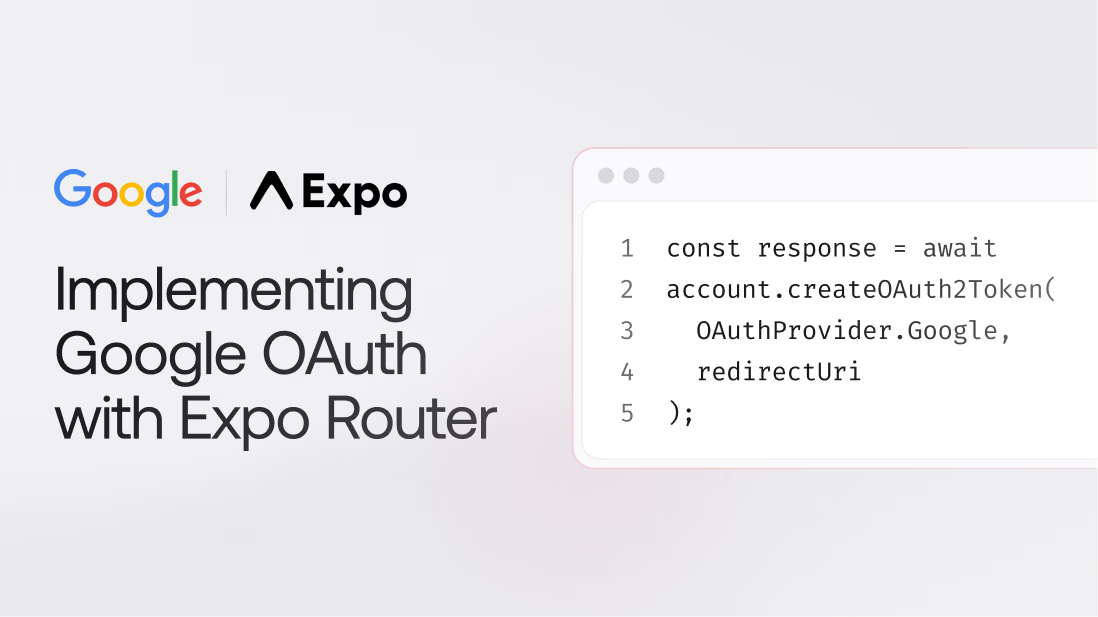
In this article, you will learn how to implement Google authentication in your React Native apps that use Expo Router. We will go through the following steps in the article.
- Create an Expo app
- Set up the bundle ID and package name
- Set up Google Authentication in Appwrite
- Configure Appwrite in your Expo App
- Create a custom
AppwriteProviderto handle auth - Build a UI and fetch user data
Create an Expo app
Let’s start by creating a new Expo app. Run the following command in your terminal to begin creating a new app.
npx create-expo-app <APP_NAME>
Feel free to replace <APP_NAME> to any name you desire. Proceed with the instructions provided by the CLI and create your app based on your configuration. We will use TypeScript for our app, which is the default one installed by the CLI. Feel free to remove the types and use the same code for JavaScript projects.
Set up the bundle ID and package name
To support deep-linking back to our app after successful authentication, you need to give your app a bundle ID (for iOS) and package name (for Android). To set those, open ./app.json in your Expo project. Modify the ios and android properties in the file to be similar to the following.
{
	...
	"ios": {
    "supportsTablet": true,
    "bundleIdentifier": "[BUNDLE_ID]"
  },
  "android": {
    "adaptiveIcon": {
      "foregroundImage": "./assets/images/adaptive-icon.png",
      "backgroundColor": "#ffffff"
    },
    "edgeToEdgeEnabled": true,
    "package": "[PACKAGE_NAME]",
    "versionCode": 1
  },
  ...
}
Replace the [BUNDLE_ID] and [PACKAGE_ID] to be your desired IDs. A common way to construct such an ID is com.company.appname.
In this case, we’ve used com.example.expo-google-oauth as our bundle ID and package name. However, this only matters in production when your apps are built; while developing, Expo uses its own identifiers to simplify things, and we will look at how to detect and handle these conditions gracefully later in this tutorial.
Set up Google authentication in Appwrite
Follow the steps in our Google authentication guide to set up Google OAuth in Appwrite console. Doing so will enable Google authentication for your Appwrite project.
Now, you must set up platforms for your Android and iOS apps inside your project in the Appwrite console.
- Go to the Overview tab in your project.
- Under Integrations, click on Add Platform.
- Select Android. In the next step, enter the app name and package name that you entered in your Expo app. Click on Create Platform.
- Do the same for iOS.
Doing this will allow your app to use Appwrite services without any problems.
Setting up Appwrite in your Expo app
Now, let’s install the Appwrite React Native SDK. Run the following command in your terminal.
npm install react-native-appwrite
In the project root, create a new folder called lib. Inside this folder, create a new file called appwrite.ts and have the following contents.
import { Account, Client } from "react-native-appwrite";

const client = new Client();
client
  .setEndpoint("<ENDPOINT>")
  .setProject("<PROJECT_ID>")
  .setPlatform("<PACKAGE_NAME>");

export const account = new Account(client);
Make sure to replace the configuration variables with your project details! This will enable you to use Appwrite services throughout your app.
Create a custom AppwriteProvider to handle authentication
Now, you need to create a provider to help you access authentication status and methods anywhere in your app. This will ensure that every screen in your app can access the logged-in user's information.
Inside the ./components folder, create a new file called AppwriteProvider.tsx and have the following contents. We will look at the code in more detail below.
import * as Linking from "expo-linking";
import { Href, router } from "expo-router";
import * as WebBrowser from "expo-web-browser";
import { createContext, useContext, useEffect, useState } from "react";
import { Platform } from "react-native";
import { Models, OAuthProvider } from "react-native-appwrite";
import { account } from "../lib/appwrite";

const UserContext = createContext<{
  current: Models.User | null;
  login: () => Promise<void>;
  logout: () => Promise<void>;
}>({
  current: null,
  login: async () => {},
  logout: async () => {},
});

export function useUser() {
  return useContext(UserContext);
}

export function AppwriteProvider(props: { children: React.ReactNode }) {
  const [user, setUser] = useState<Models.User | null>(null);

  async function login(redirectPath: string = "") {
    try {
      const redirectUri = Linking.createURL(redirectPath);

      const response = await account.createOAuth2Token(
        {
          provider: OAuthProvider.Google,
          success: redirectUri,
          failure: redirectUri
      }
      );

      if (!response) {
        console.error("No OAuth URL returned from Appwrite");
        return;
      }

      const result = await WebBrowser.openAuthSessionAsync(
        response.toString(),
        redirectUri
      );

      if (result.type === "success" && result.url) {
        const url = new URL(result.url);

        const secret = url.searchParams.get("secret");
        const userId = url.searchParams.get("userId");

        await account.createSession({
            userId: userId!,
            secret: secret!
        });
        const user = await account.get();

        if (Platform.OS === "ios") {
          router.replace(redirectPath as Href);
        }

        setUser(user);
      }
    } catch (error) {
      console.error("OAuth error:", error);
    }
  }

  async function logout() {
    await account.deleteSession({
        sessionId: "current"
    });
    setUser(null);
  }

  async function init() {
    try {
      const loggedIn = await account.get();
      setUser(loggedIn);
    } catch (err) {
      setUser(null);
    }
  }

  useEffect(() => {
    init();
  }, [user]);

  return (
    <UserContext.Provider value={{ current: user, login, logout }}>
      {props.children}
    </UserContext.Provider>
  );
}
In the above code, we are doing the following:
- Creating a context called
UserContextthat will be used for storing authentication information and related methods at the application level. - Creating the
useUser()hook that will allow us to access the methods and information stored in the context in any of the components in the app. - Creating an
AppwriteProvidercomponent that wraps around our entire app in the_layout.tsxfile. We will do that next. - Storing the user data in a state called
userand initialising the state every time the app is opened by using theinit()function in auseEffect(). Theinit()function callsaccount.get()from the Appwrite SDK to get the current logged-in user’s information. - Creating a
login()function- We are creating a deep-link path that, by default, links to the homepage of the app, it can be modified by passing function parameters.
- We are using the
createOAuth2Token()method from Appwrite SDK to get the Google OAuth URL for the user to perform sign-in. We are also passing the redirect URI so that we can be redirected back to the desired page. Note thatcreateOAuth2Session()does not work on React Native. This is because deep-linking is currently not handled by the method andcreateOAuth2Token()should be used to get a token which in turn can be used to set a session. - We are using the
openAuthSessionAsync()method to open the browser for the authentication session. The reason we are using this specific function and not any other browser opening function is that this is built for authentication, and for platforms like iOS, this will respect the deep-link and redirect back to the app, which won’t be the case in a regular browser. - After getting back into the app using the deeplink, we will have the user ID and secret from Appwrite. Now, we can simply call
createSession()method to sign in using the user ID and secret. The Appwrite React Native SDK will take care of the rest, including persisting the credentials in storage. - Deeplink redirect URIs only actually redirect to your desired page if you’re using Android. For iOS, you need to do this manually. So we place a special code block for iOS devices to handle the redirection to the desired screen.
- Creating the
logout()function that will be responsible for deleting the current session.
Now, you have a solid foundation for authentication ready, and you can use this anywhere in your app. Now let’s look at an example implementation for the useUser() hook.
Build a UI and fetch user data
Remove the (tabs) folder, and create a new file called index.tsx in the app directory. Also, go to the _layout.tsx file and make sure your index file is mentioned:
<AppwriteProvider>
  <ThemeProvider value={colorScheme === "dark" ? DarkTheme : DefaultTheme}>
    <Stack>
      <Stack.Screen name="index" options={{ headerShown: false }} />
      <Stack.Screen name="+not-found" />
    </Stack>
    <StatusBar style="auto" />
  </ThemeProvider>
</AppwriteProvider>
Now, go to index.tsx file and use the content from our GitHub repository. Remember, this is an example, and from here on out, you can implement the useUser() hook with your own UI and implementation.
This should help you test your authentication flow. In this file, we have imported the useUser() hook and used functions like login() and logout() on buttons, and also displayed the user's email. To add additional functionality, you can create more functions under AppwriteProvider.
Final results
The final app, when first opened, shows a button to sign in with Google.
Once you sign in with your Google account, you will receive the following greeting in your app.
More resources
This article taught you how to implement Google OAuth authentication into your Expo router apps. Appwrite makes it much easier for you to add authentication to your apps. You can use similar approach for any other OAuth provider supported by Appwrite.
If you have any questions or suggestions, please join our Discord server.
React Native quickstart on Appwrite documentation