Build a support chatbot with Appwrite Functions and VectorsDB_
Seed a help center, retrieve relevant articles with VectorsDB, and answer customer questions through an Appwrite Function. Deploy the chat interface on Appwrite Sites.

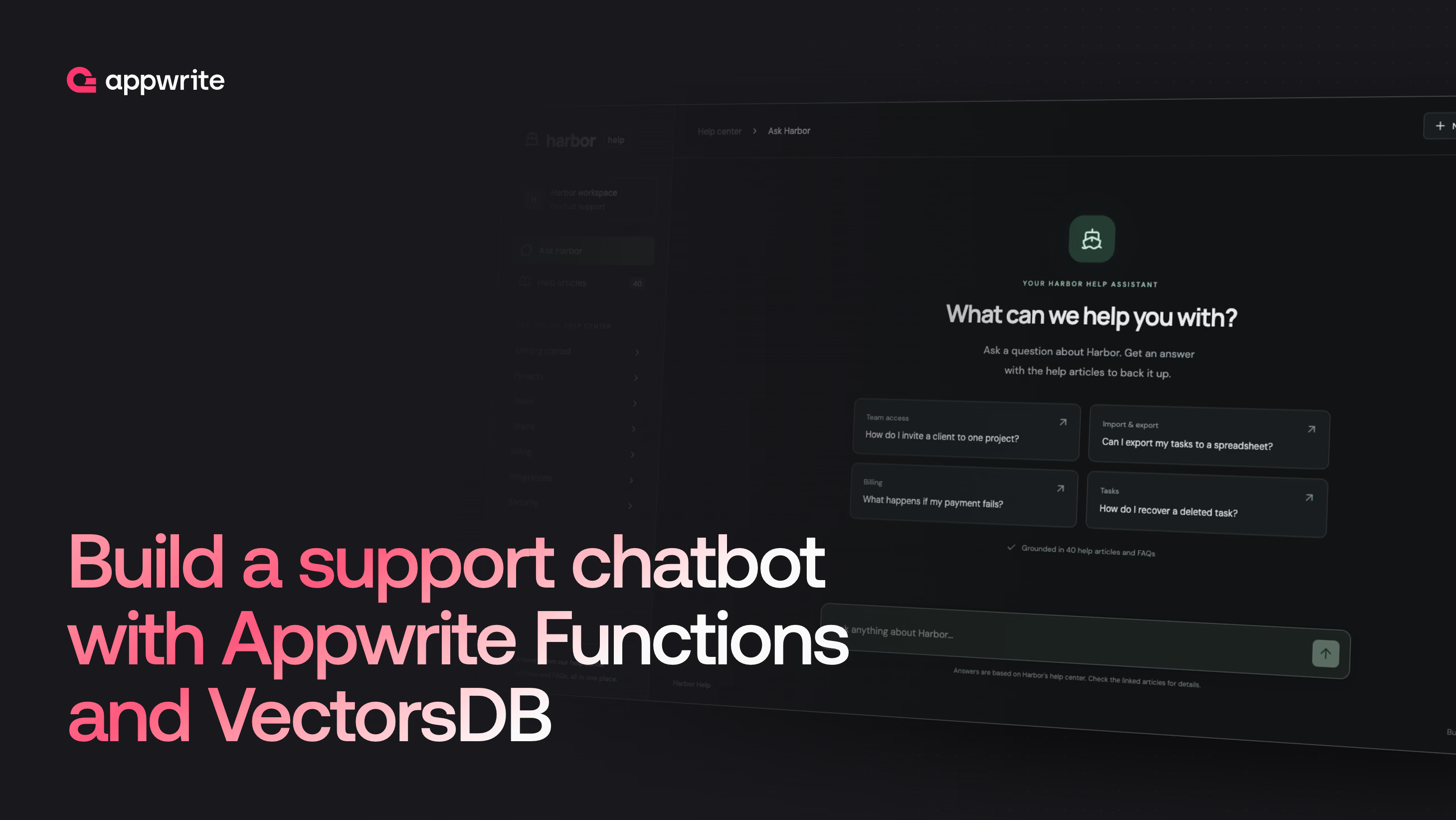
A customer asks, "Can I get my tasks into a spreadsheet?" Your help center has an article called "Export a project as CSV." A support chatbot can find that article, explain the steps, and link the customer to it.
This tutorial builds Harbor Help, a chatbot for a fictional project-management product with 40 help articles and FAQs about accounts, tasks, projects, billing, and integrations. It handles follow-up questions such as "Does that include attachments?" and refuses questions the help center does not cover.
Appwrite VectorsDB stores the articles as embeddings, an Appwrite Function retrieves them and generates answers through OpenRouter, and Appwrite Sites hosts the React interface. The article covers the Appwrite setup and SDK calls.
How the chatbot works
Every question goes through one Appwrite Function. The Function embeds the question with Appwrite's Embeddings service, asks VectorsDB for the six closest excerpts, and passes them to the language model. The model must answer from that text or say that it cannot. It replies with JSON holding the answer and the numeric IDs of the excerpts it used. The Function maps those IDs back to the retrieved documents and builds the source links itself, so a citation can only point at an article that was in the results.
This is retrieval-augmented generation, or RAG. The model never sees the whole help center. It only sees the excerpts that match the current question, so editing an article and reseeding changes the next answer without any model training.
Prerequisites
You will need:
- An Appwrite project with access to VectorsDB, Functions, and Sites.
- Node.js 22 or later and pnpm 10.
- An OpenRouter API key with credit for a model that supports structured outputs. This example uses
openai/gpt-5.6-luna.
Create the vector collection
In your project at appwrite.io, open Databases and select Create database. Choose VectorsDB, name it Harbor support, and set its custom ID to support. Select your preferred tier and create the database.
Inside the database, select Create collection. Name it Articles, set the custom ID to articles, and choose the all-minilm embedding model. The model fixes the collection's vector size at 384 dimensions. The seed script and the Function embed text with the same model, so a question's vector is comparable with the stored article vectors.
Leave the collection permissions empty. Visitors never read the collection directly. They ask questions through the Function, and the Function reads the collection with the API key Appwrite issues to it for each execution.
Each document stores its vector in embeddings and its data in metadata, an object that VectorsDB returns with the match. The language model cannot read a vector, so the excerpt text goes in metadata along with what the interface needs to render a source link:
| Field | Purpose |
|---|---|
articleId | Identifies the original help article |
title | Labels the source link |
category | Groups articles in the help center |
kind | Distinguishes an article from an FAQ |
text | The excerpt the language model reads |
url | Path of the original article, such as /help/export-project |
Seed the help articles and FAQs
The seed script runs on your machine with an API key. Open API Keys and create one with these scopes:
| Scope | Purpose |
|---|---|
vectorsdb.collections.read | Check the collection's dimension |
vectorsdb.indexes.read | Check whether the index is ready |
vectorsdb.indexes.write | Create the similarity index |
vectorsdb.documents.read | Inspect the seeded documents |
vectorsdb.documents.write | Create or update excerpts |
embeddings.write | Generate embeddings |
In your local copy of the repository, copy .env.example to .env and fill it in. The endpoint and project ID are shown under the project's Settings:
APPWRITE_ENDPOINT=https://<REGION>.cloud.appwrite.io/v1
APPWRITE_PROJECT_ID=<PROJECT_ID>
APPWRITE_API_KEY=<SEED_API_KEY>
APPWRITE_DATABASE_ID=support
APPWRITE_COLLECTION_ID=articles
Install the dependencies and run the importer:
pnpm install
pnpm seed
Similarity search needs an index on the embeddings field, and the index type has to match the query the Function runs later. The script creates an HNSW cosine index and waits for it to become available before writing any documents:
import { VectorsDBIndexType } from 'node-appwrite'

await vectorsDB.createIndex({
  databaseId,
  collectionId,
  key: 'embeddings_cosine',
  type: VectorsDBIndexType.HnswCosine,
  attributes: ['embeddings'],
})
It then walks data/articles.json. The script embeds each excerpt with the article's title in front of its body, so the vector carries the subject as well as the details. It stores the vector together with its metadata:
import { EmbeddingModel } from 'node-appwrite'

const result = await embeddings.createTextEmbeddings({
  texts: [chunk.input],
  model: EmbeddingModel.Allminilm,
})

const vector = result.embeddings[0]
if (vector.error || vector.embedding.length !== 384) {
  throw new Error(`Could not embed ${chunk.id}`)
}

await vectorsDB.createDocument({
  databaseId,
  collectionId,
  documentId: chunk.id,
  data: {
    embeddings: vector.embedding,
    metadata: chunk.metadata,
  },
})
Document IDs are the article ID plus a chunk number. When creation returns a conflict, the script updates the document instead, so reseeding overwrites articles rather than duplicating them. The bundled articles fit in one chunk each. The script splits anything longer than 650 characters into several chunks that share the same title and URL. Longer or non-English content may need a smaller chunk size. When an article shrinks, its stale chunks stay in the collection until you delete them.
Create the chatbot Function
Open Functions and create a Node.js 22 Function named Support chatbot with the ID support-chat. Configure it as follows:
| Setting | Value |
|---|---|
| Entrypoint | src/main.js |
| Build command | npm install --omit=dev |
| Permissions | Any |
| Scopes | embeddings.write, vectorsdb.documents.read |
Setting Permissions to Any on the Security tab lets visitors ask questions without signing in. The two scopes define the API key that Appwrite issues to the Function for each execution. Under Variables, add:
| Variable | Value |
|---|---|
APPWRITE_DATABASE_ID | support |
APPWRITE_COLLECTION_ID | articles |
OPENROUTER_API_KEY | Your OpenRouter key, marked as secret |
OPENROUTER_MODEL | openai/gpt-5.6-luna |
Appwrite passes that per-execution key in the x-appwrite-key header, along with the endpoint and project ID as environment variables. The Function in functions/chat/src/main.js builds its client from those, so the seed key from the previous step never leaves your machine:
import { Client, Embeddings, VectorsDB } from 'node-appwrite'

const client = new Client()
  .setEndpoint(process.env.APPWRITE_FUNCTION_API_ENDPOINT)
  .setProject(process.env.APPWRITE_FUNCTION_PROJECT_ID)
  .setKey(req.headers['x-appwrite-key'])

const embeddings = new Embeddings(client)
const vectorsDB = new VectorsDB(client)
A follow-up such as "Does that include attachments?" is a poor search query on its own. When the request carries conversation history, the Function first asks the model to rewrite the question as a standalone one, using the last six messages for context. The Function searches the first message in a conversation as written.
Retrieval is one embedding call and one query. The query uses the cosine metric, matching the index created during seeding:
import { EmbeddingModel, Query } from 'node-appwrite'

const result = await embeddings.createTextEmbeddings({
  texts: [query],
  model: EmbeddingModel.Allminilm,
})

const vector = result.embeddings[0]
if (vector?.error || vector?.embedding.length !== 384) {
  throw new Error('Embedding generation failed')
}

const matches = await vectorsDB.listDocuments({
  databaseId: process.env.APPWRITE_DATABASE_ID,
  collectionId: process.env.APPWRITE_COLLECTION_ID,
  queries: [
    Query.vectorCosine('embeddings', vector.embedding),
    Query.limit(6),
  ],
})
The matches go to OpenRouter as numbered excerpts, and the model has to reply in this shape:
const answerSchema = {
  type: 'object',
  properties: {
    supported: { type: 'boolean' },
    answer: { type: 'string' },
    sourceIds: { type: 'array', items: { type: 'integer' } },
  },
  required: ['supported', 'answer', 'sourceIds'],
  additionalProperties: false,
}
Similarity search ranks whatever is in the collection, so an unrelated question still returns the nearest articles. The supported flag lets the model state that those excerpts do not answer the question. The Function returns a fixed fallback message when supported is false, when the answer is empty, or when any ID in sourceIds is not one of the retrieved excerpts. It builds source links from the stored url metadata rather than from model output, and several cited chunks from one article collapse into a single link.
The interface calls the Function synchronously, and synchronous executions have a 30-second hard limit regardless of the Function's own timeout. The Function gives its model calls a shared 23-second deadline and returns an error if they run past it.
Deploy the Function
Deploy through GitHub or the Appwrite CLI.
For GitHub, fork the companion repository and connect your fork to the Function under Settings > Configuration > Git settings. Set the production branch to main and the root directory to functions/chat. Each push to main then builds and activates a new deployment. See deploying Functions from Git.
For the CLI, the repository includes an appwrite.config.json that declares the support-chat Function with the settings above. Set its endpoint and projectId to your project's values, install the Appwrite CLI, and push from the repository root:
appwrite login
appwrite push functions --function-id support-chat --activate
See the CLI Functions guide for the configuration options.
Deploy the interface on Appwrite Sites
The Vite React interface includes the chat, a browsable help center, and an article page for every source link. All three read the same data/articles.json that the seed script imports.
In Sites, connect your GitHub fork, select main as the production branch, and keep the repository root as the root directory. Choose Vite and configure:
| Setting | Value |
|---|---|
| Build runtime | Node.js 22 |
| Install command | pnpm install |
| Build command | pnpm build |
| Output directory | dist |
| Rendering | Static |
| Fallback file | index.html |
The fallback file lets a direct visit or refresh at /help/export-project load the React app and display that article.
Add these Site variables before the first build:
VITE_APPWRITE_ENDPOINT=https://<REGION>.cloud.appwrite.io/v1
VITE_APPWRITE_PROJECT_ID=<PROJECT_ID>
VITE_APPWRITE_FUNCTION_ID=support-chat
Vite inlines VITE_ variables into the browser bundle. These three values are public, so that is safe. Never put an API key in one.
Choose an available Appwrite subdomain and deploy. Under the project's Apps section, register the Site's hostname as a Web app if it is not already listed. Add localhost as well if you want to run the interface locally with pnpm dev.
The browser calls the Function through the Appwrite Web SDK, sending the question and the last six messages of the conversation:
import { Client, Functions, ExecutionMethod } from 'appwrite'

const client = new Client()
  .setEndpoint(import.meta.env.VITE_APPWRITE_ENDPOINT)
  .setProject(import.meta.env.VITE_APPWRITE_PROJECT_ID)
const functions = new Functions(client)

const execution = await functions.createExecution({
  functionId: import.meta.env.VITE_APPWRITE_FUNCTION_ID,
  body: JSON.stringify({
    question: current,
    history: previous.slice(-6).map(({ role, content }) => ({ role, content })),
  }),
  async: false,
  method: ExecutionMethod.POST,
})

const result = JSON.parse(execution.responseBody || '{}')
The handler checks execution.responseStatusCode before rendering the answer and its source links. If the request fails, it puts the question back in the input so the visitor can retry.
Test the chatbot
Ask "Can I get my tasks into a spreadsheet?" The answer should describe CSV export and cite Export a project as CSV, even though the question shares no keywords with the title. Open the source link and refresh the page to confirm that the Sites fallback works.
Follow up with "Does that include the attachments?" The answer should say that attachments are not part of a CSV export. Then ask about quantum-encrypted video calls. That should return the fallback message with no sources.
The repository also has unit tests and a live suite that runs those cases against the deployed Function:
pnpm test
pnpm test:live
For the live suite, add APPWRITE_FUNCTION_ID=support-chat to .env and grant your key the executions.write scope. Run it after changing the prompt, the model, or the articles.
Use it with your own help center
Replace the entries in data/articles.json with your product's articles, run pnpm seed, and redeploy the Site so the source pages match the retrieved text. The chatbot then answers from your content with the same citation checks.
The demo accepts questions from anyone. For internal documentation, restrict execute access to signed-in users and check the session inside the Function before retrieving anything.
Resources
Yes. Both the seed script and the Function call Appwrite's Embeddings service with the all-minilm model. OpenRouter only interprets follow-up questions and writes the answers.
Yes. Replace the entries in data/articles.json, keeping each entry's ID, title, category, kind, and body, then run the seed script again. The help center pages in the interface read the same file, so redeploy the Site as well.
No. VectorsDB ranks excerpts by vector similarity, so a question about getting tasks into a spreadsheet can retrieve an article about CSV export. The model then writes the answer from the retrieved text.
The Function asks the model to mark the response as unsupported when the retrieved excerpts do not answer the question. It then returns a fixed message with no source links. The same happens if the model cites an excerpt ID that was not retrieved.
No. VectorsDB holds the article vectors and their metadata. Conversation history lives in the browser tab and resets on reload.