Build a “delivery store locator” using Spatial Columns in Appwrite Databases_
Learn how to use spatial columns in a real-world application.

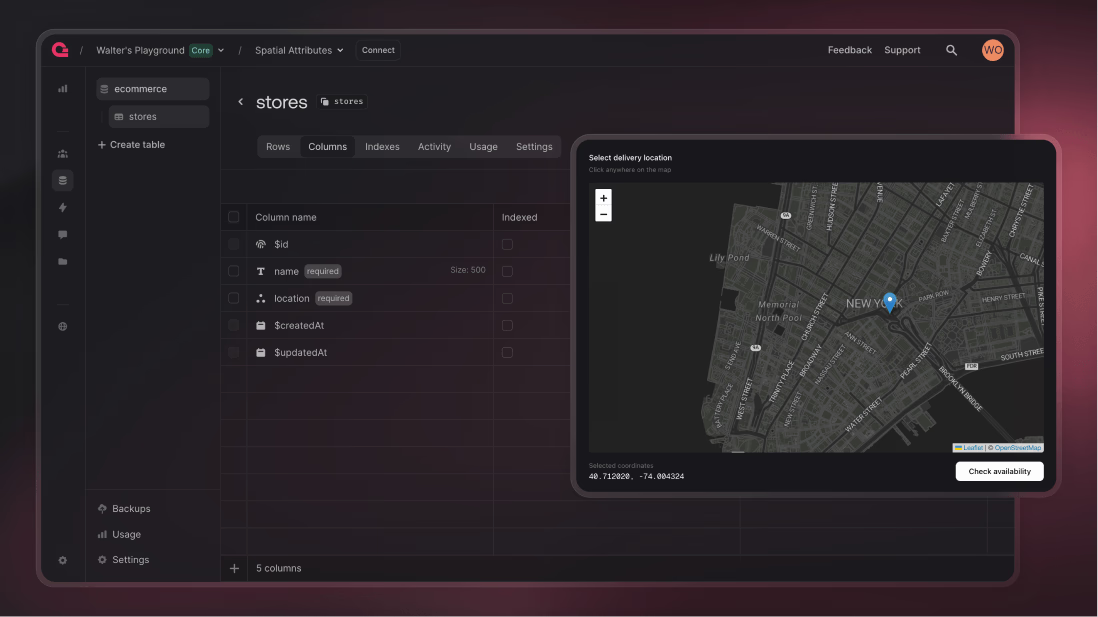
We just launched spatial columns for Appwrite databases which allows you to perform queries on real, spatial data like locations, areas, and routes. This unlocks a lot of possibilities where you can tap into real-world geo data and query the information you need. This saves you from performing your own calculations on longitudes and latitudes and instead relying on Appwrite's database to query the data you need.
In this article, we will look at an example delivery store locator and how it uses spatial columns to find the nearest stores.
Overview
The nearest delivery store locator allows the user to pick a point on a map and check if any stores are available to deliver to the user. Any stores that can deliver will appear on the right side. In this case, Store 1 is available to deliver the order as the store is within a ~10 mile radius of the location picked by the user.
To make the development of the app easy, we aren’t using authentication and allowing anyone to freely add and remove stores.
You can manage stores by using the hamburger menu at the top right side, where you can add and remove stores from the database.
You can access the delivery store locator and play around with it. Please note that this is an example and not suitable for production usage. You can find the code for this project in our GitHub repository.
Setting up spatial columns
Head to Appwrite Cloud and choose your project. Go to Databases section from the sidebar and create/choose your database. Here, we will create a new table called stores. In the columns tab for your new table, let’s create two columns that will be needed.
name: name of the store, this should be a column of type String.location: exact location coordinates of the store, this should be a column of type Point.
These are the only two columns we need that represent a store in our application.
Creating a store
In the application, we have a hamburger on the top right to manage stores we have in our application. When you click on Add Store, you will get a popup similar to the following:
This modal will accept a store name, and you can select a location on the map where you want to set to have the store at. Once you click Add store, it gets added to the database, and the updated stores appear on the sidebar.
However, there's something important to know here: it's the way we're storing the location information in the database. We're not just storing this information as a string, we're using the special Point column we made in Appwrite console earlier. When you click on Add store, we're making an API call, which then adds to database using the following call:
const store = await tablesdb.createRow({
  databaseId: "ecommerce",
  tableId: "stores",
  rowId: ID.unique(),
  data: { name, location: [location.lon, location.lat] },
});
In the above code, we're passing location coordinates in an array format ([lon, lat]), which then gets correctly stored in the database. This column is designed in a way that it abstracts away all the calculations between two sets of coordinates, and managing these in a database now becomes easier.
Finding nearby store
After you add a store, if you choose a location very close to the store on the map on the main screen, you should be able to see the store in the list of nearby stores. However, if you choose a location far away from the store, it should not show you the store you just added.
To make this work, we are not using some highly logical geometrical calculations, we are simply running a query on our Appwrite database mentioning the distance limit we want to limit our store search to.
const serviceableStores = await tablesdb.listRows({
  databaseId: "ecommerce",
  tableId: "stores",
  queries: [Query.distanceLessThan("location", [lon, lat], 16000, true)],
});
In the above code, we are using the query distanceLessThan to get all the records in the database whose location column is within a specific distance radius of a set of coordinates provided, which in our case, is the location that the user selects. 16000 is the distance in meters, which roughly translates to 10 miles. We pass true to tell the database we mentioned our distance in meters.
This will return the stores within the range, without you needing to iterate through your database or applying complex logic to do so. You will have coordinates of nearby store, and then you can run calculations to calculate the distance between the store and user-provided coordinates, etc.
This way, you can sort multiple stores based on their distance, if you receive more than one record from the database.
Wrapping up
Spatial columns are very powerful when dealing with real-world location data and could reduce the friction of performing calculations while querying your database. If you have any questions, please join our Discord server.