Announcing Timestamp Overrides: Accurate timelines for production workloads_
Move historical data into Appwrite without losing context or disrupting chronological accuracy.

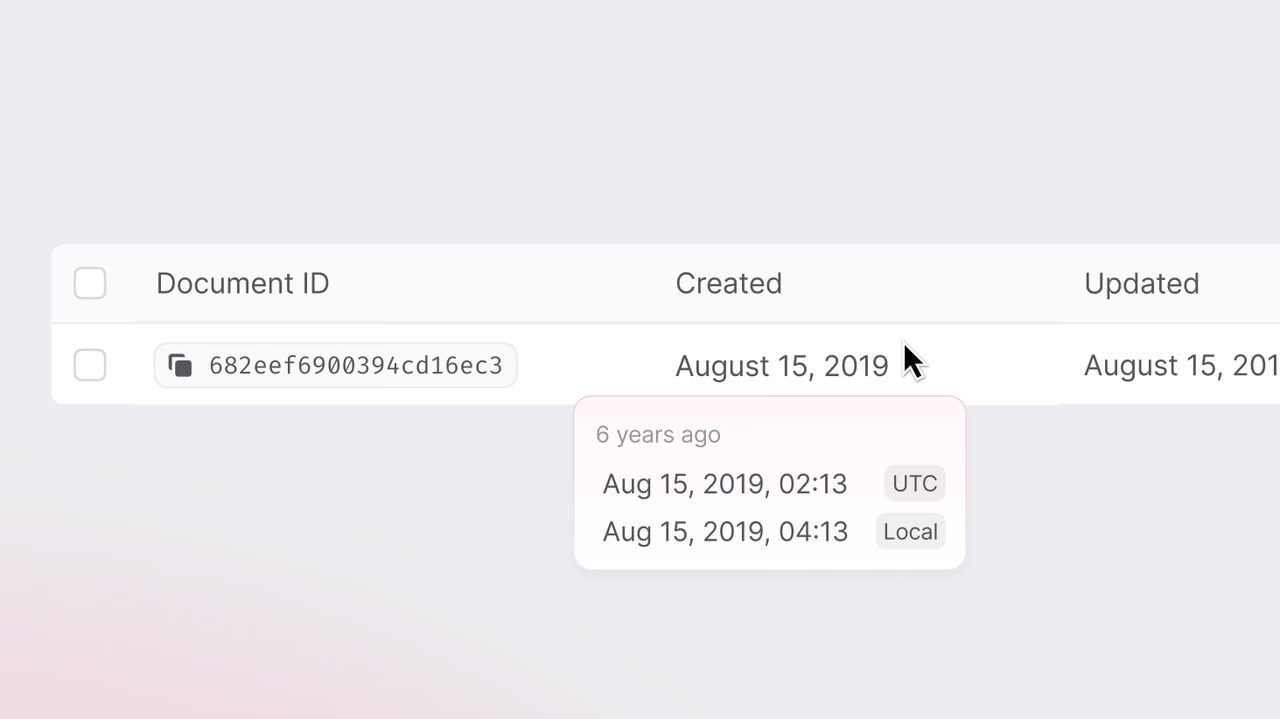
In many data workflows, imported records automatically take on the time they are added to the new system. This works for some use cases, but when migrating data or integrating systems, preserving original timestamps becomes essential for accurate records and reporting.
Whether it is maintaining accurate audit trails, reliable analytics, proper chronological order, or a customer’s “joined on” date, every detail matters.
That’s why we’re introducing Timestamp Overrides. A simple but powerful way to set $createdAt and $updatedAt manually when importing or creating rows, so your history stays accurate without extra steps. This means your data looks exactly how it should from day one, with no extra scripts or workarounds.
Preserve timestamps without extra workarounds
Appwrite has always managed timestamps automatically, setting $createdAt and $updatedAt to the current time whenever a row is created or updated. That’s perfect for most workflows, like building new apps or adding fresh data, because it’s accurate, automatic, and requires zero extra effort.
Migrations and bulk imports, however, require a different approach. When you import existing data, automatic timestamps overwrite the original ones, making every record look new and breaking analytics, feeds, and user-facing timelines.
With Timestamp Overrides, you can now set those fields yourself. Using an API key or through the CSV Import wizard, you can explicitly define $createdAt and $updatedAt values instead of having Appwrite set them automatically.
Include them when you need to preserve history; skip them when you want Appwrite’s defaults. It’s a flexible control that fits both new and legacy workflows.
Immediate benefits
This change isn’t just about convenience. It unlocks a few tangible benefits for real-world workflows:
- Accurate history: Timestamps match when events actually happened.
- Easier migrations: Move data without relying on custom fields or workarounds..
- Correct user timelines: "Joined on" or "Ordered on" dates stay true.
- Seamless CSV imports: Set
$createdAtand$updatedAtdirectly from your CSV.
What you need to know before using it
Before you go ahead and start using this feature, here are a few important points about how Timestamp Overrides work:
- Privileged-only: This feature requires an API key or Console access via CSV Import. It isn’t available through client-side SDK calls for security reasons.
- Opt-in per row: If you leave
$createdAtor$updatedAtout of your payload, Appwrite will auto-stamp them as usual. - Validation: Both fields must be valid ISO-8601 strings (e.g.,
2023-10-05T14:48:00Z). Invalid values are rejected. - Partial override: You can set one field and let Appwrite handle the other; for example, preserve
$createdAtbut allow$updatedAtto update automatically. - SDK usage: Include the fields inside the row data itself; no new API parameters or endpoints are required.
Built for enterprise‑grade data integrity
Data integrity isn't optional for teams operating in regulated industries or managing production workloads. It’s a requirement. Timestamp Overrides make it possible to migrate or backfill data into Appwrite without losing the original event history, ensuring audit trails and compliance standards remain intact.
This addition makes it easier for enterprises to adopt Appwrite at scale with full confidence in their data integrity.
Get started
Whether importing a few thousand records or years of historical data, this feature allows you to control timestamps when needed and let Appwrite handle them when you don’t.
It’s available now on Cloud, and will be coming to Self-Hosted in the next release.