Appwrite Beep_
Get pushes on your phone when a monitor fires, triage alerts, check project usage, and read the Appwrite changelog with the Appwrite Beep app for iOS and Android.
5 min read
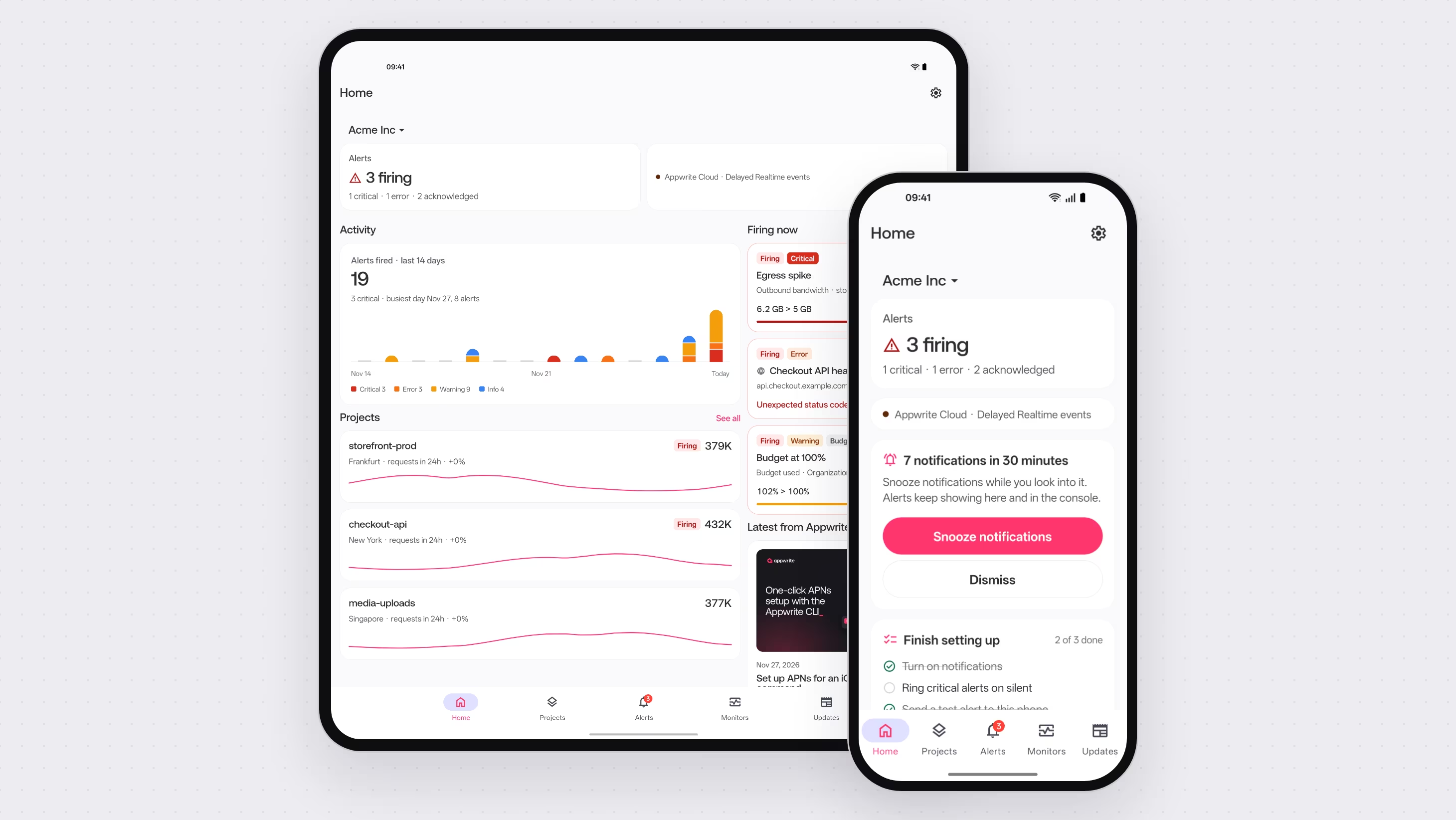
Appwrite Beep is the Appwrite Cloud app for your phone. It sends a push when one of your monitors fires, shows what is firing across your organizations, and keeps project usage and the Appwrite changelog one tap away.
Beep is built for reading and triage. Acknowledging an alert, snoozing pushes, and adjusting a threshold happen in the app, and anything else opens the Appwrite Console.
- Download on the App Store for iPhone and iPad
- Get it on Google Play for Android phones, tablets, and foldables
Set up Beep
Sign in with your Appwrite Cloud account, using GitHub, Google, or email and password. Accounts with multi-factor authentication get the same MFA challenge as the Console.
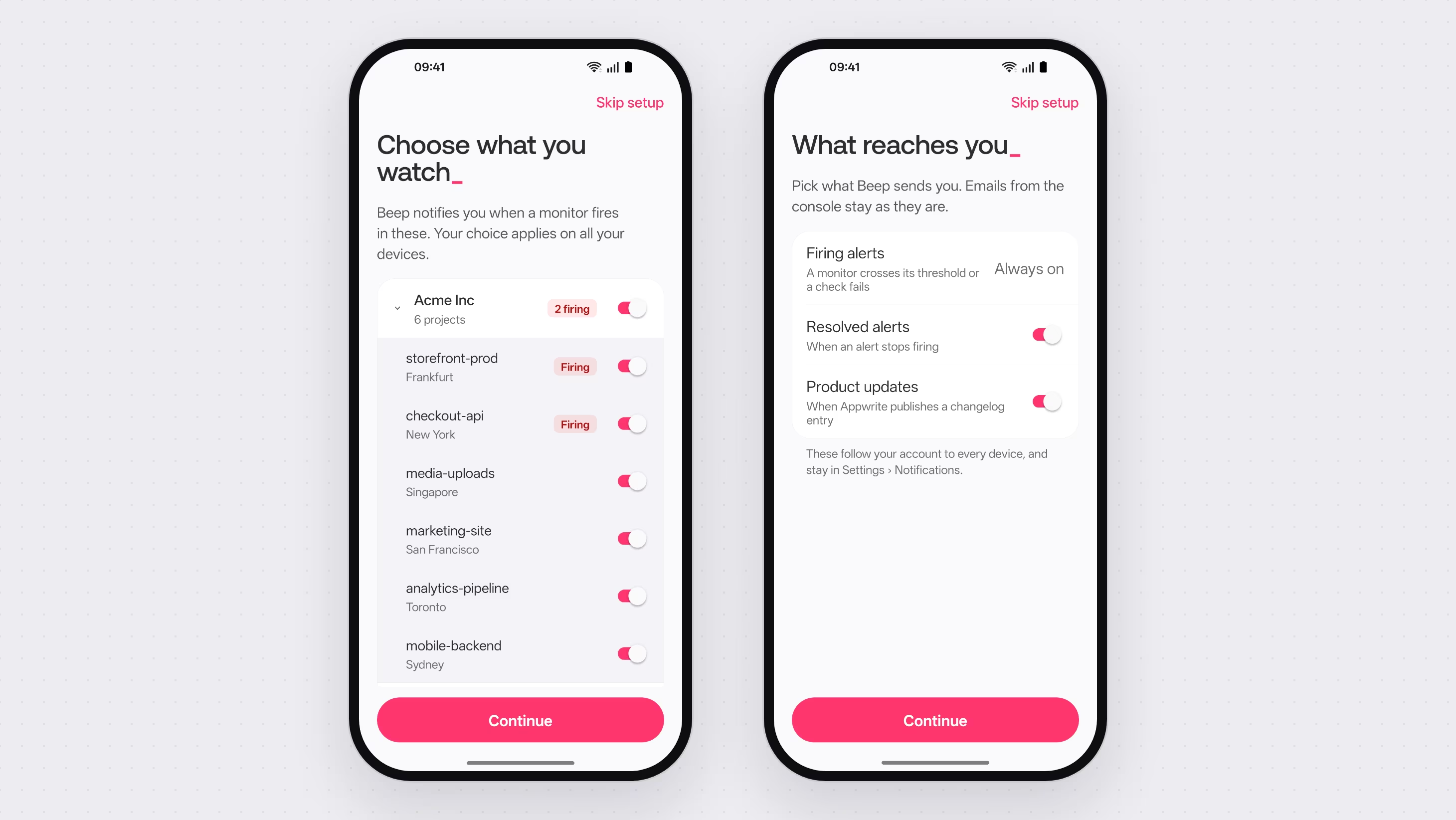
On first launch, Beep walks through a short setup. Any step can be skipped, and Home keeps a checklist of what's left.
- Choose what you watch. Pick the organizations and projects Beep notifies you about. New organizations and projects are watched automatically.
- Choose what reaches you. Firing alerts always reach you. Resolved alerts and product updates are optional.
- Turn on notifications and, on Android, critical alerts.
- Send a test alert to confirm pushes reach the phone.
These settings belong to your Appwrite account, so they apply on every device you sign in on.
Push notifications
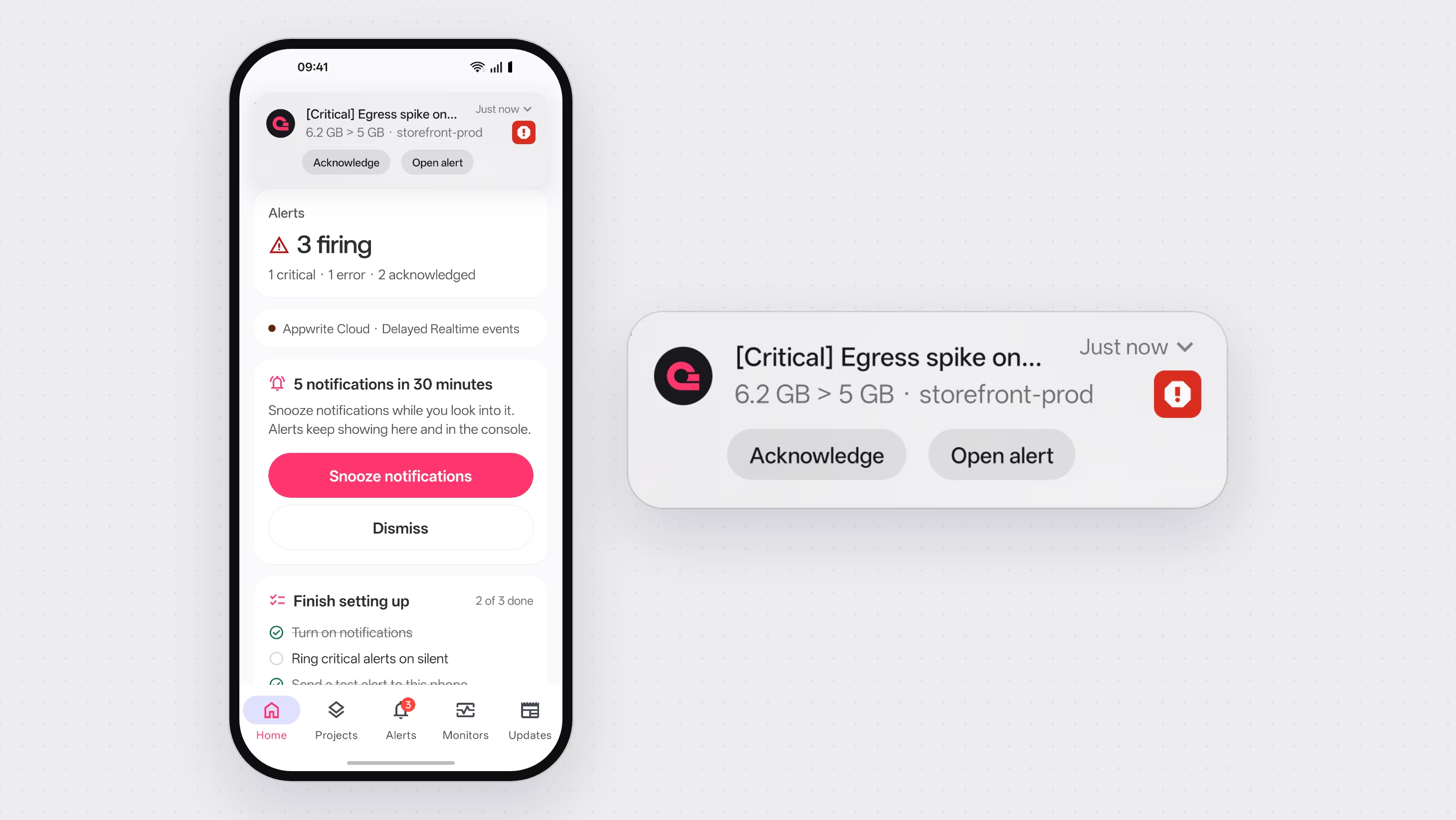
Beep registers each phone you sign in on as a push target on your Appwrite account. When a monitor fires, every registered phone gets a push that names the severity, the monitor, and where it fired.
The buttons on a push work without opening the app:
| Push | Buttons |
|---|---|
| Firing alert | Acknowledge, Snooze 1 hour, Mute |
| Critical alert | Acknowledge, Open alert |
| Resolved alert | Mute |
Each button is undoable from the notification it leaves behind. A critical push leaves out snoozing and muting, so a half-awake tap can't quiet an incident. Both stay available inside the alert.
Alerts
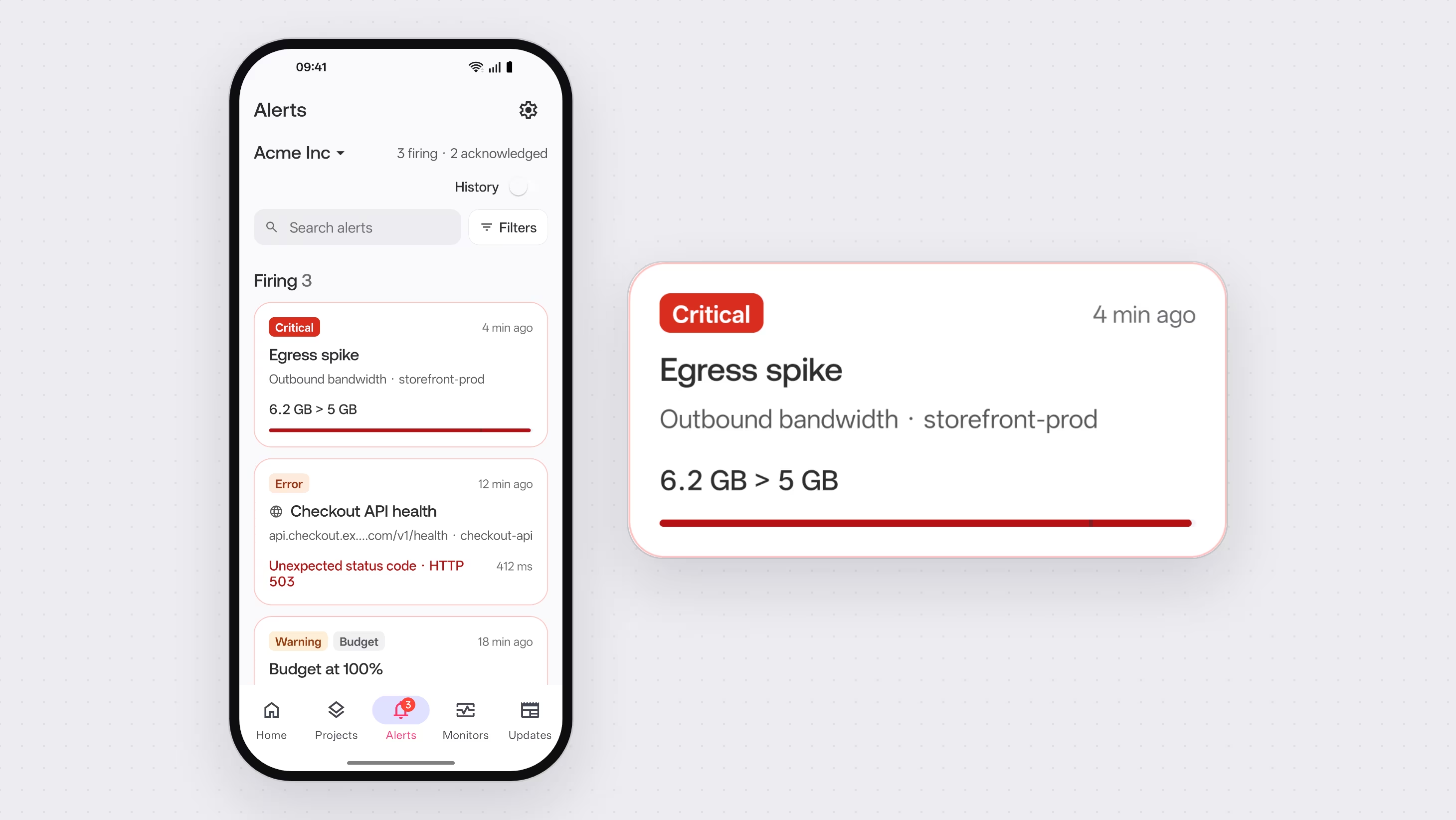
The Alerts tab lists firing, acknowledged, and resolved alerts for each organization. It covers usage and budget monitors and HTTP, DNS, TCP, and SMTP checks. Search and filters narrow the list, and History shows alerts that already resolved.
Open an alert to see the reading that fired it, a chart of the hours around it, and where its escalation stands. Acknowledge tells your team someone is on it and stops the escalation. Long press an alert in the list for quick actions.
Escalations
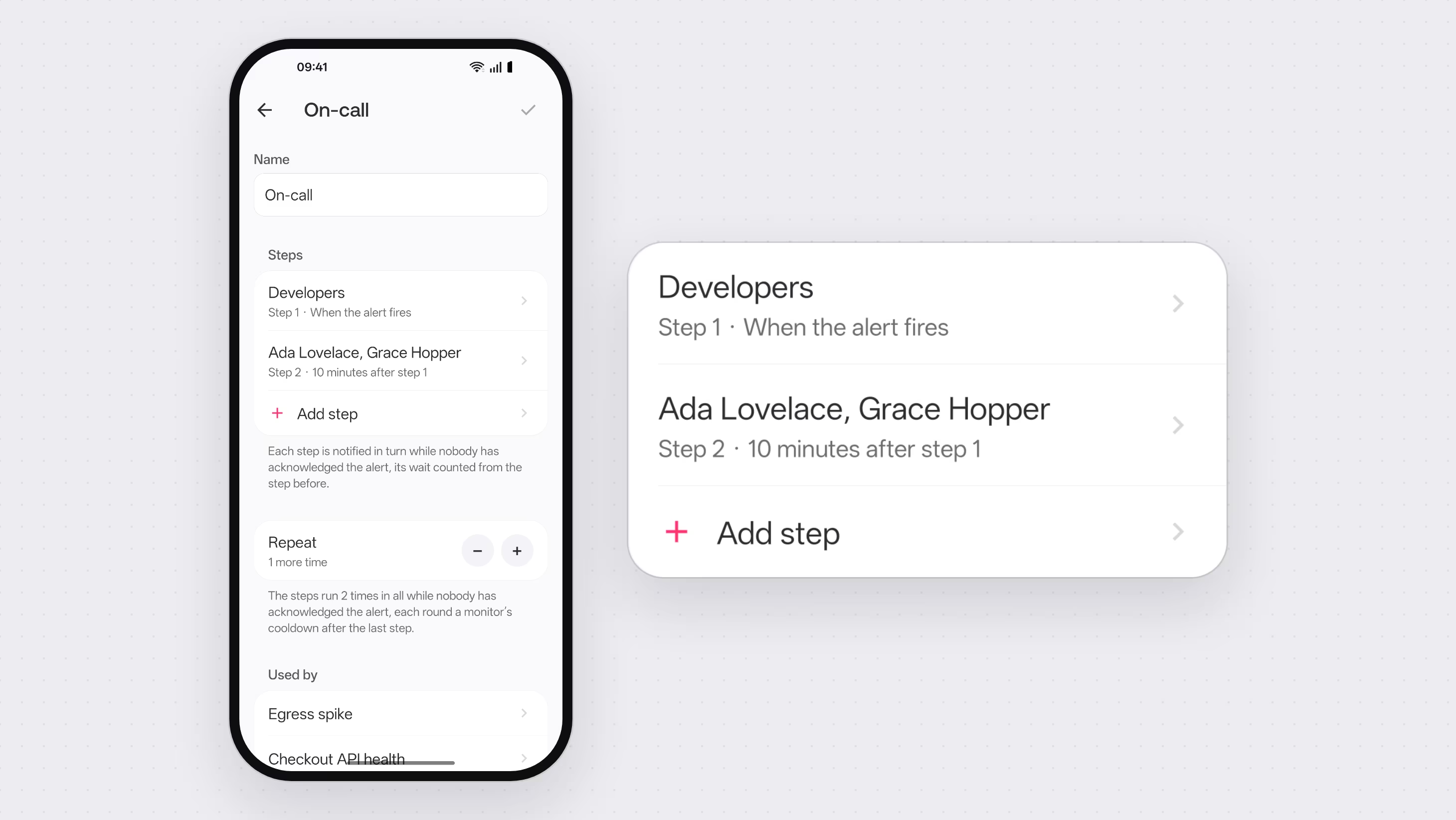
An escalation notifies its steps in turn while nobody has acknowledged an alert. Each step names who to notify and how long to wait after the step before it.
Open Policy on an alert to see the escalations in its organization. From there, create an escalation, edit its steps and repeats, or assign it to a monitor.
Thresholds
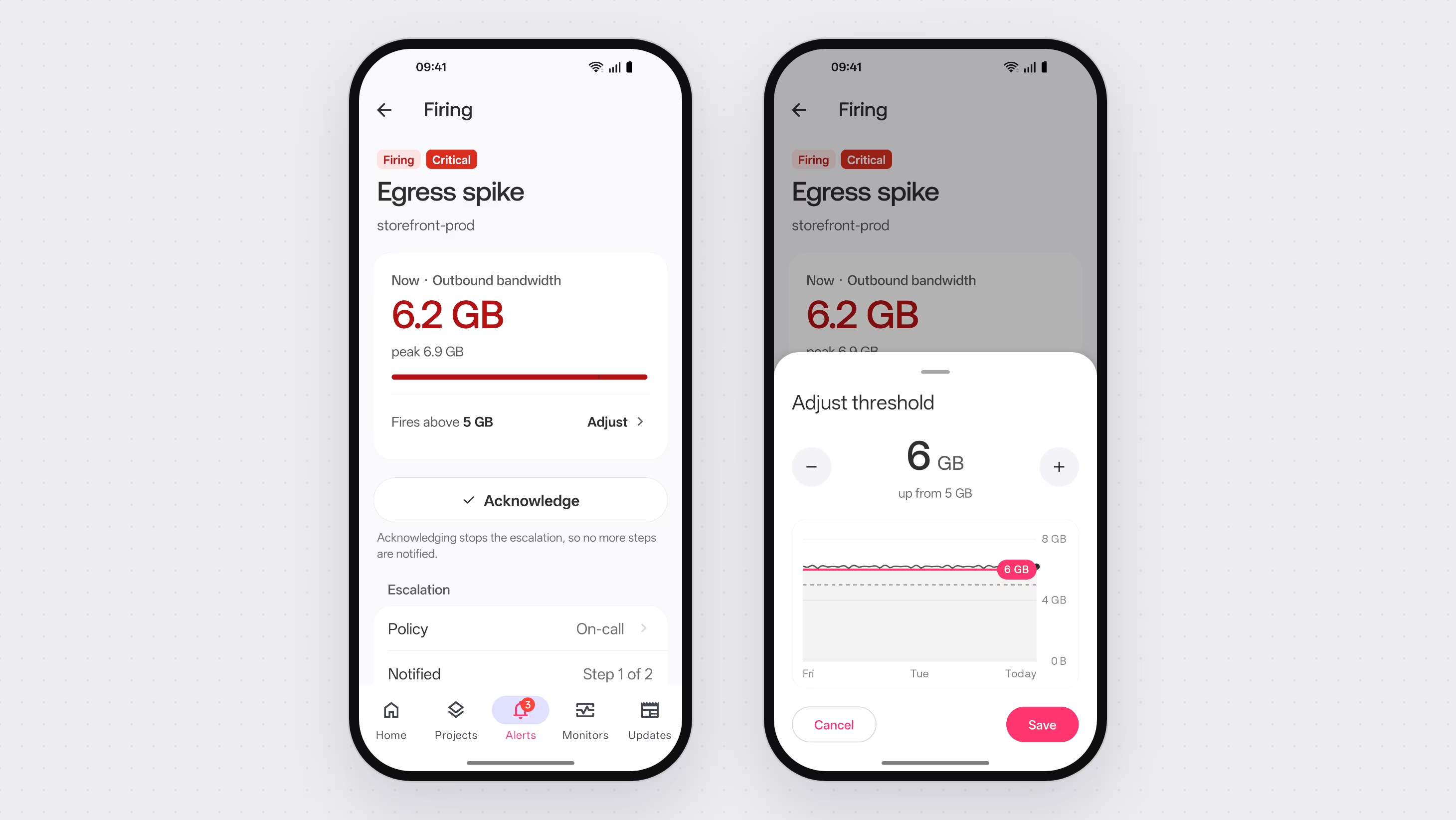
A usage alert shows the threshold it crossed. Tap Adjust to raise or lower it from the alert. The sheet charts recent usage against the new value before you save.
Critical alerts
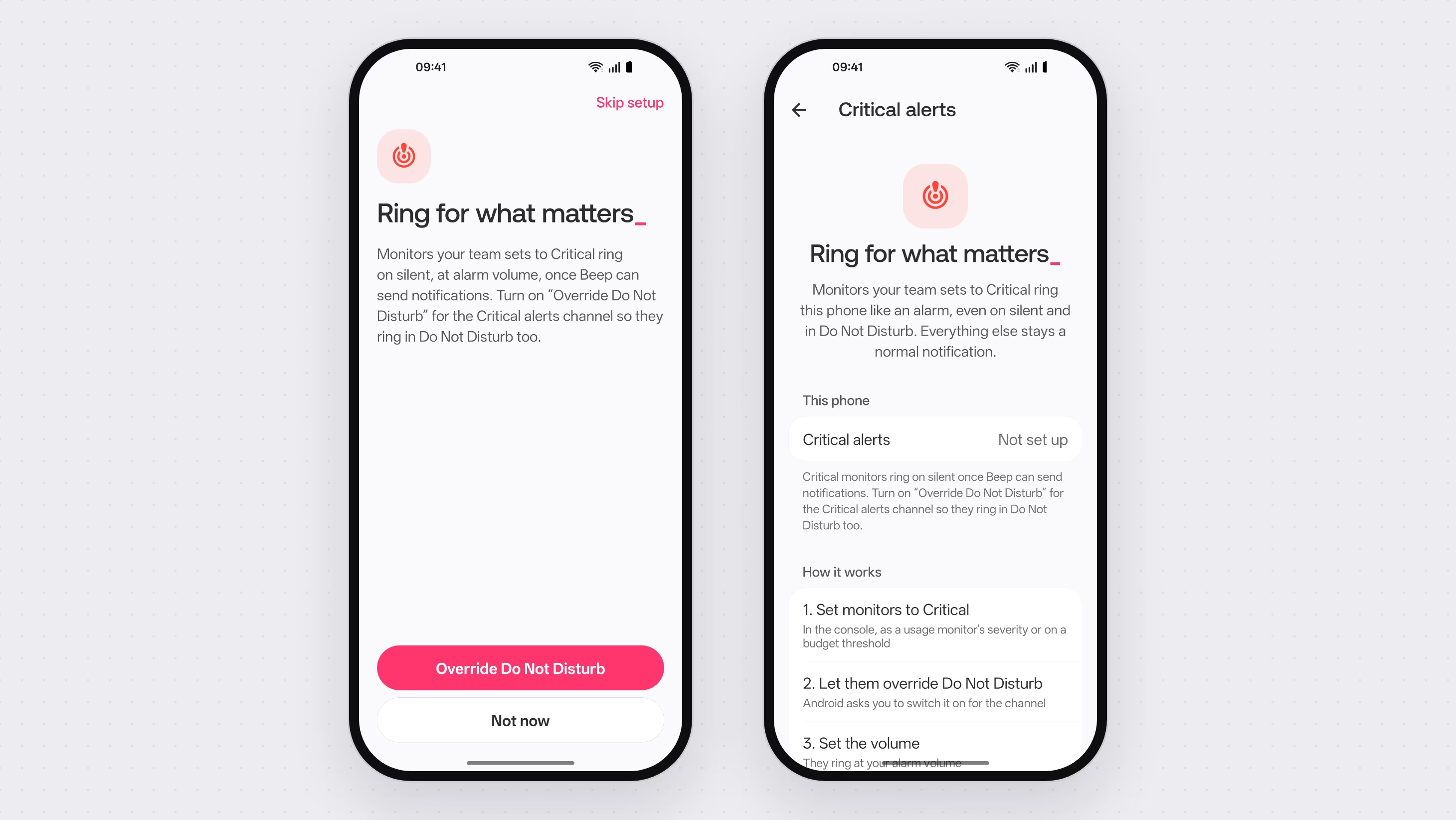
Monitors set to Critical ring on silent, at alarm volume. Everything else arrives as a normal notification.
- In the Appwrite Console, set a usage monitor's severity or a budget threshold to Critical.
- On Android, tap Override Do Not Disturb during setup, or open Settings > Critical alerts in Beep. Android asks you to allow it for the Critical alerts channel.
- Set your alarm volume. Critical alerts ring at that volume.
Snooze notifications
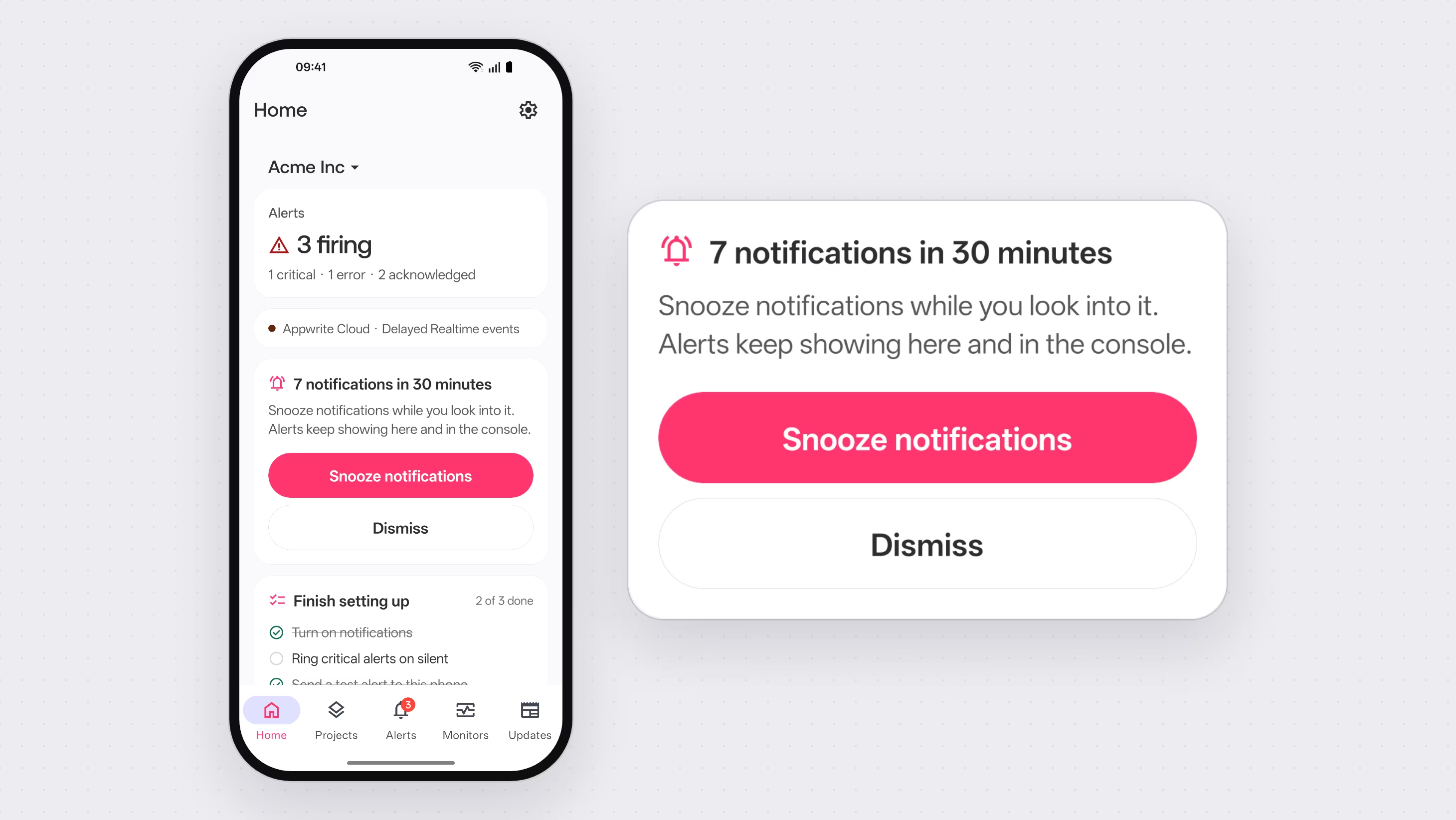
Snoozing pauses pushes from one organization, or all of them, while you handle an incident. Alerts keep firing and still show in Beep, the Console, and email. Snooze for 30 minutes, 1 hour, 4 hours, or 24 hours.
- From Home. When pushes pile up, Home offers to snooze them.
- From a push. Tap Snooze 1 hour.
- From Settings. Open Settings > Snooze to pick the organization and length.
- From the app icon. Long press it and choose Snooze for 1 hour.
Beep tells you when the snooze ends, with a button to snooze again.
Projects
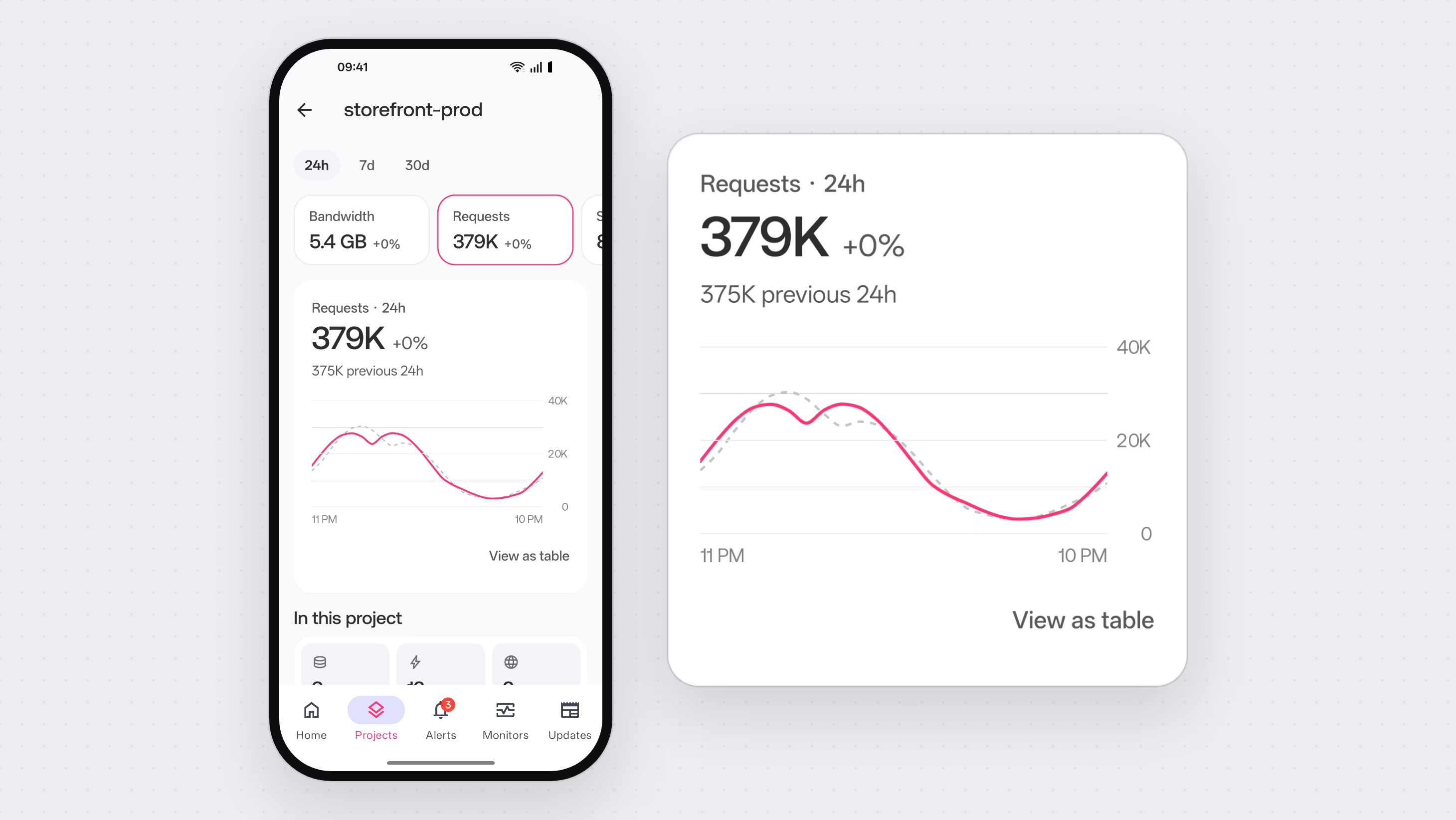
The Projects tab lists each project with its requests over the last 24 hours, and projects with firing alerts come first. Open a project to chart bandwidth, requests, storage, executions, and compute over 24h, 7d, or 30d, each against the period before it.
Monitors
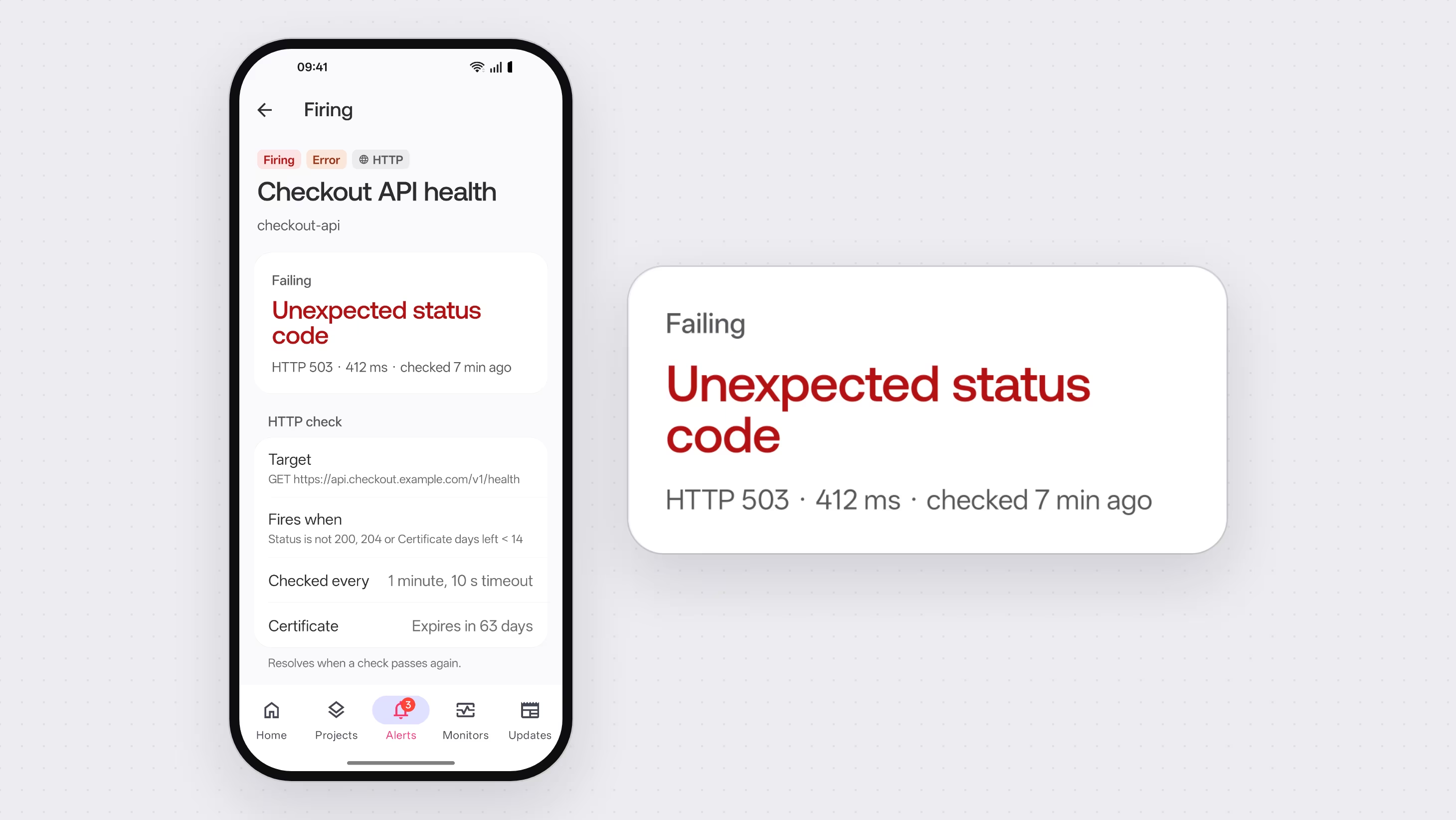
The Monitors tab lists every monitor in an organization with its latest reading: usage monitors, budget thresholds, and endpoint checks. Open a check to see what it targets, when it fires, how often it runs, and, for HTTPS, when its certificate expires.
Monitors are created in the Appwrite Console. Learn more in Monitors.
Updates
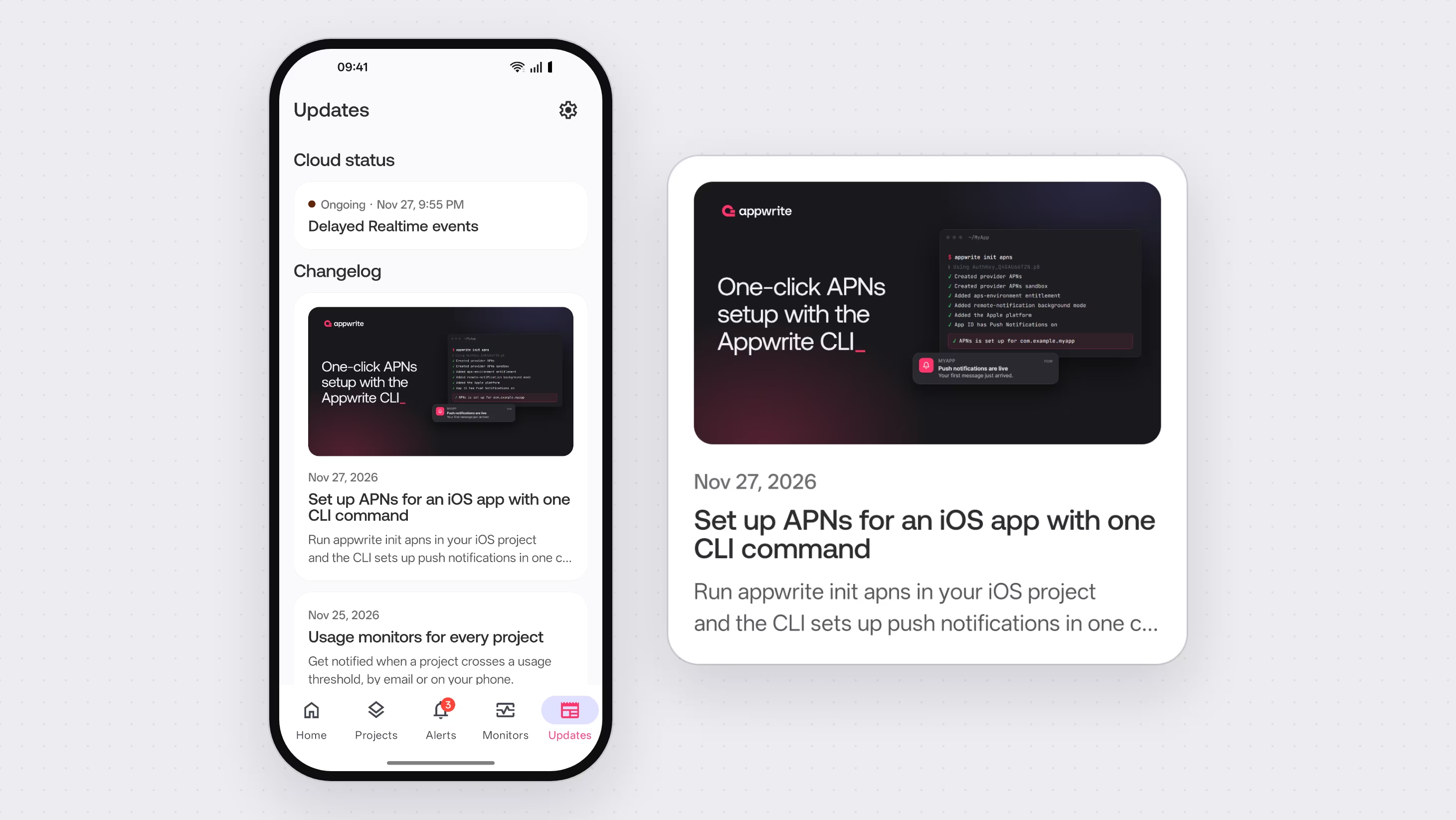
The Updates tab shows ongoing Appwrite Cloud incidents and the Appwrite changelog. With Product updates on, Beep sends a push when a new changelog entry goes live, and tapping it opens the entry.
Tablets and foldables
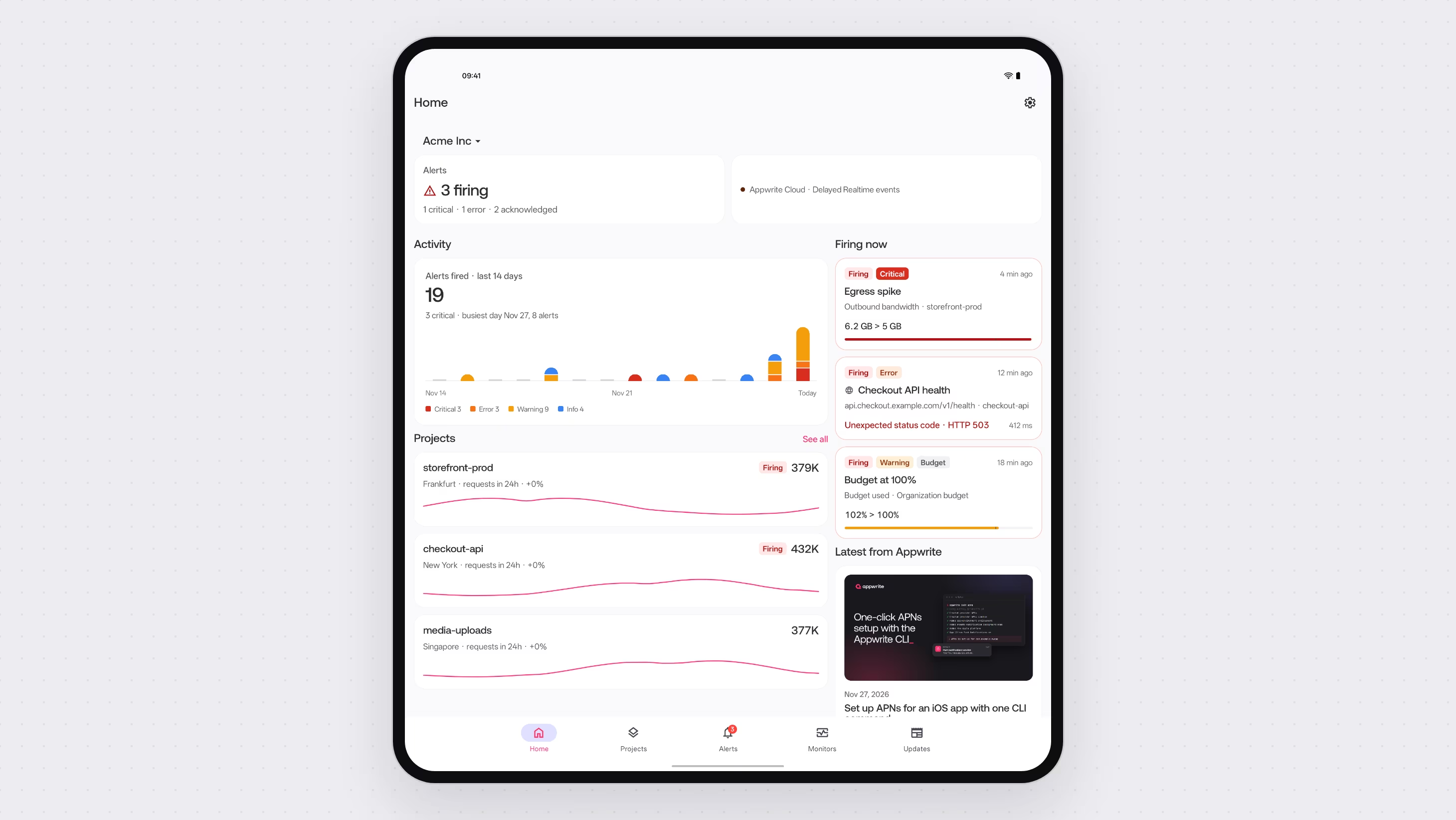
On iPad, Android tablets, and open foldables, Beep switches to a dashboard layout that follows the window width. Home puts activity, projects, firing alerts, and the latest changelog entry side by side.
Settings
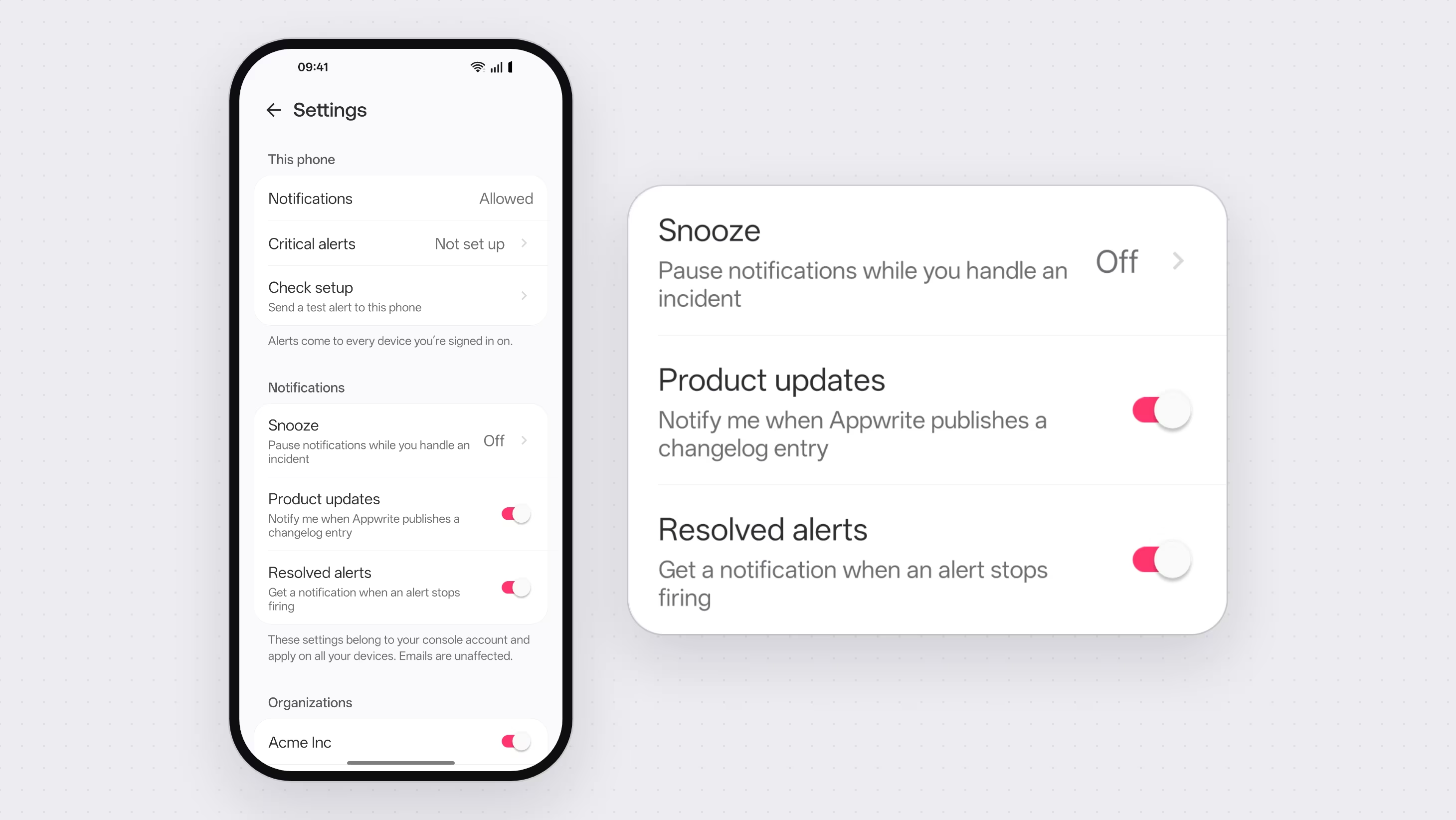
Open Settings from the gear on any tab.
- This phone. Notification permission, critical alerts, and Check setup, which sends a test alert.
- Notifications. Snooze, product updates, and resolved alerts.
- Organizations. Turn pushes on or off for each organization.
- Share usage analytics. Beep sends anonymous usage analytics without IDs or names. Turn it off here.
Notification settings belong to your Appwrite account. The same options appear in the Console: click the bell in the header, then the gear, and find Mobile pushes.
Was this page helpful?
Share what worked or what we should fix. Once approved, our agents automatically apply suggested updates to the docs.