Codex_
Use Appwrite's official ChatGPT plugin within Codex, with quick start prompts and the Appwrite MCP server for AI-assisted development.
2 min read
1. Install the Appwrite plugin
The fastest way to get started with Appwrite in Codex is to install Appwrite's official ChatGPT plugin, which can also be used within Codex. The plugin includes the hosted Appwrite connection and thirteen agent skills covering the Appwrite CLI, ten SDKs, and deployment workflows for Sites and Functions. Read the ChatGPT plugin announcement for an overview.
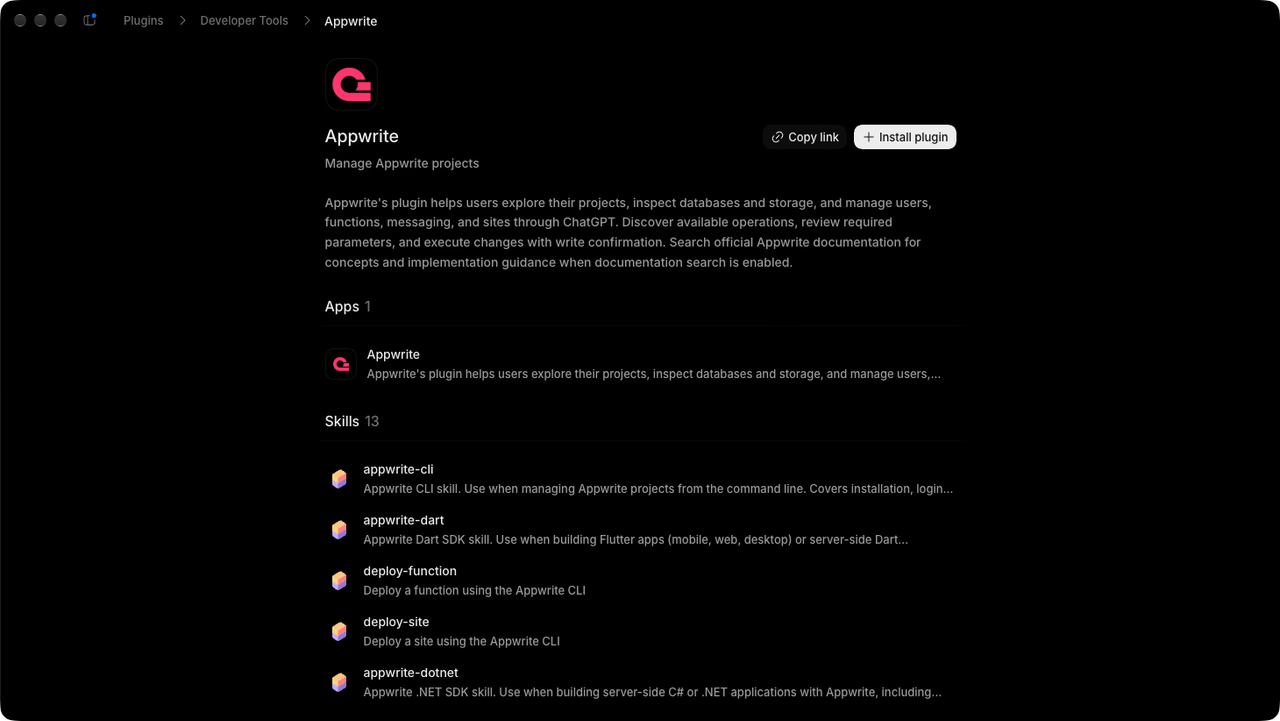
- Open the ChatGPT desktop app.
- Click Plugins in the sidebar.
- Search for
Appwriteand select the Appwrite plugin. - Click Install plugin.
- Run
codexin your terminal, then run/plugins. - Switch to the OpenAI Curated marketplace.
- Search for
Appwriteand select the Appwrite plugin. - Select Install plugin.
After installation, sign in to Appwrite and authorize access when prompted, then start a new Codex session. The language and deployment skills load based on your task. The plugin includes the hosted connection, so you do not need to add a separate MCP server. Try the prompts below or follow the Codex tutorial to select a project, create a table, and verify the result.
If you'd rather use the MCP server without installing the plugin, skip to Step 3. Manual setup is an alternative to the plugin, not an additional requirement.
2. Quick start prompts
Get started quickly with these pre-built prompts for common Appwrite integrations:


3. Manual setup without the plugin (optional)
Skip this step if you installed the plugin. To connect the Appwrite MCP server directly, use the remote HTTP server below. It gives Codex access to Appwrite APIs and documentation without running a local server.
Run the following command in your terminal to add the MCP server:
codex mcp add appwrite --url https://mcp.appwrite.io/The server uses OAuth for authentication. In case Codex does not automatically prompt you to login, run the following command to sign in to your Appwrite account and authorize access:
codex mcp login appwrite4. Test the integration
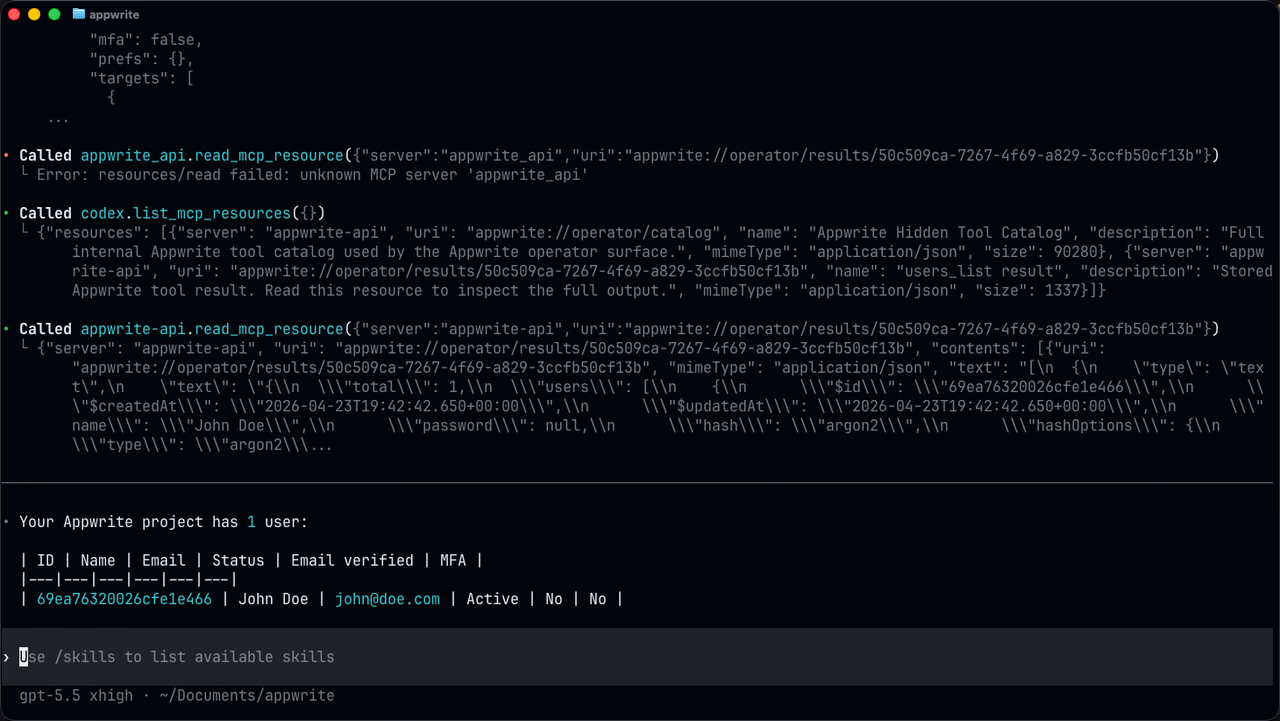
Try out the following example prompts:
Example prompts:
Create a new user in my Appwrite projectList all databases in my projectShow me the tables in my databaseHow do I set up real-time subscriptions in Appwrite?Show me how to authenticate users with OAuthHow do I implement file uploads with Appwrite Storage?
Was this page helpful?
Share what worked or what we should fix. Once approved, our agents automatically apply suggested updates to the docs.