Auth
Authenticate users securely with email, SMS, OAuth, anonymous sessions, and magic URLs.
Appwrite is an MCP & agent-first, OSS platform for building and scaling apps at the speed of thought.
Give your agents Auth, DBs, Storage, Functions, Messaging, Realtime, and Hosting - all in one place.
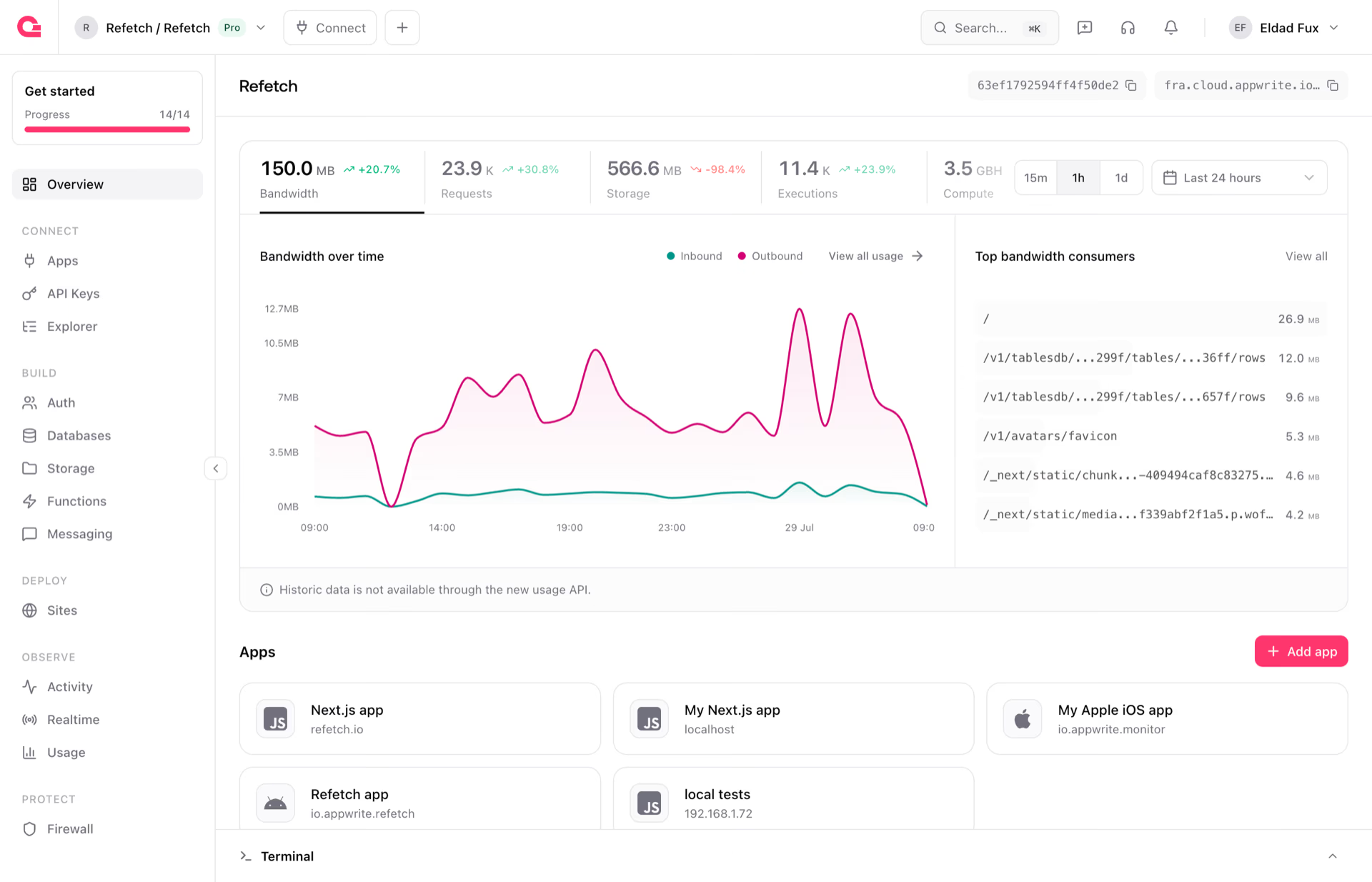
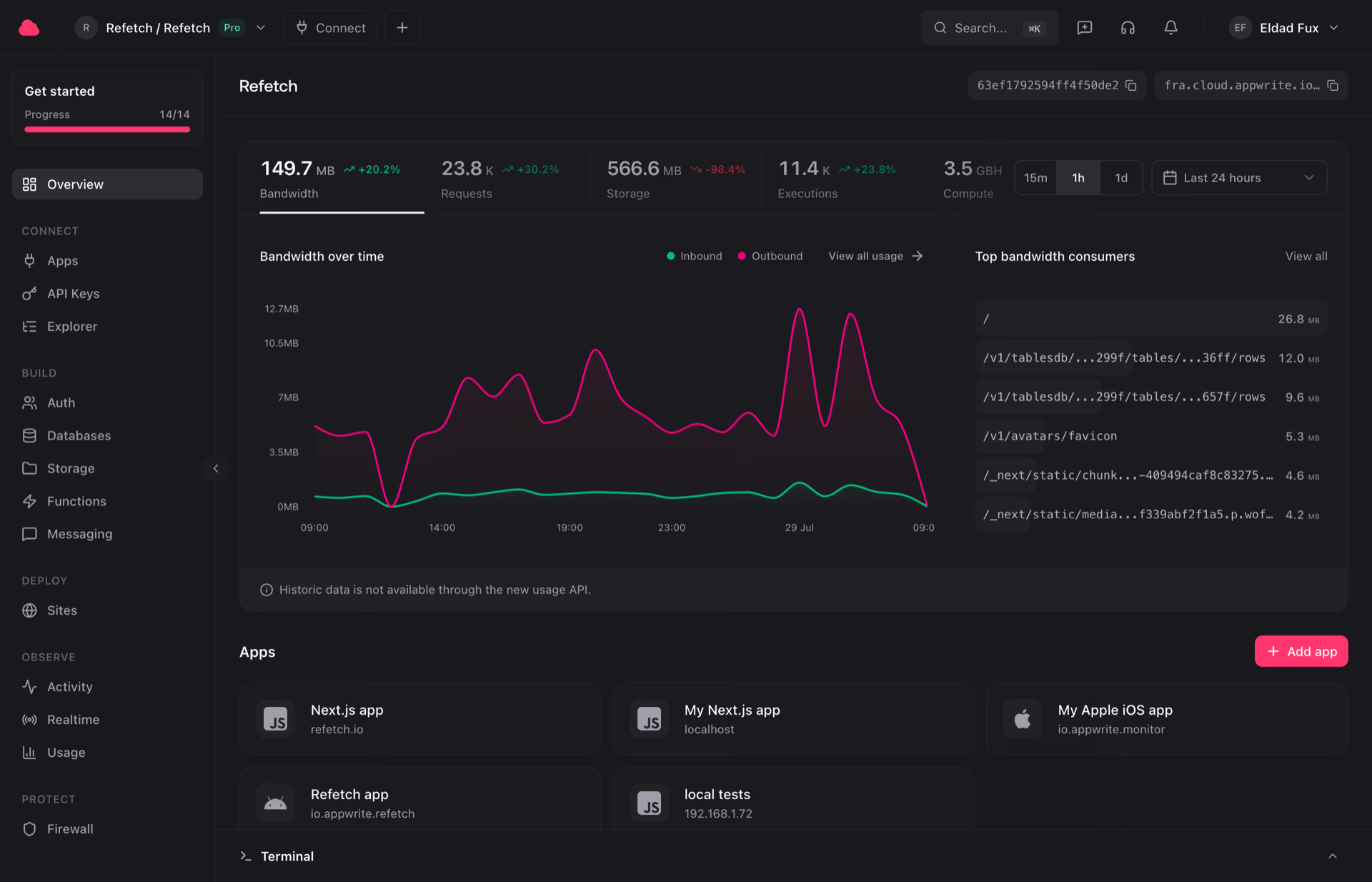


Build with modular products that feel unified from the first prototype to production scale.
Authenticate users securely with email, SMS, OAuth, anonymous sessions, and magic URLs.
Model, query, and scale with Appwrite databases or managed PostgreSQL and MySQL, so you can match your use case and team needs.
Store files with compression, encryption, image transformations, and access control.
Deploy serverless functions with secure isolated runtimes and event-driven execution.
Deploy static, SSR, and CSR frontends from Git with instant previews and Appwrite behind them.
Send email, SMS, and push notifications through a unified messaging service.
Protect apps with traffic rules, abuse controls, and edge security for every project.
Subscribe and react to events across your project as they happen.
Query Postgres, chart traffic, and ship a campaign. Your agent does it on a live Appwrite project.
We constantly benchmark platform performance against every leading model so you can see which one works best with Appwrite.
| Model | Cost/1M | Overall | Auth | TablesDB | Functions | Storage | Sites | Messaging |
|---|---|---|---|---|---|---|---|---|
| GPT 5.5 | $5.00 | 97.7% | 98.5% | 96.5% | 99.5% | 94.3% | 100% | 100% |
| Claude Opus 4.7 | $5.00 | 97.1% | 99% | 91.3% | 100% | 94.8% | 100% | 100% |
| Claude Opus 4.8 | $5.00 | 97.1% | 99.3% | 96.1% | 95% | 94.3% | 100% | 100% |
 Grok Build 0.1 Grok Build 0.1 | $1.00 | 96.7% | 92% | 96.3% | 100% | 93.5% | 99.7% | 100% |
From fast-moving startups to global enterprises, developers ship faster with Appwrite.
With a security-first approach, Appwrite helps keep products and users safe by default, making it easier to adhere to strict safety policies.
Automatically detect and mitigate distributed denial-of-service attacks.
Built-in data encryption for sensitive workloads in rest and in transit.
Protect your APIs from abuse with built-in platform safeguards.
Move data from third parties or between Cloud and self-hosted environments.
Support data privacy workflows and safeguards for GDPR requirements.
Operate on infrastructure designed for high security and privacy standards.
Protect sensitive health data with security-first product controls.
Build with controls that help protect sensitive user data.
Built into every Appwrite project: backend APIs, serverless functions, and hosted websites, with requests and assets served through our CDN and DDoS protection at the network edge. Choose global regions and edges to optimize latency, compliance, and data residency.
300+
PoP locations
24K+
Discord members
57K+
GitHub stars
300K+
Cloud projects
500K+
Developers
7B+
Requests / month
20B+
DB operations / month
The switch to using Appwrite broughtinfinite value that I’m still discovering today.
Ryan O’Connor · Founder, K-Collect


