

X, formerly known as Twitter, is a social media platform where users can post short messages, follow others, and engage in real-time conversations on topics ranging from news and politics to entertainment and technology. With hundreds of millions of active users worldwide, X is one of the most widely used social platforms and provides OAuth 2.0 support, allowing developers to authenticate users through their existing X accounts.
How does the integration work?
You can use the X OAuth adapter in Appwrite Auth for user authentication and management. This can be convenient for users because they can start using your app without creating a new account. It can also be more secure, because the user has one less password that could become vulnerable.
How to implement
To implement the X OAuth adapter in Appwrite Auth, there are several steps you must complete:
Step 1: Create an X Developer app
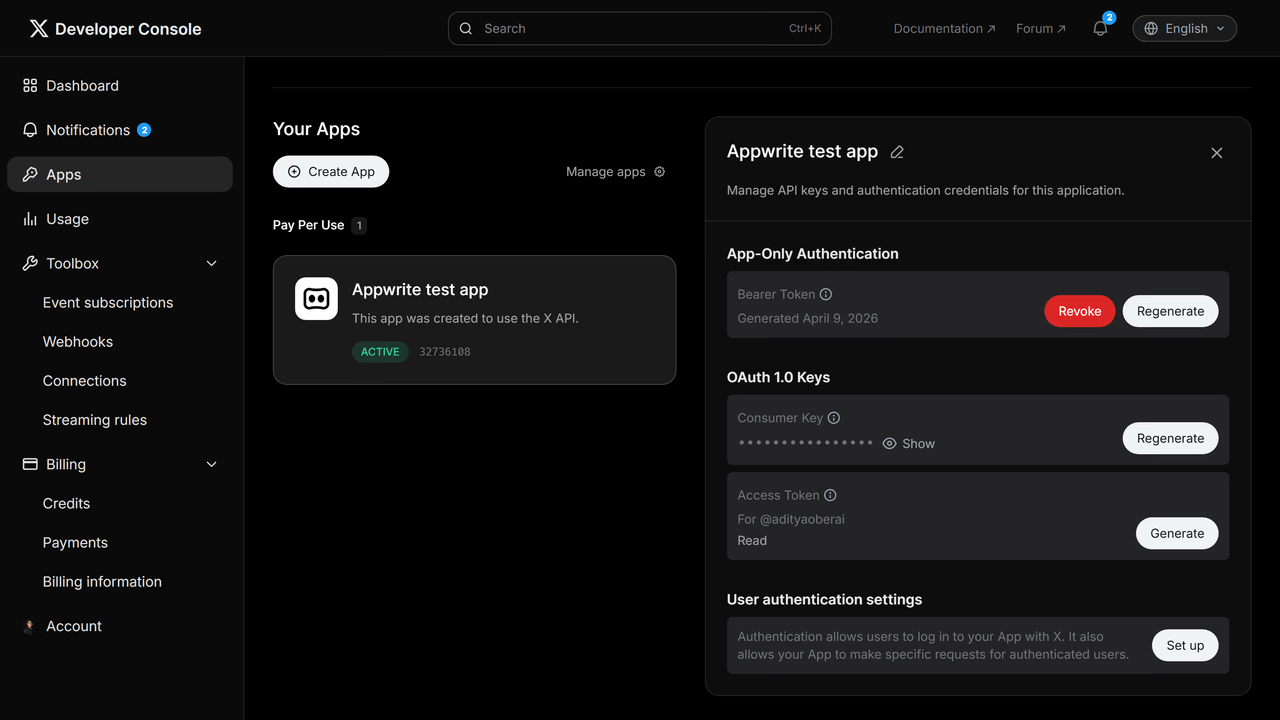
First, head to the X Developer Console and create a new project. In the Apps section, create a new app inside the project (or use an existing one). Give your app a name that reflects what you're building.
In your app's settings, scroll down to User authentication settings and click Set up. Configure the following:
- App permissions: Select Read at minimum.
- Type of App: Select Web App, Automated App or Bot.
- Callback URI / Redirect URL: Temporarily add
https://temporary-endpoint.com/. This will be replaced with the actual URI once the OAuth2 adapter is configured on Appwrite.
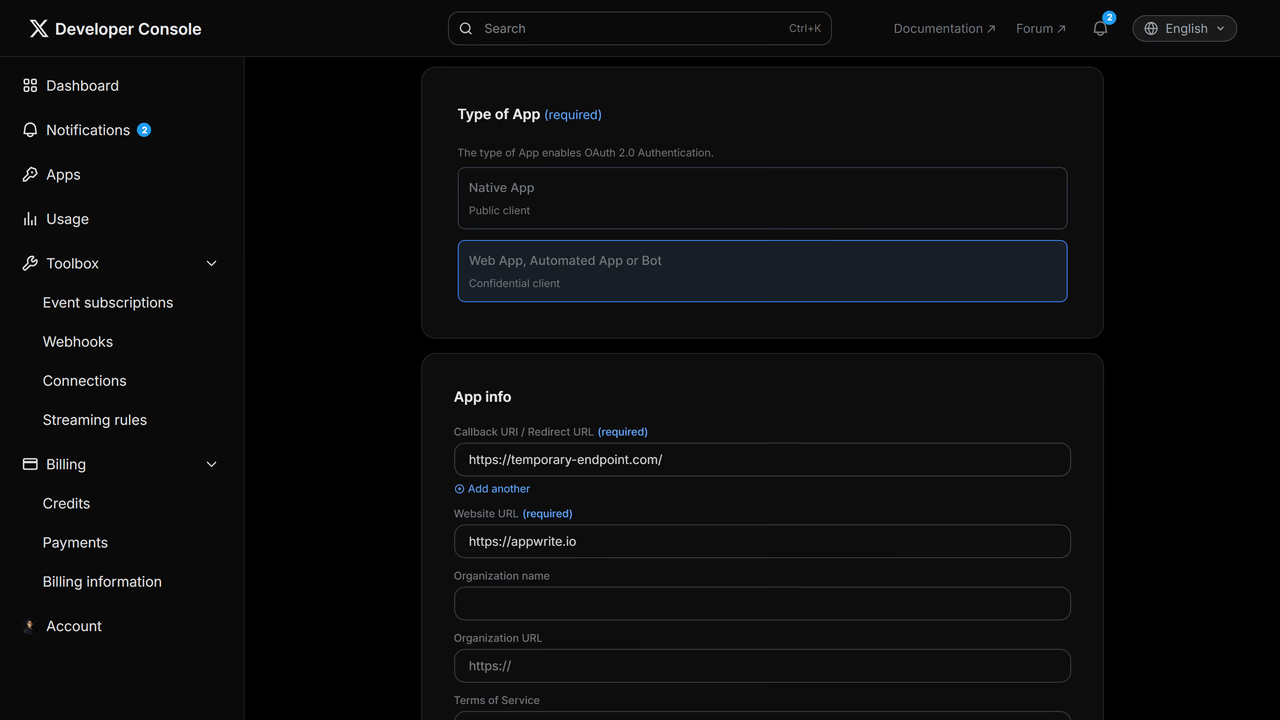
After saving, X will display a Client ID and Client Secret. Save both values for later use.
Step 2: Add X OAuth adapter to your Appwrite project
For this step, you must create an account on Appwrite Cloud if you haven't already. In your Appwrite project, head over to the Auth page, open the Settings tab, and click on X under the OAuth2 Providers section.
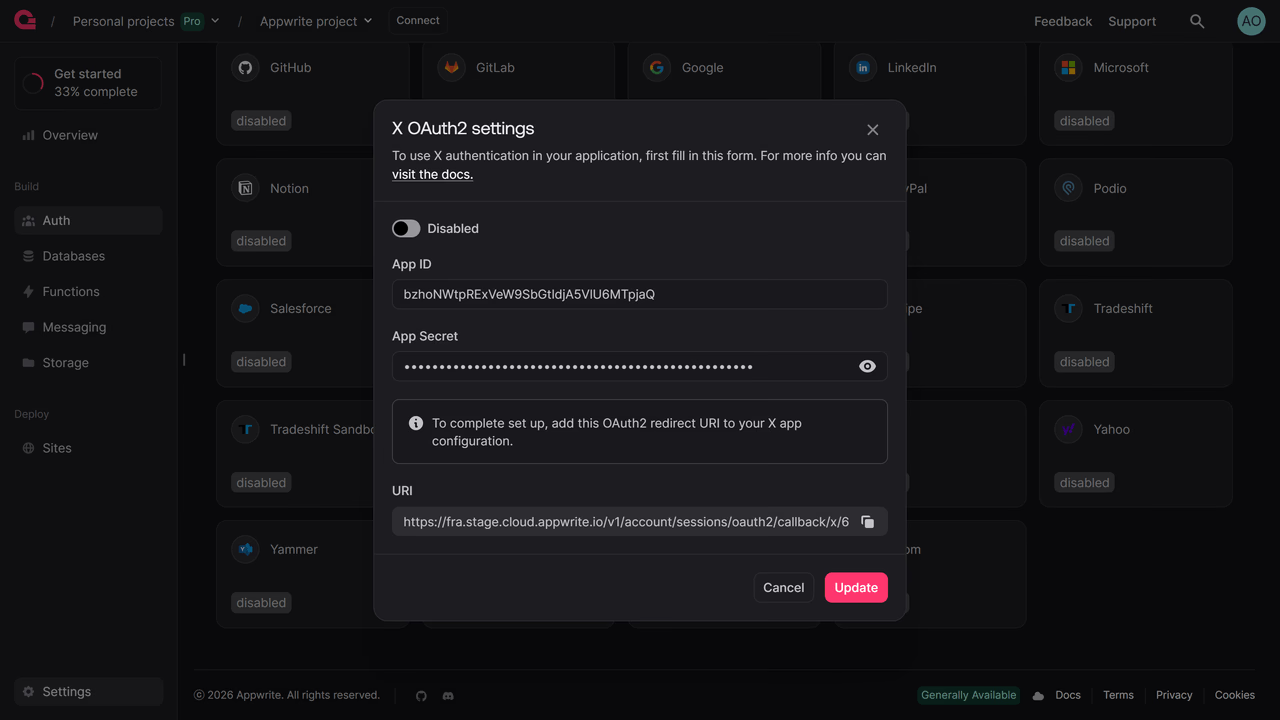
Add the Client ID and Client Secret you saved from your X app and copy the URI to replace the temporary URL in the Callback URI / Redirect URL field in your X app's user authentication settings.
Step 3: Test the provider
Follow the OAuth 2 login flow to test your provider.
Read more about X and Appwrite Auth
If you would like to learn more about X and Appwrite Auth, we have some resources that you should visit:


