Windsurf_
Learn how you can use Windsurf Editor with Appwrite by leveraging the MCP server and quick start prompts to build applications faster.
1 min read
1. Quick start prompts
Get started quickly with these pre-built prompts for common Appwrite integrations:


2. Add the MCP server
Connect the Appwrite MCP server to Windsurf for deeper integration with the Appwrite API and documentation. It is a remote HTTP server, so there are no additional pre-requisites to install.
Open the Windsurf Settings page, head to the Cascade tab, find the Model Context Protocol (MCP) Servers section, and click on the View raw config button.
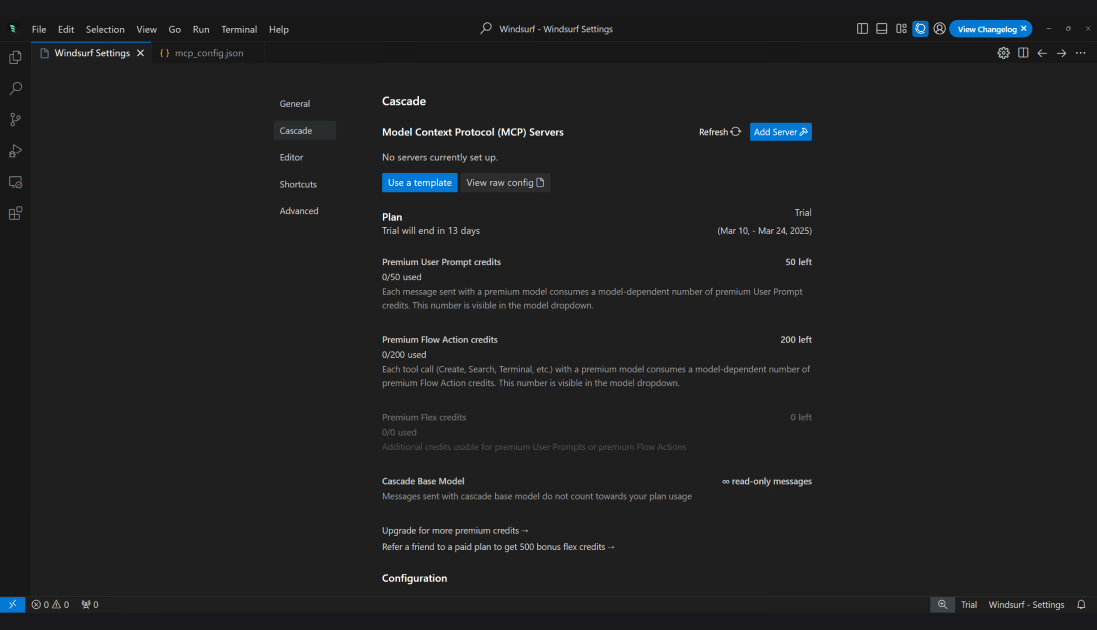
Update the mcp_config.json file to include the Appwrite MCP server:
{ "mcpServers": { "appwrite": { "serverUrl": "https://mcp.appwrite.io/" } }}The server uses OAuth for authentication. When Windsurf first connects to the server, you are prompted to log in, and your browser opens so you can sign in to your Appwrite account and authorize access.
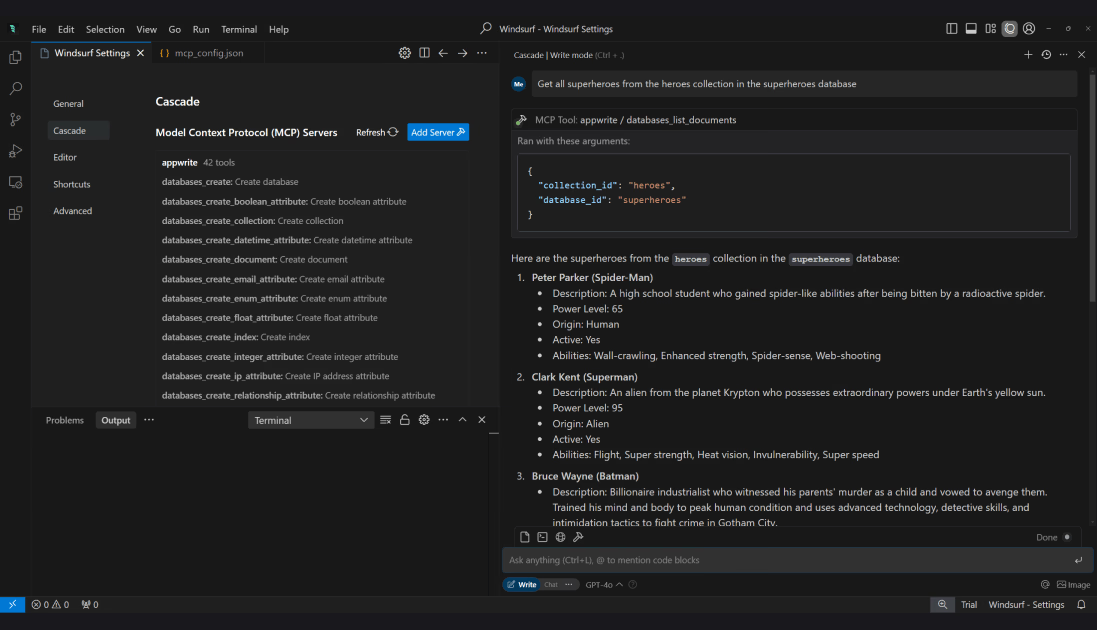
Once you save the details, head back to the MCP Servers section in the Windsurf Settings and click on the Refresh button.
3. Test the integration
Open Cascade chat in the Windsurf Editor and test your MCP integration. You can try out the following example prompts:
Example prompts:
Create a new user in my Appwrite projectList all databases in my projectShow me the tables in my databaseHow do I set up real-time subscriptions in Appwrite?Show me how to authenticate users with OAuthHow do I implement file uploads with Appwrite Storage?
Was this page helpful?
Share what worked or what we should fix. Once approved, our agents automatically apply suggested updates to the docs.