

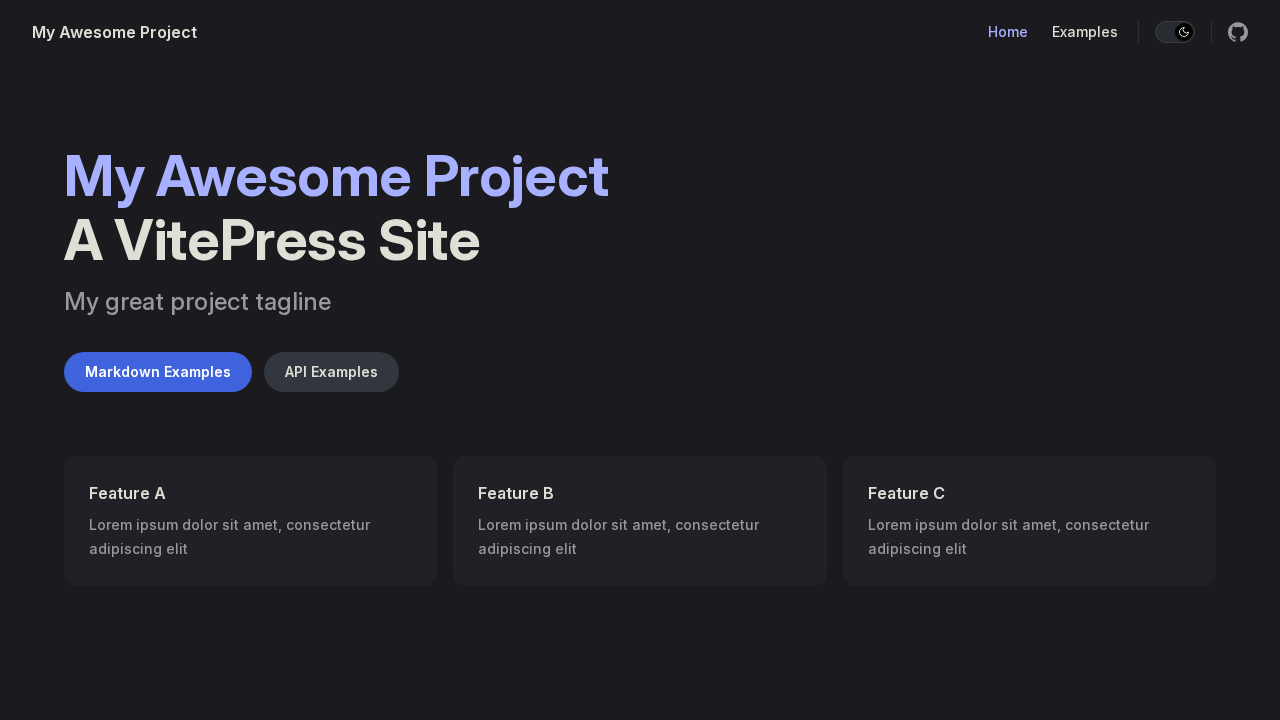
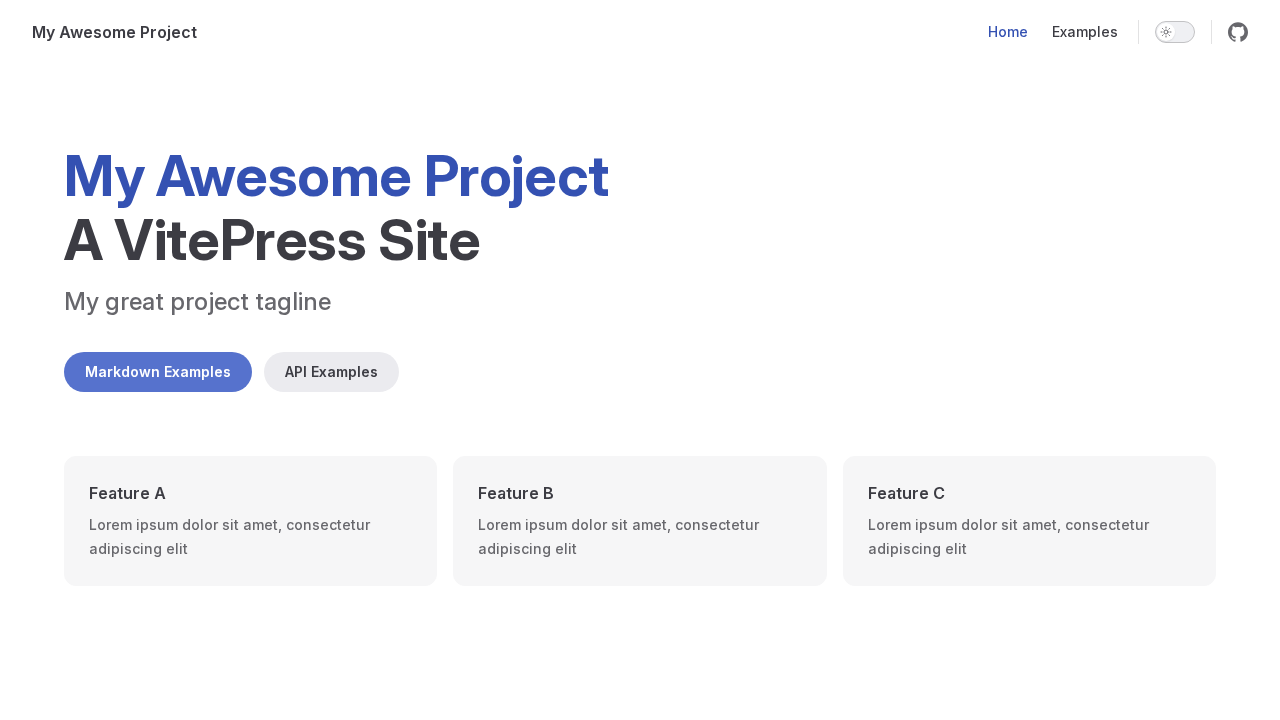
VitePress is a static site generator built on Vite and Vue. You write pages in Markdown, and its default theme adds a home page layout, navigation, a sidebar, and dark mode, which makes it a common choice for project documentation.
How does the integration work?
Appwrite Sites includes VitePress in its template library as Vitepress. When you create a site from the template, Appwrite builds the default VitePress starter from the appwrite/templates-for-sites repository and serves it as a static site on an Appwrite domain. If you connect a repository, every page you push to the production branch is built and published.
Appwrite applies these build settings to the template:
| Setting | Value |
|---|---|
| Framework | Vite |
| Install command | npm i vitepress && npm install |
| Build command | npm run docs:build |
| Output directory | ./.vitepress/dist |
| Fallback file | 404.html |
| Rendering | Static |
The template builds on the node-22 runtime, which _APP_SITES_RUNTIMES enables by default. To create a repository from the template, configure version control for your instance first. Connect later deploys the template straight from its public GitHub source.
How to implement
To deploy VitePress with Appwrite Sites, there are several steps you must complete:
Step 1: Create a site from the template
For this step, you must create an account on Appwrite Cloud or self-host Appwrite if you haven't already. In your Appwrite project, go to Sites and click Create site. Search the templates for Vitepress and select it.
Enter a Site name and a Site ID, then choose how to manage the code:
- Connect your repository creates a new repository from the template with your Git provider, such as GitHub, or connects one you already have, and redeploys on every push to the production branch. Choose this to write your own docs.
- Connect later deploys the template as it is. You can connect a repository afterwards from the site's Settings > Git repository.
Pick a subdomain under Domain and click Deploy. You can follow the build logs in the Console, and the site goes live on that domain when the build succeeds.
Step 2: Write your docs
Clone the repository and edit the starter:
.vitepress/config.mts: the sitetitleanddescription, and thethemeConfigfor the top navigation (nav), thesidebar, andsocialLinks.index.md: the home page. Its frontmatter uses thehomelayout with aheroand a list offeatures.markdown-examples.mdandapi-examples.md: sample pages that show VitePress Markdown extensions and runtime APIs. Replace them with your own pages and update the sidebar to match.
Run npm run docs:dev to preview locally, then commit and push to the production branch. Appwrite builds the change and activates the new deployment.
Step 3: Add a custom domain
Open your site's Domains tab to serve your docs from your own domain, such as a docs subdomain. Follow Add a custom domain for the DNS records to create.
Read more about VitePress and Appwrite Sites
If you would like to learn more about VitePress and Appwrite Sites, we have some resources that you should visit:

