MCP server_
Connect LLMs and code-generation tools to your self-hosted Appwrite instance with the local MCP server.
3 min read
The hosted Appwrite MCP server authenticates against Appwrite Cloud. If you are running a self-hosted Appwrite instance, use the local MCP server instead. It runs on your machine over the stdio transport and connects to your instance with an API key, allowing LLMs and code-generation tools to perform various operations on your Appwrite resources, such as creating users, managing databases, and more, using natural language commands.
Here are some of the key benefits of using the local MCP server:
- Direct API interaction: Enables LLMs to perform actions directly on your Appwrite project
- Real-time data access: Allows LLMs to fetch and manipulate live data from your Appwrite instance
- Simplified workflows: Facilitates complex operations through simple natural language prompts
- Customizable tools: Offers a range of tools for different Appwrite services, which can be enabled as needed
Events are available only on the hosted MCP server. The local server runs over stdio and does not support them.
Pre-requisites
Appwrite API key
Before launching the MCP server, create an API key with the necessary scopes enabled in your Appwrite project.
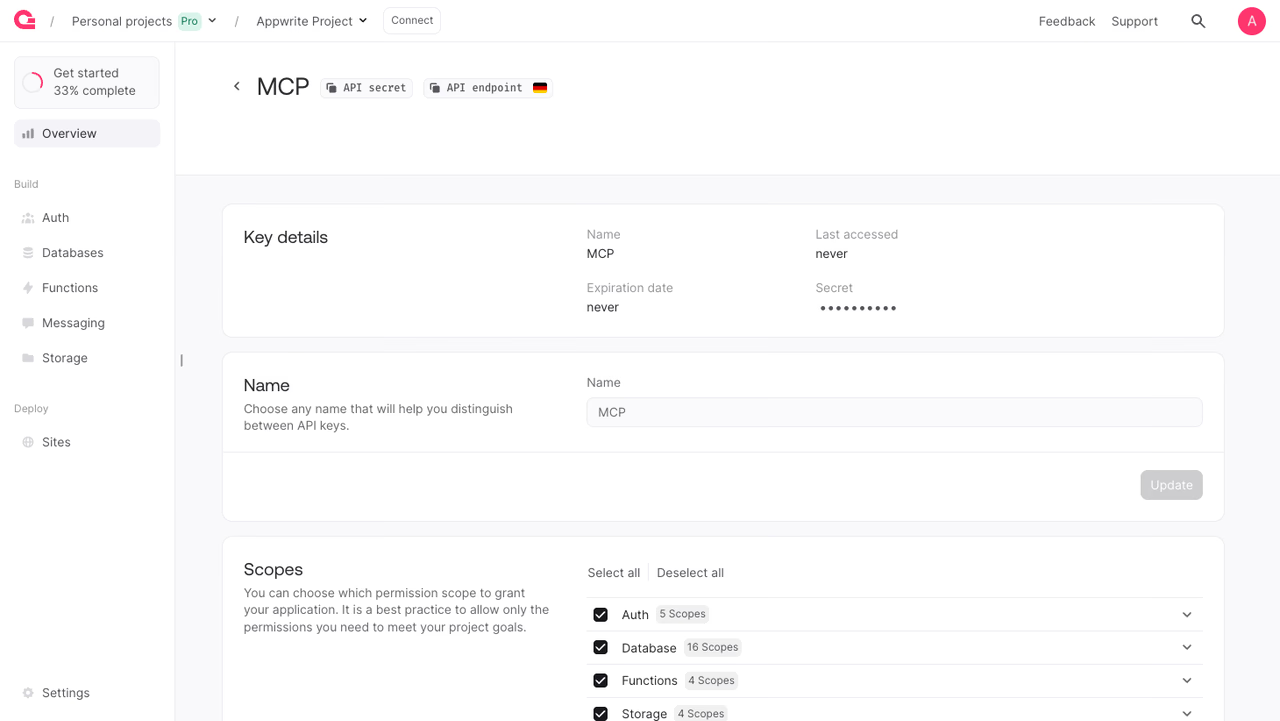
Ensure you save the API key along with the project ID and endpoint URL from the Settings page of your project as you'll need them later.
Install uv
Install uv on your system with:
curl -LsSf https://astral.sh/uv/install.sh | shpowershell -ExecutionPolicy ByPass -c "irm https://astral.sh/uv/install.ps1 | iex"You can verify the installation by running the following command in your terminal:
uvInstallation
Add the local MCP server to your AI tool's MCP configuration:
{ "mcpServers": { "appwrite": { "command": "uvx", "args": [ "mcp-server-appwrite" ], "env": { "APPWRITE_PROJECT_ID": "your-project-id", "APPWRITE_API_KEY": "your-api-key", "APPWRITE_ENDPOINT": "https://your-appwrite-domain/v1" } } }}Replace your-project-id and your-api-key with the values from your project, and point APPWRITE_ENDPOINT to your instance's API endpoint.
Command-line arguments
Database tools are enabled by default. In addition you can pass arguments to uvx mcp-server-appwrite [args] to enable other MCP tools for various Appwrite APIs.
| Argument | Description |
|---|---|
--tablesdb | Enables the TablesDB API |
--users | Enables the Users API |
--teams | Enables the Teams API |
--storage | Enables the Storage API |
--functions | Enables the Functions API |
--messaging | Enables the Messaging API |
--locale | Enables the Locale API |
--avatars | Enables the Avatars API |
--databases | Enables the legacy Databases API |
--all | Enables all Appwrite APIs |
When an MCP tool is enabled, the tool's definition is passed to the LLM, using up tokens from the model's available context window. As a result, the effective context window is reduced. Some IDEs may return errors if too many tools are enabled for the same reason.
The default Appwrite MCP server ships with only the Databases tools (our most commonly used API) enabled to stay within these limits. Additional tools can be enabled using the flags above.
Usage
Once configured, your AI assistant will have access to your Appwrite project. You can ask questions like:
Example 1: List users
Run the following prompt in your preferred code editor/LLM after enabling the MCP server:
List users in my Appwrite projectExample 2: Search a site
Run the following prompt in your preferred code editor/LLM after enabling the MCP server:
Get the details of my portfolio site from AppwriteExample 3: Create a user
Run the following prompt in your preferred code editor/LLM after enabling the MCP server:
Add a user john.doe@example.com to the Appwrite projectWas this page helpful?
Share what worked or what we should fix. Once approved, our agents automatically apply suggested updates to the docs.