Dokploy is an open-source, self-hosted deployment platform that simplifies application management through an intuitive dashboard and one-click template deployments. Appwrite is available as a template in Dokploy's template catalog, letting you deploy the complete Appwrite stack, including the database, workers, and function executor, in a few clicks. This guide walks you through setting up Appwrite on your Dokploy instance and provides necessary configuration and troubleshooting tips.
Prerequisites
Before starting, ensure your server meets the minimum requirements for hosting Appwrite with Dokploy.
Installation
Install Dokploy on your server using the command below:
curl -sSL https://dokploy.com/install.sh | shOnce the installation is complete, open the Dokploy dashboard in your web browser at http://your-server-ip:3000.
- Sign up for a new account.
- Click the Create Project button to start a new project.
- Inside the project, click Create Service and select Template.
- Search for and select Appwrite from the template catalog.
- Click Create, then open the new service and click Deploy.
Once the deployment finishes, the Containers tab lists every Appwrite service running on your server.
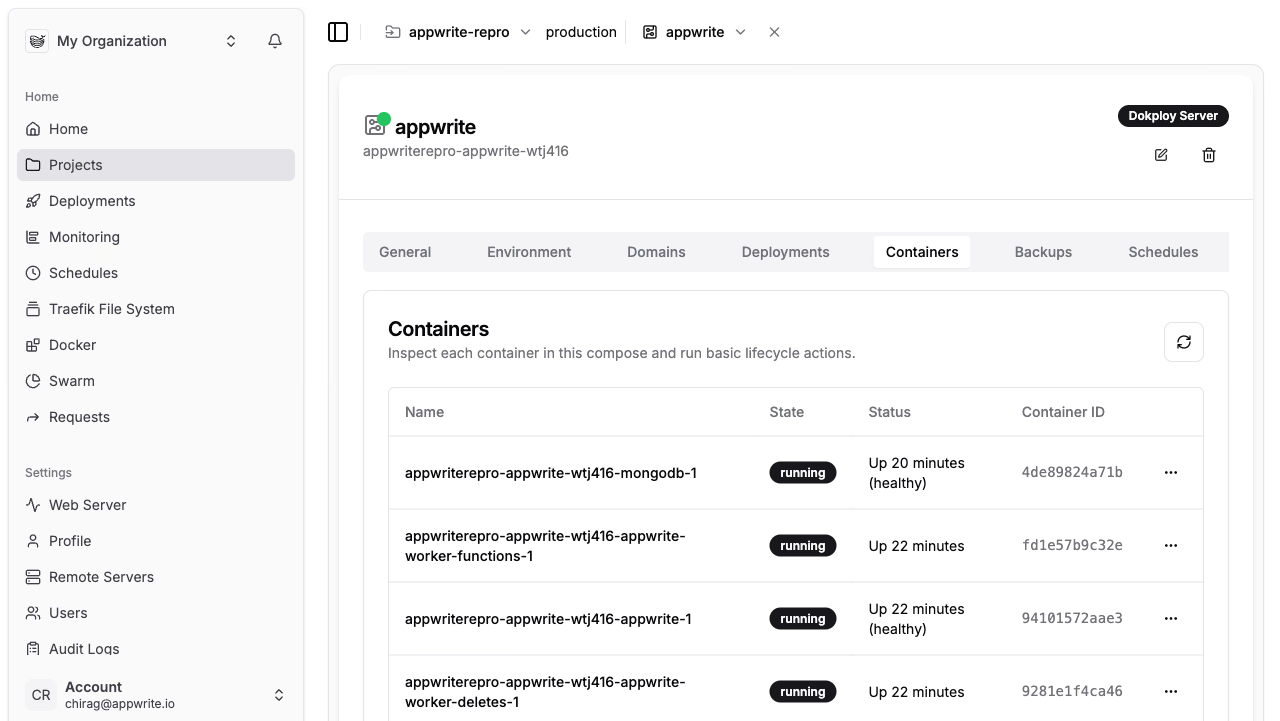
The template generates secure random secrets and pre-fills the recommended settings, but you can customize them in the Environment tab. After deployment completes, access your Appwrite console by opening the main domain from the Domains tab and navigating to /console.
Domains and HTTPS
The template configures three domains for your Appwrite instance: the main API/console domain, a sites. subdomain, and a functions. subdomain. To use your own domain:
- Point DNS
Arecords for your domain and thesites.andfunctions.subdomains to your server. - Add wildcard
Arecords for*.sites.your-domainand*.functions.your-domain, which Appwrite uses for site previews and function execution URLs. - Update the hosts in the service's Domains tab and the
_APP_DOMAIN,_APP_CONSOLE_DOMAIN,_APP_DOMAIN_SITES, and_APP_DOMAIN_FUNCTIONSenvironment variables to match. - For the main domain entries (API, console, and realtime), enable HTTPS with the Let's Encrypt certificate provider, then redeploy. These are single hosts, so Dokploy issues certificates for them automatically.
- The two wildcard domains (
*.sites.your-domainand*.functions.your-domain) need a wildcard certificate you provide — see below.
Wildcard certificates Dokploy's built-in Let's Encrypt uses the HTTP-01 challenge, which cannot issue wildcard certificates, so the *.sites and *.functions domains (used for site previews and function execution URLs) need a certificate you supply:
- Issue a wildcard certificate for
*.sites.your-domainand*.functions.your-domainwith a DNS-01 client such as lego, acme.sh, or certbot, using your DNS provider's API token. DNS-01 is required — HTTP-01 cannot validate wildcards. - Add the certificate under Dokploy → Settings → Certificates.
- In the Domains tab, set each wildcard domain's certificate provider to None (keep HTTPS enabled). This is the step most people miss: if it stays on Let's Encrypt, Traefik keeps retrying an impossible wildcard issuance and never serves the certificate you uploaded.
Traefik then serves your uploaded certificate for matching subdomains via SNI.
Simpler alternative: per-domain certificates If you only need HTTPS on a handful of specific site or function domains — for example a production site on app.sites.your-domain or a custom domain — you can skip the wildcard certificate entirely. HTTP-01 can issue a certificate for a specific hostname (just not a wildcard), so:
- In the service's Domains tab, add the exact domain (not a wildcard) with Port 80, HTTPS enabled, and the Let's Encrypt certificate provider.
- Redeploy. Dokploy issues a standard certificate for that host, the same way it does for your main domain.
The domain must resolve to your server (the wildcard A record already handles this) and be publicly reachable on port 80 for the challenge. This is easier than managing a wildcard certificate, but you repeat it for each domain and it does not cover Appwrite's auto-generated preview subdomains — use the wildcard certificate above if you need every subdomain covered automatically.
Cloudflare's free Universal SSL only covers your apex and first-level wildcard (*.your-domain), not second-level wildcards like *.sites.your-domain. If these subdomains are proxied (orange cloud), a matching edge certificate requires Cloudflare Advanced Certificate Manager. To avoid that cost, set the *.sites and *.functions records to DNS only (grey cloud) and rely on the Let's Encrypt wildcard certificate above. A Cloudflare Origin certificate will not work here — it is only trusted behind Cloudflare's proxy, never by browsers directly.
Configuration
Dokploy stores the template's environment variables in the service's Environment tab. You can modify these variables and redeploy the service to apply the changes. To enable additional features, you may need to configure some environment variables manually.
SMS Notifications To enable SMS-based OTP authentication, configure the following environment variables:
_APP_SMS_FROM=123456789_APP_SMS_PROVIDER=sms://username:password@mockEmail Notifications To enable email notifications, configure these environment variables:
_APP_SMTP_HOST=smtp.example.com_APP_SMTP_PASSWORD=password_APP_SMTP_PORT=587_APP_SMTP_SECURE=tls_APP_SMTP_USERNAME=usernameGitHub Integration To connect a GitHub App so Appwrite can build and deploy functions and sites from your GitHub repositories, set these environment variables:
_APP_VCS_GITHUB_APP_ID_APP_VCS_GITHUB_APP_NAME_APP_VCS_GITHUB_CLIENT_ID_APP_VCS_GITHUB_CLIENT_SECRET_APP_VCS_GITHUB_PRIVATE_KEYThe Github Docs provide more information on configuring your Github app.
Troubleshooting
Sites or function domains return 404 Requests to
<id>.sites.your-domainrequire wildcard DNS records (*.sites.your-domainand*.functions.your-domain) pointing to your server. Verify the records exist and that the_APP_DOMAIN_SITESand_APP_DOMAIN_FUNCTIONSenvironment variables match your configured domains.Browser shows a certificate warning on site subdomains Generated subdomains need a wildcard certificate, which Dokploy cannot issue automatically. Follow the steps in Domains and HTTPS to add one under Dokploy → Settings → Certificates.
Only deploy one Appwrite instance per server The Appwrite template runs its function executor and runtime containers on the shared Docker network, so multiple Appwrite deployments on the same Dokploy server can conflict. Use one Appwrite service per server.
Was this page helpful?
Share what worked or what we should fix. Once approved, our agents automatically apply suggested updates to the docs.