Manage environments_
Rename, reorder, and delete Appwrite project environments, and learn what happens to environments when their project is transferred or deleted.
2 min read
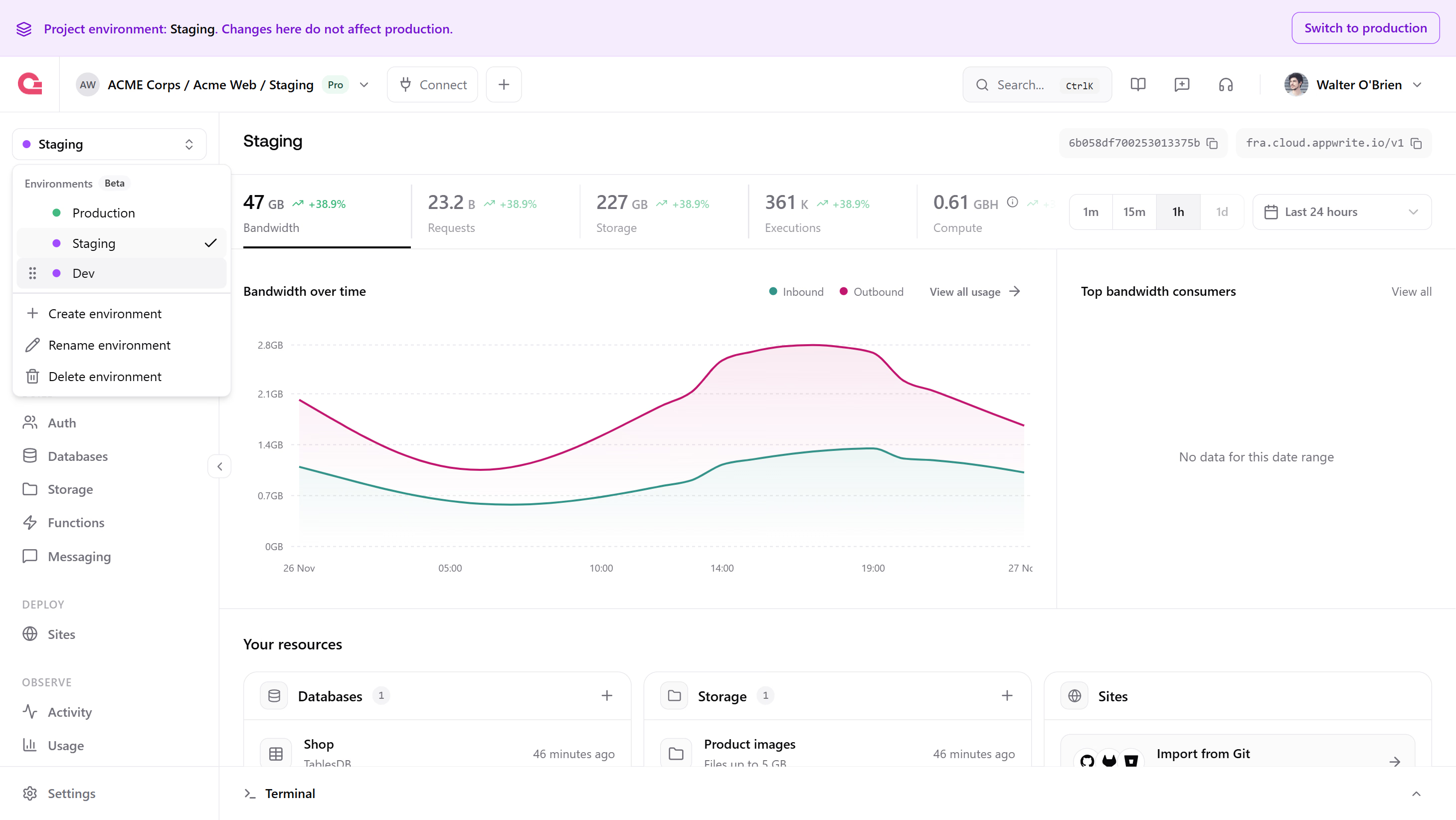
Environments are managed from the environment switcher in the project sidebar. Production, the project itself, is always first and can't be renamed or deleted from the switcher.
Rename an environment
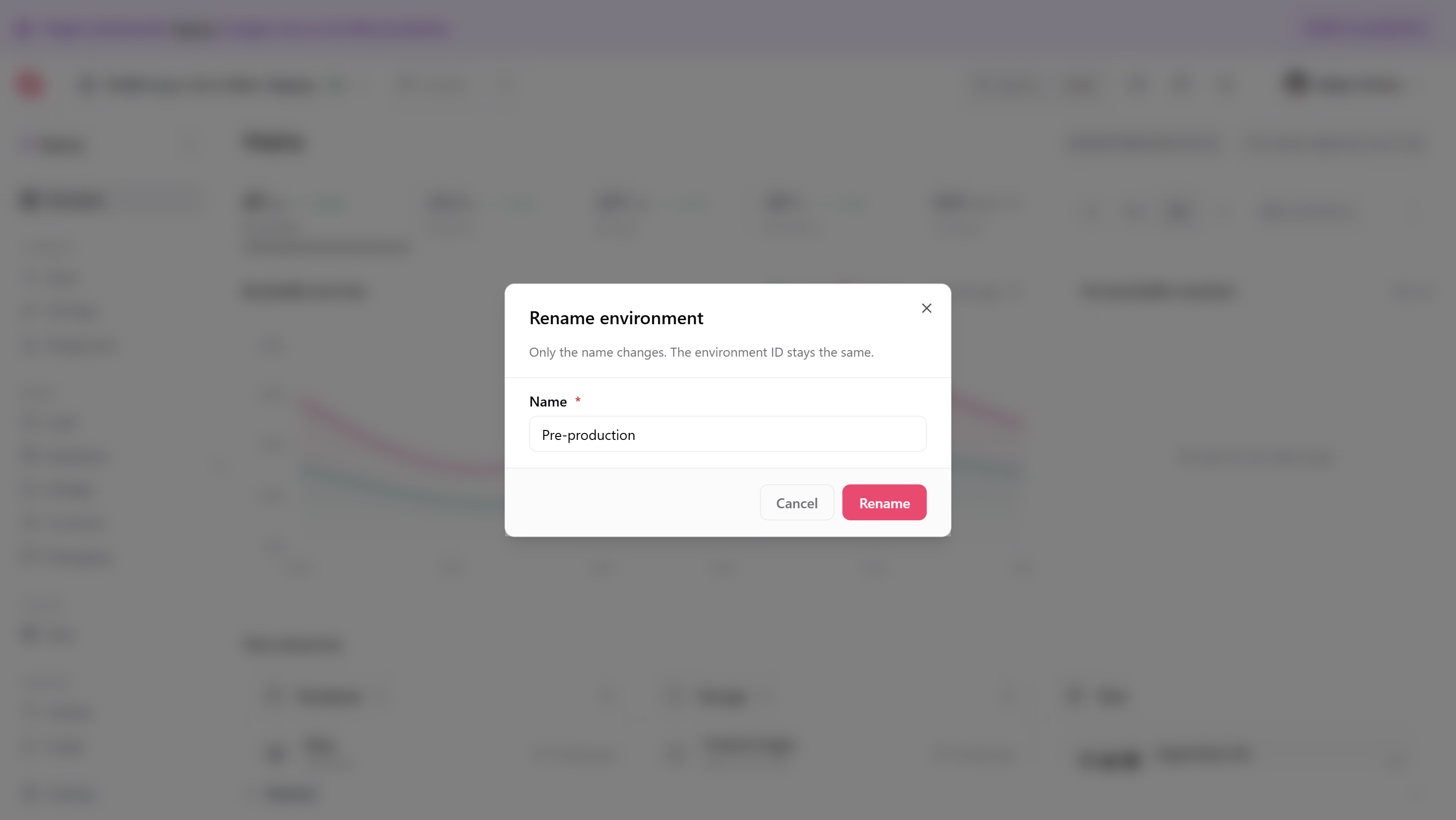
- Switch to the environment.
- Open the environment switcher and click Rename environment.
- Enter the new name and click Rename.
Only the name changes. The environment ID stays the same, so apps, CLI configs, and CI jobs that use it keep working.
Reorder environments
With two or more environments, hover over an environment in the switcher and drag its handle to move it. With the keyboard, focus an environment and press Alt+Up or Alt+Down.
Production stays first. The order is saved on the project, so everyone who opens it sees the same order.
Delete an environment
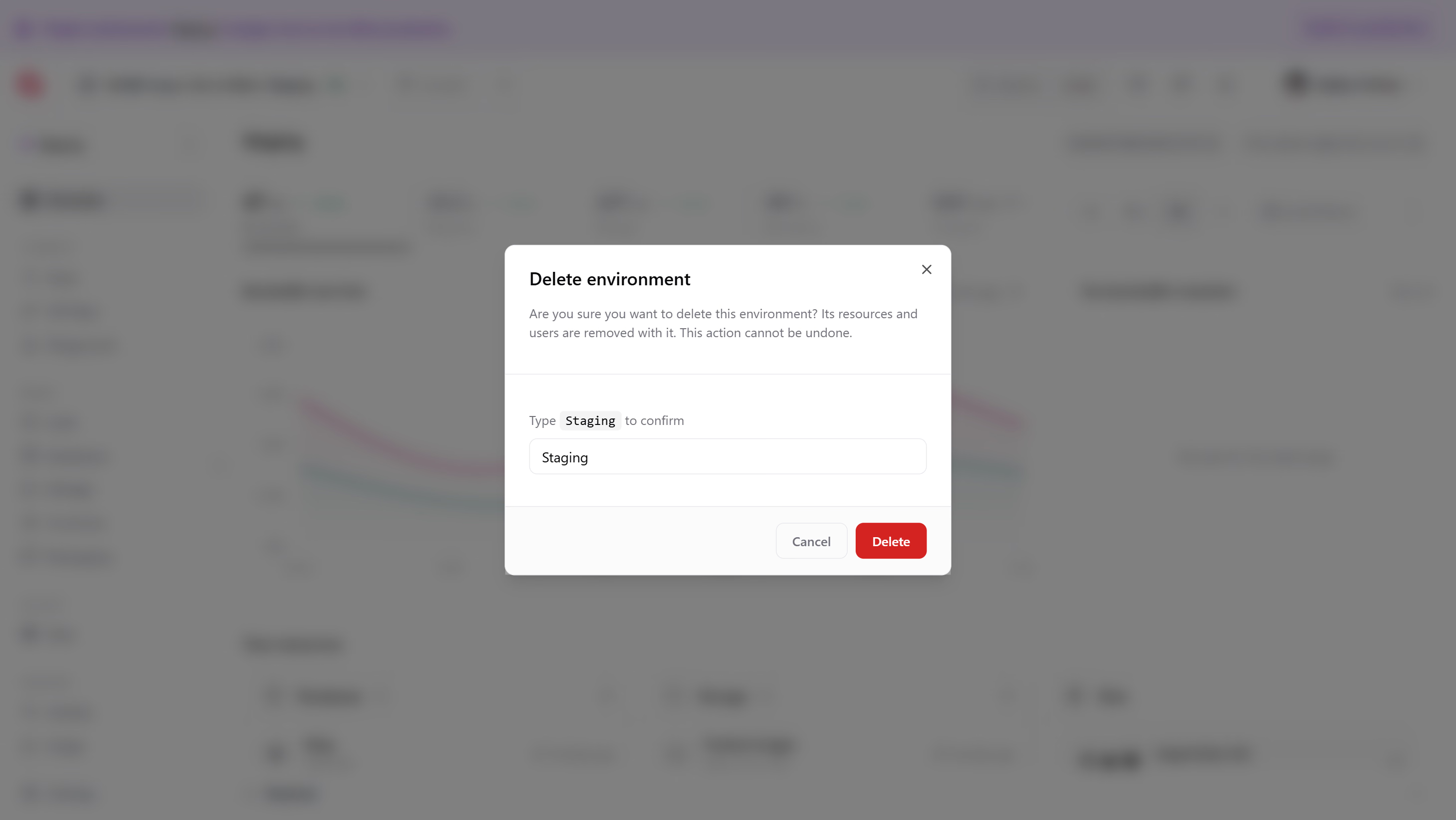
- Switch to the environment.
- Open the environment switcher and click Delete environment.
- Type the environment's name to confirm, then click Delete.
Deleting an environment deletes everything in it: databases and their data, files, users, functions, sites, keys, and settings. It can't be undone. The Console switches back to production, and production isn't affected.
The environment ID is free again once the environment is deleted, so the same ID can be used for a fresh environment.
When the project is transferred or deleted
Environments belong to their project and follow it:
- Transferring the project to another organization moves every environment with it. The transfer is refused if the target organization's plan allows fewer environments per project than the project has. An environment can't be transferred on its own.
- Deleting the project deletes all of its environments and everything in them.
Usage that environments recorded before they were deleted stays on the project's bill for the current billing period.
Was this page helpful?
Share what worked or what we should fix. Once approved, our agents automatically apply suggested updates to the docs.