Block traffic with Firewall_
Turn what Appwrite Analytics shows into Firewall rules for a site. Block a country, serve only one country, or deny a bot or a page, starting from the dashboard.
3 min read
Analytics shows who visits your site, and Firewall decides who reaches it. When a property tracks a site hosted on Appwrite Sites, you can start a Firewall rule for that site from a country, region, city, hostname, page, or bot on the dashboard.
Before you start
- The property must be linked to the site: its domain has to be one of the site's domains. See Properties.
- You need permission to create Firewall rules in the project.
Start a rule from the dashboard
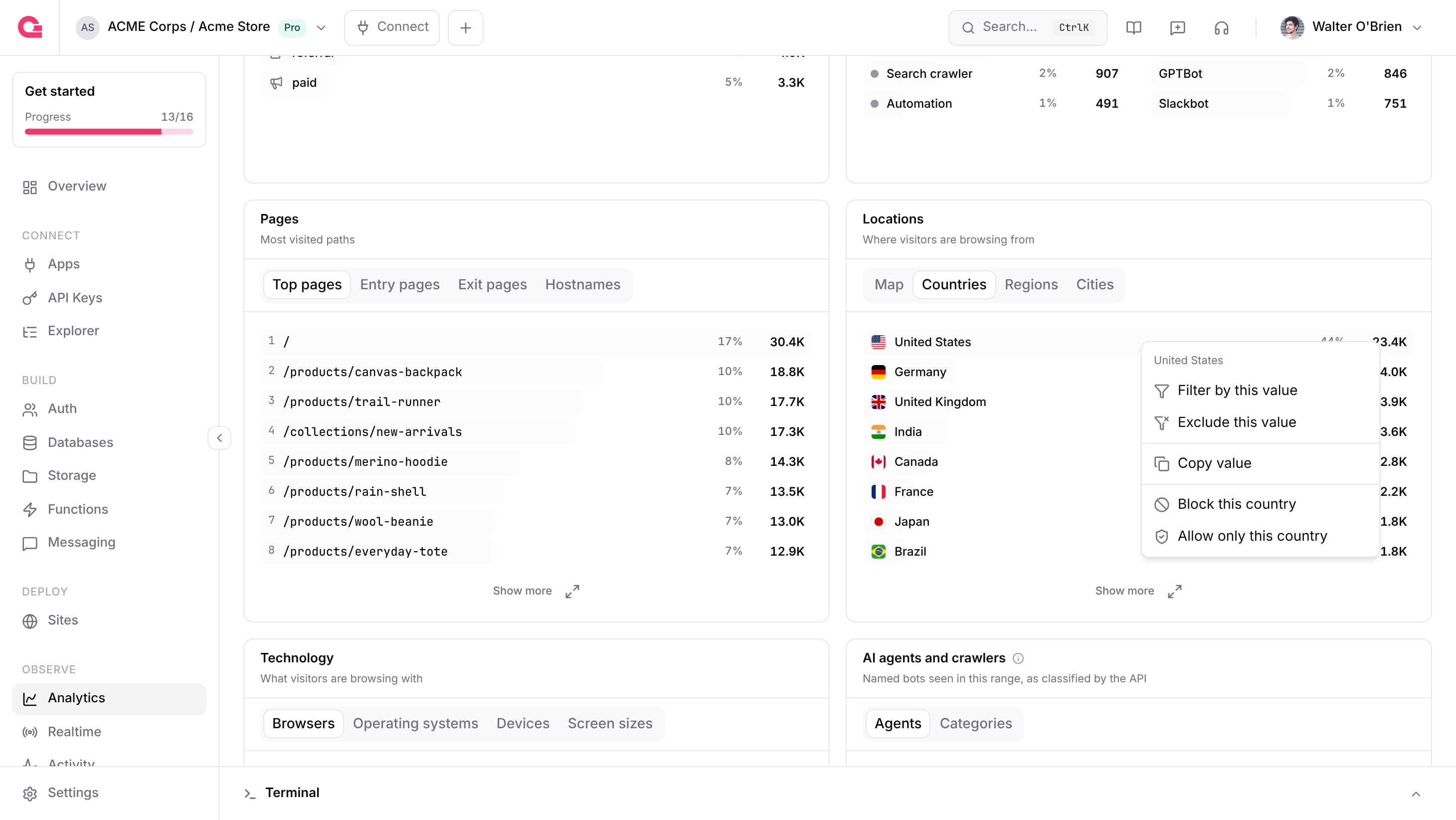
- Open the property's dashboard.
- Right-click a value in a card, such as a country on the Countries tab of Locations.
- Select Block this country, Allow only this country, or Create firewall rule.
Each value becomes a condition on the new rule.
- Country: Block this country adds a condition that the country equals it. Allow only this country adds one that the country doesn't equal it.
- Region or city: Create firewall rule adds a condition that the region or city equals it.
- Hostname: Create firewall rule adds a condition that the hostname equals it.
- Page, entry page, or exit page: Create firewall rule adds a condition that the path equals the page.
- Bot: Create firewall rule adds a condition that the user agent contains the bot's name, such as
GPTBot.
Allow only this country also adds a condition that the country is known, so requests whose location Appwrite can't resolve still reach your site.
Other values, such as browsers and channels, have no Firewall action.
The bot condition uses the name the dashboard shows. When that name has a space, such as ChatGPT User or Google AdsBot, the bot's user agent usually spells it differently, such as ChatGPT-User or AdsBot-Google. Change the condition's value to the text from the user agent.
Review and create the rule
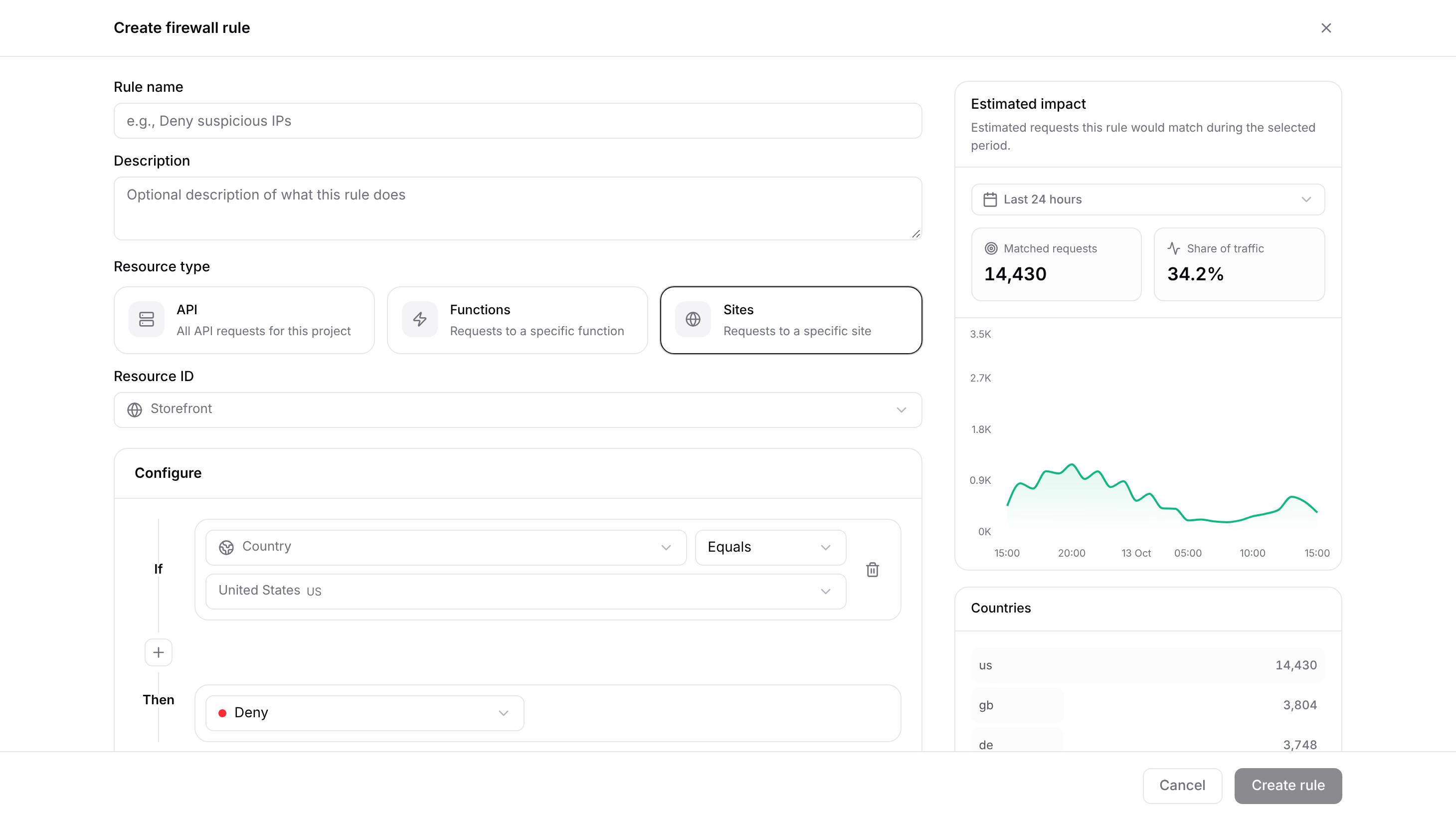
The Create firewall rule page opens with Sites, the linked site, the condition, and the Deny action filled in.
- Enter a Rule name, such as
Block GPTBot. - Check Estimated impact, which shows how many of the site's recent requests the rule would have matched, and their share of its traffic.
- Change the action if you need to. For example, Challenge checks that a visitor is a person instead of denying every request. See Actions.
- Click Create rule.
The rule applies to the site from then on. To manage it later, open Firewall in your project. See Rules.
Analytics and Firewall numbers
The two products count different things, so their numbers don't match. Analytics counts the events your tracking code sends, once per pageview or action. Firewall counts every request to the site, including scripts, styles, and images, and requests from clients that never run your tracking code.
After a rule denies traffic, those visitors no longer load your pages, so they stop appearing in Analytics.
Was this page helpful?
Share what worked or what we should fix. Once approved, our agents automatically apply suggested updates to the docs.