Properties_
A property collects Appwrite Analytics events for one website or app. Create properties, control which origins can send events, link a property to a site, and turn off or delete a property.
5 min read
A property is one website or app you track. Every event belongs to a property, and each property has its own dashboard, settings, and property ID. A project can hold several properties, for example one for your marketing site and one for your mobile app.
Your tracking code and the Analytics API identify a property by its property ID. The Console shows it next to the property name, with a button to copy it.
Properties in a project
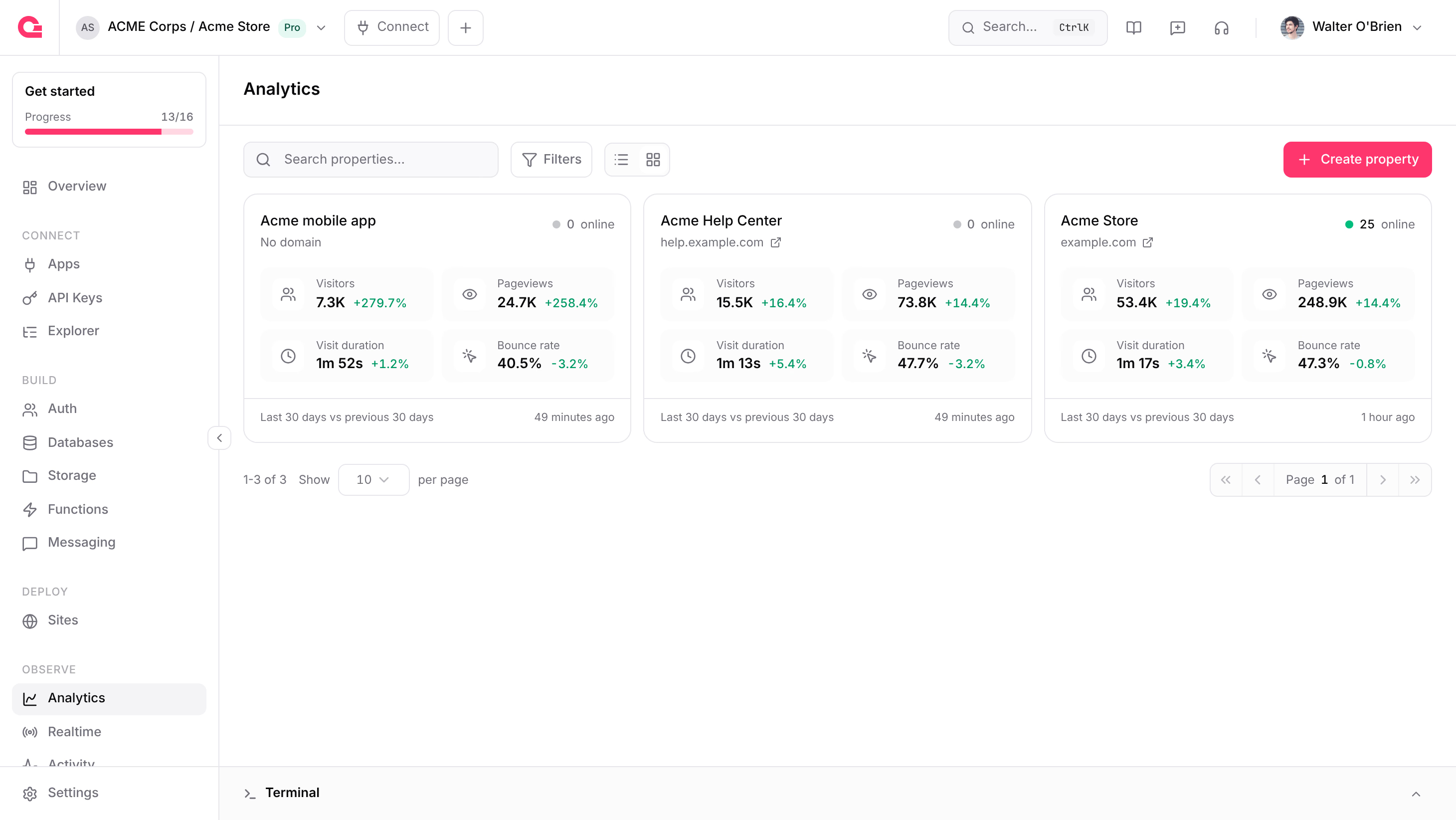
Open Analytics in your project to see every property. Each card shows how many visitors are online and the last 30 days of visitors, pageviews, visit duration, and bounce rate, compared with the 30 days before. Click a property to open its dashboard.
How many properties a project can hold depends on your plan. See Limits and retention.
Create a property
- In your project, open Analytics and click Create property.
- Enter a Name, such as the name of your site or app.
- Enter the Domain your site runs on, such as
example.com. It's optional, and native apps can leave it empty. - Choose a Platform: Web, Flutter, or REST. The platform only decides which install instructions you see next, so you can track the property from any platform later.
- Click Create property.
Appwrite generates the property ID. To choose your own, set Property ID before you create the property. It can't be changed afterwards.
The Console then shows the install code for the platform you chose, with your endpoint, project ID, and property ID filled in. It waits on the same screen until the first event arrives. For each platform, see Track a website, Track a Flutter app, or Send events over REST.
Settings
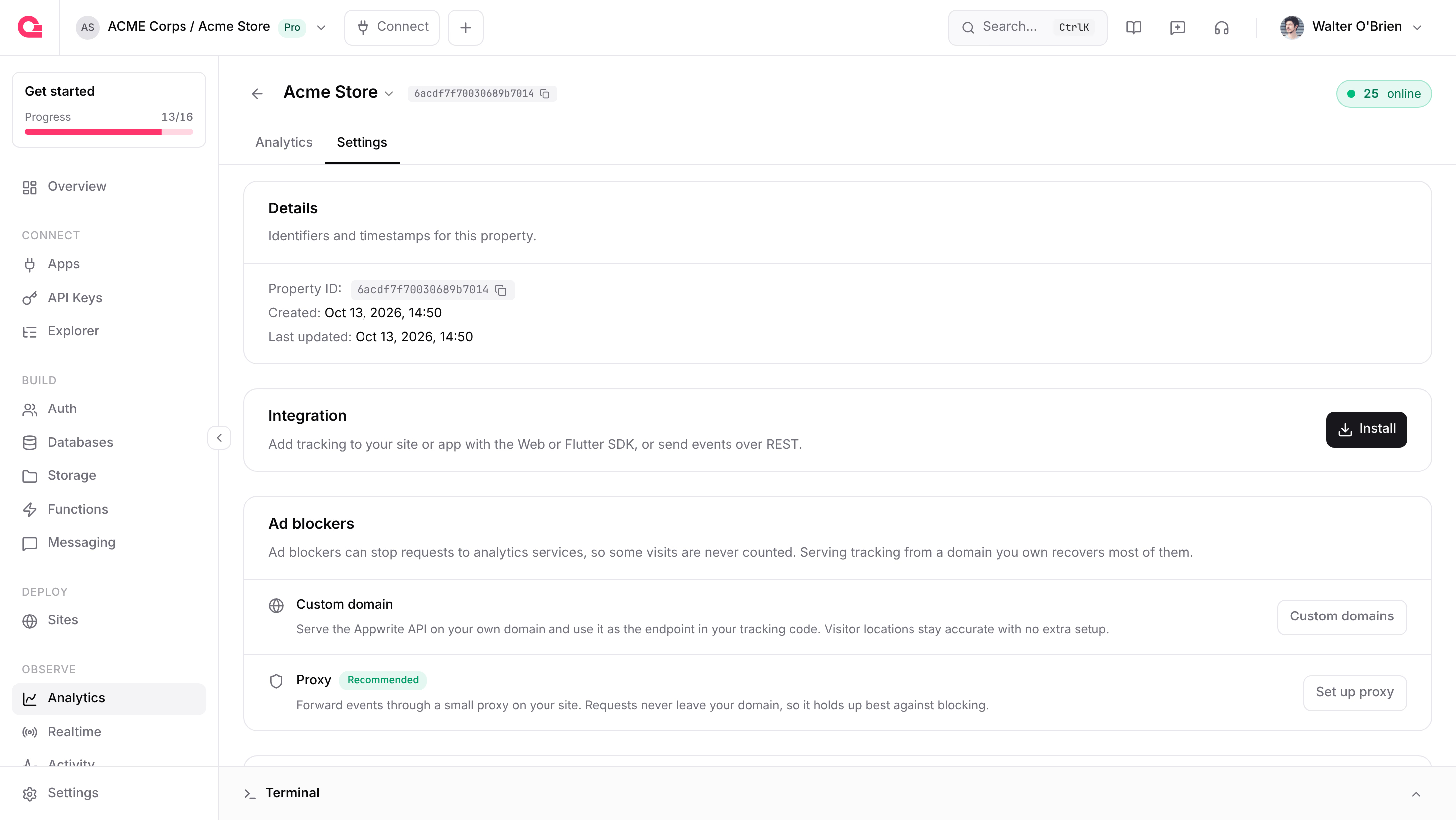
Open a property and select the Settings tab to manage it.
- Details shows the property ID and when the property was created and last updated.
- Integration opens the install code again with Install.
- Ad blockers links to the two ways to send events through a domain you own. See Serve tracking from your domain.
- Name, Domain, Allowed origins, and Tracking update the property.
- Delete property removes it with all of its data.
Domain
The domain is the main hostname you track, such as example.com. Appwrite uses it to link the property to a site you host on Appwrite. See Sites.
The domain doesn't filter events. A property counts events from every hostname that sends them, and the Hostnames tab on the dashboard lists each one.
Allowed origins
Allowed origins control which sites and apps can send events to the property without an API key. New properties allow every origin with *.
To accept events only from your own sites, replace * with each origin, such as https://example.com and https://www.example.com. An origin must match exactly, including the scheme and any port, so add http://localhost:5173 separately for local development. A property can list up to 64 origins.
Flutter apps on Android, iOS, macOS, Windows, and Linux send an origin made of appwrite-, the platform, and the app's package name or bundle ID, such as appwrite-android://com.example.shop. Add these origins to accept events from your apps.
Appwrite rejects events from any other origin with a 401 general_access_forbidden error. While the list doesn't contain *, events sent without an Origin header are rejected too, such as events sent with cURL from a server.
Events sent with an API key that has the analytics.write scope skip this check. A property with no allowed origins only accepts those events, which suits a property you track entirely from your server. See Track events from your server.
Allowed origins add to the rule that browsers and apps must belong to one of your project's apps. An origin on this list still needs a Web app for its hostname, or a Flutter app for its platform, under Apps.
Turn tracking off
Turn off Tracking to stop collecting events without losing data. While tracking is off, Appwrite rejects new events for the property with a 404 analytics_property_not_found error, and the dashboard keeps showing the data collected so far. Turn it back on to resume.
Delete a property
Click Delete under Delete property and enter the property name to confirm. Appwrite permanently deletes the property and every event and visit collected for it. This can't be undone.
Sites
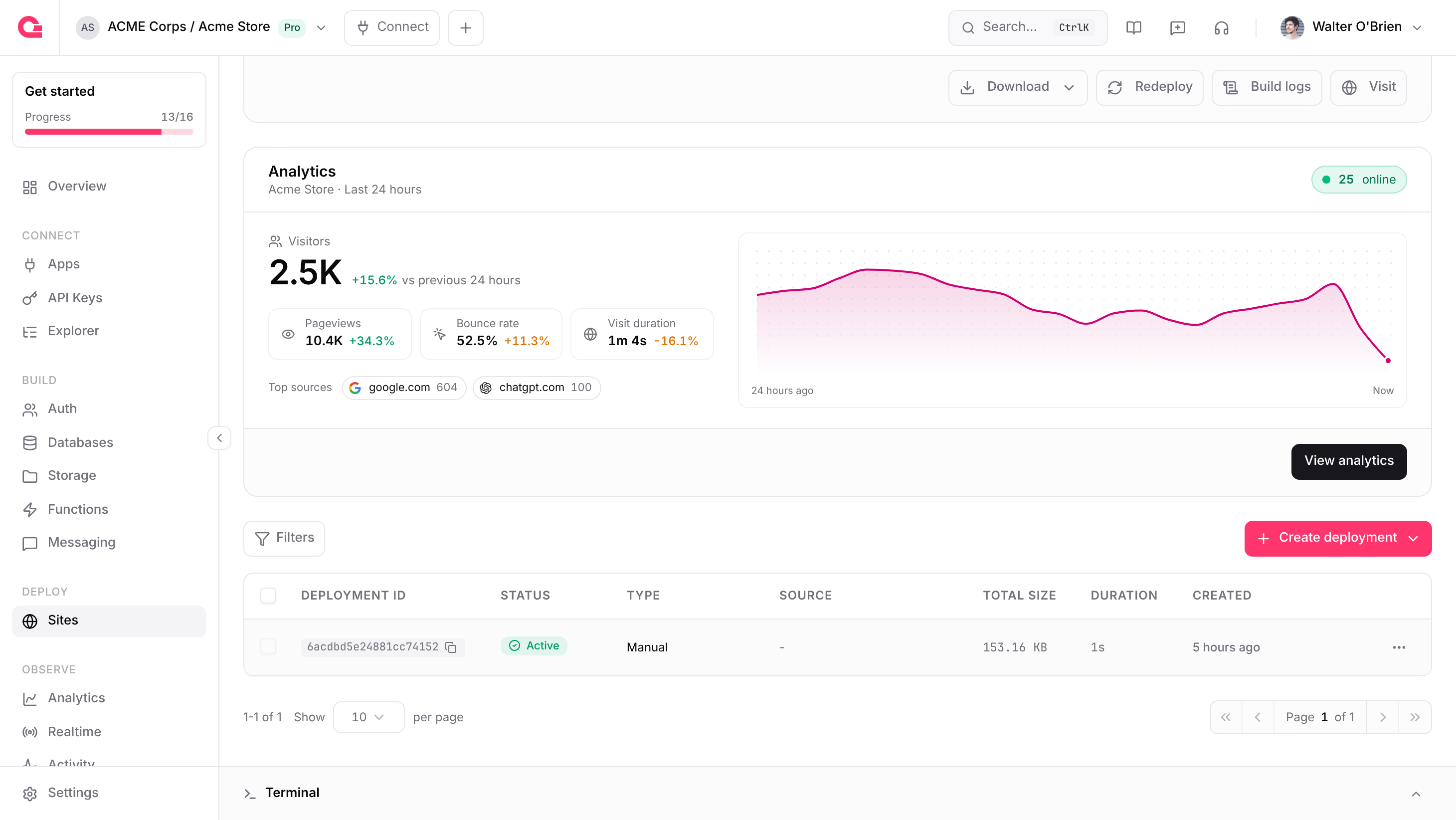
When a property's domain is one of the domains of a site you host on Appwrite Sites, the two are linked. The site's Deployments page shows an Analytics card with the last 24 hours of visitors, pageviews, bounce rate, visit duration, and top sources, and a button to open the dashboard.
A site without a linked property shows Add analytics on the same card. It opens the property wizard with the site's name and domain filled in.
A linked site also lets you create Firewall rules for the site from the dashboard. See Block traffic with Firewall.
Was this page helpful?
Share what worked or what we should fix. Once approved, our agents automatically apply suggested updates to the docs.